Write a task description
Write a description when a task needs more than its title:
- the steps;
- the context;
- a table of figures;
- a screenshot.
The description is made of blocks. Three characters do most of the work:
| Type | To |
|---|---|
/ | add a block: a heading, a checklist, a table, an image |
@ | mention a person |
# | mention another task |
Before you start
Edit access needed
To change a description you need Edit access to the task's list, and a permission set that lets you change the description. Without it you can read the description, but not edit it.
Description editor: open and type
Open the task and click the description, or press
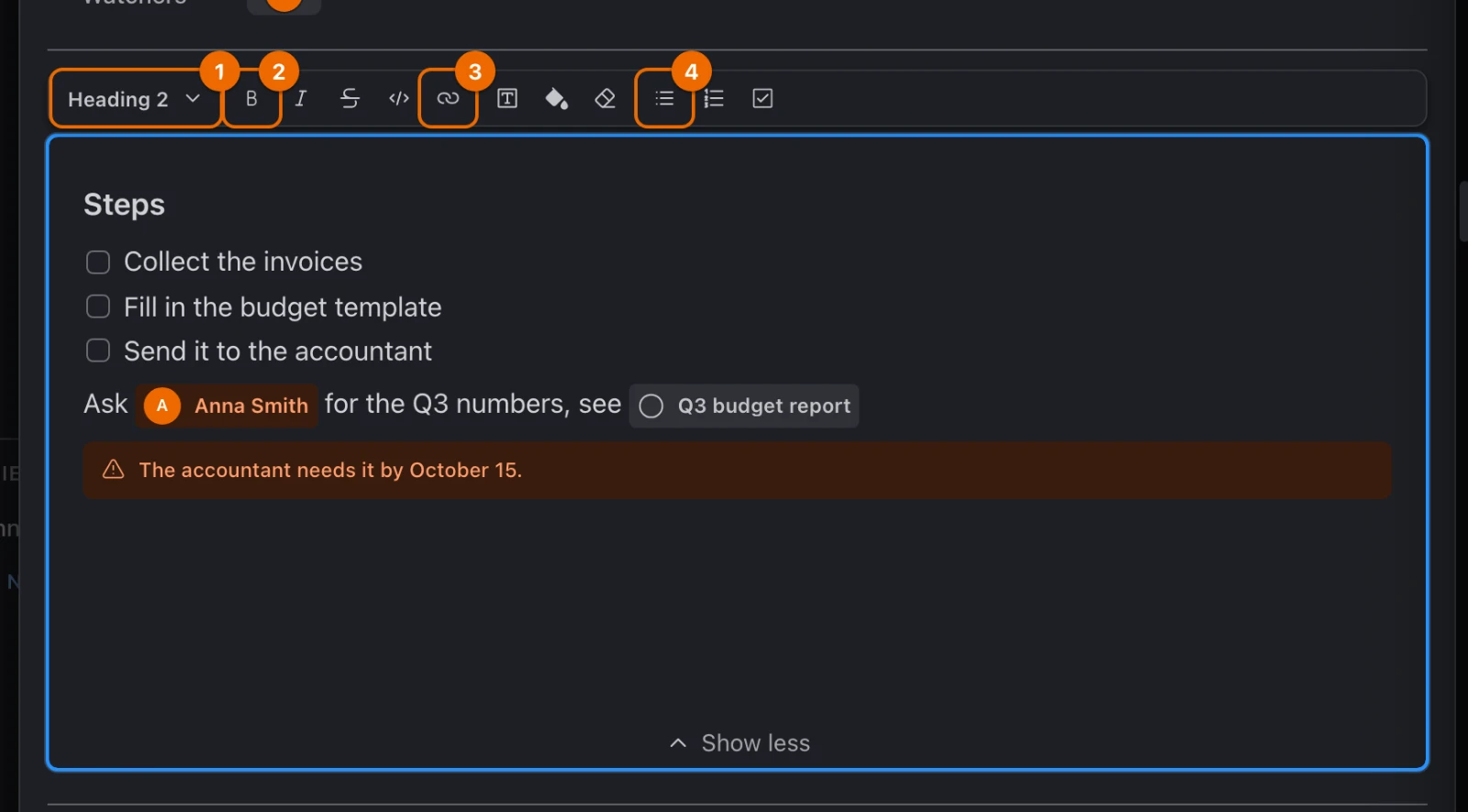
E. The cursor is in the text, and the toolbar's controls appear above it.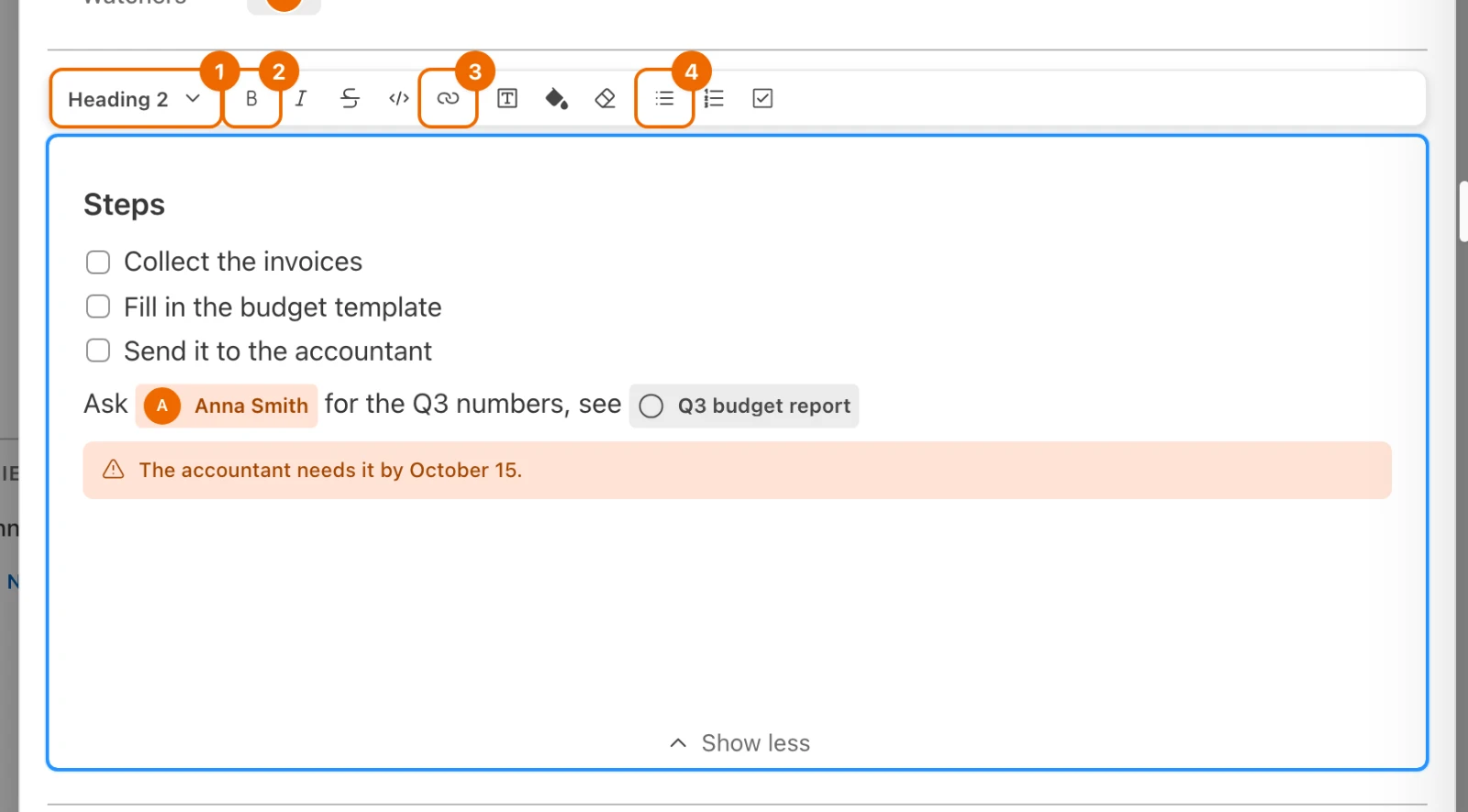
Change the key
Eis the default key. You can change it in User settings → Hot keys, see Keyboard shortcuts.Type. Hule saves as you type; there is no Save button. If someone else edits the same description at the same time, each of you sees the other's changes as they type.
The same editor in the New Task form
The Description field of the New Task form works the same way (Create and edit tasks).
Budget example: a description in four blocks
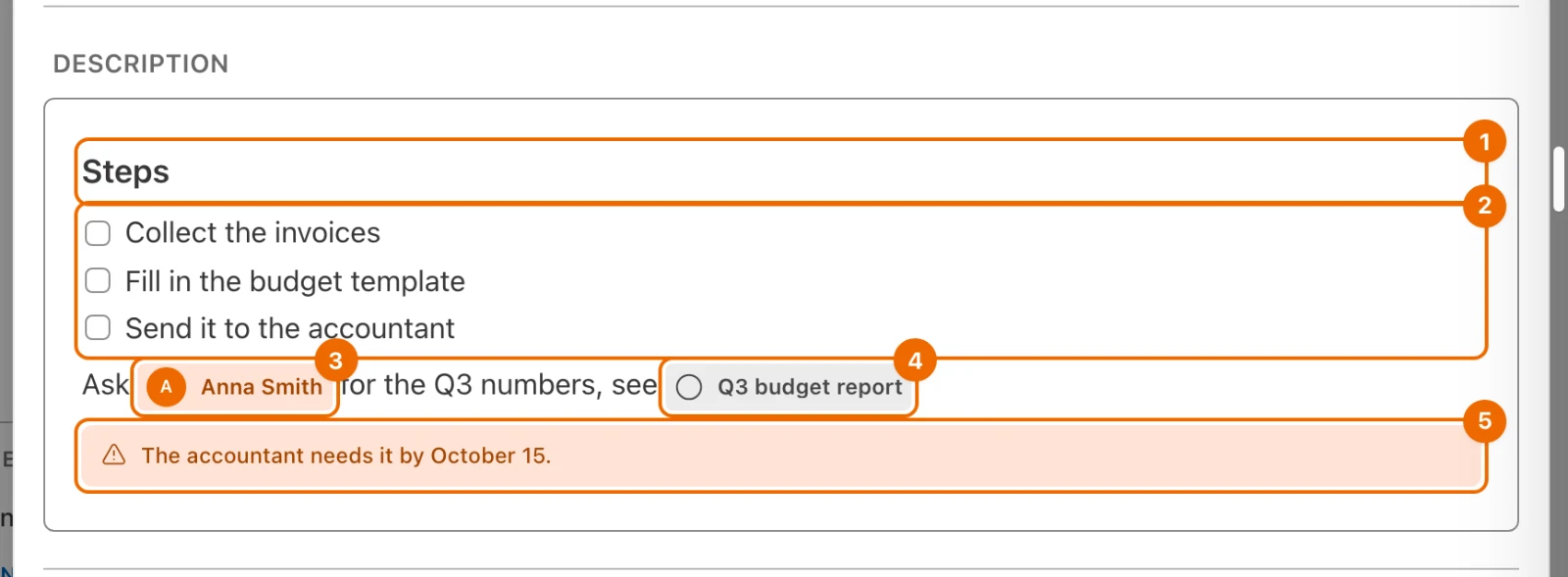
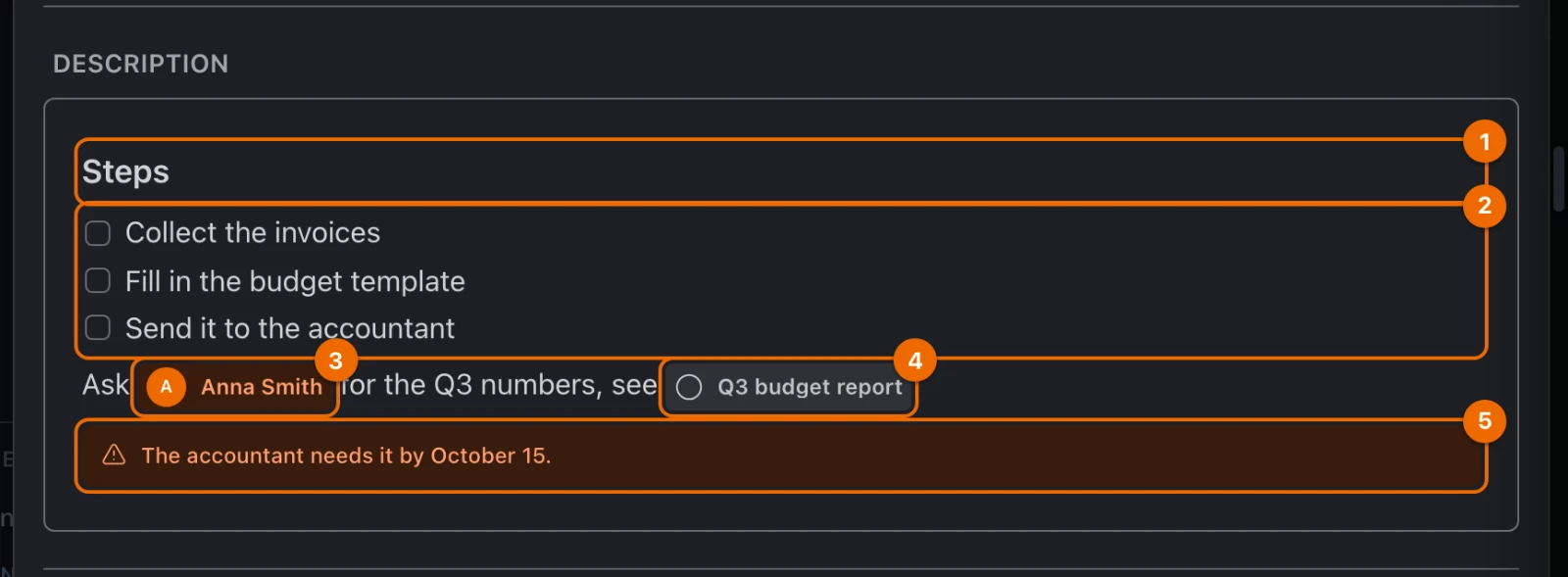
Build the description of the task "Draft the Q4 budget":
Type
/headingand pick Heading 2. The line turns into a heading.Type the heading and press
Enter:textStepsType
/checklistand pick Checklist. A checkbox appears at the start of the line.Type three steps, pressing
Enterafter each, then pressEnteron the empty item to leave the list:textCollect the invoices Fill in the budget template Send it to the accountantChecklist or subtasks?
A checklist item is text with a checkbox: it has no status, date or assignee. When a step needs those, make it a subtask instead.
Type the start of the next line, then
@Anna, and pick Anna from the list:textAsk @AnnaAnna's name turns into a chip, and she gets a notification.
Type the rest of the line, then
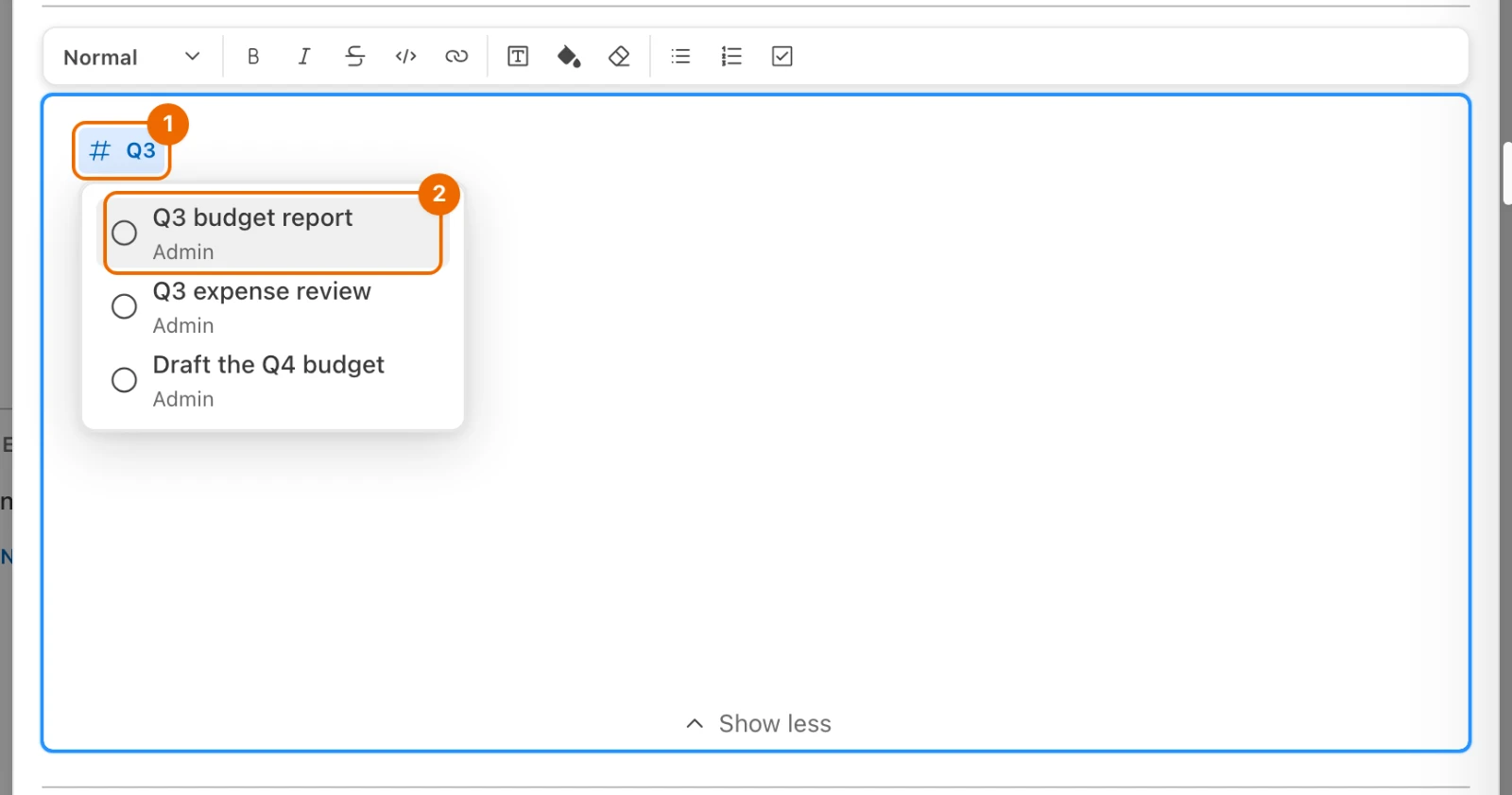
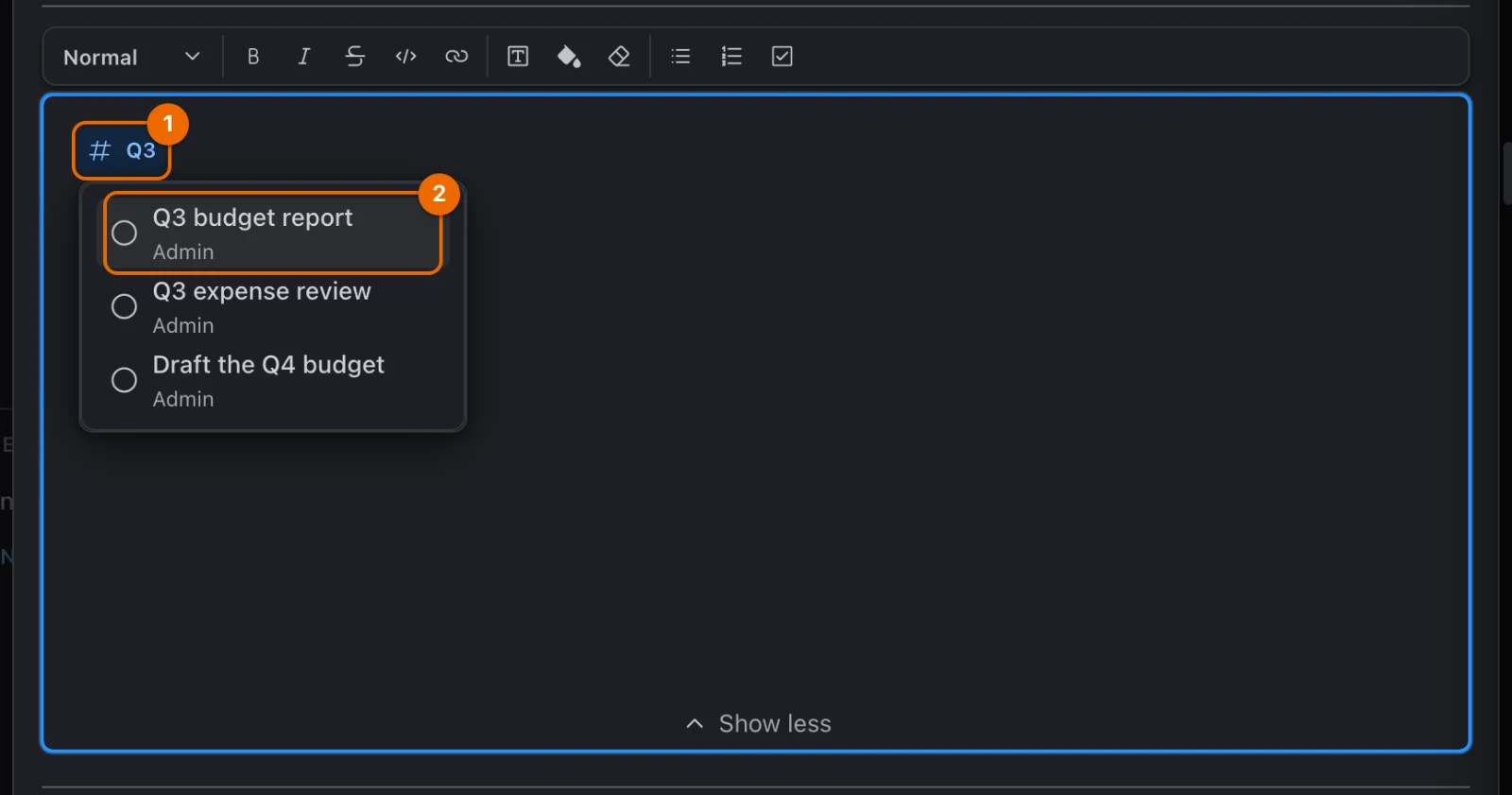
#Q3, and pick the "Q3 budget report" task:textfor the Q3 numbers, see #Q3The task turns into a chip, and "Q3 budget report" shows the relation is mentioned in.
On a new line, type
/bannerand pick Banner Warning. A colored box appears.Type the deadline:
textThe accountant needs it by October 15.
Slash menu: add a block
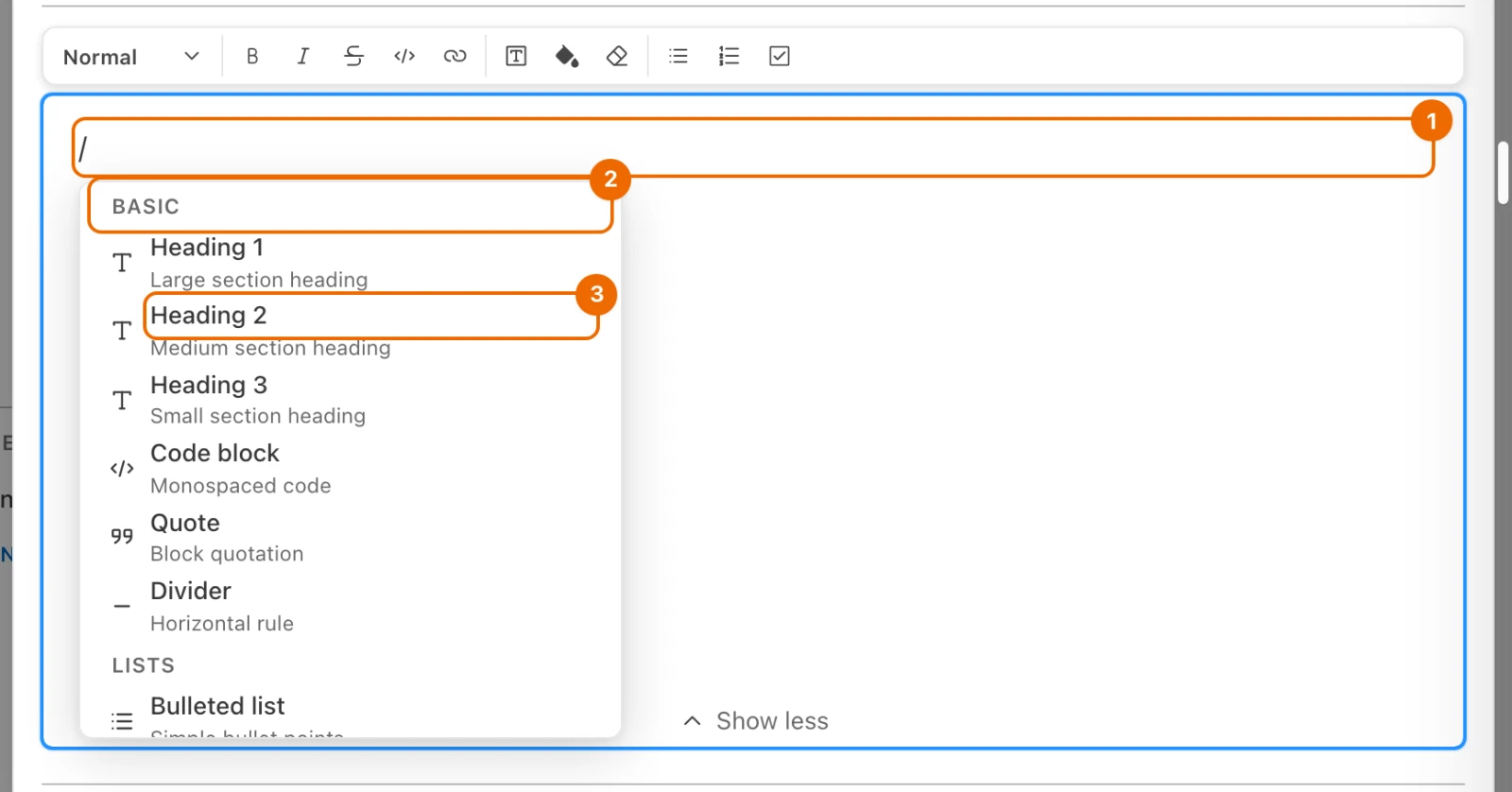
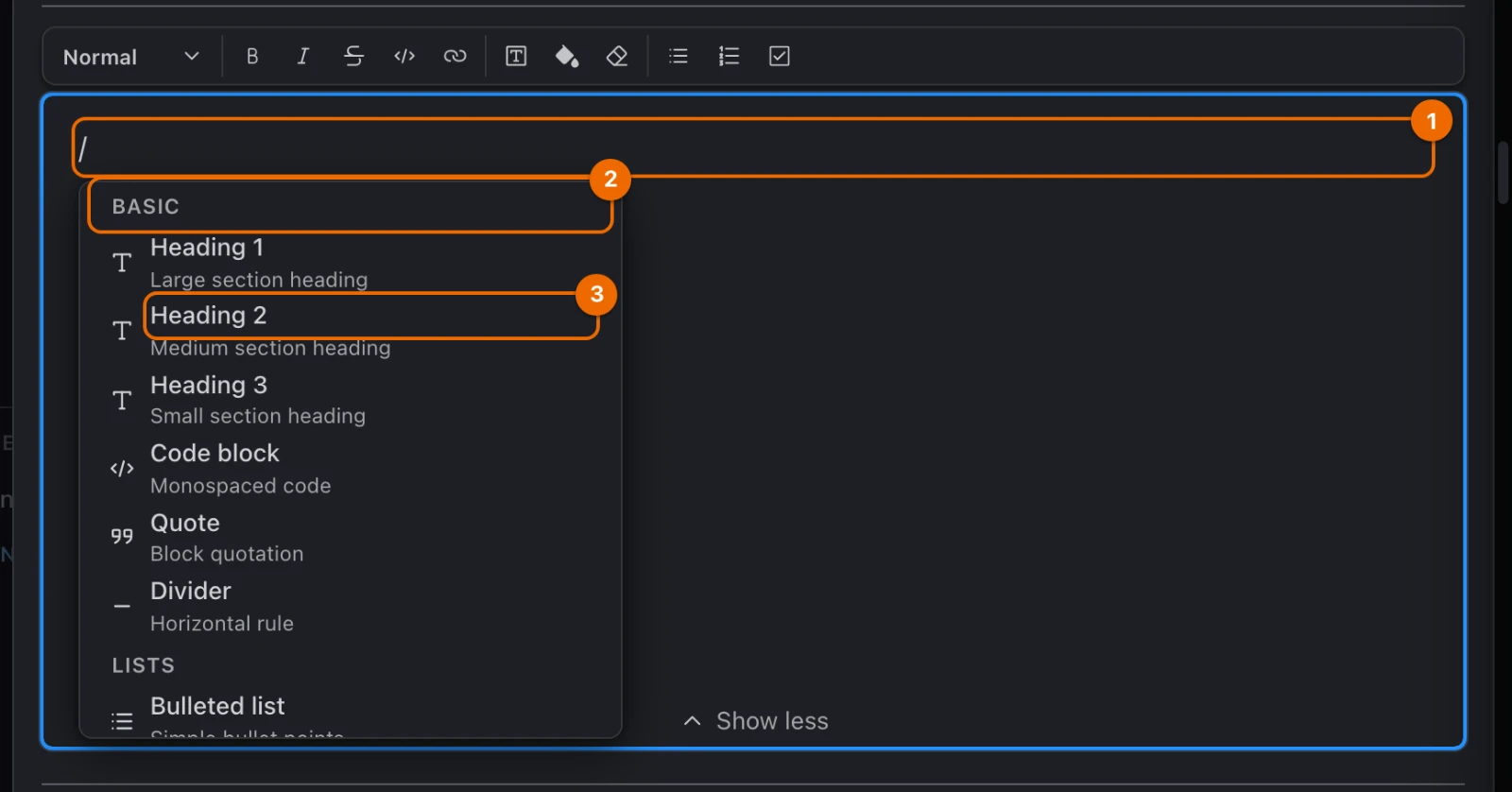
The / menu holds every block, grouped by kind. Type a word after the / to narrow it, for example:
/checkPick a block with the arrow keys and Enter, or click it. Every block, with its keys and Markdown shortcuts, is in Editor blocks and shortcuts.
A # starts a mention, not a heading
A # at the start of a word opens a task search. For a heading, use /heading or Block type.
The toolbar follows the cursor
While the cursor is in one of these blocks, the toolbar shows that block's own controls:
- a table;
- an image;
- a code block;
- a banner;
- columns;
- a chip.
Mention a person or a task
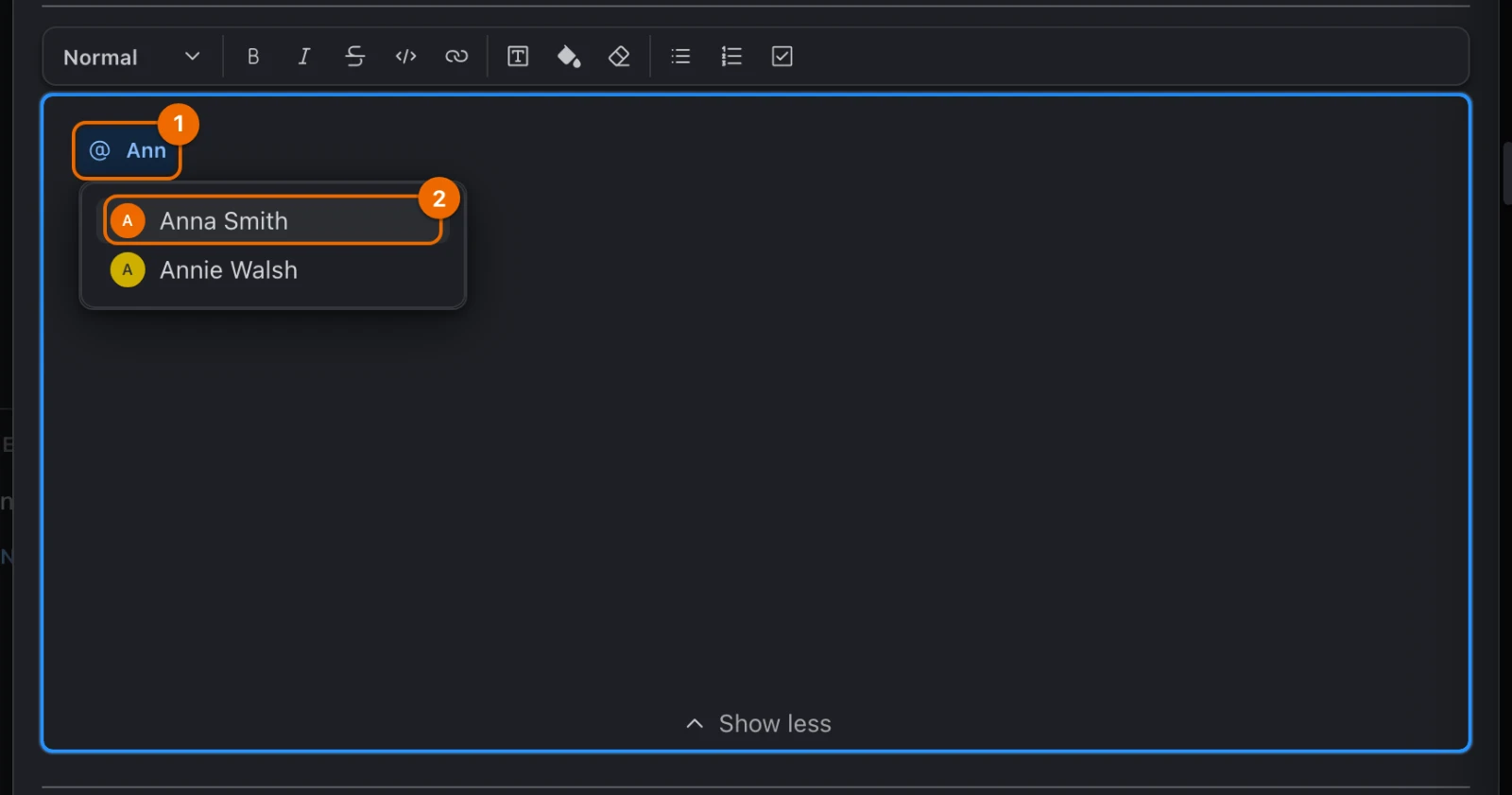
Type
@at the start of a word. A Search people… chip opens, with a list under it.Type part of the person's name (spaces are fine), then pick them with the arrow keys and
Enter, or click.Esccancels. The chip shows the person's name.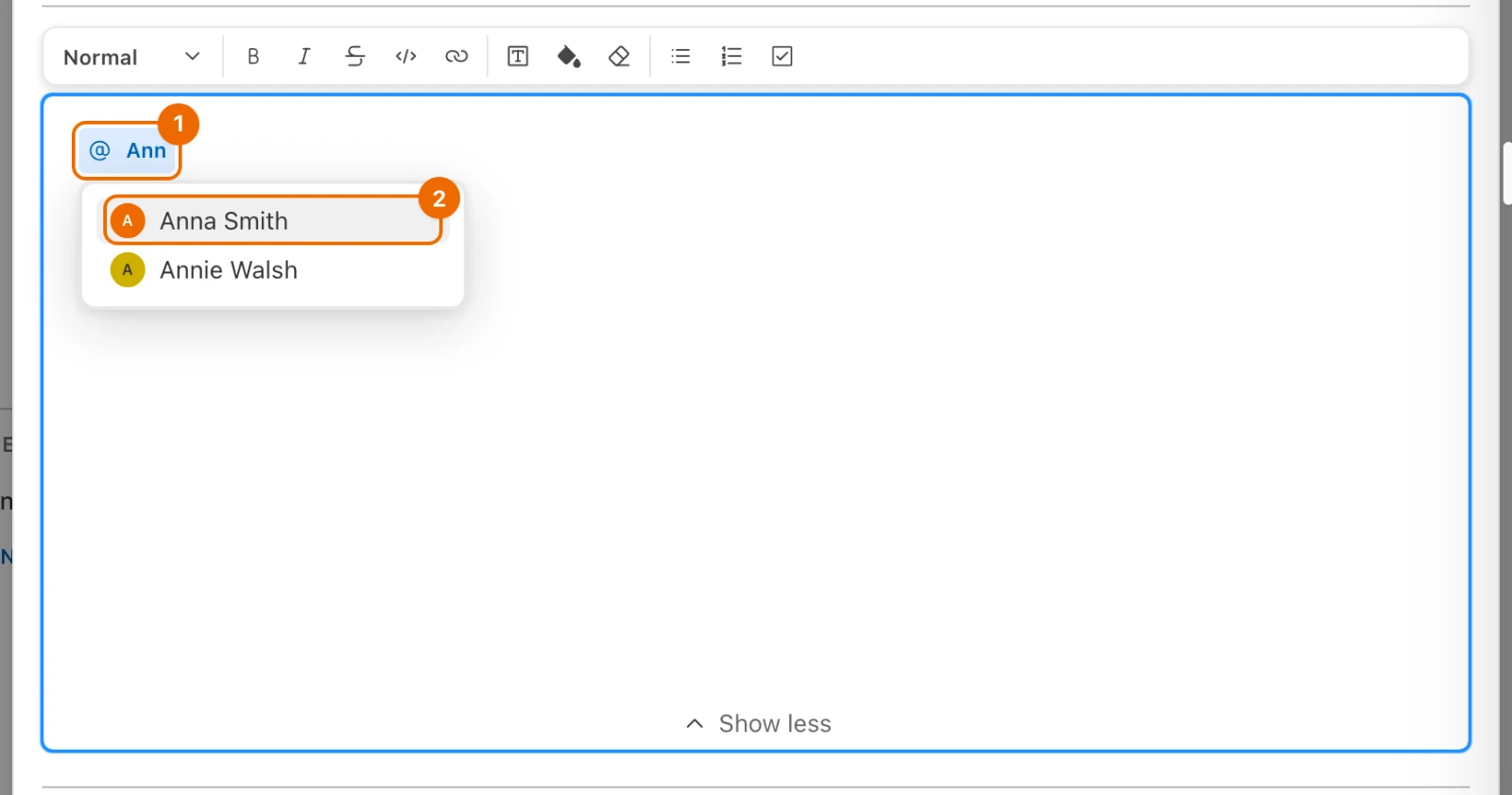
Who you can mention
The list offers the workspace's members and the people the list is shared with.
For a task, type
#at the start of a word. A Search tasks… chip opens, with your recent tasks under it.Type part of the task's title or its Task ID, and pick it. The chip shows the task's title and status.
What a mention does:
| Mention | What Hule does |
|---|---|
@ a person | sends them a notification once, when you add the mention, and adds them to the task's watchers |
# a task | adds a mentions relation from this task to that one; the other task shows is mentioned in (Link related tasks) |
Pasted links and screenshots
- Paste a web link on its own, with nothing selected: it becomes a link preview, a chip with the page's title and icon. Click it to open the page.
- Paste a screenshot: it becomes an Image block, uploaded to the workspace.
- Paste a link to a Hule task on its own: it becomes a task mention.
- Paste formatted text or Markdown: it turns into blocks.
Workspace storage
If an upload fails with Workspace storage limit reached, the workspace has used its storage. Remove files you no longer need from tasks and comments. Storage in Workspace settings shows what is used (Limits).
Every case is in Paste rules.
If it doesn't work
- Typing
#opens a task search instead of a heading.#at the start of a word starts a task mention. PressEsc, then use/headingor Block type in the toolbar (Slash menu: add a block). - The person you want isn't offered after
@. Only the workspace's members and people the list is shared with can be mentioned. Share the list with them, or invite them to the workspace. - The task you want isn't offered after
#. The search covers the task's own workspace, and only lists you can open. Paste the other task's link on its own: it becomes a mention chip, but a task in another workspace gets no relation (Paste rules). - You can't type in the description, and there is no toolbar. Either you have no Edit access to the list (Share a folder or a list), or your permission set can't change the description (Permissions and access). Ask a workspace admin.
- Pasted text brought formatting you don't want. Undo, then paste with Paste as plain text:
Cmd+Shift+V(Ctrl+Shift+V) (Editor keys). - A pasted link stayed a plain link, not a preview. A preview appears only when you paste one link on its own, with no text selected (Pasted links and screenshots).
Related
- Editor blocks and shortcuts: every block, shortcut and paste rule.
- Create and edit tasks: the rest of a task's fields.
- Link related tasks: the relations a
#mention adds, and the other types. - Comment and mention people: the same editor in comments, where your text is saved when you post it.
- Keyboard shortcuts: every key in one table.