Break a task down with subtasks
Split a task into subtasks when it is too big to do in one go: each step gets fields of its own, such as a status or an assignee, and the parent task shows how many are done. A subtask is a full task that lives in the same list as its parent, and it can have subtasks of its own.
In GTD terms, this is a project
In GTD, an outcome that takes more than one action is a project. In Hule it is a task with subtasks, one for each step, and a GTD session marks such a task as Project · 3 subtasks, with the number of steps.
Before you start
Subtasks on, and permission to create tasks
The list must have Subtasks turned on, which it is in every preset (turn it on in Configure → Features). You also need permission to create tasks in the list (Permissions and access); without it, Add subtask and the row's + are hidden.
Add subtasks
- Open the task. The Sub-tasks section is in the task window.
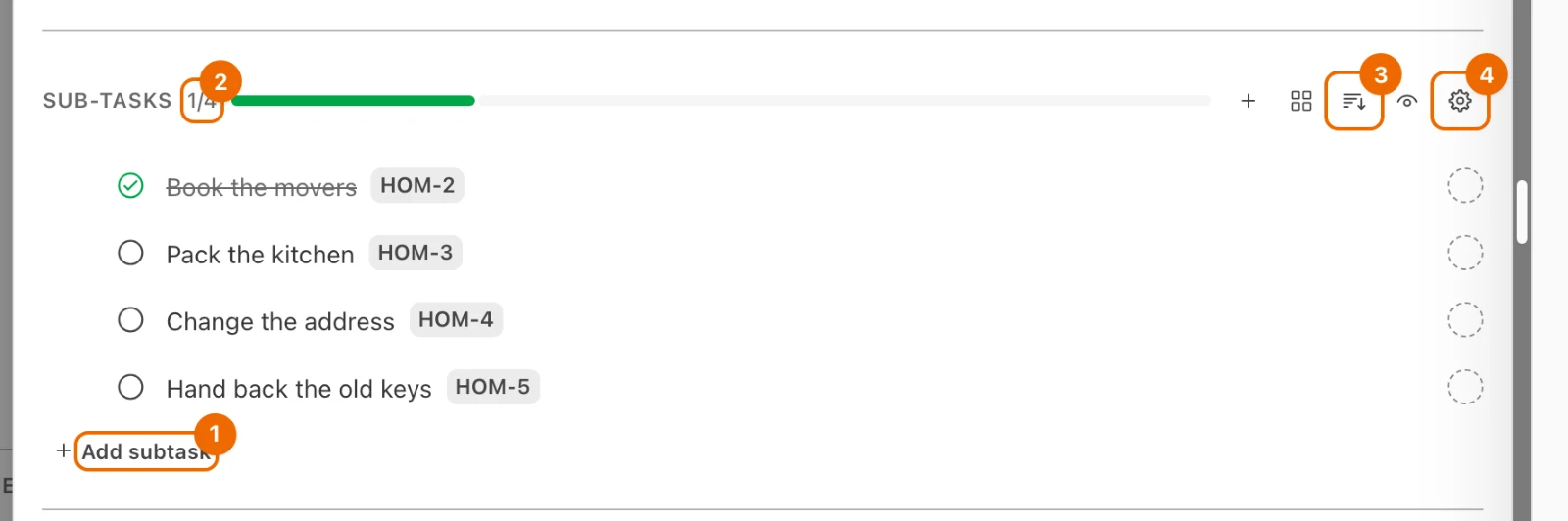
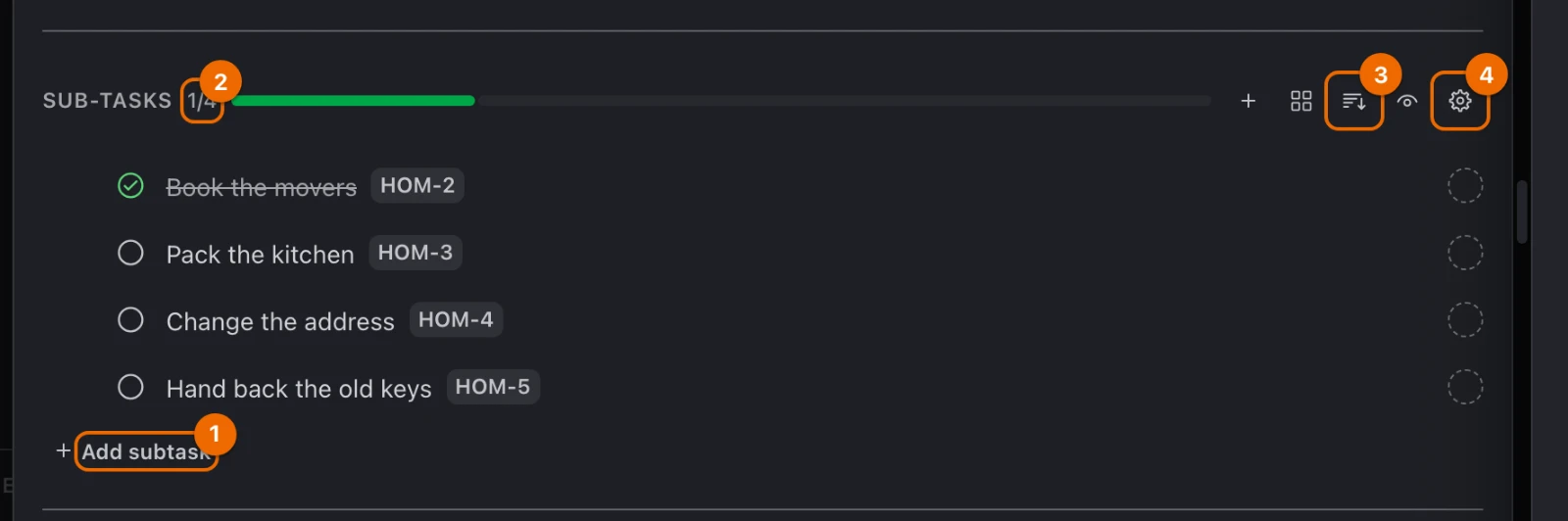
- In the Sub-tasks section, click Add subtask, type the title and press
Enter. The subtask appears in the section, and the counter next to the Sub-tasks title shows done and total, for example0/1. - Type the next title and press
Enter. The field stays open for the next one;Esccloses it.
Other ways to add one:
- In a List view, point at the task's row and click +. The + appears while the view's Show subtasks setting is on (it is by default).
- In a task's … menu, choose Add subtask.
- While the task is open, press
Cmd+N(Ctrl+N) in the desktop app, orCmd+M(Ctrl+M) in a browser (Keyboard shortcuts).
To break a subtask down further, open it and add subtasks the same way. There is no limit to the depth.
Subtask progress counters
A subtask counts as done when its status is in the Done stage.
- In the open task, the counter counts all subtasks at every depth.
- On a task's row in a view, the counter counts only its direct subtasks.
Subtask display: hide, sort, expand
| Control | Where | What it does |
|---|---|---|
| Hide completed / Show completed (eye icon) | the Sub-tasks section | hides or shows finished subtasks, in every task you open |
| Group by | the Sub-tasks section | groups the subtasks by a field, in every task you open |
| Sort sub-tasks | the Sub-tasks section | orders the subtasks, in every task you open |
| Sub-task display settings (gear) | the Sub-tasks section, for people who can edit the list | opens the list's settings on Sub-tasks, where you choose what each subtask row shows |
| Expand subtasks | a task's row in a view | shows its subtasks in the tree |
Parent change: make a task a subtask, or top-level
Open the task's … menu and choose Move…. The Move task dialog opens.
Edit access needed to move
Moving needs edit access to the task, and to the target list if you change it, see Permissions and access.
In Parent task, type part of the parent's title and pick it. To make a subtask a top-level task again, choose (none — root task).
The parent must be in the target list
Parent task searches only the list picked in Target list. For a parent in another list, pick that list in Target list first.
Click Move. The task now appears under its new parent, and its own subtasks move with it.
In a view, you can also drag a task onto another task of the same list. To lift a subtask out, drag the last subtask under its parent to the left: the further left you drop it, the more levels it goes up.
Deleting a parent deletes its subtasks
Deleting a task deletes all its subtasks with it, and there is no trash to restore them from. To keep the subtasks, make them top-level first: Move… → (none — root task).
Moving-flat example, broken down
Move to a new flat                1/4
├── Book the movers               done
├── Pack the kitchen
├── Change the address
│   ├── Bank
│   └── Post office
└── Hand back the old keys
The row in the list shows 1/4, counting the four direct steps. The open task counts all six subtasks and shows 1/6.
If it doesn't work
- There is no Sub-tasks section or Add subtask. Either the list has Subtasks turned off (turn it on in Configure → Features), or your permission set doesn't let you create tasks in this list: ask a workspace admin, see Permissions and access.
- You can't make a task from another list a subtask. A subtask always lives in its parent's list. Move the task into that list and under the parent in one go, see Parent change.
- You want to delete a parent but keep its subtasks. Make the subtasks top-level first, then delete the parent (Parent change).
- There is no + on the task's row. The view hides subtasks. Open the view's List settings and, under Subtasks, switch on Show subtasks (Views). The view's Slice set to Tasks and subtasks or Subtasks only also turns Show subtasks off: set it back to Tasks.
Related
- Create and edit tasks: fill in each subtask's fields.
- Task fields: what a task, and so a subtask, holds.
- The Hule model: where subtasks sit in the tree.
- GTD in Hule: the method behind projects.
- Run a GTD session: turns a task's steps into subtasks as you sort it.