Set up notifications
Set up notifications so you hear about what needs you, and not about everything else:
- a task assigned to you;
- a mention in a comment;
- a deadline.
Every notification lands in your Inbox, the app's page titled Notifications. The settings decide which events notify you and which other channels carry them.
Settings page: one per workspace
Notification settings belong to each workspace you are in. A new account starts with everything on except quiet hours. A workspace you join later starts with a copy of your own workspace's settings, and from then on each workspace keeps its own.
Click your name at the bottom of the sidebar and choose Workspace settings. With several workspaces, pick one in the submenu. Workspace settings open.
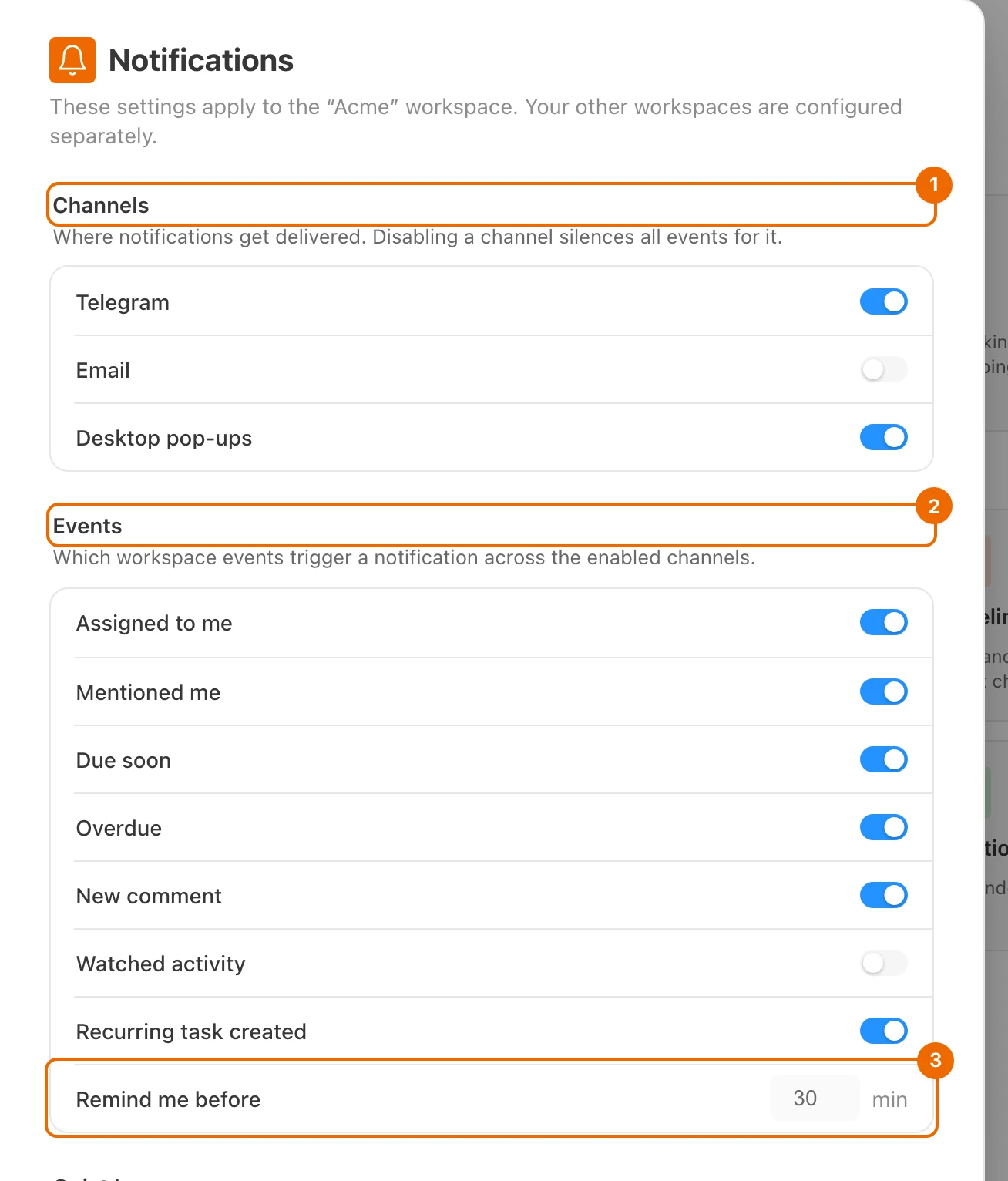
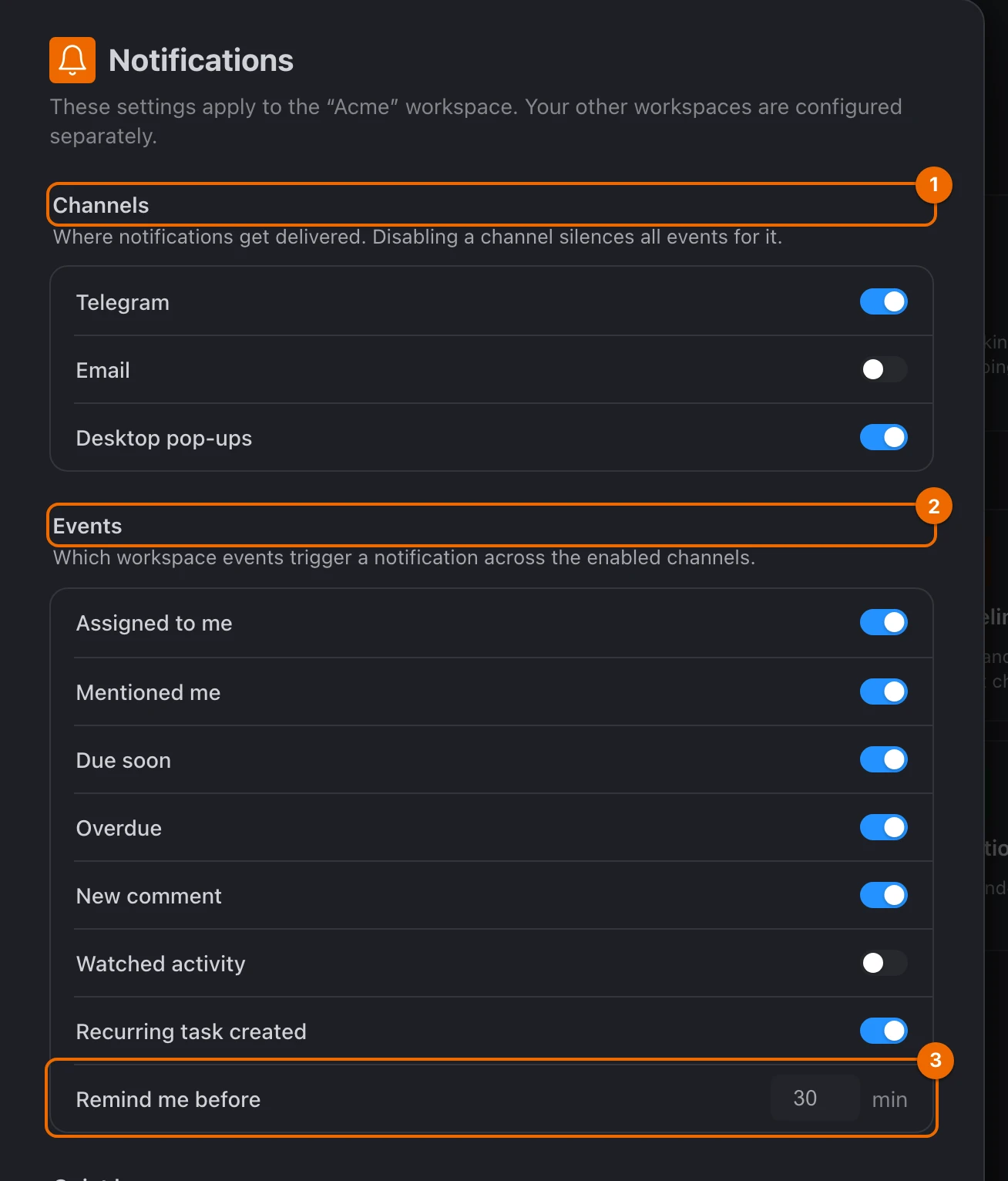
Under Me in this workspace, open Notifications. The page names the workspace it applies to. Every change on it saves as you make it.
Other workspaces keep their own settings
A change here doesn't reach your other workspaces. To change one of them, pick it in the submenu of step 1.
Under Time zone, check Zone. If the page says your browser is in another time zone, pick yours. Reminders, summaries and quiet hours all follow it.
One time zone in every workspace
Apply to all my workspaces, next to Time zone, copies the zone to your other workspaces once. It doesn't keep them in sync.
Channels: where notifications reach you
Under Channels, leave on the channels you want and switch off the rest:
- Telegram;
- Email;
- Desktop pop-ups.
A channel you switch off carries no events.
Telegram and Email need setup first
Telegram carries nothing until you connect the Hule bot: the switch alone isn't enough. Email needs a Contact email on your Member profile, under Me in this workspace.
Pop-ups in a browser need permission
Desktop pop-ups is on by default, but a browser asks for permission only when you click the switch: switch it off and on once, then choose Allow. The desktop app needs no permission; on an iPhone or iPad, pop-ups work only from Hule added to the Home Screen.
Channels compared
| Channel | Carries | Needs |
|---|---|---|
| Inbox in the app | every event that is on; the channel itself can't be switched off | — |
| Telegram | every event, with Open and ✅ Done buttons (and 💤 +1h on deadline reminders) | the Hule bot connected — Use the Telegram bot |
| Desktop pop-ups | every event, as a system notification | your browser's permission, or the desktop app |
| Due soon and Overdue while Telegram is not connected; daily and weekly summaries | a Contact email on your Member profile in this workspace |
Events: what notifies you
Under Events, switch off what you don't want to hear about:
- Assigned to me;
- Mentioned me;
- Due soon;
- Overdue;
- New comment;
- Watched activity;
- Recurring task created: a new task of a repeating series.
The switch saves at once, and that event stops notifying you on every channel, the Inbox included.
In Remind me before, set how many minutes before the end of the due day Due soon fires: from 5 to 720, 30 by default (30 means 23:30). Overdue comes at midnight.
Counted from the end of the day
Due soon counts back from the end of the due day even when the task has a time: with the default 30, a task due at 10:00 reminds you at 23:30.
Each event reaches one person or group:
| Event | Goes to |
|---|---|
| Assigned to me, Due soon, Overdue, Recurring task created | the task's assignee |
| New comment, Watched activity | the task's watchers |
| Mentioned me | whoever is mentioned |
Example: Telegram first
Anna leads Acme and wants deadlines and mentions on her phone, but not every status change. She keeps Telegram on, switches off Watched activity, and sets Remind me before to 120. Every other event reaches her in Telegram; a task due on Friday reminds her at 22:00 that day. Status changes on tasks she watches no longer notify her anywhere, not even in her Inbox; she sees them in the task's history.
Daily and weekly summaries
Daily summary (09:00) and Weekly summary (Monday) are on by default.
Under Summaries, set the daily Time, or switch Daily summary off. The Time row disappears while the daily summary is off.
Pick the weekly Day of week, or switch Weekly summary off. The weekly summary comes at the daily summary's time.
Weekly time with the daily summary off
Switch Daily summary on, set Time, and switch it off again.
A summary arrives up to half an hour after the set time:
- in the app;
- in Telegram, if the bot is connected and Telegram is on;
- by email, if you have a Contact email and Email is on.
The daily summary is skipped on a day with nothing to report; the weekly one always comes.
Quiet hours at night
Under Quiet hours, switch on Keep quiet. The from and to rows appear.
Set the window — 22:00 to 08:00 by default. During the window, notifications still land in your Inbox, and every other channel stays silent.
Nothing is sent later
What the window silenced isn't sent after it ends. It waits in your Inbox.
Inbox: where notifications wait
Click the bell (Notifications). Your Inbox opens: the page titled Notifications.
Click a notification about a task. The task opens at what the notification is about:
- a comment, or a mention in one: scrolled into view in Comments and flashes (the tab opens if another one was showing);
- a mention in the description: the description flashes;
- a change on a task you watch: the changed fields flash.
A toast, or a pop-up from the desktop app, does the same when you click it. A pop-up in the browser can open the task without scrolling to the comment.
On a notification, click Snooze and pick when it comes back:
- In 3 hours;
- Tomorrow, 9:00;
- Monday, 9:00.
The notification hides until then. Archive moves it out of the list instead.
Back to these settings
The gear in the Inbox, Manage notifications, opens the notification settings.
If it doesn't work
- "Your browser has blocked notifications — re-enable them in browser settings." You denied the permission earlier. Allow notifications for Hule in the browser's site settings, then switch Desktop pop-ups off and on; see Channels.
- On an iPhone or iPad the page says to add the app to the Home Screen. Pop-ups there work only from the installed app: add Hule to the Home Screen and open it from there — see Install the desktop app.
- No deadline emails. Deadline emails come only while Email is on, Telegram is not connected, and you have a Contact email on your Member profile (see Channels compared). If whoever invited you entered that address, open Member profile and save it once to confirm it.
- Reminders come at the wrong hour. Check Zone under Time zone; see Settings page.
- The reminder came hours after the task's time. Reminders count back from the end of the due day, not from the task's time; see Events.
- Nothing arrives in Telegram. Connect the bot first: it is a separate step from the Telegram switch. See Connect the bot.
- A setting "didn't stick" in another workspace. Each workspace has its own settings. Open the other workspace's Notifications page; see Settings page: one per workspace.
Related
- Assign and watch tasks — which tasks you get notified about.
- Use the Telegram bot — connect the Telegram channel.
- Install the desktop app — pop-ups on a computer or phone.
- See what changed in a task — changes you no longer get notified about.
- Comment and mention people — how mentions reach someone.
- Telegram bot commands — what the bot answers to.