Run an inbox flow as a manager
This recipe is for a team lead who gets requests from everywhere. Instead of tracking them in your head, every request lands in one list, and once a day you turn each one into a decision in a GTD session.
You need a team folder you can add a list to, and for step 5 a Telegram account connected to Hule.
Permissions for the setup
Creating the list needs Create for lists, and sharing it needs Share: the List/Folder manager and Admin sets have both. See Permissions and access.
Requests list and Triage view
- A Requests list where your team, and you, drop anything that needs a decision.
- A GTD view on that list, where one session takes you through the requests one at a time.
- Every request ends up in one of four places:
- delegated to another list;
- scheduled for you in another list;
- put off in
Requestsuntil a later day; - closed.
Team (folder, shared with the team)
├── Requests      ← the Inbox list: everyone can add here
├── Product
└── Support
Inbox setup
Add a list called
Requestsin your team's folder (Create a list). It appears in the sidebar.In its Configure → Features, pick the Teamwork preset (Turn features on or off). Tasks in
Requestsget an assignee field, watchers and time tracking. Do the same for the lists you delegate to, such asProductandSupport, so people can be assigned there.Share the list, or the folder it is in, with the team with Edit access (Share with a member). Members see
Requestsin their sidebar and can add tasks to it with their Worker set.Click your name at the bottom of the sidebar, choose Workspace settings, and under Me in this workspace open GTD. Pick
Requestsas the Inbox list (Inbox list setting). New tasks you create without choosing a list now land inRequests.List refused?
"This list can't be your inbox" means you can't create tasks in it: ask for Edit access.
From your phone, send the bot a request and tap
Requestsin its reply (Add tasks from Telegram):text/new Ask the landlord about the Berlin office tomorrowThe task Ask the landlord about the Berlin office appears in
Requests, due tomorrow.Bot says your account isn't connected?
Connect it first: Connect the bot.
In the list's menu, choose New view, set Display Mode to GTD and name it
Triage(GTD view on your Inbox list). The view shows Start GTD session · 1, with the number of requests waiting; an empty list shows Inbox zero.Ask the team to put anything they need from you into
Requests, one task per request.
Daily triage session
Pick a fixed time, for example 9:30 after the stand-up, and open Triage.
Press Start GTD session. The session shows one request at a time. It skips requests that are put off, closed or that you can't change.
Answer Is it actionable? (Decision path in a session).
On Yes, it's actionable, check the Desired outcome: it becomes the task's title, and any steps you add become its subtasks. Then pick what happens:
Choice Use it when What Hule does I'll do it now It takes under two minutes Starts a two-minute clock; you close the task when done Schedule it and do it myself It is yours to do Assigns it to you and moves it to the list you pick, with dates if you set them Delegate it Someone else owns the next step Moves it to the list you pick. Pick the person under Assign to and a follow-up date under When; both are optional On No, pick what it is:
Choice Use it when What Hule does Someday / maybe Not now, not never Keeps it in Requestsuntil the day you pickTrash It needs nothing Delete removes it; Keep keeps it as a record with its history, still found by search
Delegating? Pick another list
A delegated request left in
Requestscomes back in the next session unless its start date is still to come.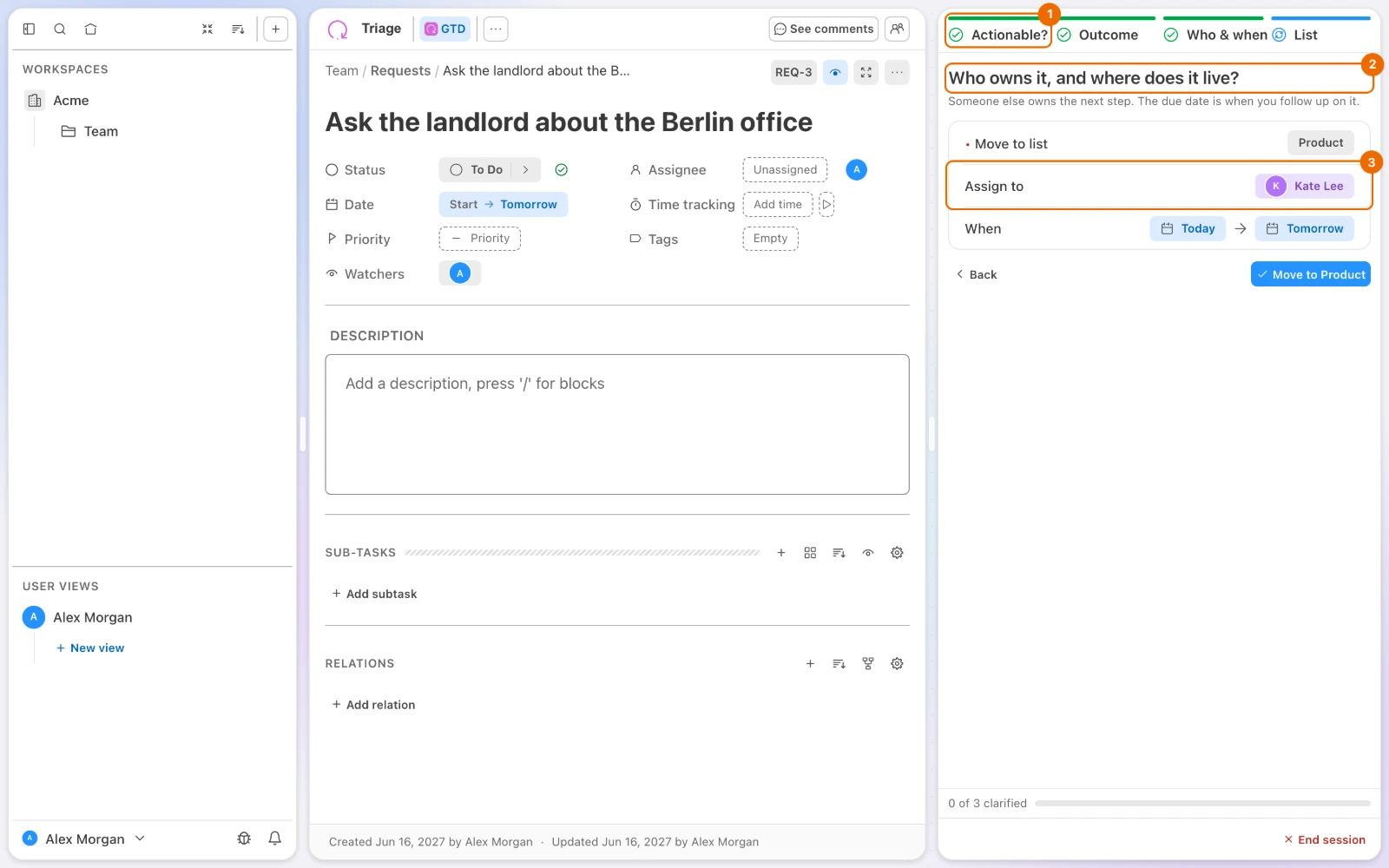
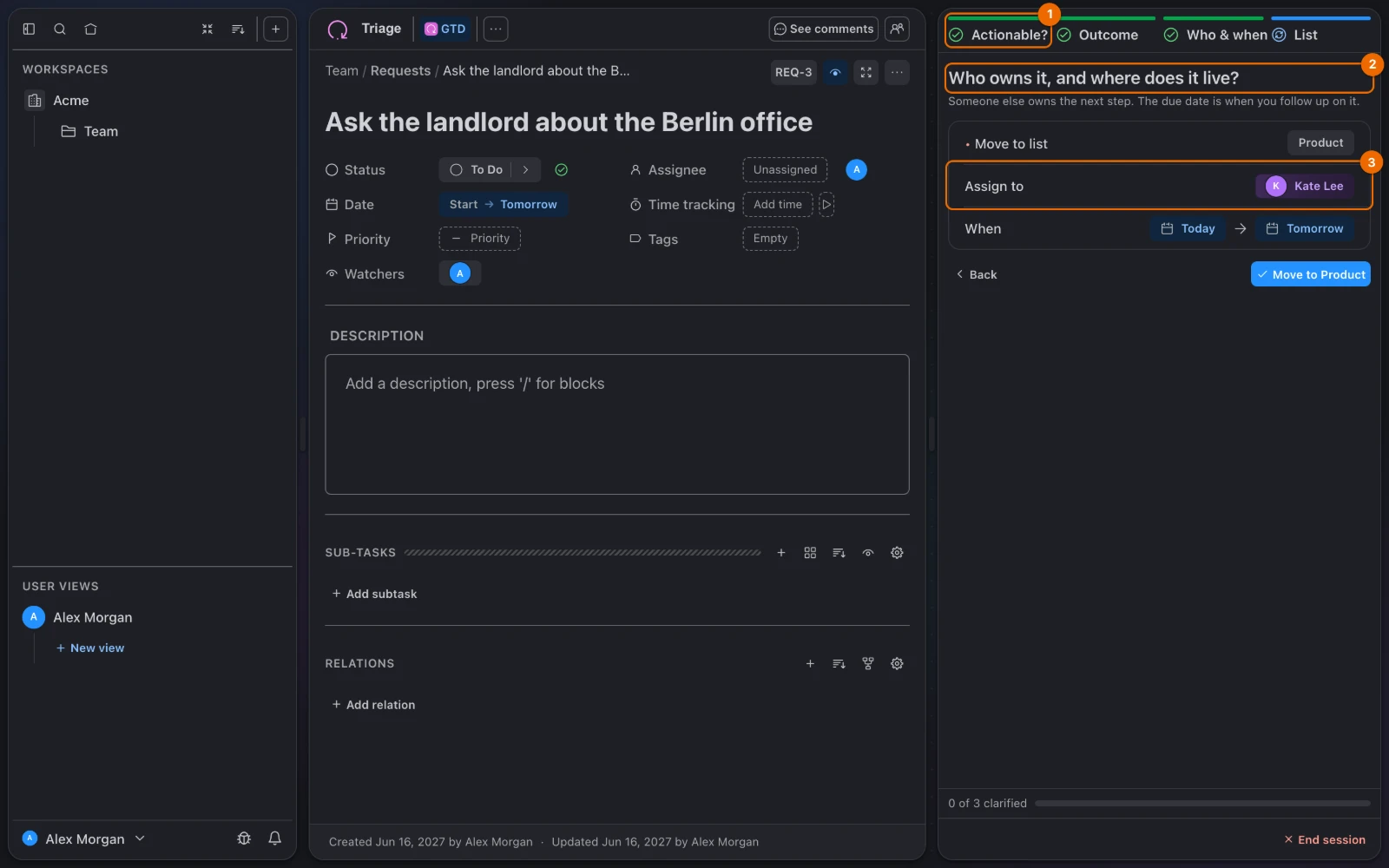
Trash → Delete can't be undone
The task goes with its history (Not actionable).
When the view shows Inbox zero, press End session. What stays in
Requestsis:- put off to a later day;
- closed;
- or a task you can't change.
A delegated task's due date is the day you follow up. To hear about its progress before then, choose Watch in the task's menu (Watch a task).
Triage problems and fixes
A request skips the session. The session mutes tasks that are put off, closed or that you can't change. Check the request's:
- start date;
- status;
- access: yours to the list.
See Run a GTD session.
"This list can't be your inbox". You can't create tasks in that list. Ask for Edit access to it and a permission set that lets you create tasks (Permissions and access), or pick a list you can add tasks to (Inbox list setting).
Requests pile up for days. Keep sessions short: anything you can't decide in a minute goes to Someday / maybe with a return day next week (Not actionable).
A delegated request came back to the session. You kept it in
Requests. Pick another list under Move to list, or give it a start date still to come (Next action).
Variations
- Solo inbox. Skip the sharing in step 3 and use the same flow for your own requests.
- Weekly triage. Run the session once a week as part of your weekly review.
- Auto-routing. Add an automation that runs When Created under Tasks, Where the list is Requests, Only if Title contains a keyword, Then Move to list with the right list, so a request reaches it before you see it (Create an automation).