Create and edit tasks
Add a task whenever something needs doing, and fill in the rest (Task fields) when you get to it, for example when you sort your Inbox list. Only the title and the list are required. Change fields in place in the open task or with quick actions on its row, and use the task menu for everything else.
Before you start
You need a list to put the task in. If you have none, create a list first.
You must be able to create tasks
In a shared list, you need Edit access to the list and a permission set that allows creating tasks.
Create a task
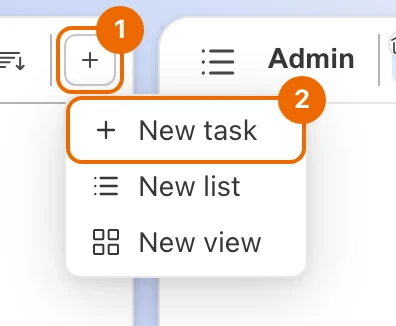
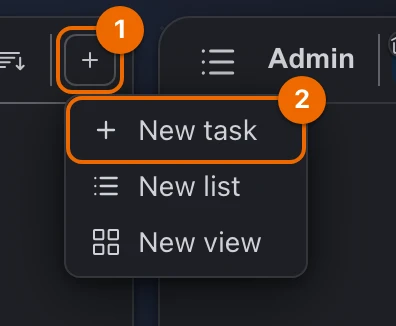
Click + (Create) at the top of the sidebar and choose New task. The New Task form opens.
Cmd+N in the desktop app, Cmd+M in a browser
In the desktop app, press
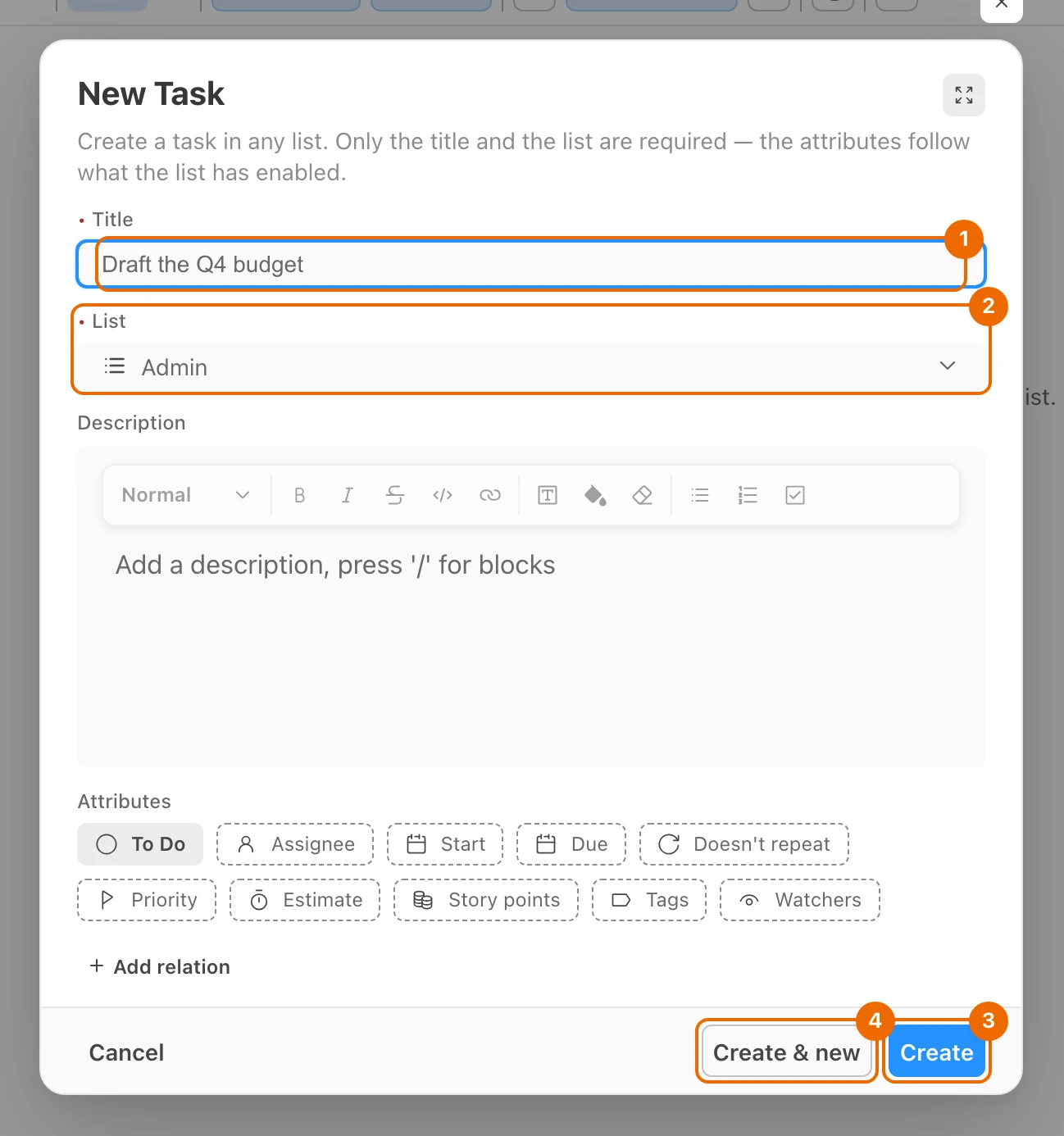
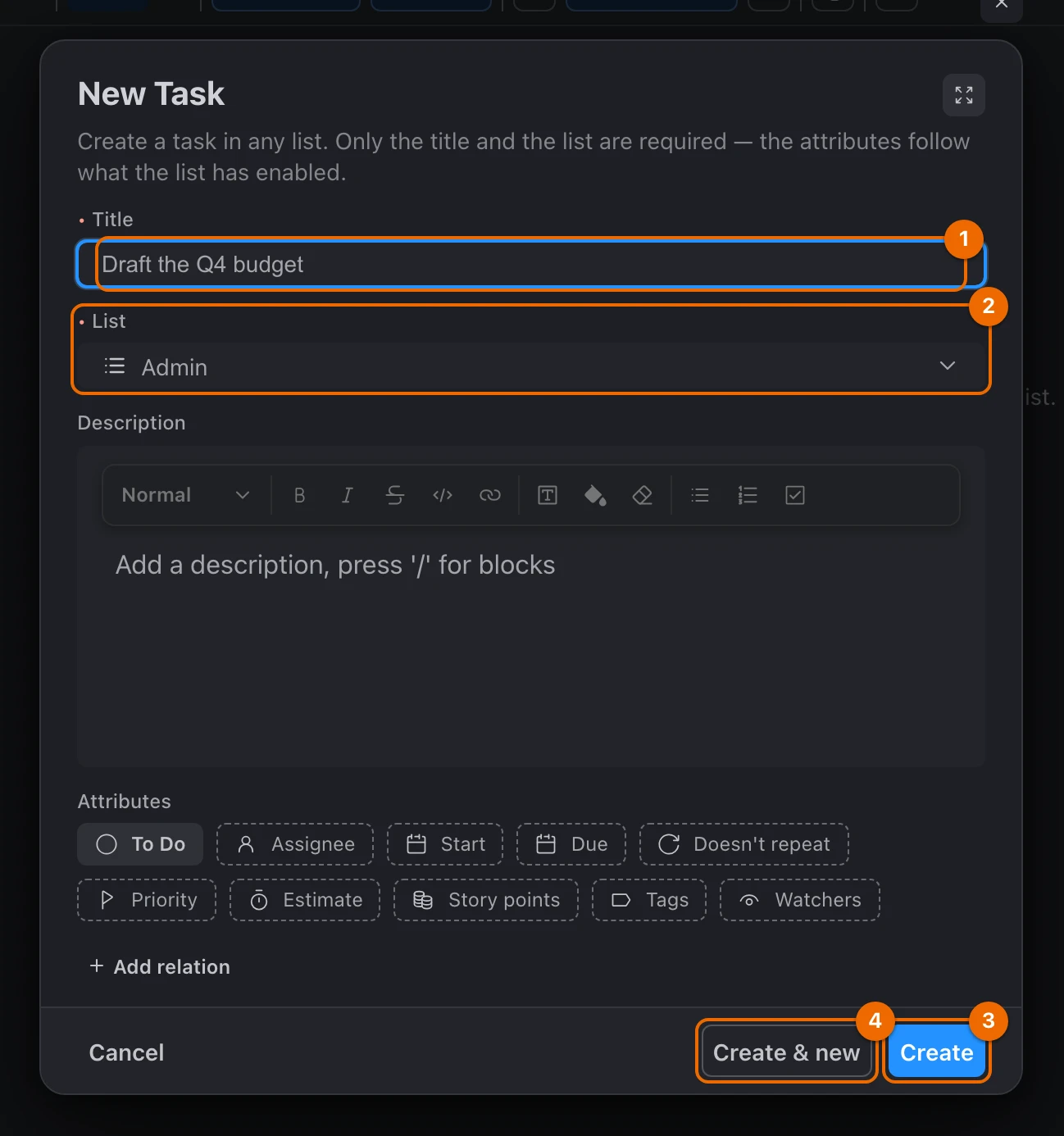
Cmd+N(Ctrl+Non Windows and Linux). In a browserCmd+Nopens a new browser window, so there the key isCmd+M(Ctrl+M). On an open task, the same key adds a subtask instead.Type the Title. Create becomes available once a list is picked too.
Check List and pick another list if needed. It starts on the list you are in, or on your Inbox list, depending on the New task setting. The Attributes below change to the fields that list has turned on.
The list isn't in the picker?
The picker offers only lists you can create tasks in. To add tasks elsewhere, you need access to that list, see Permissions and access.
Optionally, fill in Description and Attributes. In Description, type
/for blocks, see Write a task description.Click Create, or Create & new to add another one straight away. A message confirms Task "Draft the Q4 budget" created.
New task in a view's header opens the same form. It is there in these view types:
- List;
- Kanban;
- Table;
- Timeline;
- Calendar;
- GTD, outside a session: the + button.
In a view that shows one list, List starts on that list.
In a List view you can also add a task in place, while the view's List settings → Creation → Quick task creation is on (it is by default):
- if the view is not grouped, type into Add a task, press Enter above the tasks;
- if it is grouped, click Add task at the bottom of a group.
A view with no tasks yet shows a New task button instead: it opens the New Task form on that view's list.
Edit an open task
Click a task in any view. The task opens in a large window over the page you were on.
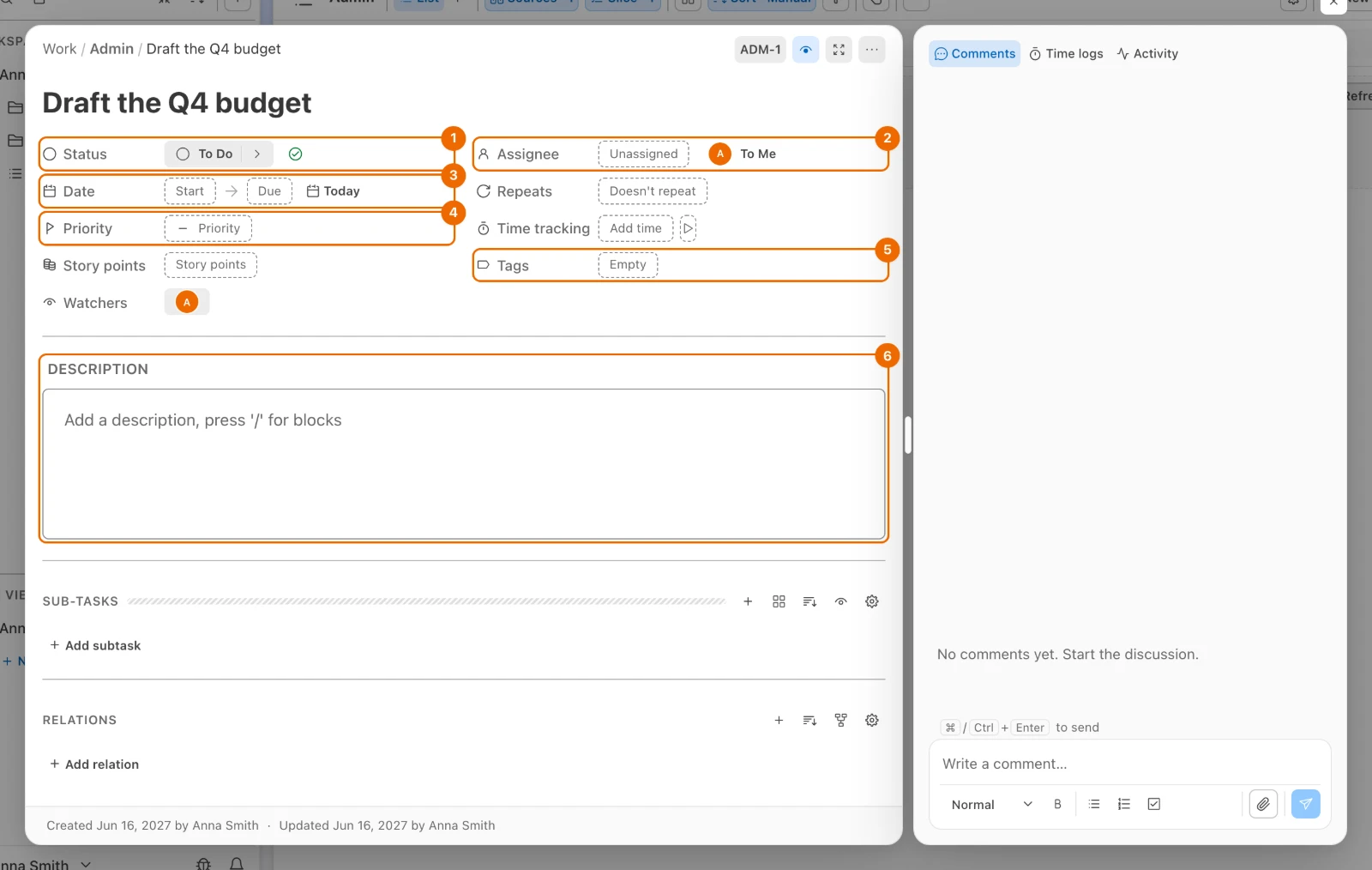
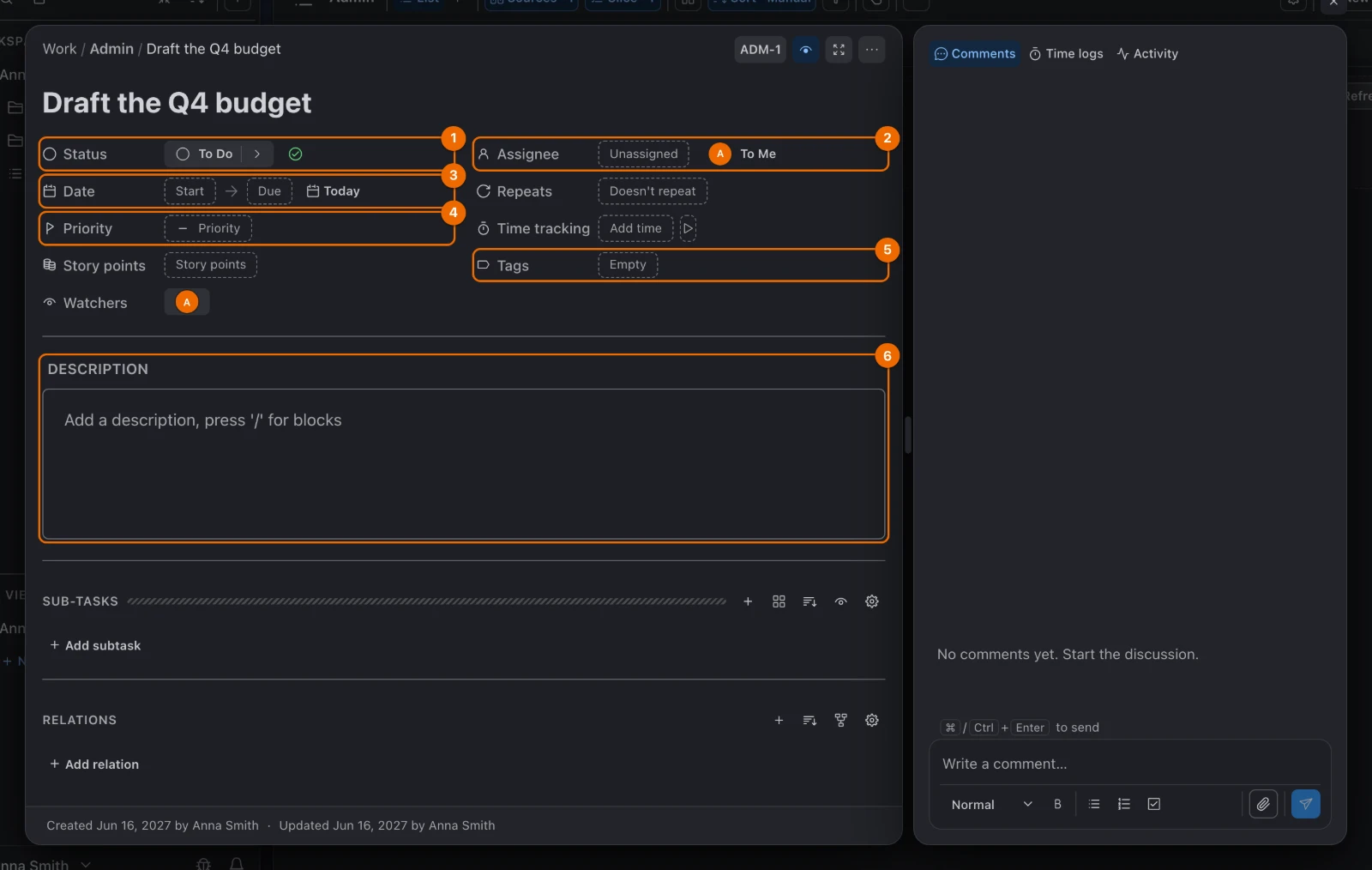
Click a field to change it, or press its key:
Field Key Values Status Sthe statuses of the task's list Assignee Athe workspace's members and people the list is shared with (Assign and watch tasks) Date Dthe start and due dates, in one panel, and a Time if you need one (Plan on the timeline and the calendar) Priority PNone, Low, Normal, High, Urgent Tags Tthe tags the list offers (Tag tasks) Time tracking has no key: click it. The new value shows at once; there is nothing to save.
A field is missing?
Which fields a task shows depends on its list. A missing field is turned off in the list's features: turn it on in Configure → Features (you need Edit access to the list and a permission set that allows changing lists, such as List/Folder manager or Admin — Worker does not).
Click the description, or press
E, and write. Three characters open a menu under the cursor:/adds a block, such as Checklist or Table (Write a task description);@mentions a person (Comment and mention people);#mentions another task and links the two (Link related tasks).
Close the window, or press
Esc. You are back on the page underneath.
Quick actions on a task row
Change a task without opening it: with the buttons on its row, the fields on the row, or a modifier key held while you click it.
Row buttons and fields
Hover a task's row in a List or Table view. Buttons appear at the end of the row:
| Button | What it does | More |
|---|---|---|
| + (Add subtask) | adds a task under this one; shown while the view shows subtasks and you can create tasks | Break a task down |
| Pencil (Rename) | edits the title in place | |
| … (More actions) | opens the task menu | Task menu |
In a List view, click a field on the row to open its picker there. From the start these fields can be changed on the row:
- Status;
- Priority;
- Assignee;
- Due date;
- Tags.
Each field's Show and Editable switches in the view's List settings choose which fields the row shows and which of them you can change there.
Quick close: complete in one click
Add a Quick close mark to the rows of a List view:
- Open the view's List settings.
- Under Before title, switch on Show for Quick close. A mark appears in front of each task's status. Quick close style picks an Icon or a Checkbox.
- Click the mark. The task moves to a status in the Done stage. Click the mark again to reopen the task.
Click shortcuts and the undo toast
Hold a key while you click a task to change it without opening it: an action click. For example, to complete tasks with Shift+click:
- Open User settings → Hot keys → Views and switch on Complete task.
Shift+click a task in a List view. The task moves to a status in the Done stage, and a toast offers Cancel for 5 seconds.
Action clicks need Edit access
Action clicks need Edit access to the list; Delete task also needs a permission set that allows deleting tasks.
An action click shows a toast, such as Task "Draft the Q4 budget" marked as done, with Cancel for 5 seconds. Click Cancel or press Esc to undo the change. The countdown stops while the pointer is on the toast.
Delete task deletes when the toast closes
After the 5 seconds the task and its subtasks are gone for good; Cancel no longer helps.
Every click shortcut, its keys and the views it works in: Click shortcuts in views.
Task menu: duplicate, move, delete
Right-click a task in a view, or open its More actions (…) menu. Items you have no access for are hidden.
| Menu item | What it does | More |
|---|---|---|
| Open | opens the task window | |
| Add subtask | adds a task under this one; needs permission to create tasks | Break a task down |
| Rename | edits the title in place; in List and Table views | |
| Mark complete / Reopen | moves the task to a status in the Done stage, or back to the status new tasks start in | Statuses |
| Next: … | moves the task to the next status, named in the item | Statuses |
| Status | picks any status of the list | |
| Priority | picks None, Low, Normal, High or Urgent | |
| Set start date, Set due date | picks Today, Tomorrow, This weekend or Next week, or Clear | Plan on the timeline |
| Clear schedule | clears both dates; in Timeline and Calendar views, on a task with a date | Plan on the timeline |
| Select | selects the task for a change to many at once; in List, Table, Kanban and Timeline views | Edit tasks in bulk |
| Duplicate | adds a copy named Draft the Q4 budget (copy) at the top of the same list (a subtask's copy goes last under the same parent), with its description, status, priority, dates, tags and assignee, but without its subtasks | |
| Move… | moves the task to another list, or under another task | Move a task |
| Watch / Stop watching | turns notifications about the task's changes on or off for you | Assign and watch tasks |
| Copy link | copies the task's link | |
| Copy ID | copies the task's internal ID, which the API and the AI agent connection use | Connect an AI agent |
| Delete | deletes the task and its subtasks, after you confirm |
Deleting a task can't be undone
Delete removes the task and all its subtasks for good. There is no trash to restore them from.
Move a task
- In the task menu, choose Move…. The Move task dialog opens.
- Pick a Target list, and a Parent task if the task should go under another task. If the dialog says the current status isn't available, pick a Status.
- Click Move. The task, with its subtasks, is in its new place.
Filled-in task example
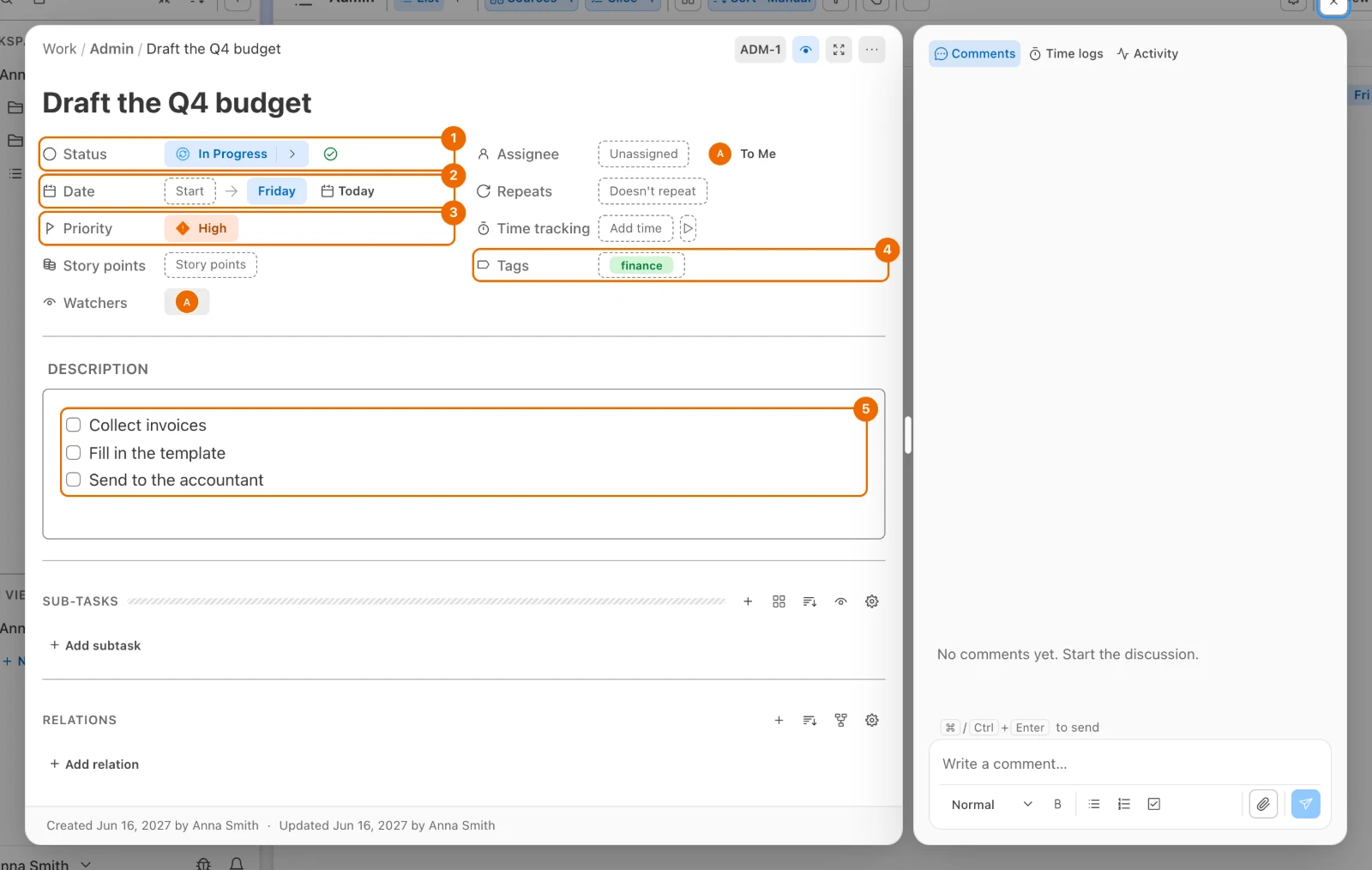
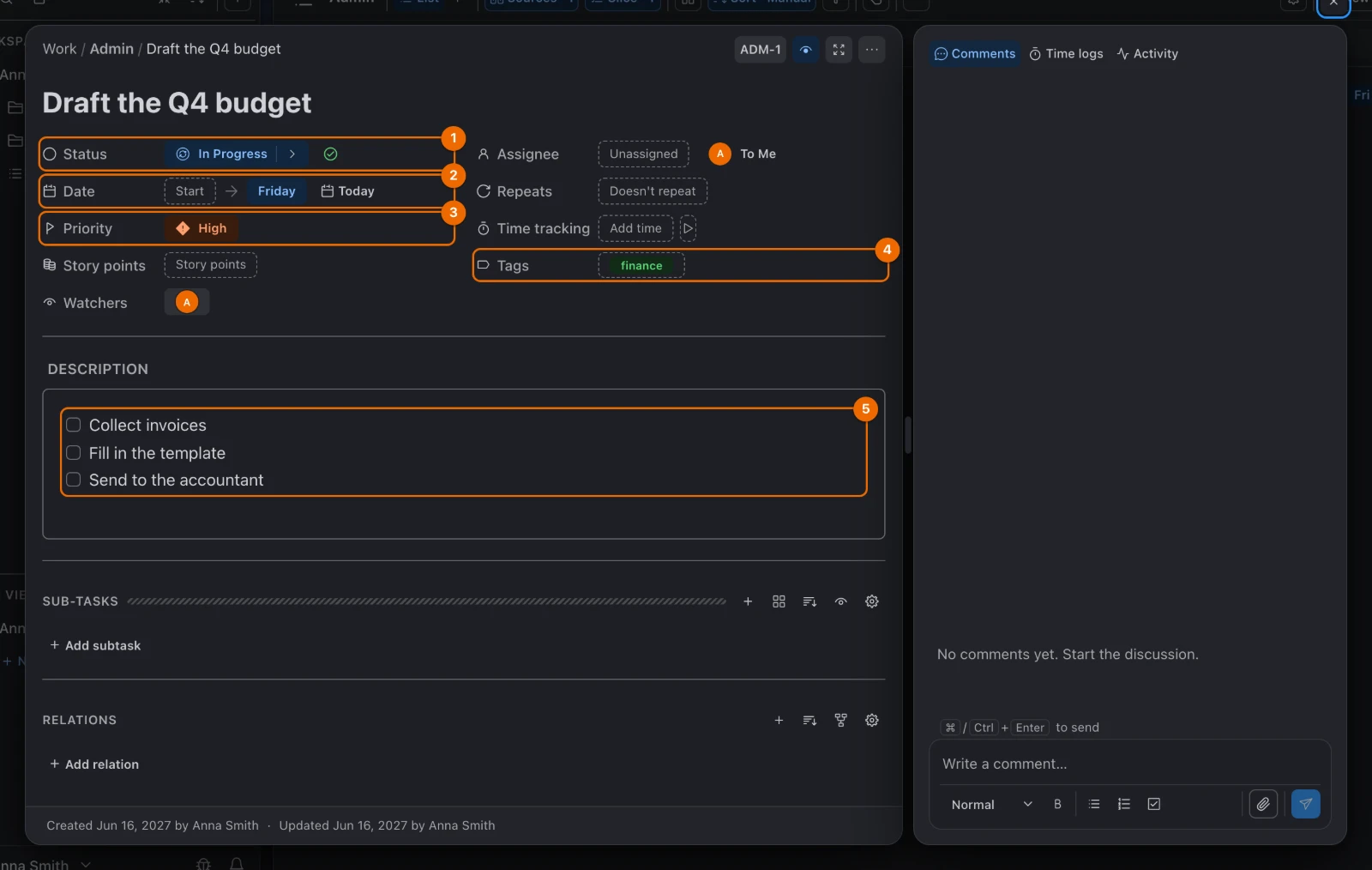
"Draft the Q4 budget" after you sort it, in the Admin list:
- Status: In Progress;
- Date: due Friday;
- Priority: High;
- Tags: finance;
- Description: a checklist of three steps.
If it doesn't work
- Create is greyed out. Type a title and pick a list in List. If the list you want is not offered, you can't create tasks in it: ask a workspace admin for access, see Permissions and access.
- New task is greyed out in the + menu. You have no list you can create tasks in. Create a list first, or ask for access.
- Cmd+N opens a new browser window. In a browser the key belongs to the browser. Press
Cmd+M(Ctrl+Mon Windows and Linux) instead, or use + → New task. To pick another key, see Changing a shortcut. - A field such as Priority or Time tracking is missing. The list has that feature turned off. Turn it on in Configure → Features; that needs a permission set that allows changing lists.
- You deleted a task by mistake. Deleting is permanent and removes its subtasks too. Create it again.
Related
- The Hule model: why every task lives in exactly one list.
- Task fields: every field and what it holds.
- Task descriptions: blocks, mentions and files.
- Subtasks: split a large task into steps.
- Recurring tasks: make a task repeat.
- List setup: choose the fields and features a list uses.
- Keyboard shortcuts: every key in one table.