Build your own Today view
Build a Today view when you want one page that answers "what do I do today?" across all your lists and workspaces. Hule has no fixed Today page: you make a personal view with the filter you want, and set it as your home page, so it opens whenever you start Hule.
Before you start
You need tasks with due dates. To give a task one, see Plan on the timeline and the calendar.
Only you see it
A personal view is yours alone: nobody else sees it, even when it draws from a shared workspace.
Create the view
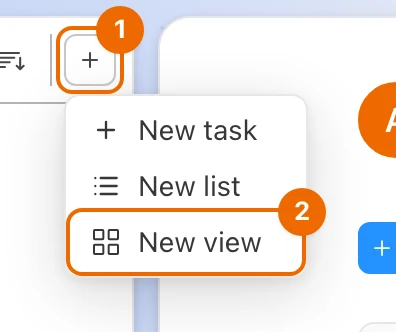
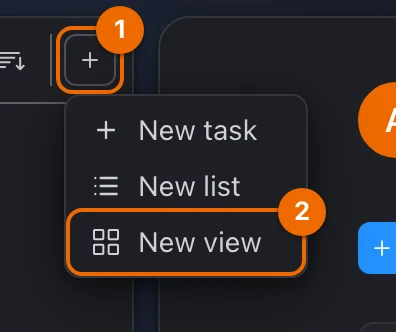
Click + (Create) at the top of the sidebar and choose New view. The form asks What view are you making?
In Name, type:
textTodayIn Display Mode, choose List (what each view type shows: Views compared).
In Type, keep User (the default). Point at the ⓘ next to Type: the tip reads "A personal view, visible only to you. It pulls tasks from the sources you pick below."
Type is locked from a workspace, folder or list
New view opened from a workspace, folder or list makes a view of that kind. Start from + (Create) at the top of the sidebar, or under User Views, point at the row with your name, click + and choose New view.
In Source, pick each workspace you work in. You can also pick single folders or lists.
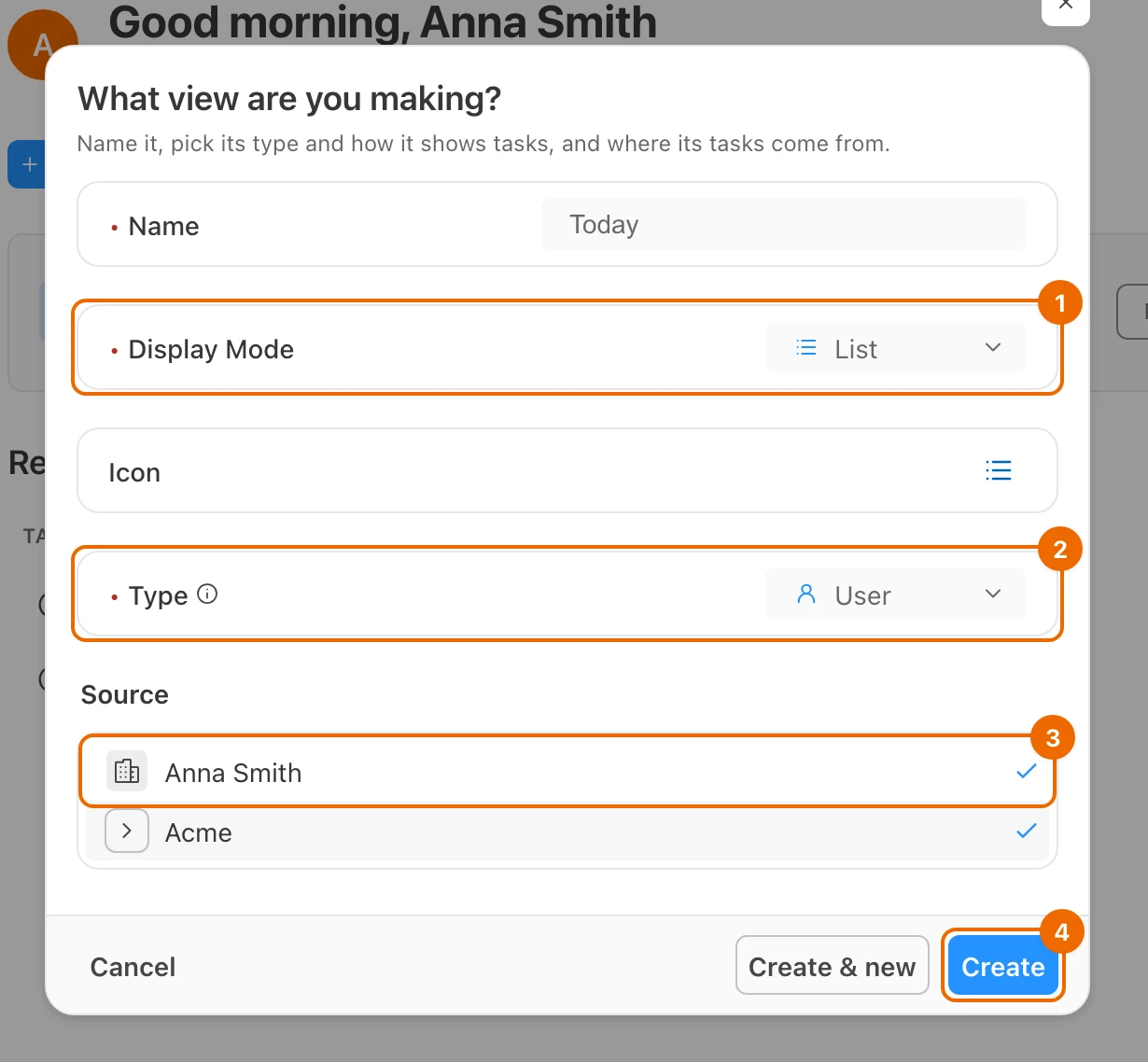
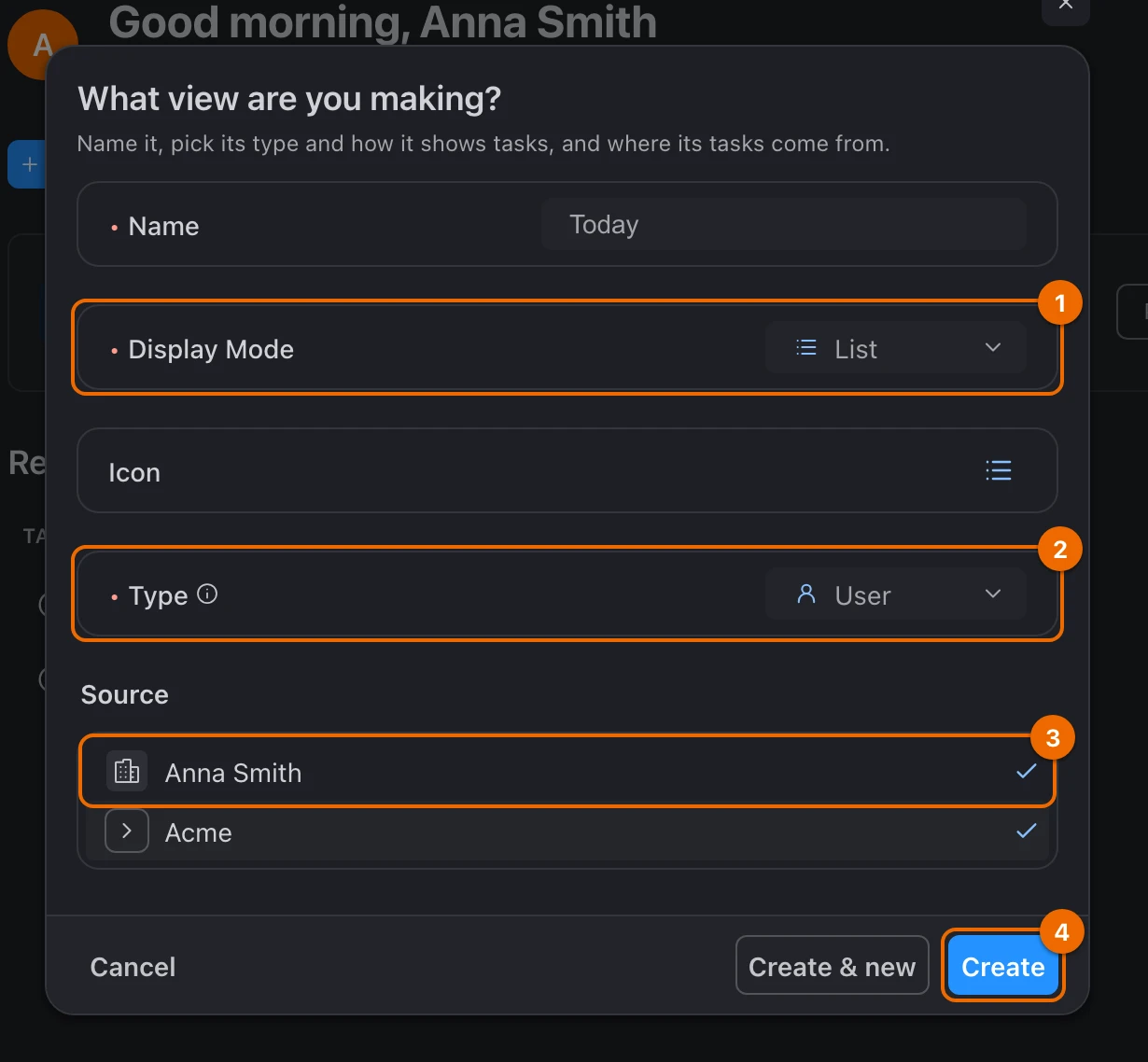
Click Create. The view opens with every task from those sources, and appears under User Views in the sidebar.
Today's filter: due, open, yours
The filter below keeps only your open tasks due today or earlier. Every field and operator is listed in View filters.
Due today or earlier
- Click Filter in the view's header. The filter strip opens.
- Click + Rule. A new rule chip appears on the strip.
- Click the chip. Its editor opens.
- In Field, choose Due date.
- In Operator, choose on or before / ≤.
- In Value, click Relative, then pick Today. The chip reads "Due date <= Today", and the editor says "When Due date is on or before Today".
Not done
- Click + Rule again. A second chip appears.
- Click the new chip and set Stage, is not, Done. The chip reads "Stage != Done". A stage groups a list's statuses, so this rule works across lists with different statuses.
Assignee: yours or nobody's
Skip this part if every source is yours alone. In a source that is shared with others, it hides tasks assigned to someone else.
Click + Group. An empty group appears in brackets, with its own + Rule.
Click the group's + Rule. A chip appears inside the brackets.
Click the chip and set Assignee, is, Me (current user).
The group's + Rule disappears after its first rule
A group shows its own + Rule only while it is empty. The second rule is added on the strip and dragged into the group (steps 4–6).
Click + Rule on the strip. A new chip appears outside the group.
Click the chip and set Assignee, is empty.
Drag the chip inside the group's brackets. An AND chip appears between the group's two rules.
Click AND and choose OR. Tasks nobody is assigned to stay in view, from every source.
Build a group in one place
The gear next to the strip (Advanced filter) shows the same filter as nested groups, where every group has its own + Rule. Edits there sync to the chips.
Save the filter
- Click Save. Only your open tasks due today or earlier are left, so anything overdue stays in sight.
Save stays greyed out while a rule is empty
Point at Save: "Pick a value for every rule, or remove the empty one." Give the empty chip a value, or remove it.


Overdue first: sort by due date
- Click Sort, then click Due date in Available. It joins the sort below Manual, sorting Asc.
- Drag Due date above Manual, or remove Manual. Overdue tasks now come first. Until then, manual order decides.
How several sort rules combine is in View sorting.
Home page: open Today at start
- In the sidebar, right-click Today (or point at it and click More actions, …). Its menu opens.
- Choose Set as home. Hule says This view is now your home.
Only your own personal views
Set as home appears only on personal views you made (Type User). A workspace or list view can't be your home page.
The Home button in the sidebar now opens this view. To go back to the default Home page, choose Remove from home in the same menu, or pick Default in User settings → Appearance → Home page.
Two workspaces, one Today: an example
Say you are Anna. Your Today view draws from your own workspace, "Anna Smith's workspace", and your company's, "Acme", with the filter and sort above.
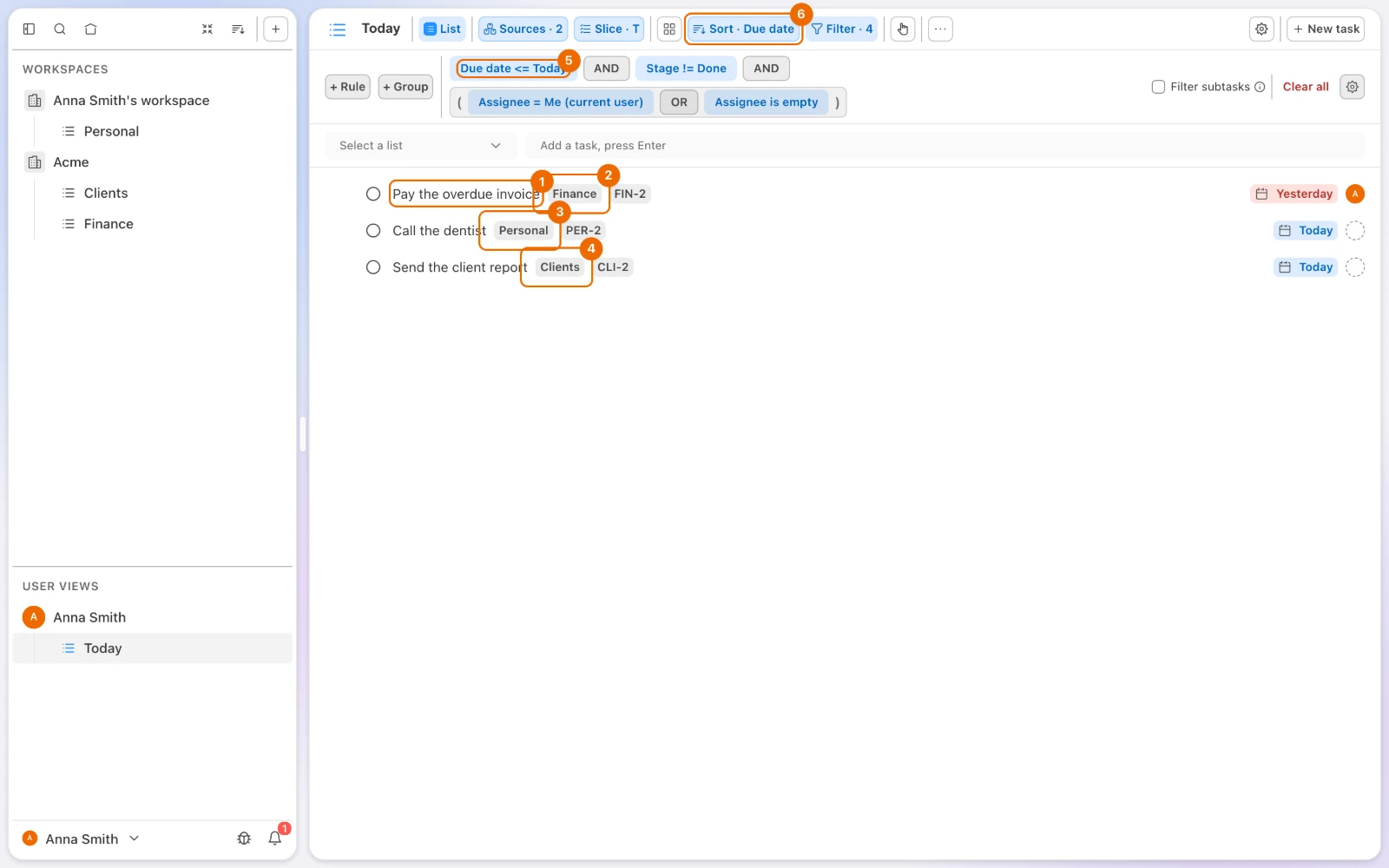
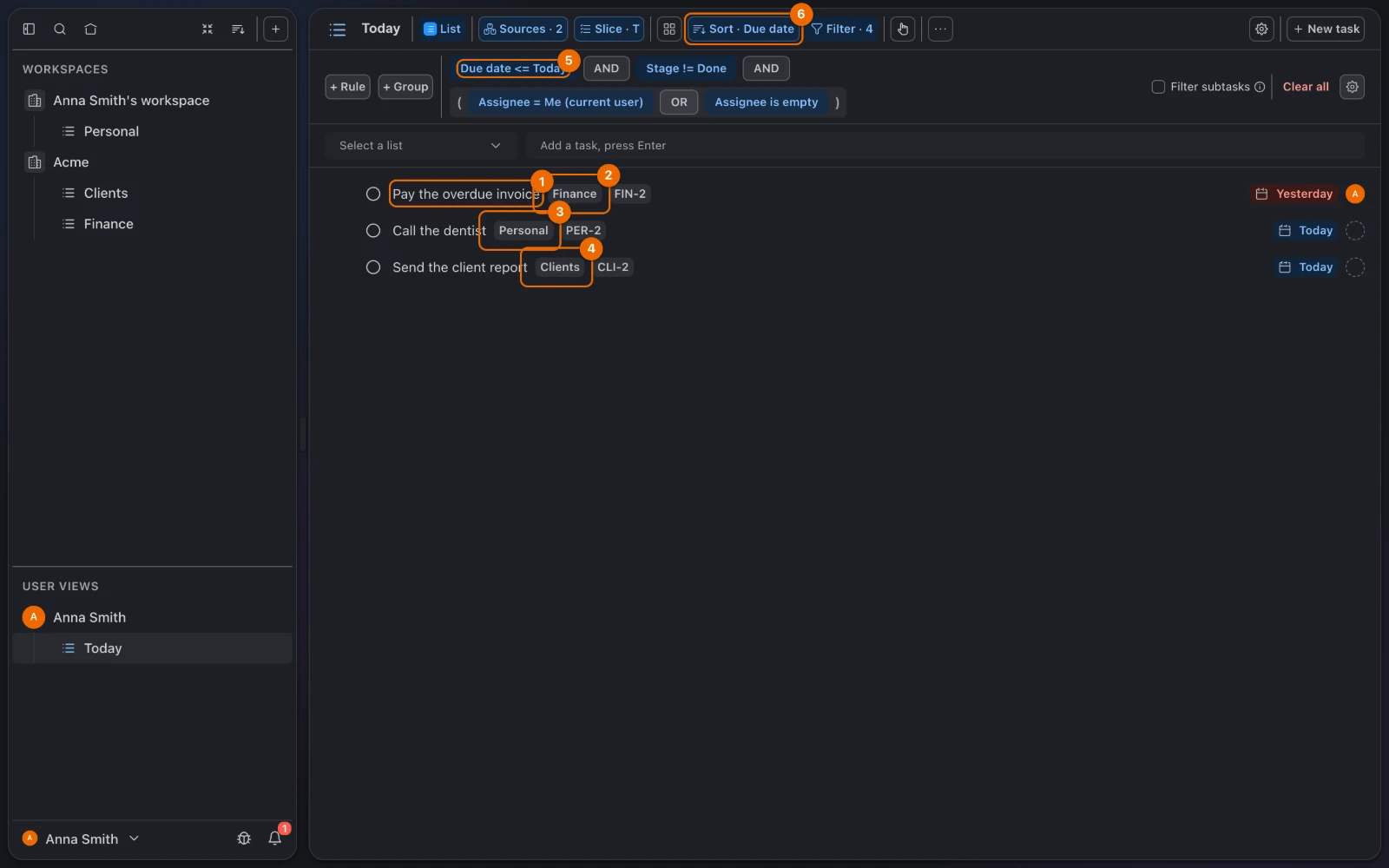
On Tuesday morning, yesterday's overdue invoice from Acme's Finance list sits at the top.
If it doesn't work
- Save is greyed out. Point at it: "Pick a value for every rule, or remove the empty one." A rule has no value. Pick one, or remove the rule. Every field's values are in View filters.
- Tasks without a due date are missing. That is the filter at work: they have no day to be due. Plan them in a GTD session or on the calendar.
- Done tasks still show. Add the Stage is not Done rule, as in Not done. What a stage is: Statuses and status templates.
- There is no Set as home in the menu. Only your own personal views can be your home page. Check that Type was User, or create the view again from + (Create).
- Type can't be changed in the form. You opened New view from a workspace, folder or list. Create the view again from + (Create) at the top of the sidebar.
- Someone else's tasks show up. The source is shared and the filter has no assignee rule. Add the group from Assignee: yours or nobody's.
- The view is empty after the Assignee rules. The Assignee is empty chip sits outside the group, so it is ANDed with Me (current user). Drag it inside the group's brackets, as in Assignee: yours or nobody's, and check the chip between them reads OR.
Related
- Personal and work tasks in one place: why one view can draw from several workspaces.
- Focus day with a timer: work through your Today view.
- Views as lenses on tasks: why a view shows tasks it does not own.
- View filters: every filter field, operator and relative date.
- Filter, sort and group a view: filter, sort and group any view.