Tag tasks
Tag a task when you want to find it by something other than its list:
- a context, such as
@phoneor@errands; - a theme, such as
finance; - a kind of work, such as
waiting.
A task can carry several tags, and a view can show only the tasks with a given tag.
Before you start
Turn on Tags in the list
The list must have Tags turned on. It is on in every preset; if it is off, open the list's … menu → Configure → Features and switch on Tags; see Set up a list.
If you own the workspace, you have every permission this page needs. Otherwise each section below names the permissions of your permission set it needs.
Tag a task, creating the tag as you go
Permissions to tag a task
- Edit access to the list;
- Update in the Tasks block;
- Tags in the Task fields block.
Creating a tag also needs Create in the Tags block: the default Worker set can tag tasks but not create tags.
Open the task. The task card shows its fields, Tags among them.
Click the value next to Tags (it reads Empty if the task has no tags), or press
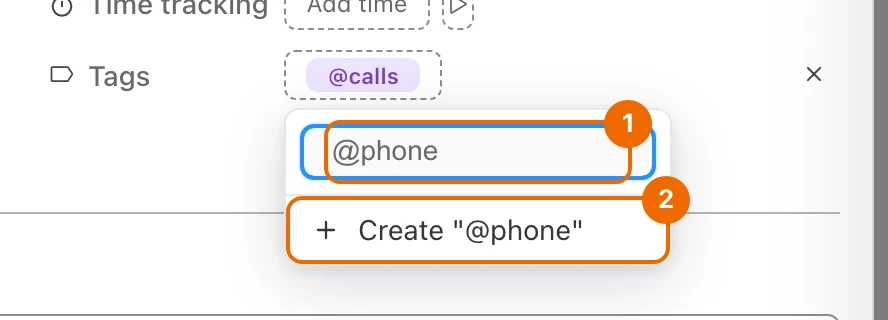
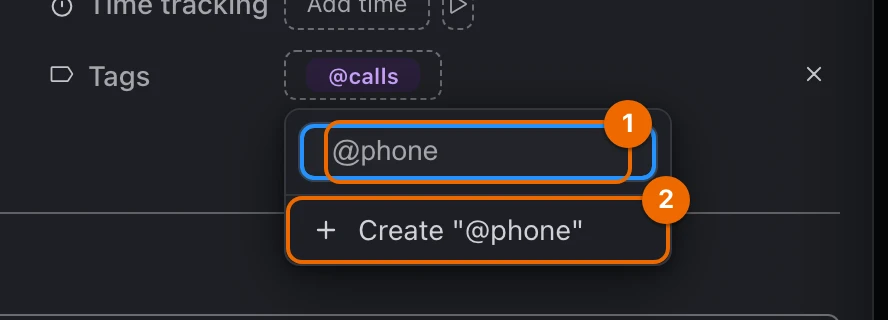
T(see Keyboard shortcuts). The tag picker opens with the tags this list offers and a Search or create a tag field.Type the tag's name. Matching tags appear. If none has exactly that name, you also see Create "…" with what you typed.
No Create row?
A tag with exactly that name exists already (pick it), or your permission set lacks Create in Tags.
Click the tag you want. To make a new one, click Create "…" or press
Enter. The tag appears on the task. A tag you create here is gray and belongs to this list.
Rename, recolor or delete a tag
Permissions to change tags
- Rename and Change icon need Update in the Tags block.
- Delete needs Delete in the Tags block.
The gear appears if you hold either; the menu shows only the rows you may use.
In the tag picker, point at the tag and click the gear (Tag settings) at the end of its row. A menu opens.
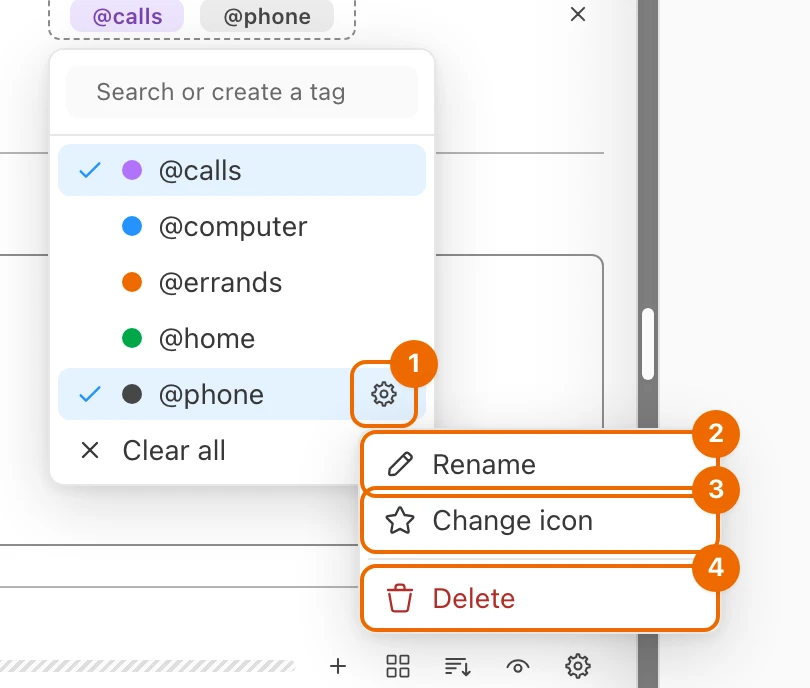
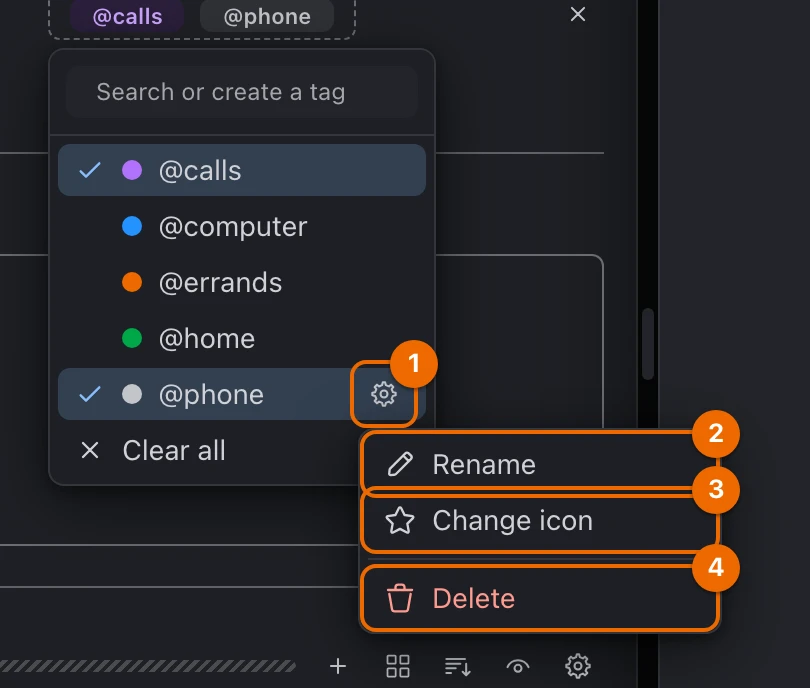
Choose a row of the menu:
| Menu row | What to do | Result |
|---|---|---|
| Rename | Type the new name in the field that replaces the tag's row, and press Enter. | The tag changes on every task that carries it. |
| Change icon | Pick an icon and a color in the icon picker. | The color applies to the tag everywhere. |
| Delete | If tasks carry the tag, a dialog names how many; click Delete from all tasks. | The tag is gone from the picker and from tasks. |
Deleting a tag can't be undone
The tag disappears from every task that carries it, in every list.
Share tags between lists with a Tag Set
A tag made in a task belongs to its list. To use the same tags in several lists, put them in a Tag Set: a workspace-wide group of tags that every connected list offers.
Permissions for a Tag Set
- Create and Update in the Tag sets block, to create and fill a set;
- Update in the Lists block, to connect it to a list;
- Edit access to that list.
Click your name at the bottom of the sidebar and choose Workspace settings; if you belong to several workspaces, pick the workspace in its submenu. The workspace settings open.
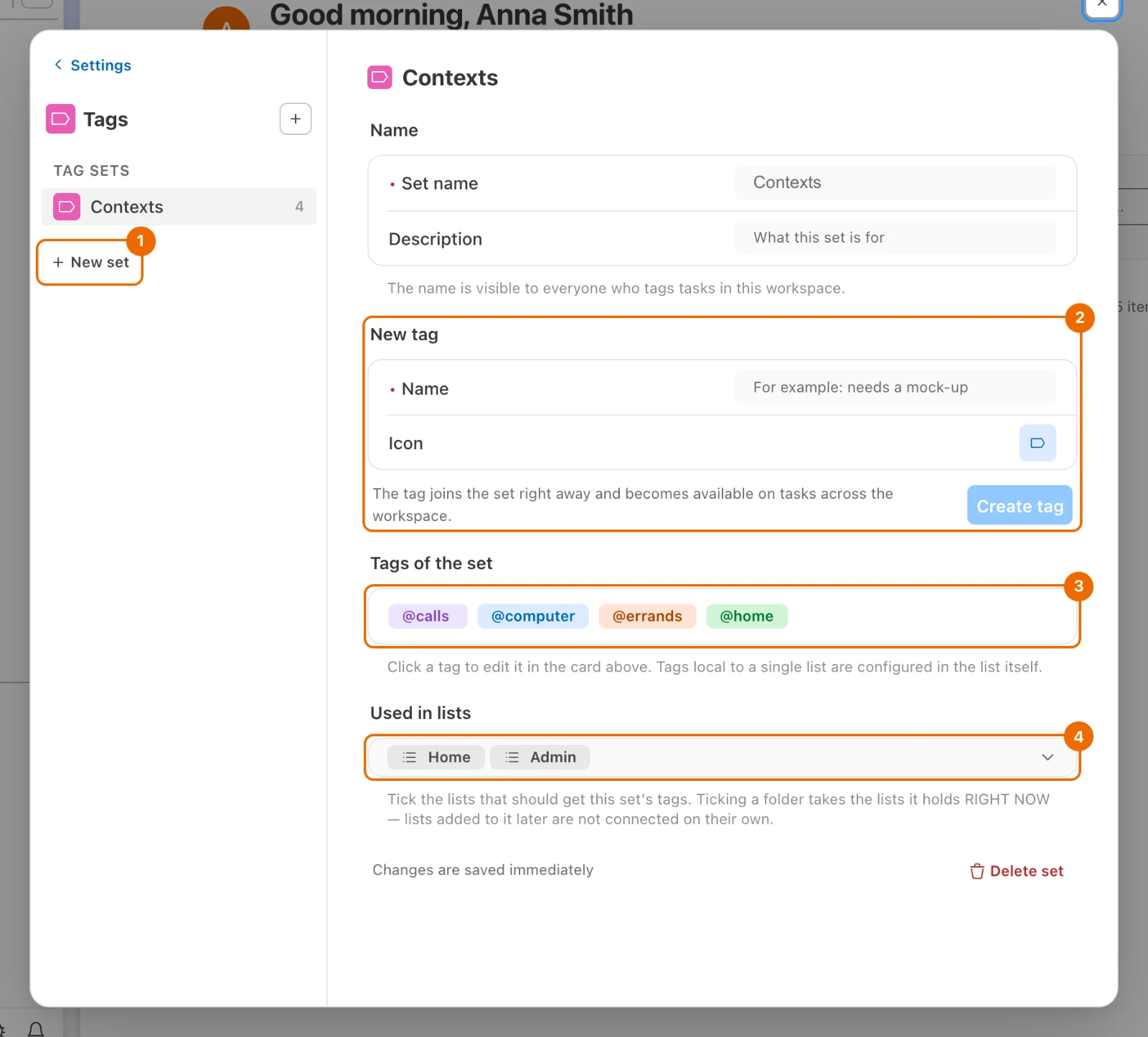
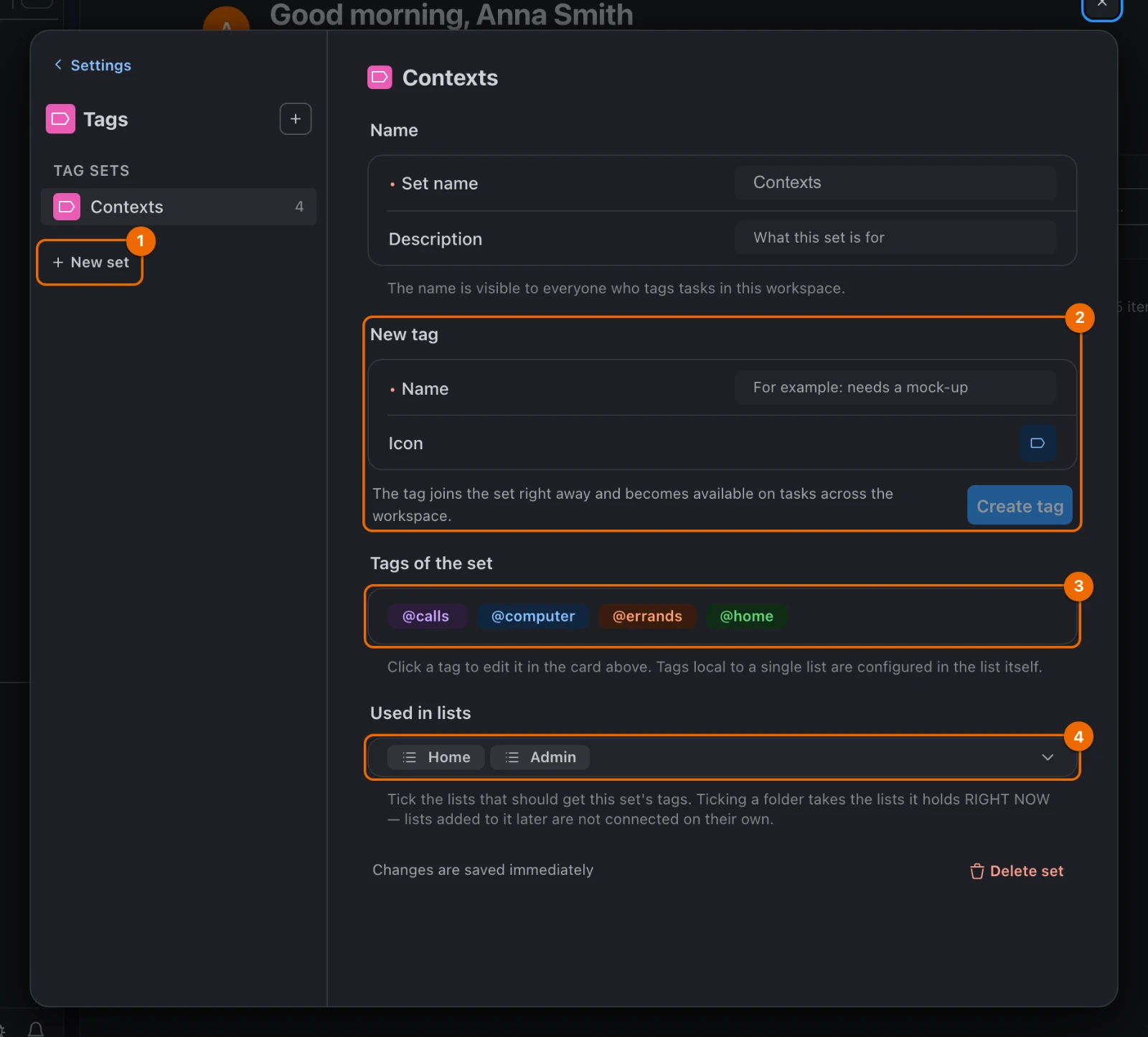
Click Tags. The workspace's Tag Sets are listed.
Click New set. A new set opens with an empty Set name field.
Type the name and press
Enter. The set is saved under that name.In the New tag card, type a Name and click Create tag. The tag appears under Tags of the set. Repeat for each tag.
Under Used in lists, click the field and pick the lists. It reads Choose lists while no list uses the set; after that it shows the lists. Those lists now offer the set's tags, above their own.
Unticking a list strips its tags
Unticking a list removes the set's tags from every task in that list, after you confirm with Disconnect and strip from tasks. It can't be undone. Ticking a folder connects only the lists in it now, not lists added later.
You can also connect a set from the list: its … menu → Configure → Tags → Choose sets.
Filter a view by tag
A filter rule on Tags shows only the tasks with the tags you pick. Other fields and operators: Filter, sort and group a view.
In a view, click Filter. The filter strip opens.
Click + Rule. A new rule chip appears in the strip.
Click the chip. Its editor opens.
In Field, choose Tags.
In Operator, choose any of. The value picker offers the tags of the view's lists; see View filters.
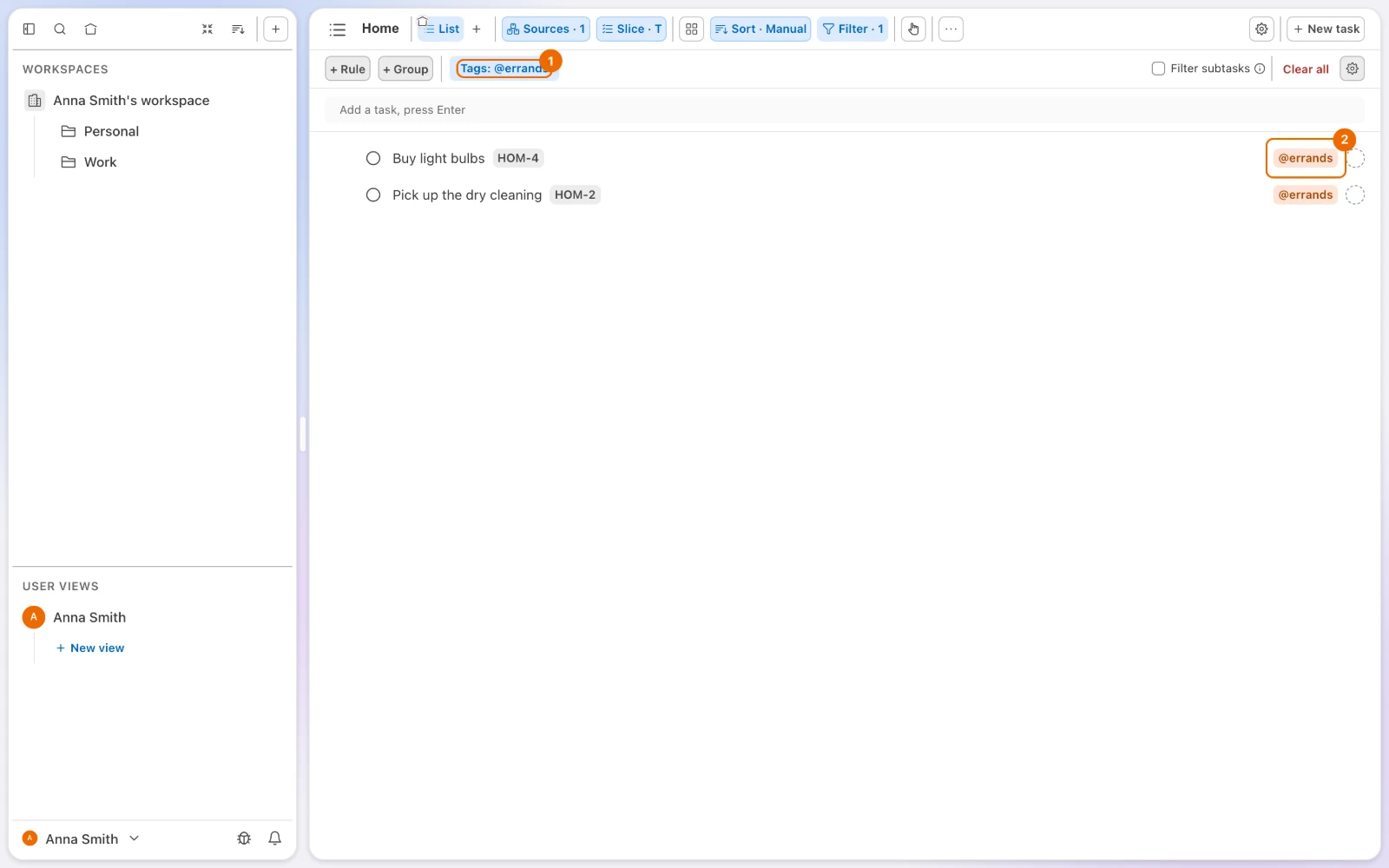
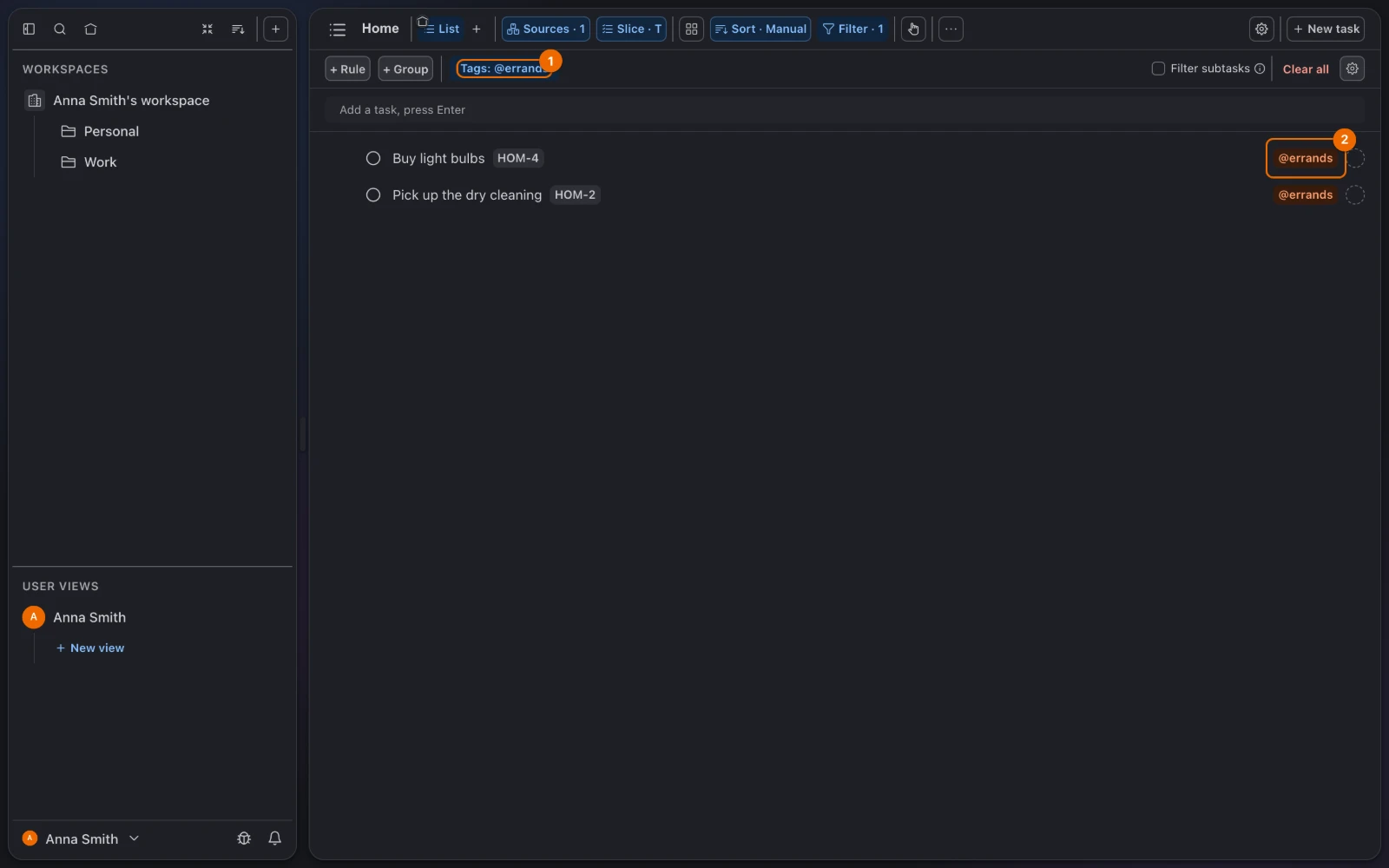
Pick the tags. The chip reads Tags: and your tags, such as Tags: @errands. The list behind isn't filtered yet.
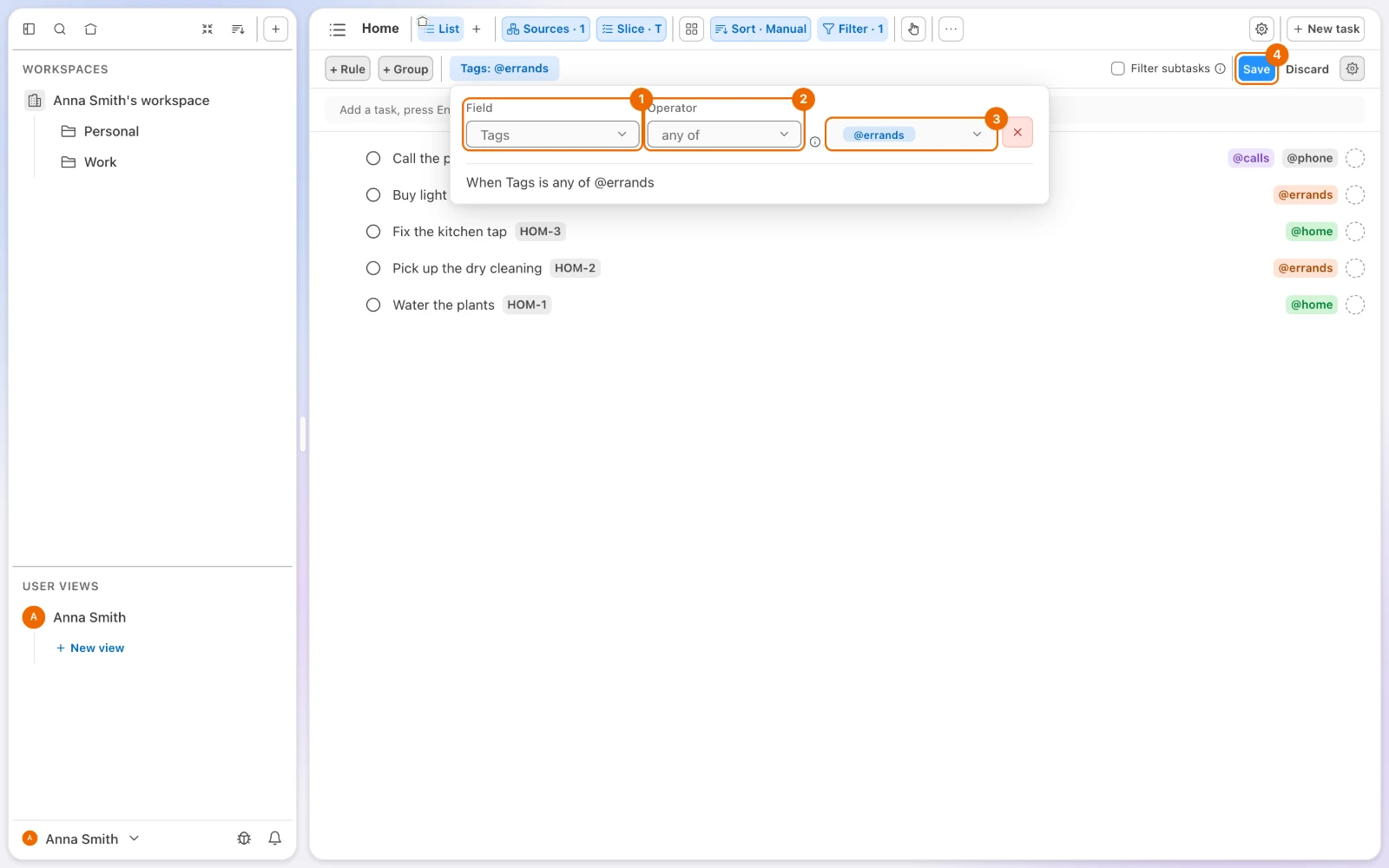
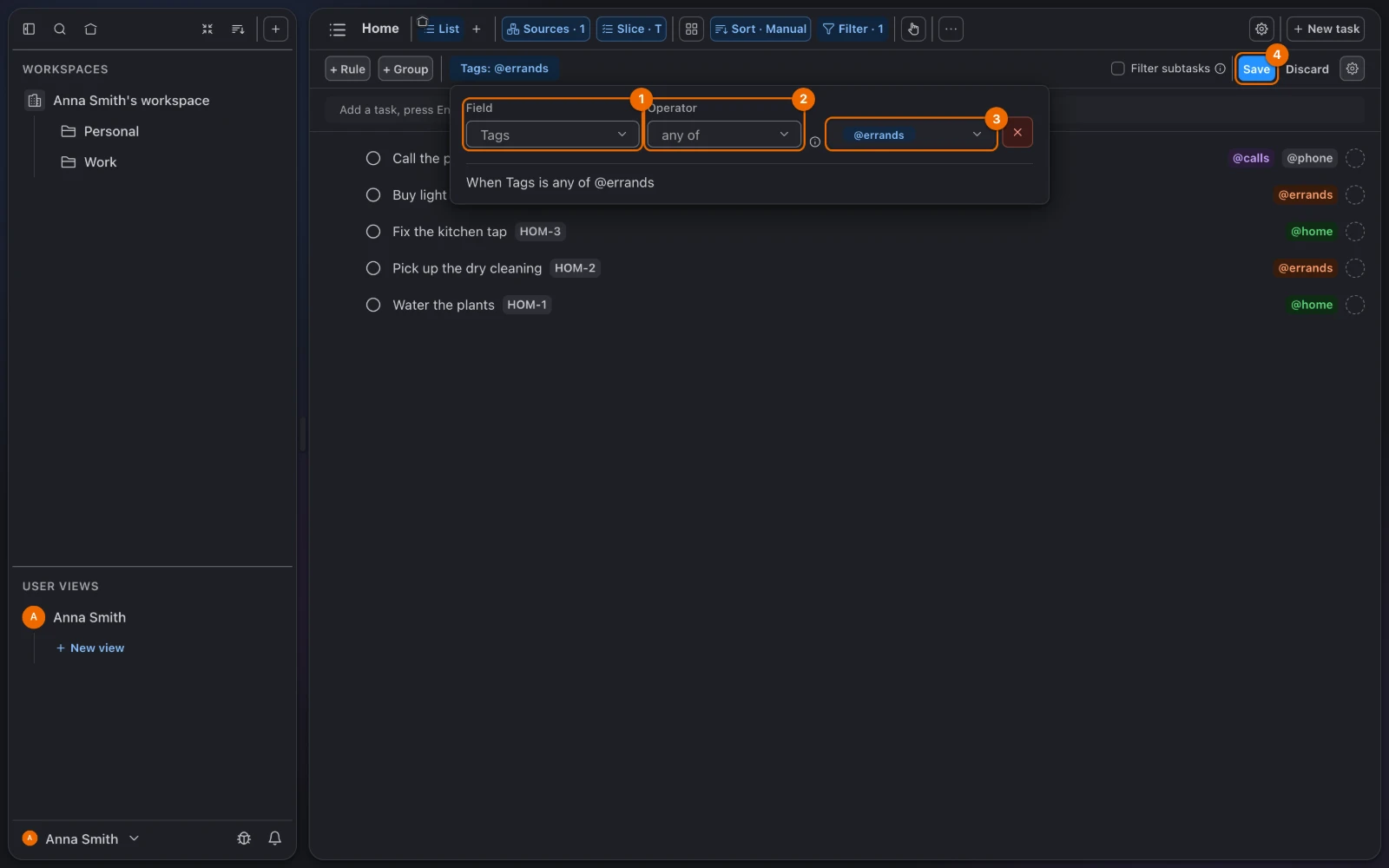
Click Save. The view shows only tasks with those tags.
Save greyed out?
A rule has no value yet. Pick one, or remove the empty rule.
GTD contexts as tags
Contexts in GTD
In GTD, a context is where or with what you can do a task.
Put your contexts in a Tag Set called Contexts and connect it to every list where you keep your own tasks:
| Tag | Put it on tasks you can do… |
|---|---|
@phone | with only a phone |
@computer | at your desk |
@errands | while out |
@home | at home |
A personal view with the filter rule Tags: @errands becomes what you check on your shopping trip.
One set per workspace
Tags belong to one workspace each. If your personal view draws from several workspaces, create Contexts in each and pick every @errands in the filter; see Tags from several workspaces.
If it doesn't work
- There is no Create row in the picker. One of three reasons:
- a tag with exactly that name exists already: pick it;
- your permission set lacks Create in Tags: ask a workspace admin (see Permissions and access);
- you are tagging several tasks at once from the bulk bar: create the tag in one task first (see Edit tasks in bulk).
- The tags on a task can't be clicked. Your permission set lacks Tags in Task fields (see Permissions and access), or you have Read access to the list (see Share a folder or list). Ask a workspace admin.
- There is no gear on a tag. Your permission set lacks Update and Delete in Tags; see Permissions and access.
- A tag from another list is missing. Tags made in a task stay in their list. Create the tag in a Tag Set and connect the set to both lists; tasks that already carry the list's own tag keep it.
- There is no Tags field. The list has Tags turned off. Turn it on in Configure → Features; see Set up a list.
- There is no New set button. Your permission set lacks Create in Tag sets; see Permissions and access.
- Save is greyed out. A filter rule has no value yet. Pick one, or remove the empty rule; see Save, Discard and Clear all.
Related
- The Hule model: where tags sit next to lists, statuses and fields.
- GTD in Hule: contexts, and the rest of the method.
- Filter, sort and group a view: use tags in filters.
- Edit tasks in bulk: tag many tasks at once.
- Set up a list: turn Tags on for a list.
- Task fields: every field, including Tags.
- Permissions and access: who can create tags and Tag Sets.