Manage your account
Open your account settings when you want to:
- sign in another way;
- change your email or password;
- switch the theme or language;
- set your name and avatar in a workspace;
- take a copy of your data;
- close your account or leave a workspace;
- sign out.
Most of it is in User settings, and it applies in every workspace you belong to. Your name and avatar are set in each workspace instead; see Name and avatar per workspace.
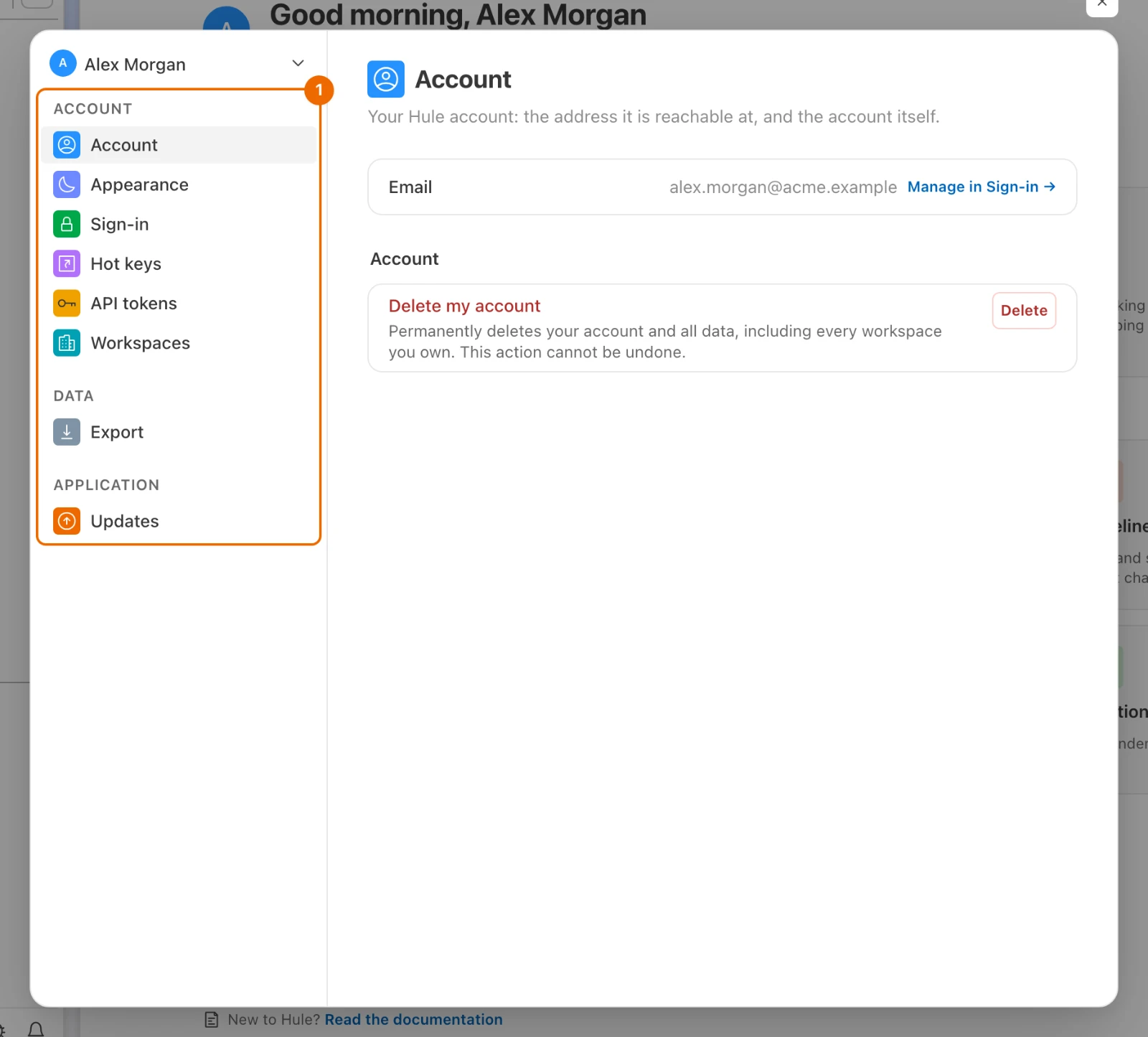
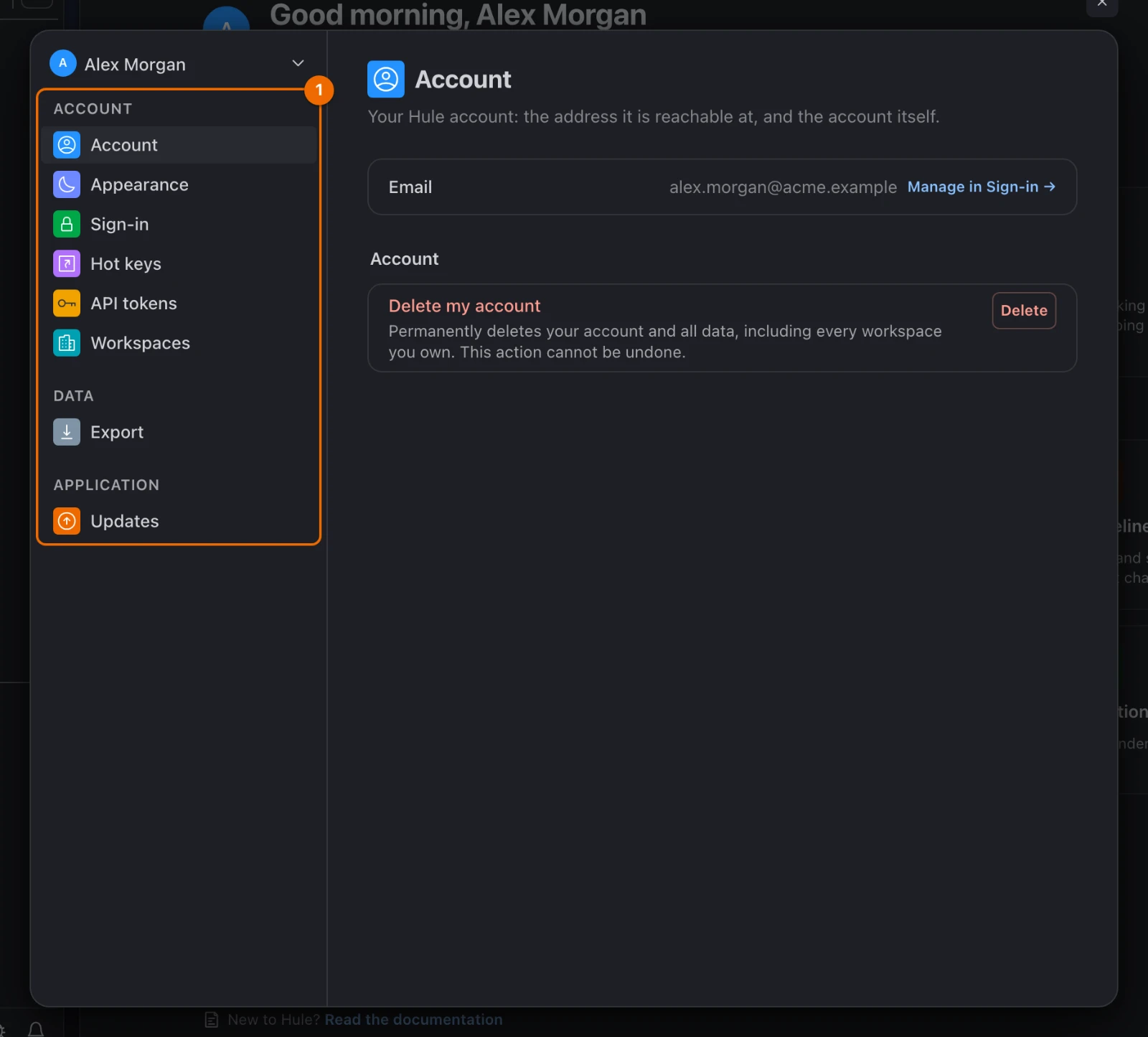
- Click your name at the bottom of the sidebar and choose User settings. They open on Account; the other pages are in the list on the left.
Two pages covered elsewhere
API tokens connects scripts and AI agents (see Connect an AI agent), and Hot keys changes keyboard shortcuts (see Keyboard shortcuts).
Sign-in methods: add or remove
You can sign in with email and password, and link these to the same account:
- one Google account;
- one Telegram account;
- any other service shown on the Sign-in page.
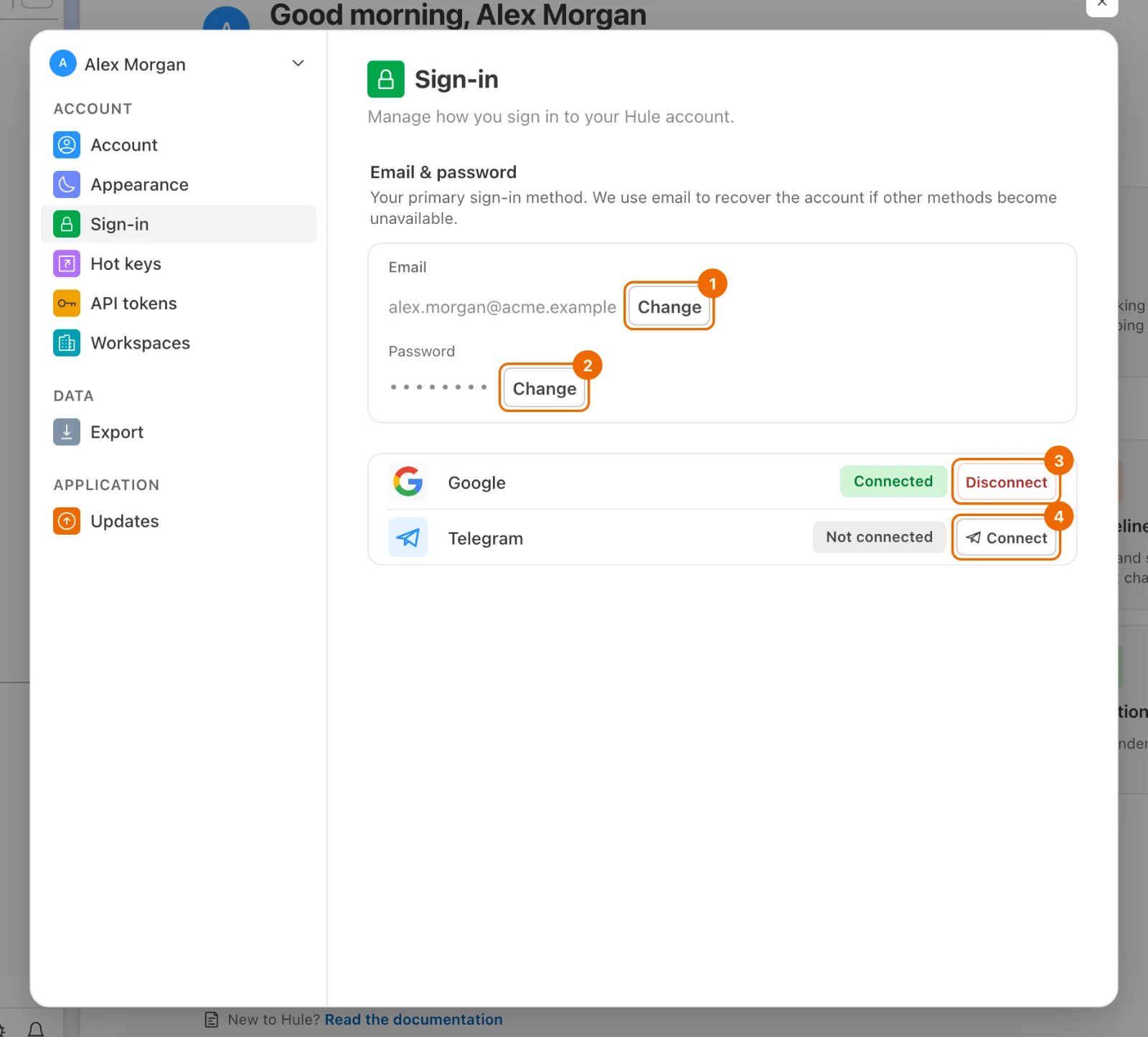
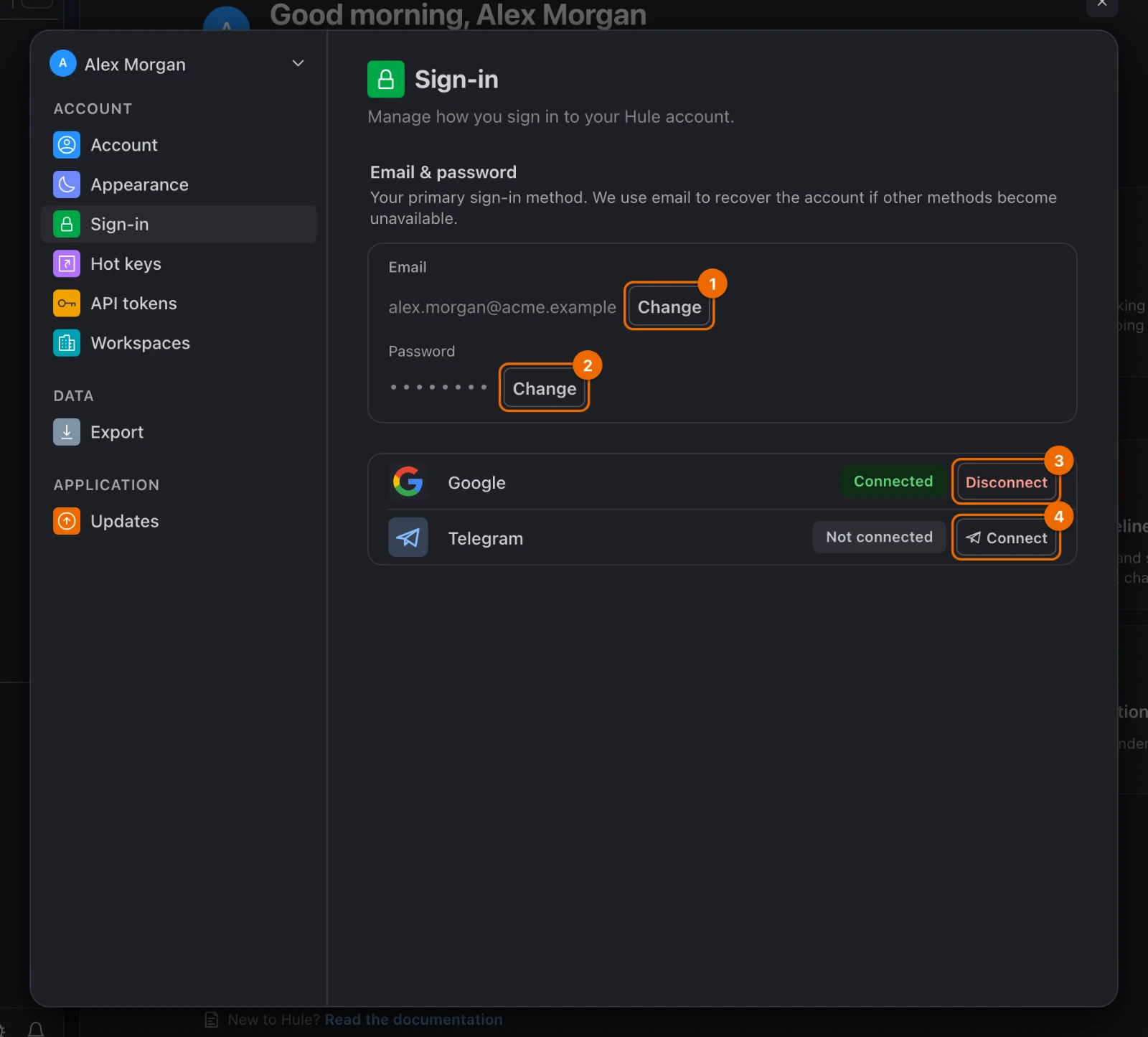
Open Sign-in. You see Email & password and a row for each service, marked Connected (Telegram shows Connected as @yourname) or Not connected.
To link a service, click Connect in its row (for other services, Connect followed by the service's name) and confirm with the service. Google and Telegram open a window; other services open their own page and bring you back to Hule. The row changes to Connected.
Link services in the web app
In the desktop app, the Telegram row and the rows of other services say Connect from the web app: open Hule in your browser and link them there.
To unlink one, click Disconnect, then Confirm disconnect. The row changes to Not connected.
"Set up email sign-in to disconnect"?
Hule never lets you remove your last way to sign in: to unlink Google or Telegram, the account needs an email and a password. Set them up below first.
For example, you signed up with Telegram and want to stop using it:
- On Sign-in, fill in the Set up email sign-in form and click Set up email sign-in. A verification link goes to that address.
- Open the link in the email. The address becomes your sign-in email.
- In the Telegram row, click Disconnect, then Confirm disconnect. The row changes to Not connected.
Email and password changes
Both are on the Sign-in page, under Email & password.
To change your email:
Click Change next to the email. A New email field opens.
Type the New email and click Send verification link. You see "Verification link sent to" and the new address. Until you confirm, the page shows "Pending verification:" with it.
Open the link in the email sent to the new address within 60 minutes. The message "Email updated." appears.
No verification email?
Check spam, and that you typed the new address correctly: the link goes to the new address, not the old one.
To change your password:
- Click Change next to the password. The password fields open.
- Fill in the fields:
- Current password;
- New password, at least 8 characters;
- Confirm new password.
- Click Update password. The message "Password updated" appears. Your other devices are signed out; this one stays signed in.
If you signed up with Google or Telegram and have no password yet:
- On Sign-in, fill in New password and Confirm new password.
- Click Set password. The message "Password updated" appears, and you can sign in with your email too.
No email on the account? Fill in the Set up email sign-in form instead.
Forgotten password reset
On the sign-in screen, enter your email and click Continue. The password field opens. (If you are signed in, sign out first.)
Under the password field, click Forgot password?. The Reset password form opens.
Enter your email and click Send reset link. Hule says it has sent a reset link, if an account with that email exists.
Open the link from the email within 30 minutes; it works once. The New password form opens.
Type the new password in New password and Confirm new password, and click Set new password. You see "Password updated. Please sign in." and the sign-in screen.
"Invalid or expired reset link"?
The link is older than 30 minutes or has already been used. Go back to Forgot password? and request a new link.
Theme and language
Open Appearance. You see Theme, Interface language and the other display settings.
Under Theme, choose one:
- Light;
- Dark;
- System, which follows your computer.
Hule switches at once.
Under Interface language, choose one:
- English;
- Русский;
- System.
The interface switches language at once.
Some settings follow your account, others stay on one device:
| Setting | Applies |
|---|---|
| Theme | on every device where you sign in |
| Interface language | on every device where you sign in |
| First day of week | on every device where you sign in |
| Home page (see Home page) | on every device where you sign in |
| Interface scale | only on the device you set it on |
| Liquid glass background (macOS app) | only on the device you set it on |
Theme and language from the sidebar
Both are also in the menu under your name in the sidebar.
Name and avatar per workspace
Your Name, Avatar and Contact email belong to each workspace, so you can appear differently in each one (see Personal and work tasks in one place).
- Click your name at the bottom of the sidebar, choose Workspace settings and then the workspace. Workspace settings open on Member profile.
- Change what you need:
- for a photo, click Upload photo (or the drop zone next to Photo), crop it in Crop your photo and click Save avatar;
- for letters on a colour, set Avatar to Color and pick an Avatar color; it is saved at once;
- for Name or Contact email, edit the field: Save appears next to it once you change it, and the change is kept only when you click Save.
Your Time zone is set per workspace too, in notification settings; see Set up notifications.
Download your data
- Open Export. You see Data export and Download my data.
- Click Download my data. A file named
hule-account-export.jsondownloads at once.
The file holds:
- your profile;
- your notifications;
- every workspace you own, with:
- its folders and lists;
- tasks and comments;
- time logs;
- tags and views;
- task and status templates;
- recurring tasks;
- pins;
- automations;
- settings, including your notification and GTD settings there.
What the file leaves out
Workspaces you are only a member of are not included. Attached files are listed but not included.
You can bring the file into another Hule workspace with Import from another tool.
Account deletion
Deleting your account can't be undone
Deleting is immediate. Every workspace you own is deleted with everything in it, including other members' tasks there. In workspaces you don't own, your tasks and comments stay and show as "Deleted user".
On the Account page, next to Delete my account, click Delete. The "Delete your account?" dialog opens.
In "Delete your account?", enter your Password, or your Email if you have no password.
Telegram-only account?
An account that signs in only with Telegram can't be deleted until you set up email sign-in.
Click Delete permanently. You are signed out.
Workspace exit: leave a workspace
Owners can't leave
You can't leave a workspace you own: delete it in Workspace settings → General instead.
- Click your name at the bottom of the sidebar and choose Workspace settings for that workspace. Workspace settings open on Member profile.
- Open Membership and click Leave workspace. A confirmation opens.
- Confirm with Leave. The workspace disappears from your sidebar. You lose access to it until you are invited again.
Your last workspace takes your account with it
Deleting a workspace deletes it and everything in it for everyone, and can't be undone. If it is the last workspace you belong to, leaving or deleting it deletes your account too: Hule warns you with "This will delete your account", and you confirm with Leave and delete account or Delete and close account.
Sign out
Click your name at the bottom of the sidebar and choose Logout. On a phone, it is Sign out on the Account page.
Sign-in and deletion problems
- "Set up email sign-in to disconnect". Your account is missing a password, an email, or both. On the Sign-in page, use Set password, or Set up email sign-in if there is no email (see Email and password changes). Then disconnect.
- The verification email doesn't arrive. Check spam, and that you typed the new address correctly; the link goes to the new address, not the old one (see Email and password changes).
- "Invalid or expired reset link". The link is older than 30 minutes or has already been used. Request a new one with Forgot password?; see Forgotten password reset.
- "Add an email or password to your account before you can delete it". Your account signs in only with Telegram. Set up email sign-in first, then delete.
Related
- Set up notifications — what reaches you and where.
- Install the desktop app — sign in on your computer.
- Import from another tool — bring an export into a workspace.
- Invite members and grant permissions — the workspace side of joining and leaving.
- Connect an AI agent — what API tokens are for.
- Build your own Today view — make a view your Home page.
- Personal and work tasks in one place — one account across workspaces, with a profile in each.
- Limits — how many workspaces you can own, and other caps.