Plan on the timeline and the calendar
Plan your week by putting tasks on dates and seeing them laid out in time. Two views do this, and in both you drag a task to change its dates:
- a Timeline view, a Gantt-style chart, shows each task as a bar from its start to its due date, good for how work overlaps across days;
- a Calendar view shows tasks on days and hours, good for time blocking.
Before you start
You need the four tasks of the sample week below, in a list you can edit.
Edit access needed
To change a task's dates, in the task or by dragging it, you need Edit access to its list. See Share a folder or a list and Permissions and access.
Sample week: four tasks to plan
Create these four tasks in one list (Create and edit tasks). The steps below use them as examples: first you give them their dates, then you move them on the timeline and the calendar as plans change.
| Task | Start | Due |
|---|---|---|
| Draft the Q4 budget | Mon | Wed |
| Call the accountant | Tue 10:00 | Tue 10:30 |
| Renew the car insurance | — | Fri |
| Learn Spanish | — | — |
Task dates: start, due and time
Every task has a start and a due date, and either can carry a time.
Open the task (see Create and edit tasks). In its Date row, click the due date (or the start date), or press
D(Keyboard shortcuts) to aim at Due. On an undated task the two halves read Start and Due. The dates panel opens, aimed at the end you clicked.Start Date must be on
The Start half shows only when the list has its Start Date field on. It is on in every preset (Set up a list). The timeline and calendar set start dates either way.
Pick the days in the panel:
- "Draft the Q4 budget": click Monday, then Wednesday.
- "Call the accountant": click Tuesday twice.
- "Renew the car insurance", aimed at Due: click Friday once. It gets a due date only.
The chosen days fill the Date row.
How two clicks make a range
The first click fills the end you aimed at, the second closes the range, and the earlier day becomes the start. Clicking the same day twice makes it the start as well as the due date.
One click for today
Today next to the dates (Set due date to today) sets the due date to today. On an undated task in a list with Start Date on, it sets both dates (Set start and due dates to today).
To give the task a time of day, click + Add time. It shows while the task is all-day. Each date the task has gets a time: the start 09:00, the due 18:00. A task with only a due date gets 18:00.
Click the start time and pick another one, or type it. For "Call the accountant", pick 10:00. The start half of the Date row shows 10:00.
Click the end time. Pick a length in the Or row, from 30m to 4h, or a time. Pick 30m, and the call ends at 10:30.
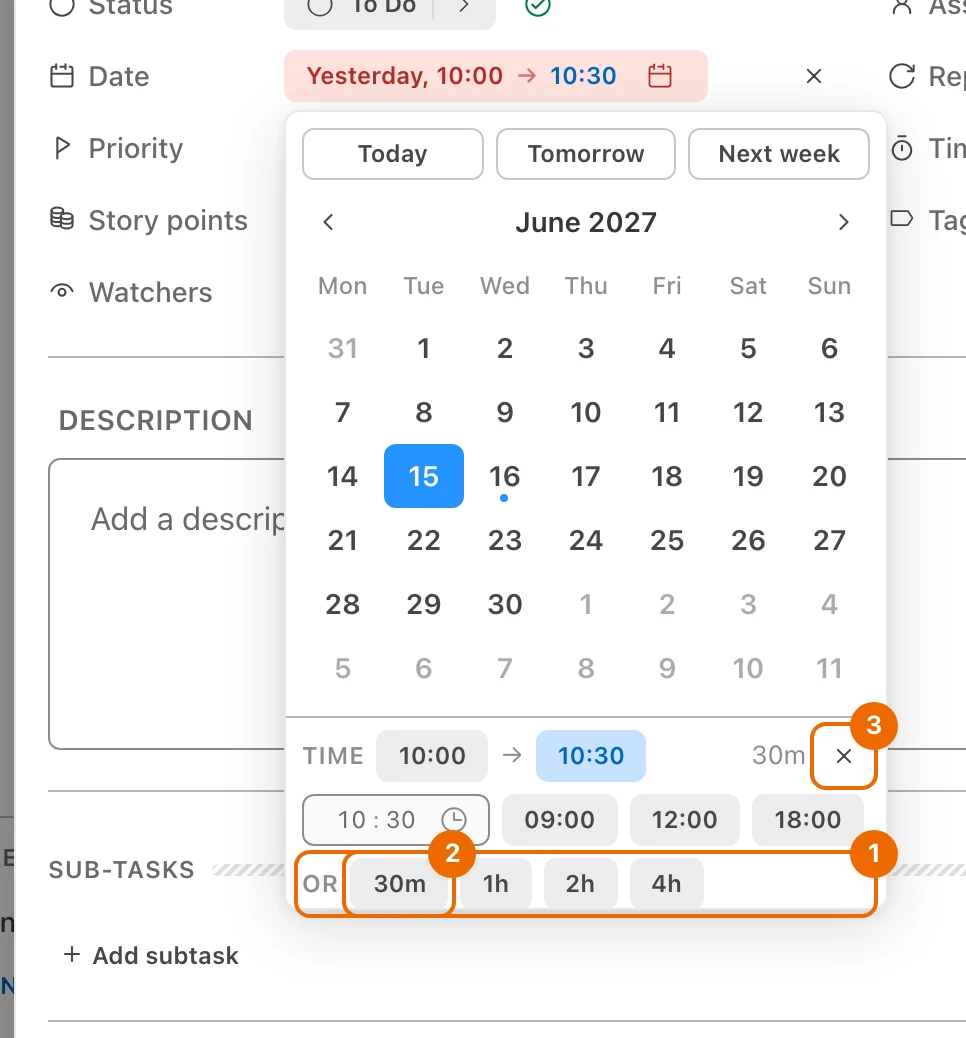
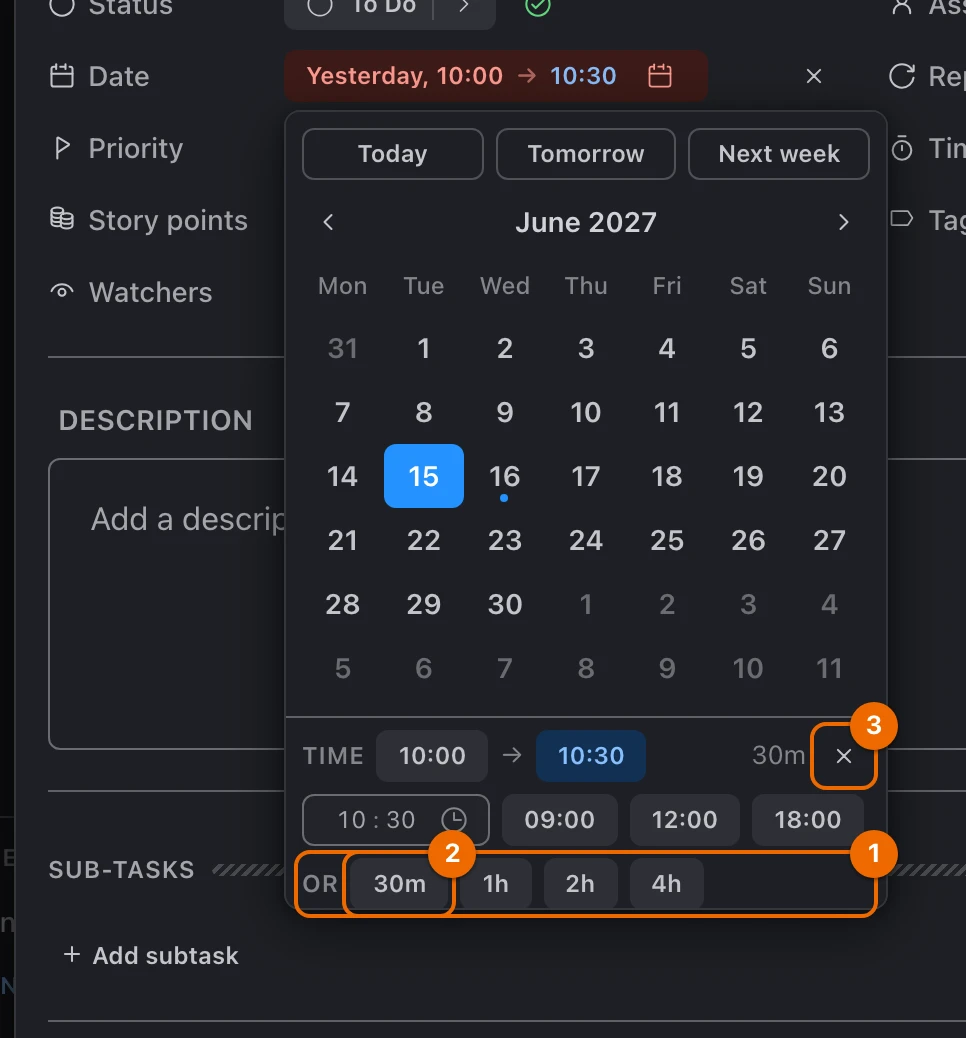
No Or row?
It needs a start date: set the start first.
To make a timed task all-day again, click the × at the end of the Time row (Remove time — make it all-day). The times are gone; the dates stay.
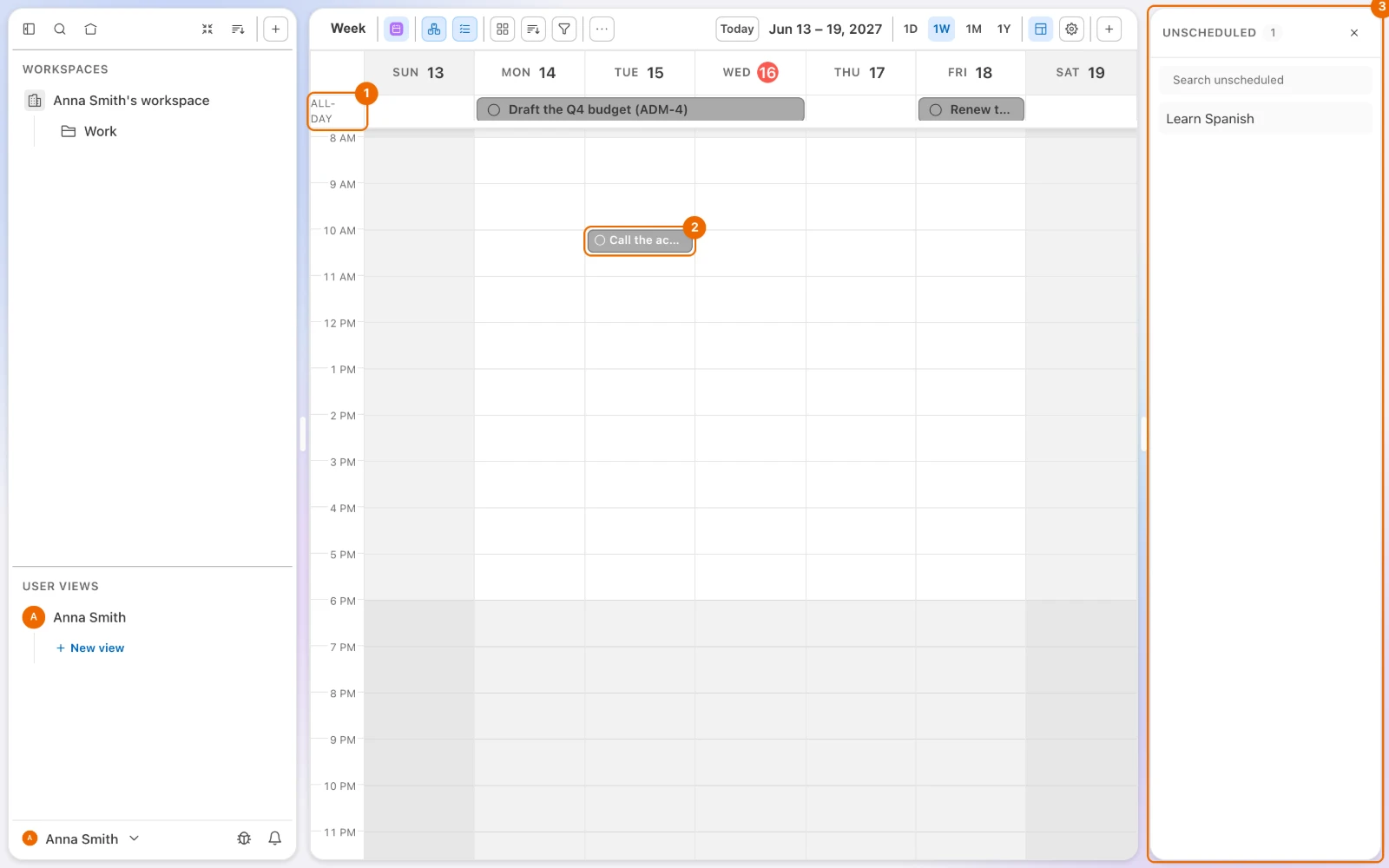
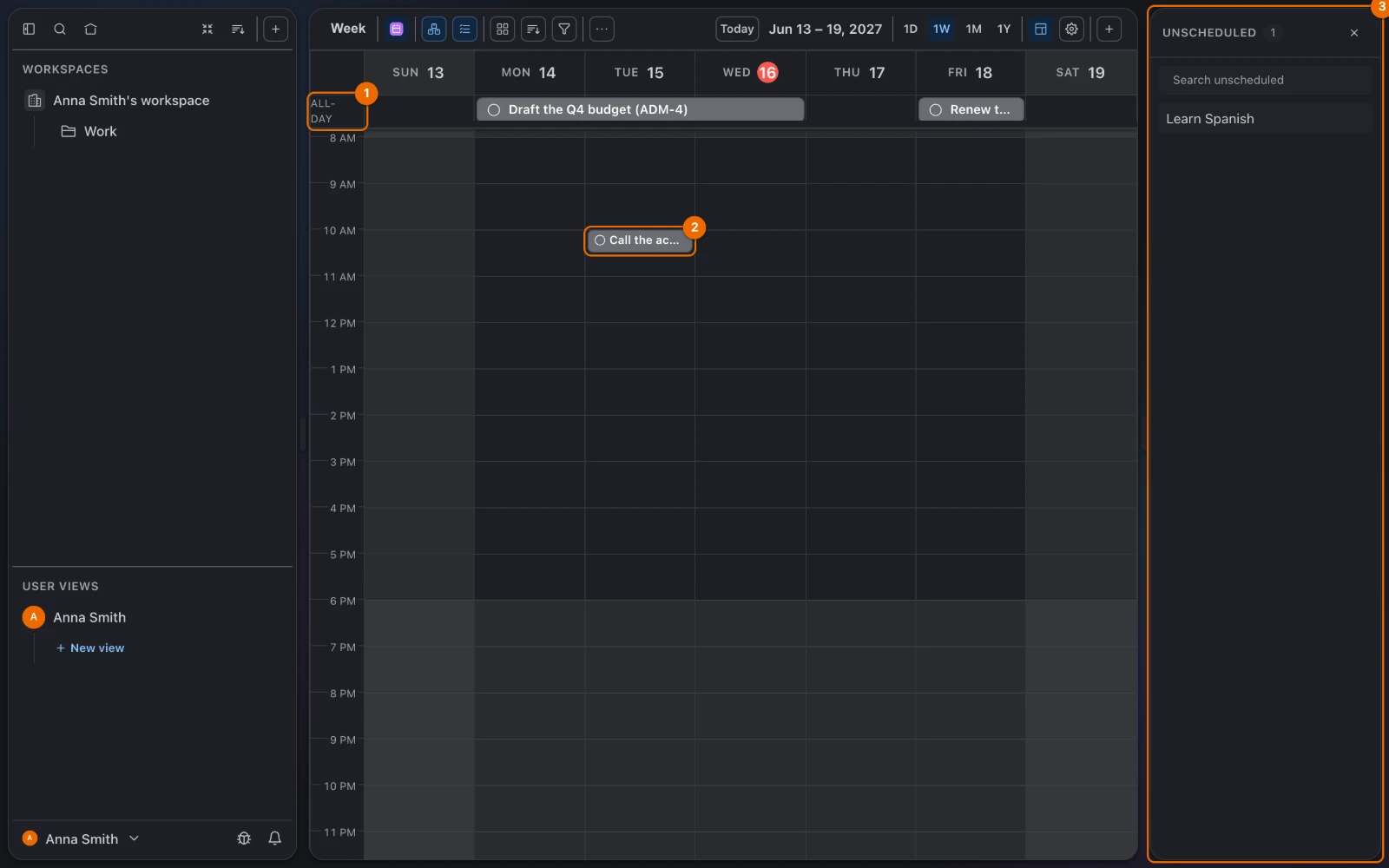
In a Calendar view (you create one in the next section), the week with these dates looks like this:
Timeline or Calendar view: create one
In the sidebar, open the … menu of the place the view belongs to, and choose New view:
- a list, a folder or a workspace;
- User Views, for a personal view only you see.
The new view form opens.
No New view in the menu?
On a workspace, New view needs a permission set that can create views, such as List/Folder manager. On a folder or a list, New view shows with Edit access there, but Create fails unless your permission set can create views. See Permissions and access.
Type a name in Name, such as This week. The view carries this name in the sidebar.
In Display Mode, choose Timeline or Calendar (what each view type shows: Views compared).
For a view under User Views, pick at least one workspace, folder or list in Source (where a view's tasks come from: Views as lenses on tasks).
Click Create. A timeline opens around today, or on your nearest task if none falls within about two weeks of today. A calendar opens on today. Click Today in either one to jump back.
Due date required
The timeline shows only tasks with a due date; undated ones wait in the Unscheduled panel.
Timeline: move, resize and add tasks
The steps below plan the sample week. To show only some tasks on the timeline, filter the view.
In the header, pick 1W. One week fills the width. The scale runs from 1D (one day) to 1M (one month).
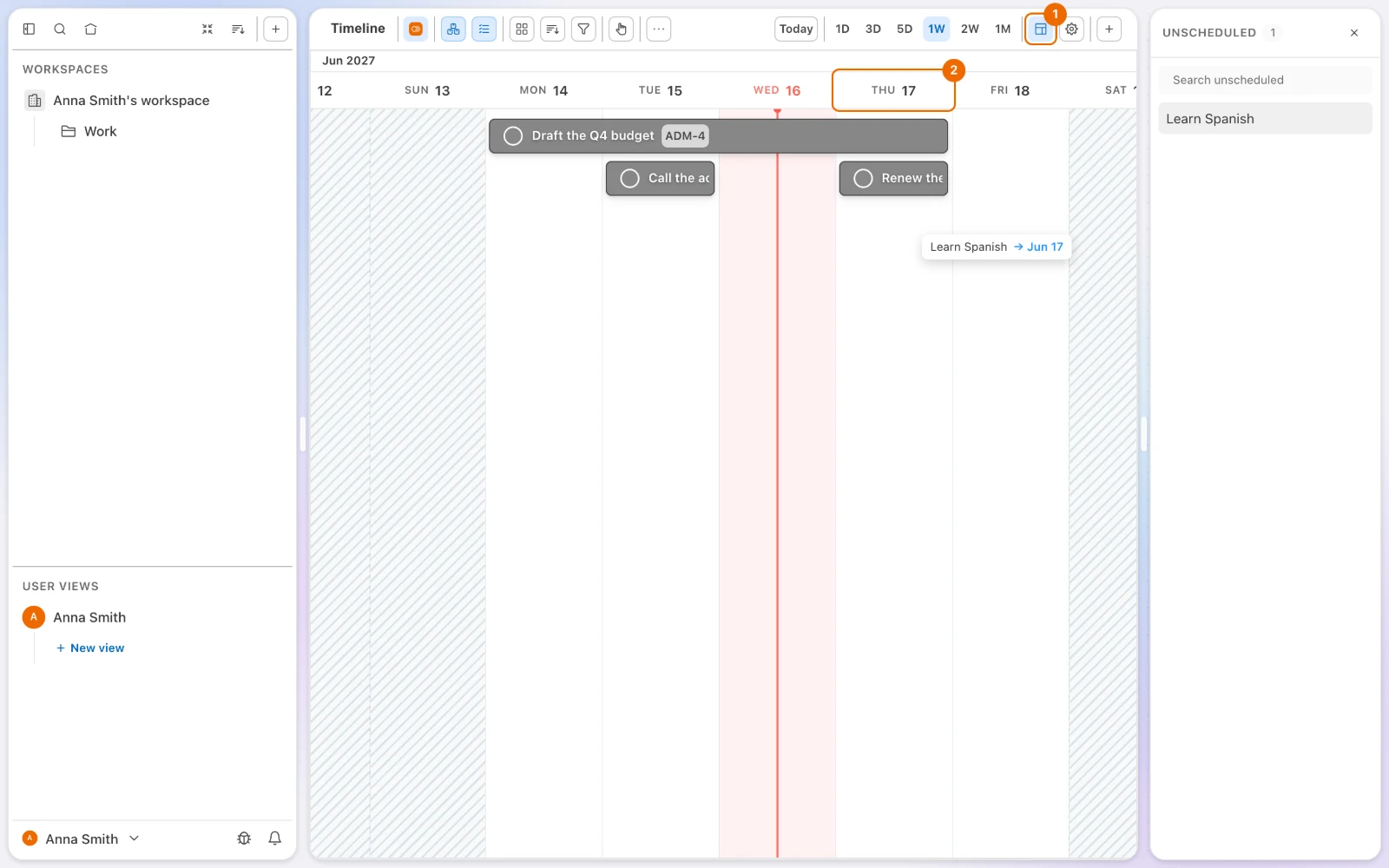
The insurance must be renewed a day earlier: drag the bar of "Renew the car insurance" from Friday to Thursday. The bar snaps to whole days and the task is due on Thursday. A task with only a due date gets a start date on the same day.
Times are dropped
The timeline works in whole days: dragging a bar removes the task's time of day. Set times on the calendar or in the task.
Drag the right end of the "Draft the Q4 budget" bar from Wednesday to Thursday. While you drag, the other bars stay where they are: "Renew the car insurance" shows through the bar on Thursday. When you let go, the due date moves to Thursday, the start stays on Monday, and "Renew the car insurance" drops to the line below to make room.
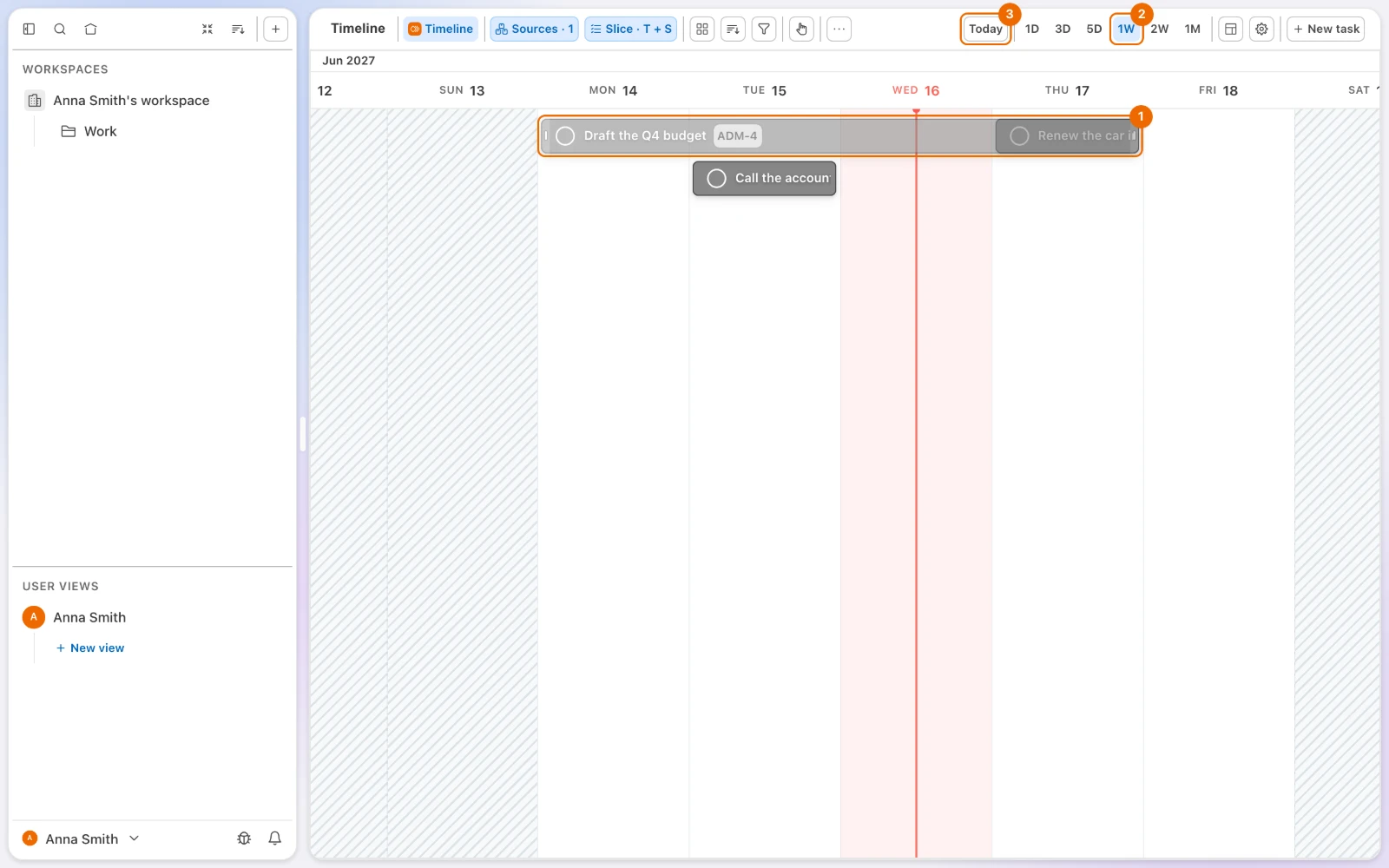
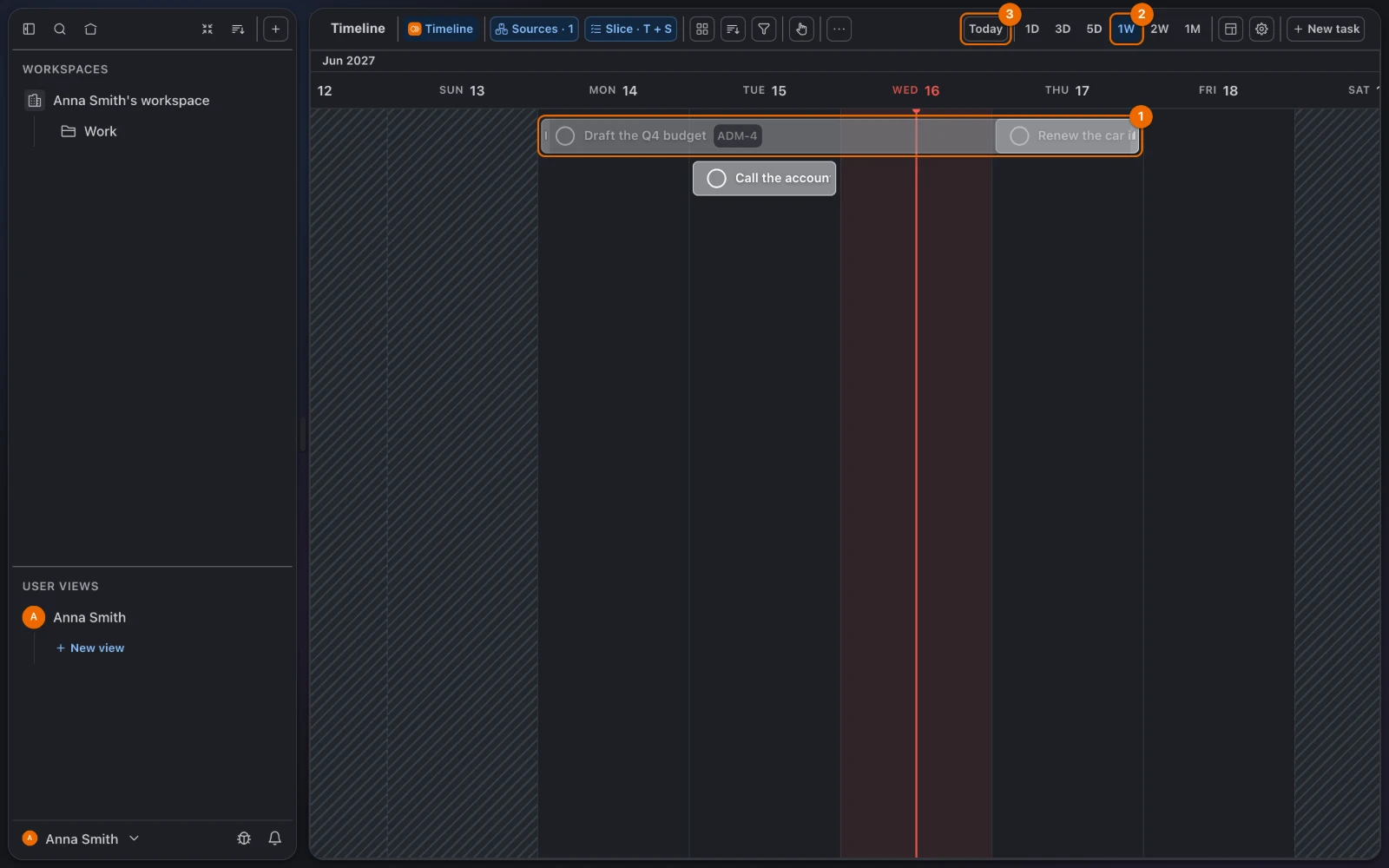
Double-click empty space in a row on Friday. In the popover, type a title on the Create task tab and press
Enter; on a view over several lists, pick the list in Select a list first. A new task appears with Friday as its start and due date. To put an existing task there instead, switch to Find task and pick it.
Calendar: block time by the hour
At the top, pick 1W. The week shows by the hour, and it scrolls without arrows. The range runs from 1D (a day) to 1Y (a year).
Drag "Call the accountant" from 10:00 to 11:00 on Tuesday. Its start and due times move with it. Dropped in the all-day row instead, a task becomes an all-day task.
Drag the block's bottom edge down by half an hour. The call now ends at 12:00.
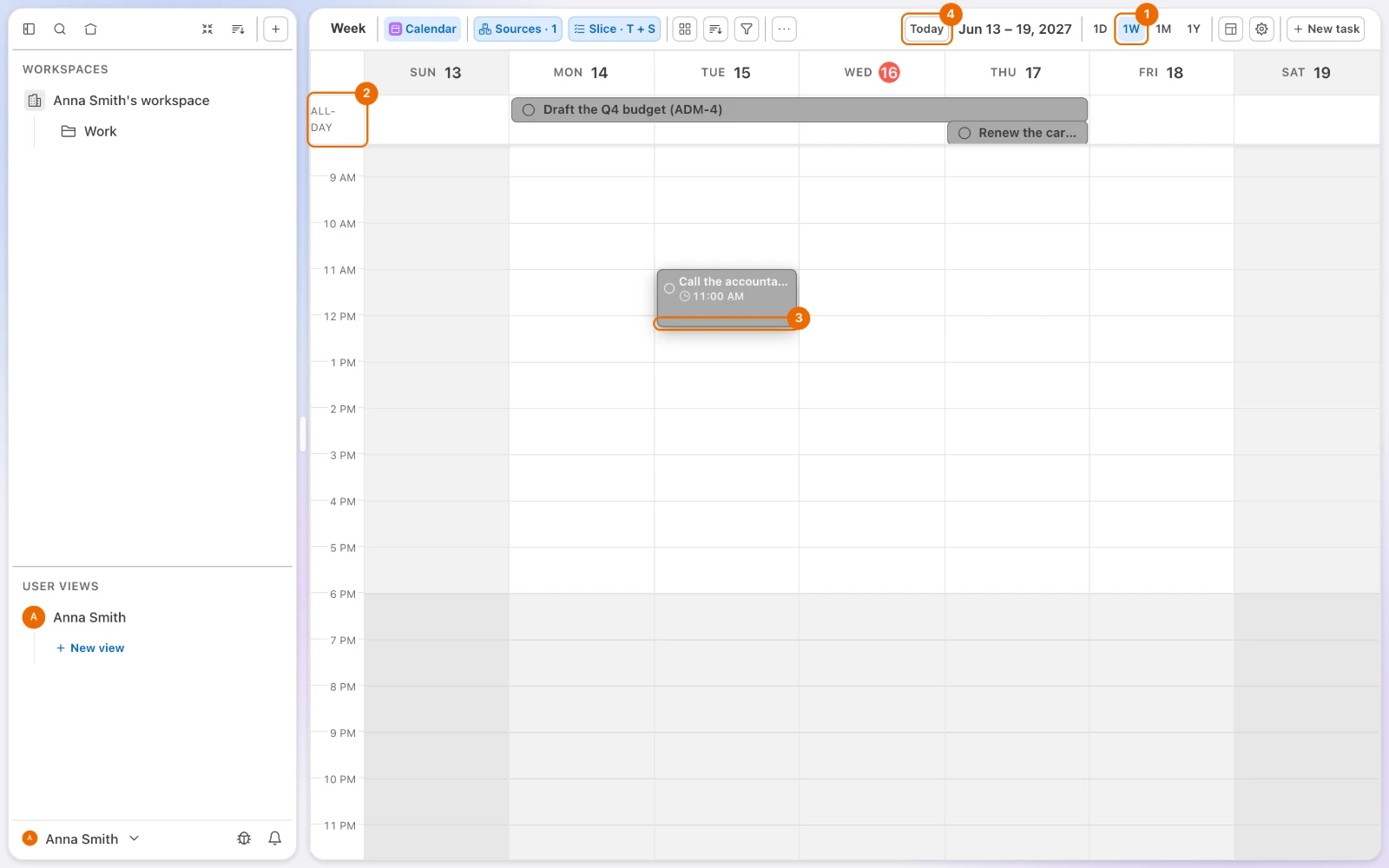
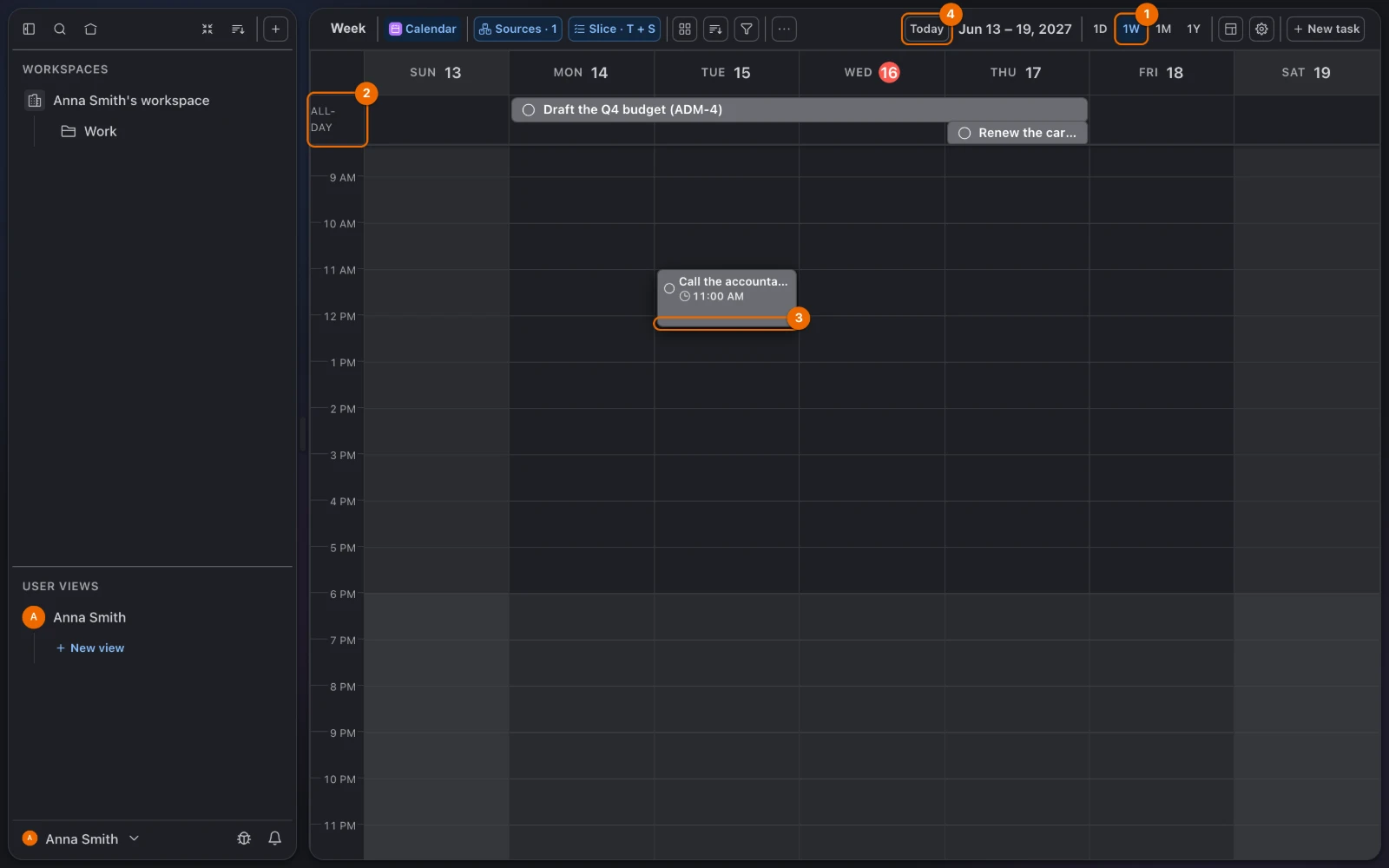
Double-click an hour. In the popover, type a title on the Create task tab and press
Enter; on a view over several lists, pick the list in Select a list first. A new timed block appears, one hour long by default (Calendar settings → New task duration changes it). Find task puts an existing task there instead.
Undated tasks: the Unscheduled panel
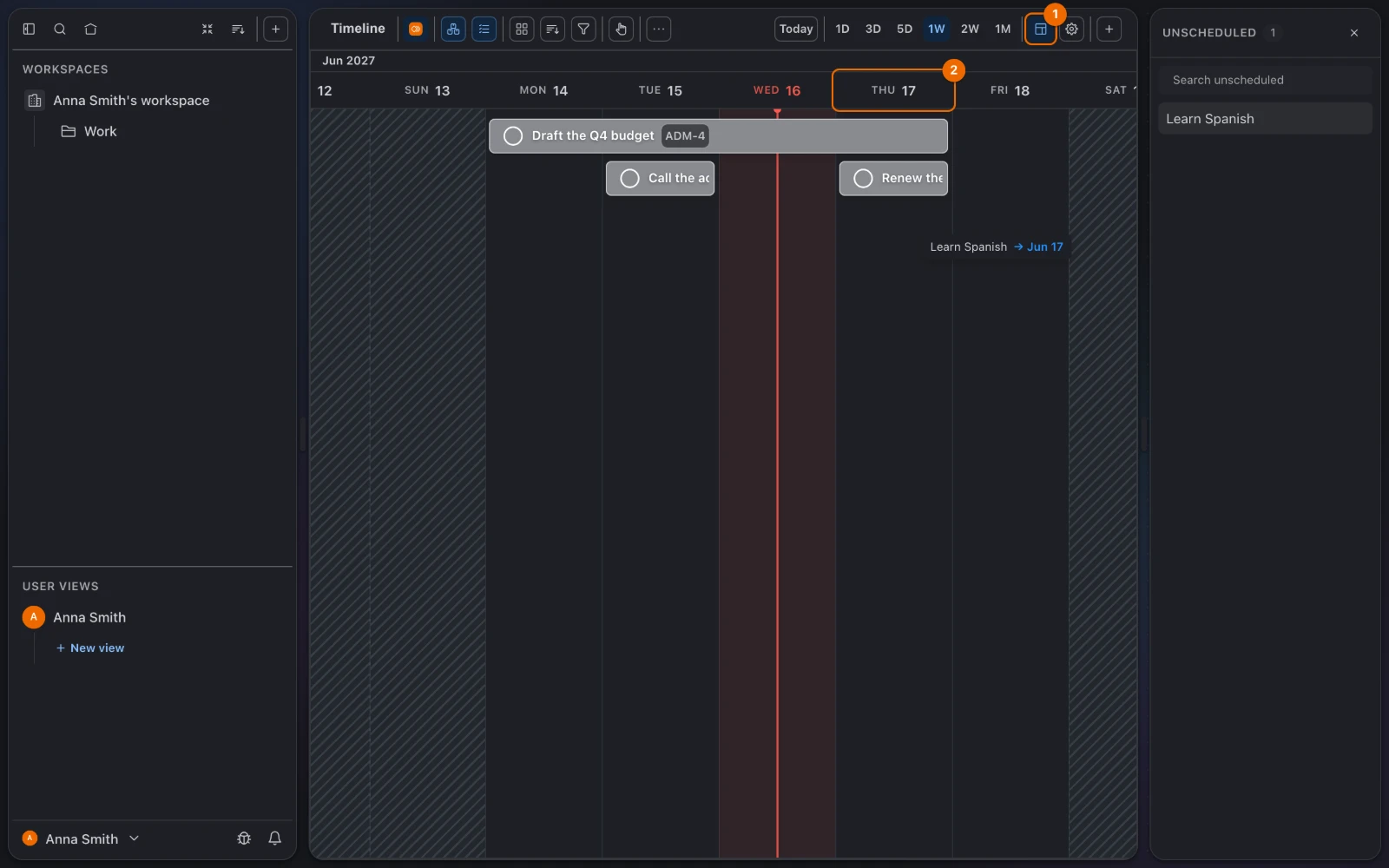
Click the panel icon (tooltip Show unscheduled) at the right of the view's header, before the settings icon. The Unscheduled panel lists tasks with no start and no due date, such as "Learn Spanish".
Drag "Learn Spanish" from the panel onto Thursday (or, on the calendar, onto an hour). It gets that date and leaves the panel. Dropped on an hour, it becomes a block as long as New task duration in Calendar settings, one hour by default.
Dates are cleared
On the calendar, dragging a task back into the panel removes its start, its due date and any time of day.
If it doesn't work
- A task is missing from the timeline. It has no due date. Give it one in the task's dates panel, or drag it from the Unscheduled panel.
- A task with only a start date is on neither the timeline nor the Unscheduled panel. Give it a due date too, in the task's dates panel.
- You can't drag a bar. You can only read that list. Ask whoever shares it with you for Edit access (Share a folder or a list, Permissions and access).
- Dragging a timeline bar removed the task's time of day. The timeline works in whole days. Set times on the calendar or in the task.
- There is no Or row for the end time. The task has no start date. Set a start first, or pick the end time itself (Task dates).
- The Date row shows only a due date. The list has its Start Date field off. Turn it on in Set up a list, or set the start on the timeline.
Related
- Views as lenses on tasks: why the same tasks can look like a timeline and a calendar at once.
- Views compared: what each view type shows.
- Today view: build one that shows only what is due today.
- Filter, sort and group a view: narrow a timeline or a calendar to the tasks that matter.
- Task fields: every date field and what it holds.
- Keyboard shortcuts:
Dand the other task keys.