Capture tasks to your Inbox list
Capture a task the moment it comes to mind, and sort it out later in a GTD session. In Hule your Inbox list is an ordinary list that you choose in the Inbox list setting: the New Task form opens on it, so a new task needs only a title. Capture is the first step of GTD.
Inbox list, not the Inbox page
The Inbox page in the app holds your notifications. Your Inbox list is the list you pick below.
Before you start
You need a list to act as your Inbox list:
New to Hule? Start with Hule on your own creates an Inbox list and sets it up in its step 2.
Already have a workspace? Create a list and name it:
textInboxThen continue below.
You must be able to create tasks
Your Inbox list has to be a list you can create tasks in, in a workspace where your permission set allows it.
Inbox list setting
Open the menu at the bottom of the sidebar (your name) and choose Workspace settings. If you belong to several workspaces, pick the workspace in the submenu. The settings open for that workspace.
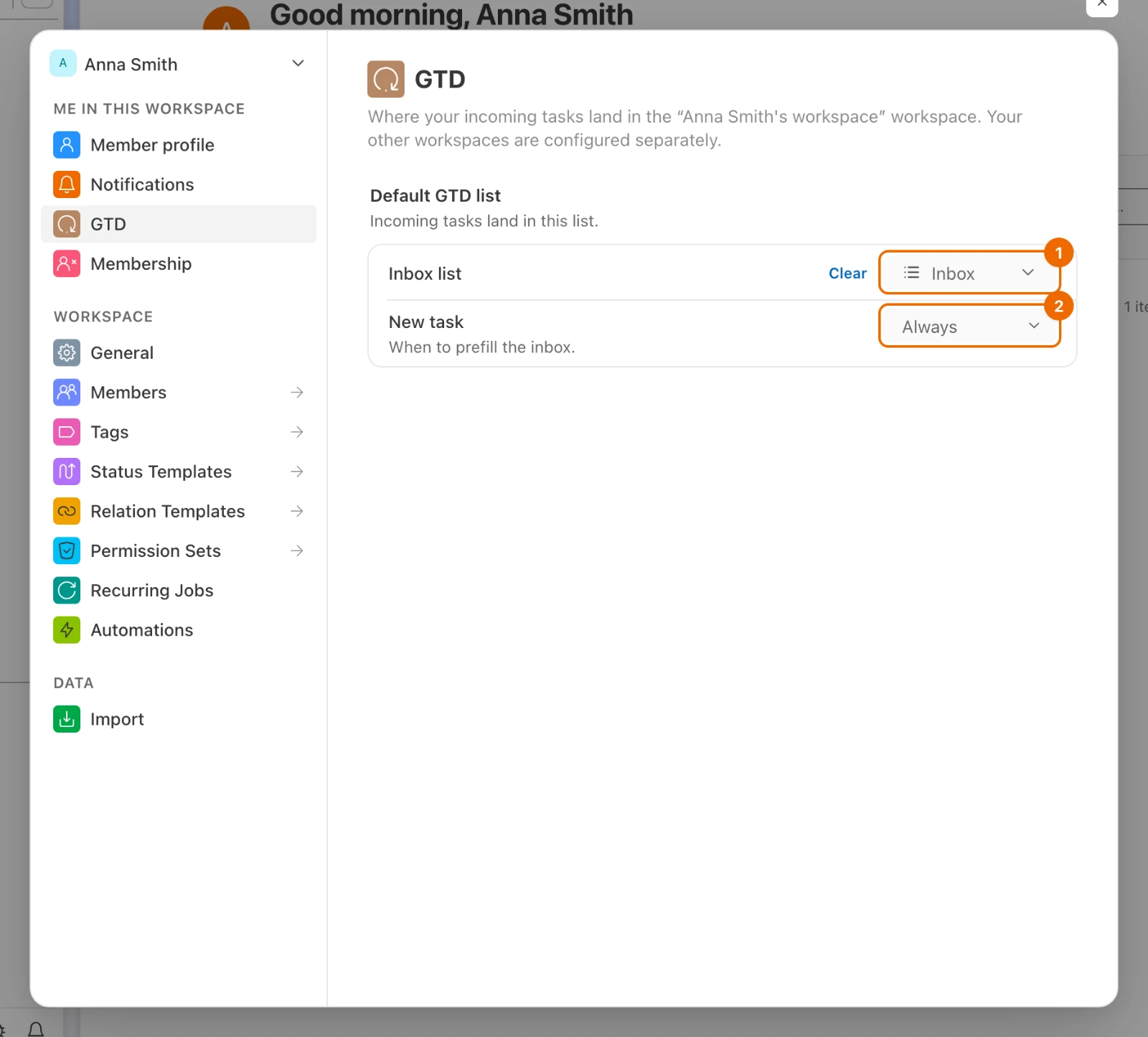
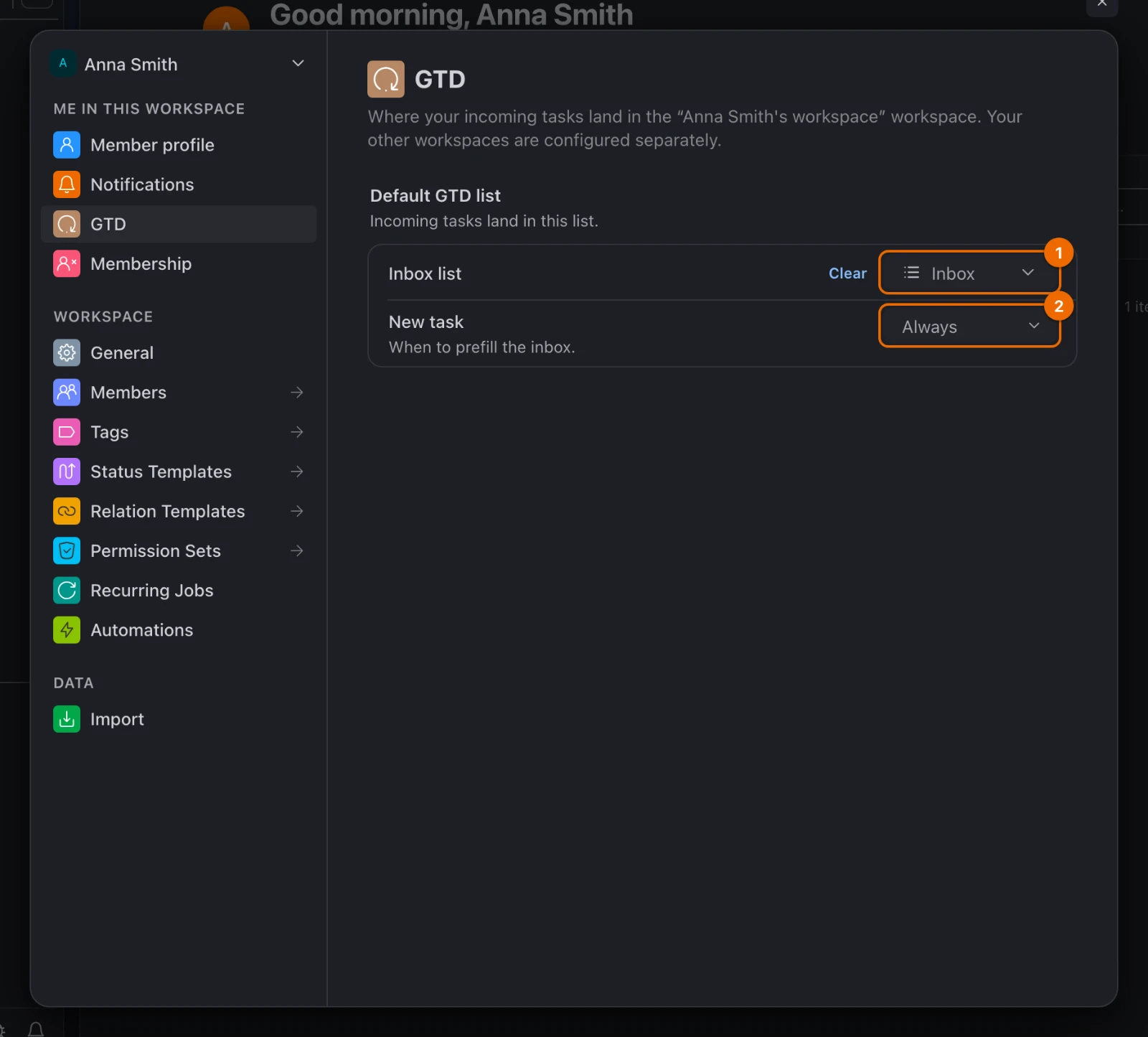
Under Me in this workspace, open GTD. The Default GTD list section appears.
In Inbox list, pick your Inbox list. The New task setting appears under it.
List refused?
If Hule says "This list can't be your inbox: you can't create tasks in it.", pick a list you can add tasks to.
In New task, choose when the form should open on your Inbox list:
- When no list is chosen (the default): the form opens on your Inbox list unless a list is open, or you start from a list's own New task button.
- Always: the form opens on your Inbox list wherever you start it.
Hule saves your choice at once.
One Inbox list per workspace
The Inbox list is yours alone and set per workspace. If you work in several workspaces, choose one in each.
New Task form in the app
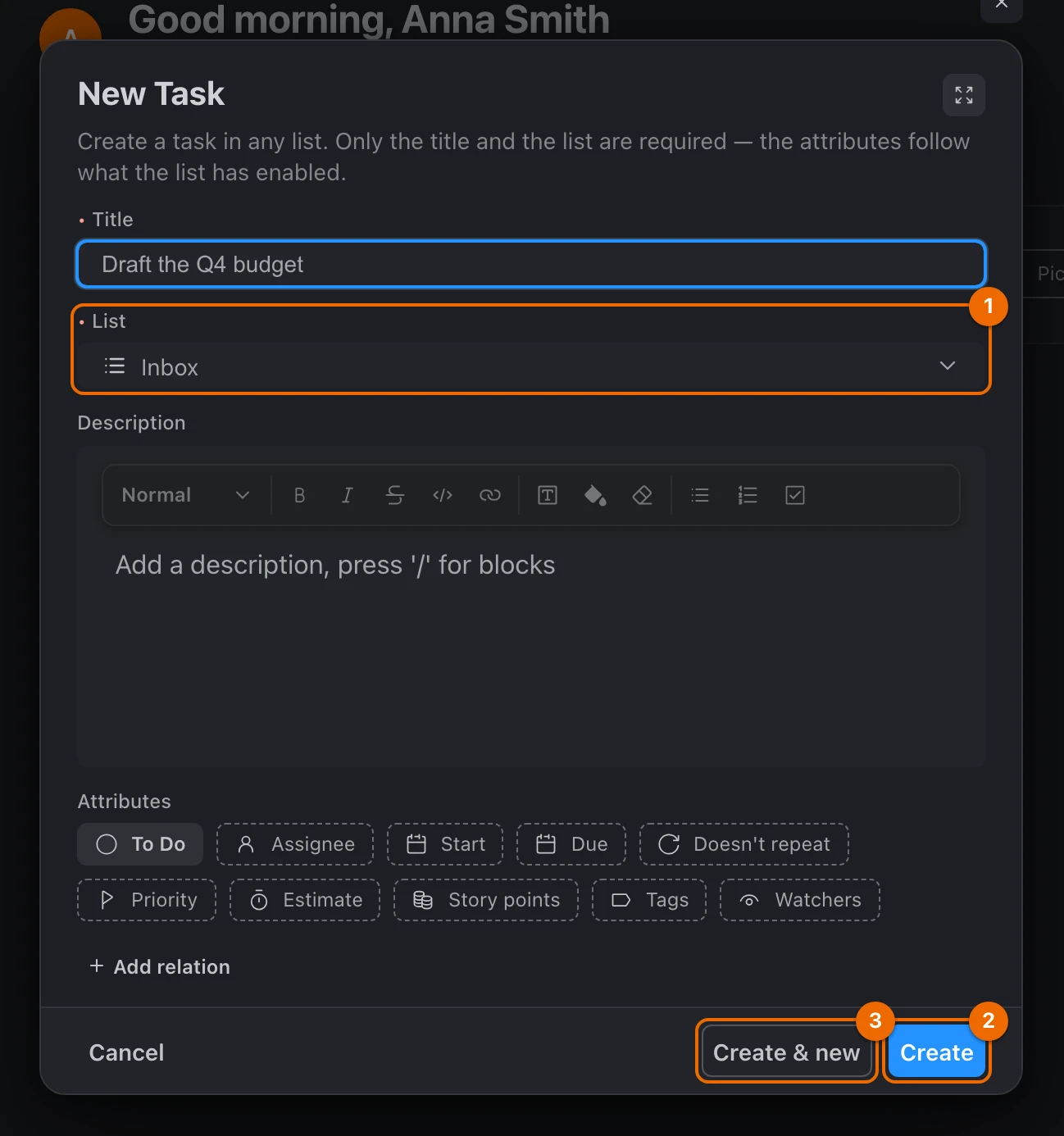
Click + (Create) at the top of the sidebar and choose New task. The New Task form opens with List already set to your Inbox list.
Form opens on another list?
A list was open, and New task is set to When no list is chosen. Set it to Always in the Inbox list setting, or change List in the form.
Type the title and press Create, or Create & new to keep the form open for the next one. A message confirms
Task "…" created, and the task is in your Inbox list.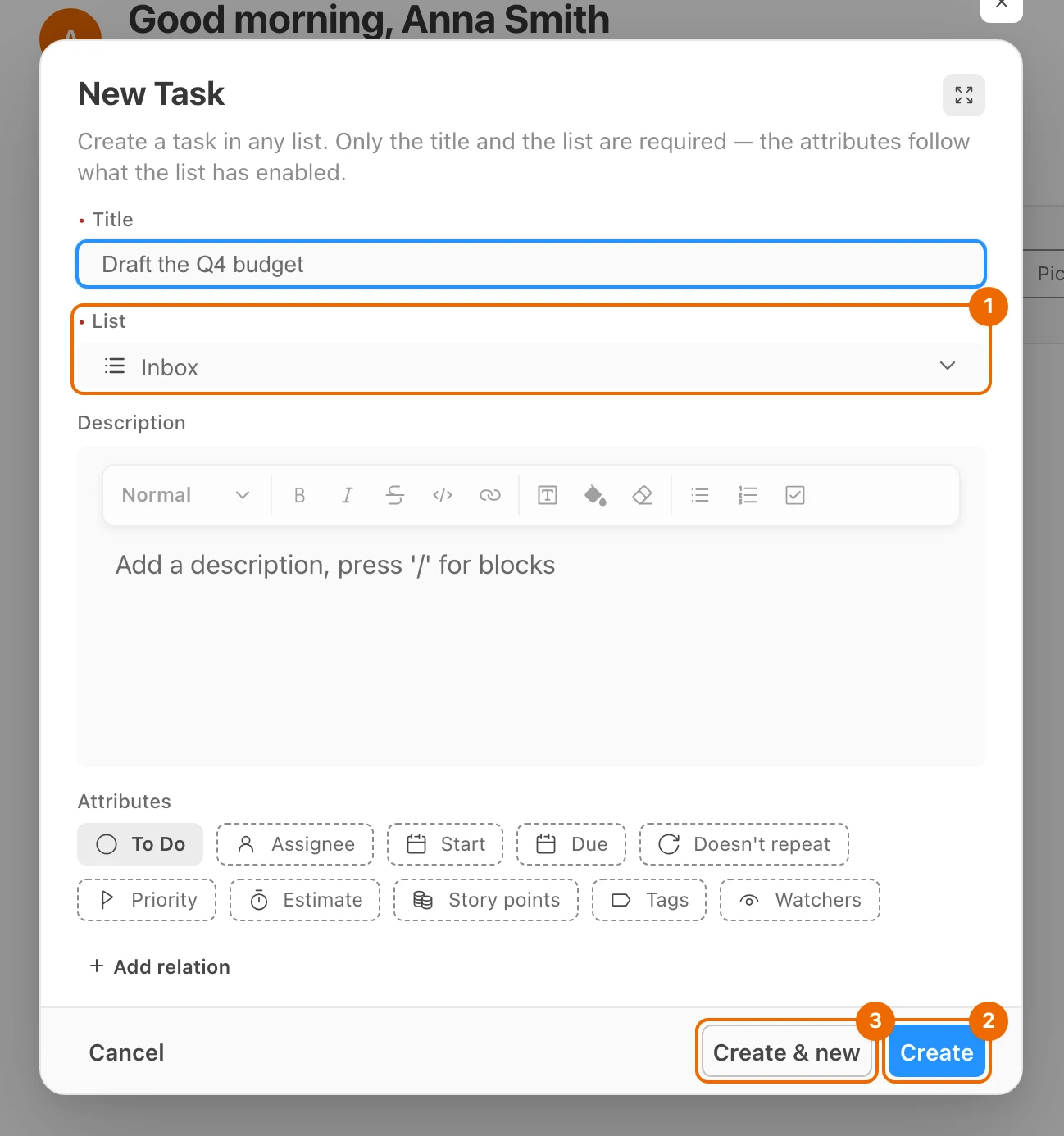
Faster ways to capture in the app
- Press
Cmd+Nin the desktop app, orCmd+Min a browser (Ctrl+N/Ctrl+Mon Windows and Linux) (keyboard shortcuts). - When your Inbox list is open, type the title into Add a task, press Enter at the top and press
Enter. When the row is missing, see Create a task.
From Telegram: /new
Connect the bot first
Link your Telegram account to Hule, then send the Hule bot:
/startThe steps are in Add tasks from Telegram.
Send the Hule bot
/newfollowed by the task, for example:text/new Call the dentist tomorrowThe bot asks Where should this go? and shows your lists as buttons.
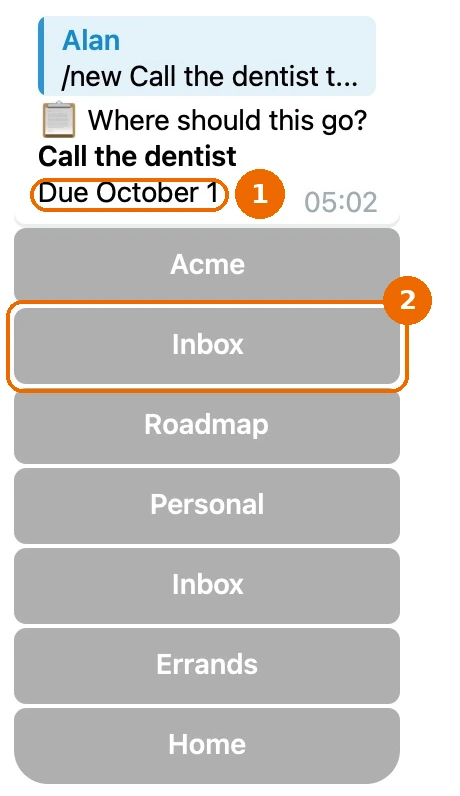
Tap your Inbox list under your workspace's name. The bot answers Task created and names the list and workspace.
Inbox list not among the buttons?
The bot shows the first 24 lists you can add tasks to. Pick one that is shown and move the task to your Inbox list later.
A day in the message becomes the due date: due days the bot reads. The bot and Claude do not read your Inbox list setting: you pick the list each time.
From Claude or another AI agent
Name the list in every request
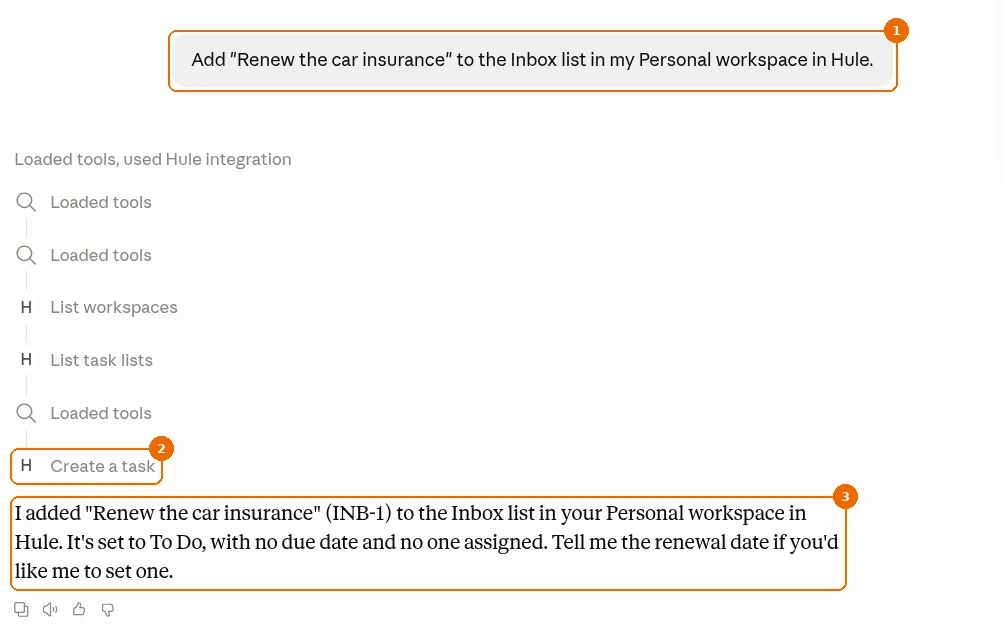
Name your Inbox list, and its workspace, in every request. Claude creates every task in a list you name.
Connect Claude to Hule once: Connect an AI agent. Claude then lists your Hule workspaces when you ask.
Ask Claude, naming the list and its workspace:
textAdd "Renew the car insurance" to the Inbox list in my Personal workspace in Hule.Claude creates the task, and it appears in your Inbox list.
From Raycast on your Mac
Quick Add Task in the Hule extension for Raycast writes to your Inbox list while Default List in the extension's preferences is empty.
Connect the extension first
Quick Add Task signs in with a personal API token from Hule. The steps are in Use Raycast.
Only if you set an Inbox list in several workspaces: in Raycast, open the Hule extension's preferences and set Default List to the one Quick Add should use, as
Workspace / List:textPersonal / InboxQuick Add Task now writes to that list.
Raycast says "Several Inbox lists"?
Default List is empty and your Inbox list is set in more than one workspace. Do step 1.
Run Quick Add Task, type the title and press Enter. Raycast says Added to Inbox.
Sample Inbox list after one morning
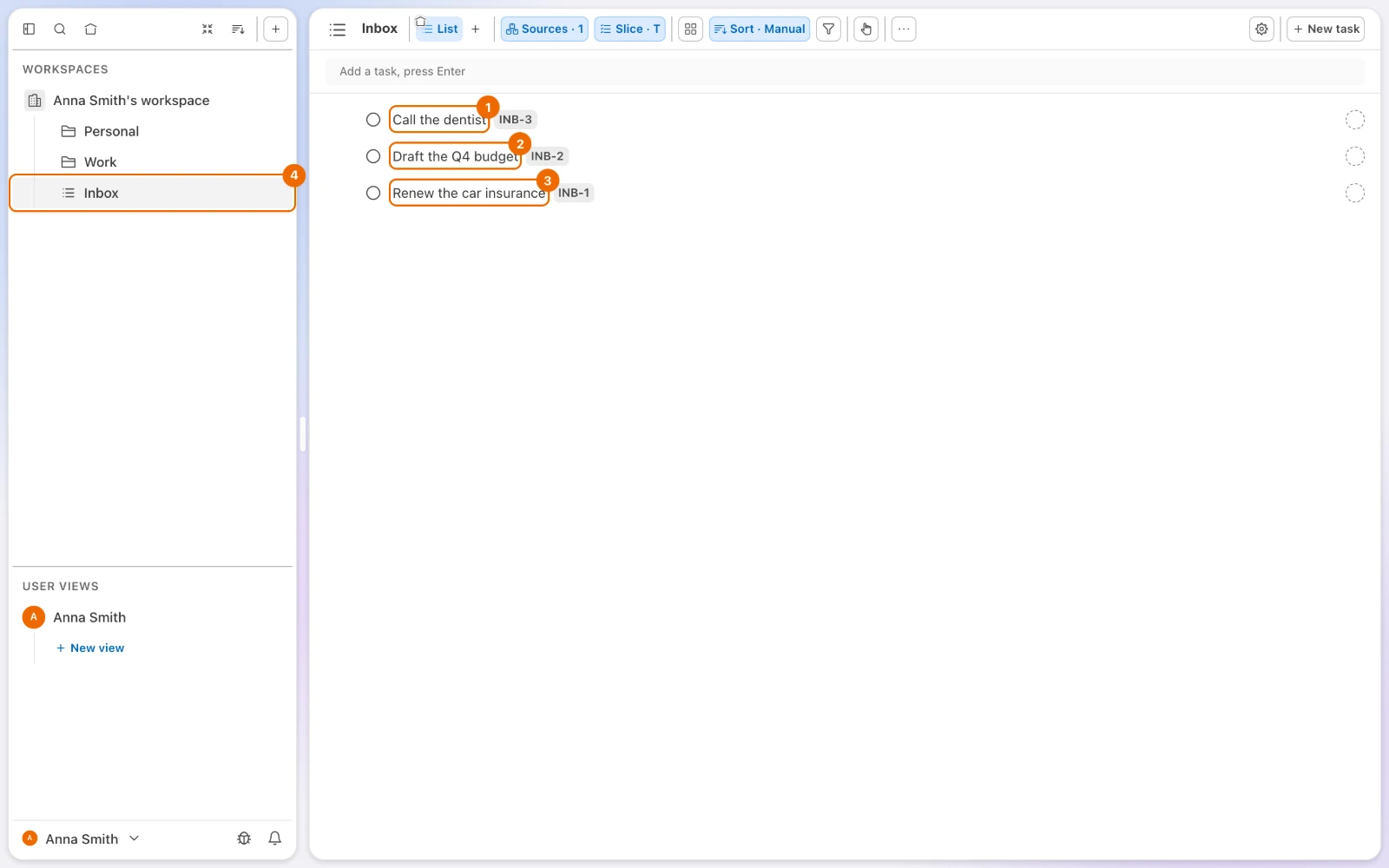
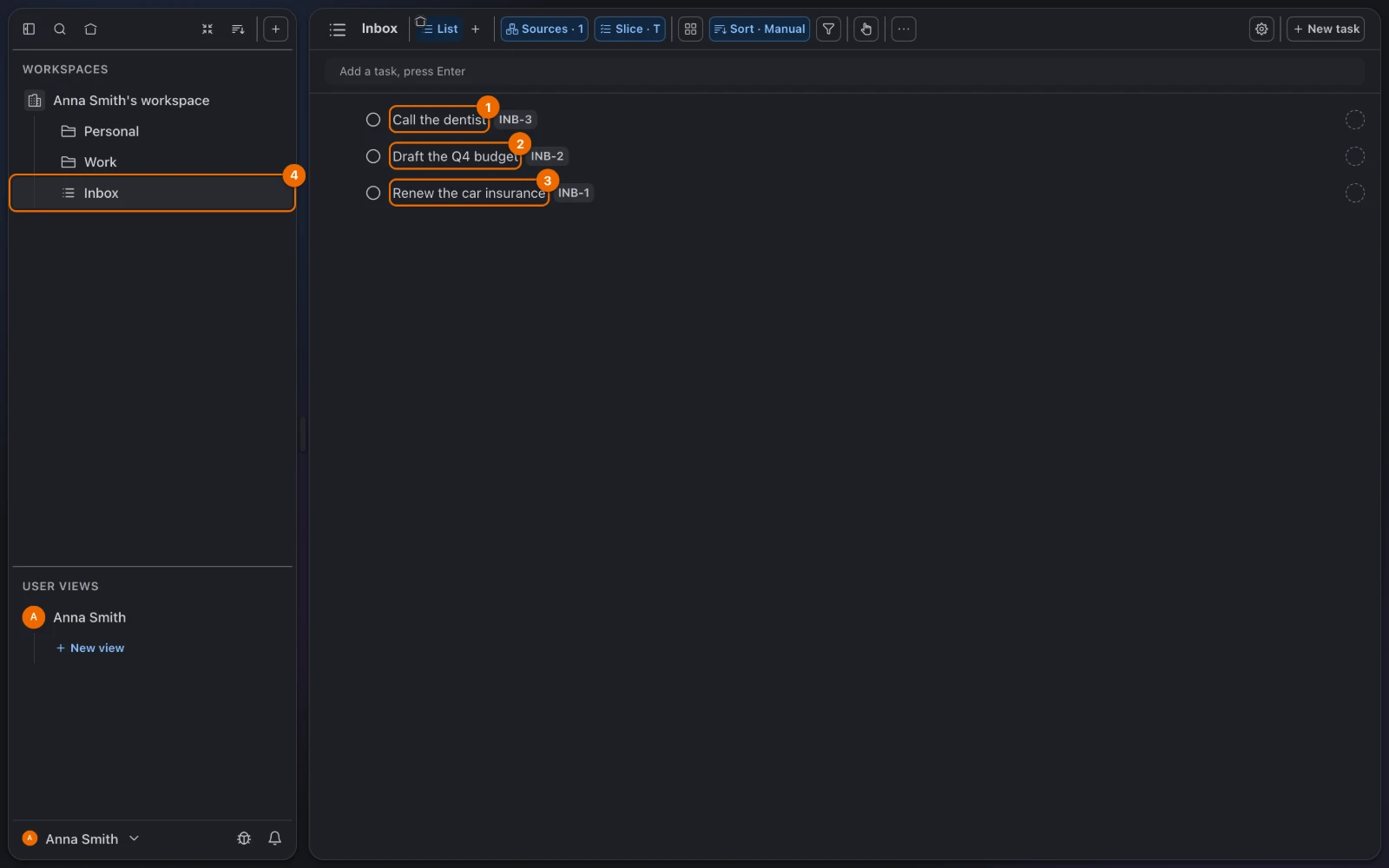
By noon, a solo Inbox list might hold three unsorted tasks:
Call the dentist, from Telegram on the way to work;Draft the Q4 budget, from the app during a meeting;Renew the car insurance, from Claude while reading an email.
If it doesn't work
- The New Task form opens on another list. A list was open, or you started from a list's own New task button, and New task is set to When no list is chosen. Set it to Always in the Inbox list setting, or change List in the form.
- You see "This list can't be your inbox: you can't create tasks in it." You have no right to create tasks in that list. Pick a list you can add tasks to (permissions and access).
- Inbox list is greyed out, with "You can't create tasks in this workspace." Your permission set does not let you create tasks here. Ask a workspace admin, or set your Inbox list in another workspace.
- Inbox list shows "Not selected" again. The list was deleted, or you lost access to it. Choose another one in the Inbox list setting.
- The form opens without your Inbox list in another workspace. Each workspace has its own Inbox list. Set one there too.
- Your Inbox list is not among the Telegram buttons. The bot shows only the first 24 lists you can add tasks to. Create the task in a list that is shown and move it to your Inbox list in the app.
- Claude asks which Inbox, or picks another list. Several workspaces may have a list with that name. Name the workspace too, as in the example.
- Raycast says "Default List not found" or "Default List is ambiguous". Check Default List in the extension's preferences (Use Raycast): write the list's exact name, or
Workspace / List. If both lists are in one workspace, rename one of them in Hule. - Raycast says "Several Inbox lists". You set an Inbox list in more than one workspace. Set Default List in the extension's preferences (Use Raycast) to the one Quick Add should use.
Related
- GTD in Hule: where capture fits among the five steps.
- Run a GTD session: sort what you captured.
- Add tasks from Telegram: capture from your phone with
/new. - Connect an AI agent: let Claude add tasks for you.
- Hule and AI: what an agent can do in Hule, and why it acts as you.
- Create tasks from Claude: a daily workflow with Claude and Hule.
- Inbox flow for a manager: capture and sort as a team lead.
- Telegram bot commands: every command of the bot.
- Use Raycast: connect the Raycast extension and its other commands.
- Keyboard shortcuts: change the New Task shortcut.