Estimate with Scrum Poker
Run a Scrum Poker (planning poker) session when your team estimates a batch of tasks together, for example before a sprint. Everyone votes with a card face down, the cards turn over at once, and the accepted estimate is saved to the task's Story points field (see Task fields).
Before you start
You need a list with the Story Points feature; each section below names the access and the permissions of your permission set it needs.
Turn on Story Points in the list
The Scrum preset turns it on; otherwise switch it on in the list's Configure → Features (see Set up a list). A task in a list without story points is skipped in the session.
Add a Scrum Poker view
Share the view with the voters
The people who vote are the members the view is shared with. Share the list or its folder with them first. Adding the view needs Edit access to the list or folder and Create in the Views block; the List/Folder manager, Admin and Super Admin sets have it.
Not in a personal view
A personal view has no participants, so a session can't start there. Add the view to a list or folder in a workspace.
- Open the list (or folder) that holds the tasks to estimate. Its view tabs show above the tasks.
- In the row of view tabs, click + (Add view) and choose Scrum Poker. A view named "Scrum Poker" opens.
Until a session starts, whoever can start one sees the list's tasks as a List, without the row for adding a task; everyone else sees No estimation session yet. The view's filter decides which tasks the session offers.
Start a session
Permission to start a session
Starting a session needs Create in the Scrum poker block. The Admin and Super Admin sets and the owner have it, and a custom set can grant it.
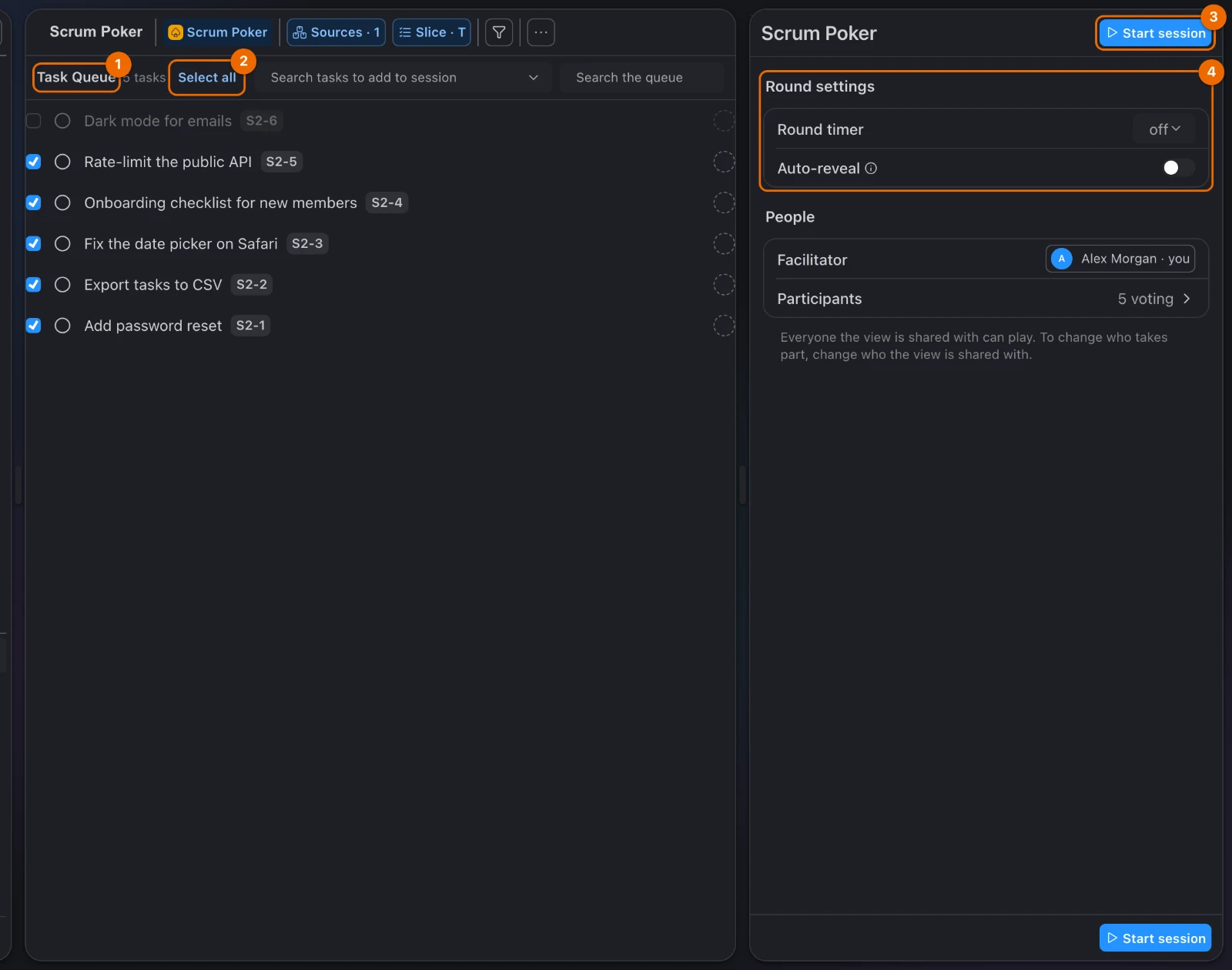
In the Scrum Poker view, click Start session at the right of the view's header. The Task Queue opens, with every task that matches the view ticked, in the view's order.
Untick the tasks to leave out. The counter next to Task Queue shows how many go in. Clear all unticks the rows you see; once a task is unticked, the same button reads Select all. Type in Search the queue first to act only on the matching rows.
In the panel on the right, under Round settings and People, set what you need:
Setting What it does Default Round timer Limits each round to 15, 30, 60 or 90 seconds. off Auto-reveal Turns the cards over 3 seconds after everyone has voted. off Facilitator The member who opens rounds, reveals the cards and accepts estimates. Only the facilitator can do these. you 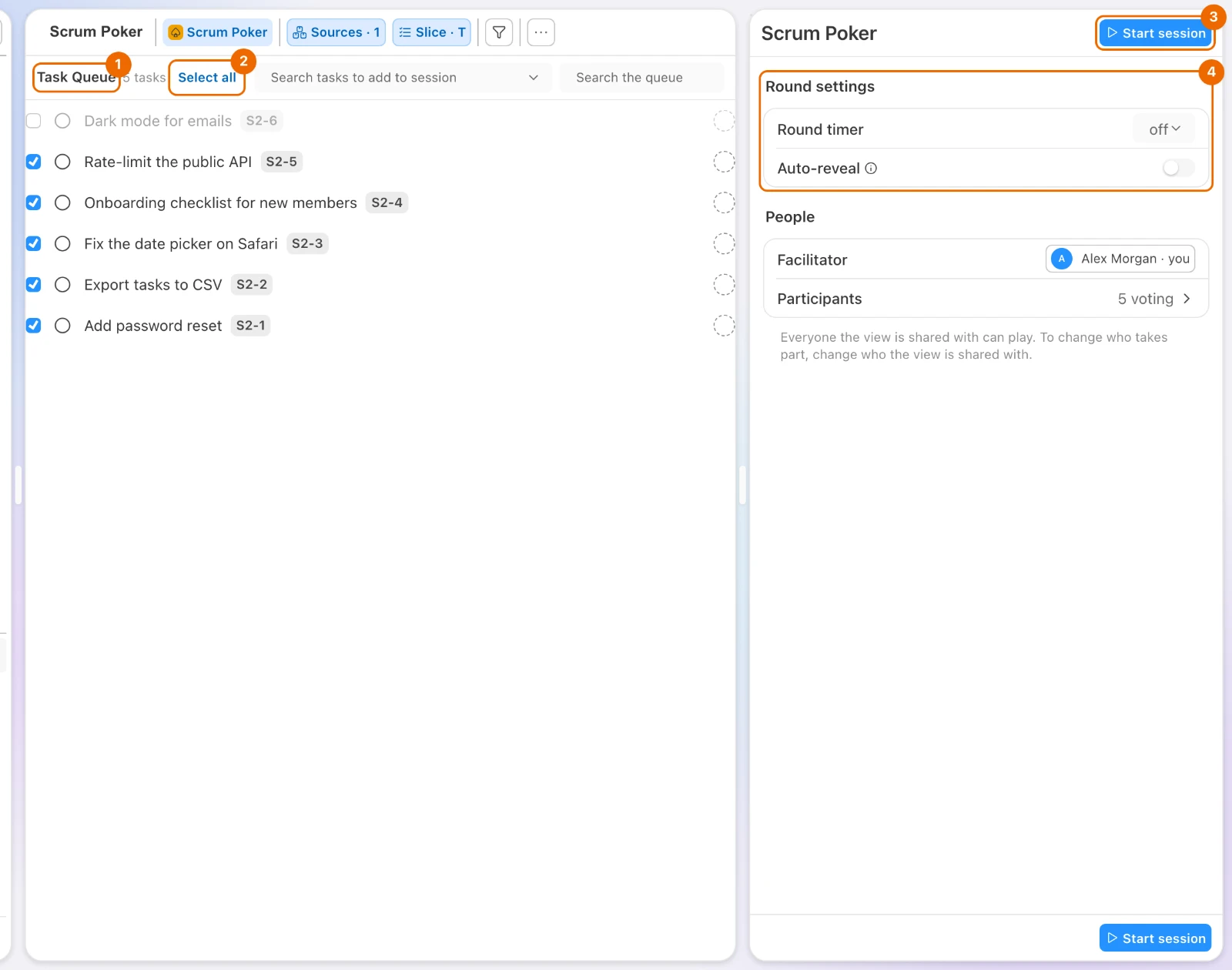
"Only you have access to this view"?
People shows this when nobody else can vote yet. Click Share this view, or share the list or folder it sits in.
Click Start session at the top of the panel, or the same button at its bottom. The session opens on the first task at the Discussion step: four groups of questions to walk before anyone votes, with Start round in the panel.
Ask the voters to open the view. They join as it opens; there is no invitation step.
The session keeps the tasks you ticked, in the order you saw, even if they later stop matching the view's filter. Because the tasks are fixed, the view's header hides these controls while the session and its summary are on screen, and the filter strip below it:
- Sources;
- Slice;
- Filter;
- View settings (…).
Run a round
Who can vote
Voting needs Vote in the Scrum poker block (the Worker set has it) and a view shared with you.
Click Start round. Voting opens, and each participant sees their cards: by default 1, 2, 3, 5, 8, 13.
Each participant picks a card. Others see who has voted ("3 of 5"), never what. A participant can change their card until the reveal.
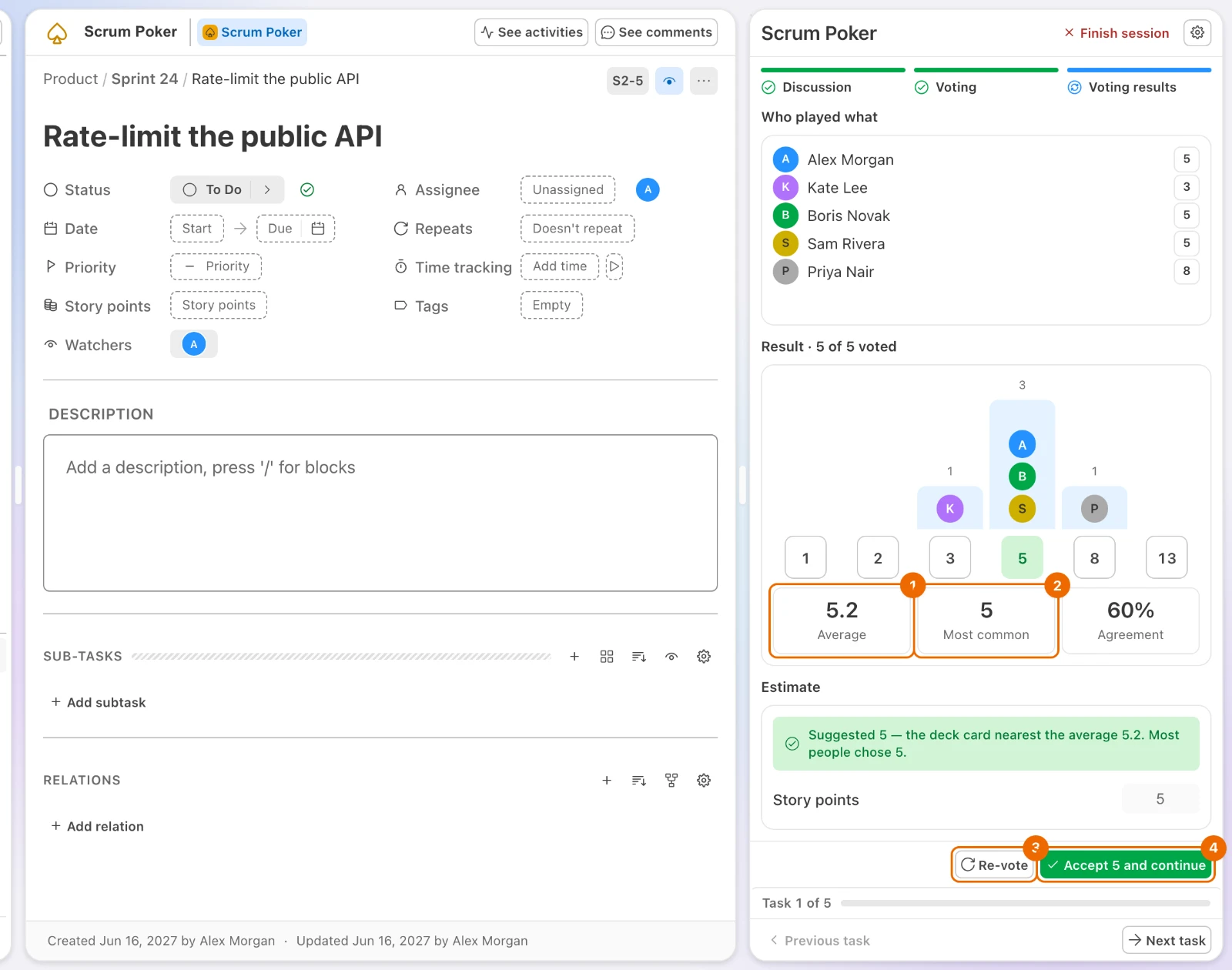
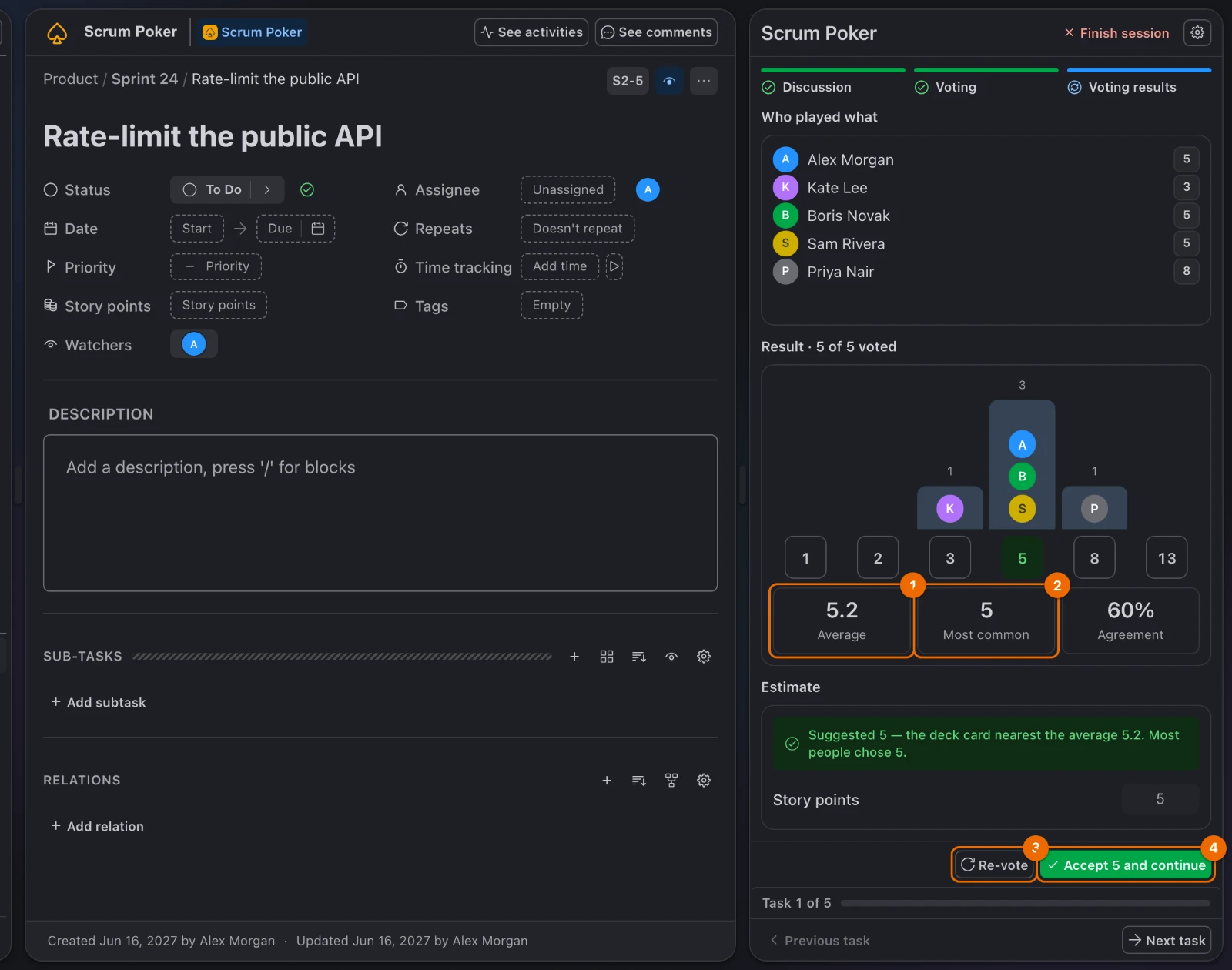
Click Reveal. With Auto-reveal on, the cards turn over by themselves 3 seconds after the last vote; Cancel stops the countdown. The results show:
- the Average;
- the Most common value;
- the Agreement: the share of votes for the suggested card (the deck card nearest the average); a dash below three votes;
- who played what.
If the votes are far apart, click Re-vote after the discussion. A new round opens for the same task.
To save another number than the suggested one, type it into Story points in the panel's Estimate block. The accept button takes the new number.
Click Accept … and continue. The message "Estimate … saved to the task" appears, and the next task opens.
"No rights on that task's list"?
Saving an estimate needs the facilitator to have Edit access to the task's list; without it the result is kept in the session. Someone with Edit access can type the estimate into the task's Story points.
Before the reveal, Skip task leaves a task unestimated and moves on; after the reveal the same button reads Next task.
While a task is on screen, the buttons at the right of the view's header swap what the left side shows:
| Button | What it shows |
|---|---|
| See comments | The task's comments, in place of the task |
| See activities | The task's history, in place of the task. Missing when Activity is turned off in the task's list |
| Back to task | The task again |
Edit the queue during a session
Only the facilitator edits the queue
Everyone can open the queue to look. Adding, reordering and removing tasks is the facilitator's job.
- Click the progress row (Task 1 of 5) at the bottom of the panel. The Task Queue opens in place of the task; the tasks already estimated are struck through.
- Change the queue:
- to add a task, type its title or ID into Search tasks to add to session next to Task Queue and pick it;
- to reorder, drag a task by its handle;
- to take a task out, click Remove from queue on its row; it goes at once.
Finish the session
A session finishes by itself:
- when you accept the last task ("… that was the last task, the session is now finished");
- after 30 minutes with no activity.
Who can finish
The facilitator, or a member whose set has Facilitate in Scrum poker (Admin, Super Admin, the owner).
To end it earlier, or to leave the last task unestimated:
In the panel's header, click Finish session. A dialog asks "Finish the session?".
Click Finish session in the dialog. The session closes for everyone and stays as a read-only summary: how many tasks were estimated, the story points and who took part. The estimated tasks are struck through.
Finishing closes the session for everyone
It can't be reopened. Estimates already accepted are kept; tasks still without one stay unestimated. To estimate them, start a new session.
To leave the summary, click Close finish screen, at the top or the bottom of the panel. The view shows its tasks again, ready for the next session.
Example: estimating a sprint
Alex, the team lead with the Admin set, shares the list Sprint 24 (preset Scrum) with Kate, Boris and two developers, adds a Scrum Poker view and ticks five tasks. In the first round the cards read 3, 5, 5, 5, 8; after a minute of discussion Alex accepts 5. Twenty minutes later all five tasks have story points, and the sprint total is on the summary.
Change the card values
Each task's cards come from the story-point scale of the list it sits in. A list that never set one deals 1, 2, 3, 5, 8, 13.
Open the list's Configure → Story points. The Story points scale shows the current values.
Edit access to the list
Changing the scale needs Edit access to the list and Update in the Lists block (such as List/Folder manager or Admin). See Set up a list.
Click Add value and type a whole number from 0 to 999; a scale holds up to 20 values.
Click Save scale. New sessions deal the new cards.
Running sessions keep their cards
A session that has already started keeps its cards.
If it doesn't work
- A task is marked as skipped. Its list's Story Points feature is off or its scale is empty, and a running session keeps it skipped. Fix the list (Set up a list, Change the card values), then estimate the task in a new session.
- "Only you have access to this view". Nobody else can vote yet: click Share this view, or share the list or folder.
- A member sees "No estimation session yet". No session has started yet. Ask a member whose set has Create in Scrum poker (Admin, Super Admin) to start one (Permissions and access).
- A member sees "You are watching the session — only participants can vote". The view isn't shared with them: share it. This applies to the workspace owner too: without a share on the view, they watch.
- "No rights on that task's list — the result is kept in the session". The facilitator has no Edit access to that list (see Share a folder or list). Someone with Edit access can type the estimate into the task's Story points.
- The session finished during a long discussion. Nobody voted or moved on for 30 minutes. Start a new session with the tasks that are left.
- "A session on this view has already been started". A view holds one live session at a time. Join it, or finish it first.
Related
- Share a folder or a list — who can vote depends on it.
- Sharing along the hierarchy — what Edit and Read access mean.
- Set up a list — switch on Story Points.
- Invite members and grant permissions — give a custom set Create in Scrum poker.
- Run iterative sprints by duplicating — start each sprint from a copy of the last one, then estimate it here.
- Task fields — what Story points is and where it shows.
- Views as lenses on tasks — Scrum Poker is a view: it shows the list's tasks without owning them.
- Permissions and access — which sets can start a session and vote.