Assign and watch tasks
Assign a task so everyone knows who does it, and add watchers so the right people hear about its progress. A task has one assignee — the member responsible for it — and any number of watchers, who are notified when it changes. Both are task fields.
Before you start
You need a list with the Assignee and Watchers features; each section below names the access and the permission set rights it needs.
Turn on Assignee and Watchers in the list
- Simple list (the preset new lists start with): both off;
- Teamwork and Scrum: both on.
To turn them on, open the list's More actions (…) menu in the sidebar → Configure → Features; see Set up a list.
Assign a task
Access and permissions to assign
- Edit access to the list. With Read access you can only watch a task yourself.
- Update in the Tasks block and Assignee in the Task fields block of your permission set; the Worker set has both. Without either, the field stays read-only even with Edit access.
Open the task. The task card opens with its fields at the top.
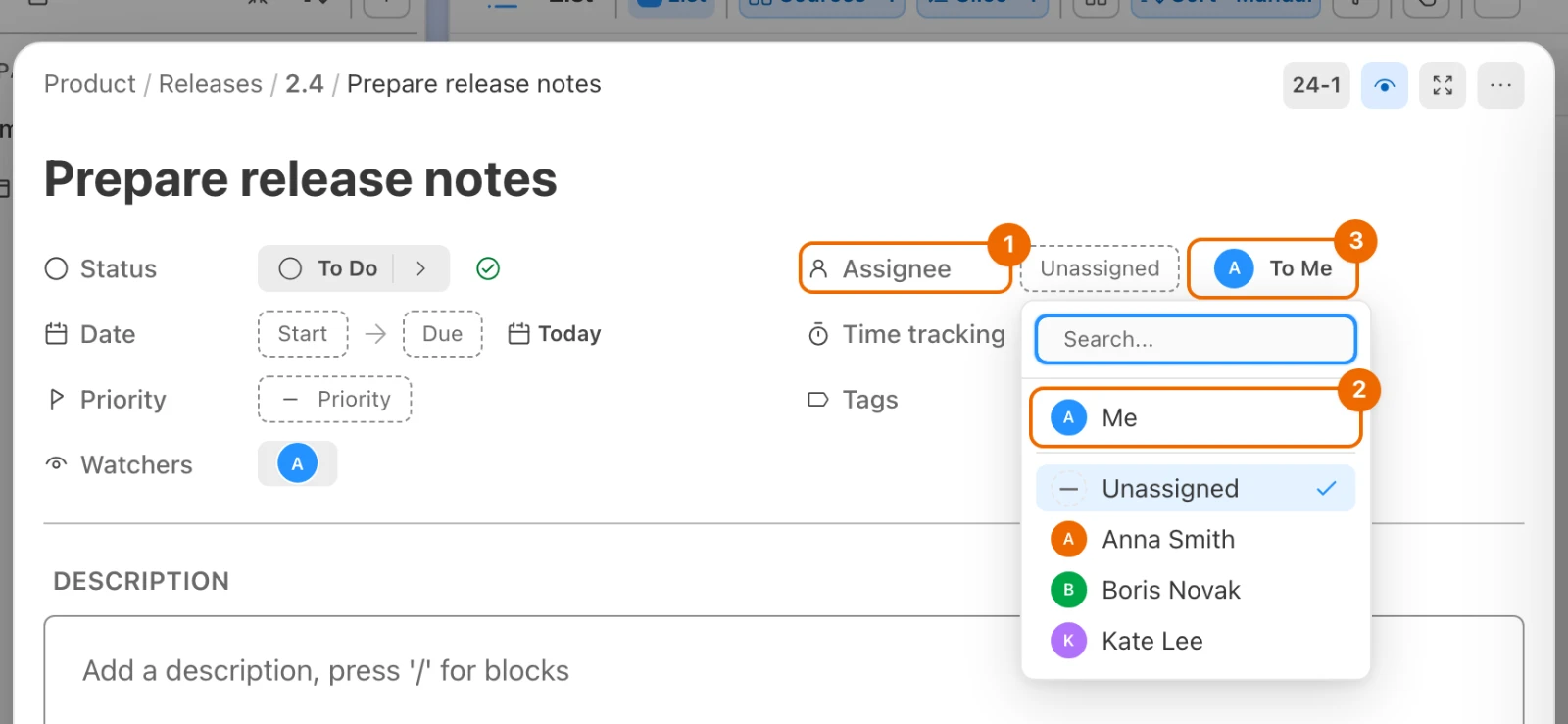
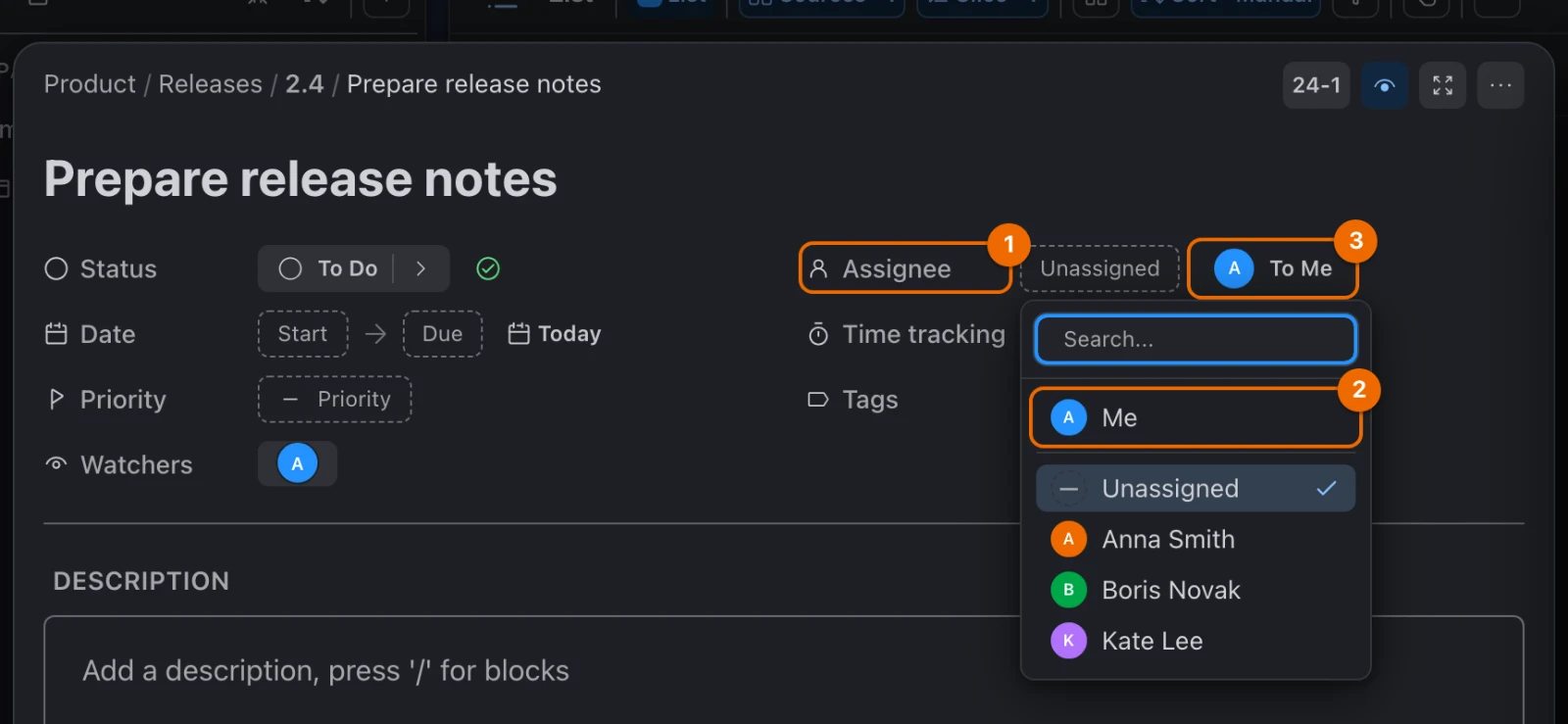
Click the chip next to Assignee (it reads Unassigned when nobody is assigned yet), or press A while the task is open (see Keyboard shortcuts). The member picker opens. Me at the top assigns the task to you; Unassigned clears the field.
Member not in the picker?
You can assign only members who have access to the task's list. Share the list or its folder with them first.
Pick the member. The member you assign gets an "Assigned to you" notification and starts watching the task. You get no notification when you assign yourself.
Other ways to assign:
| Where | What to click |
|---|---|
| The task card, to take the task yourself | To Me next to the field. In a narrow panel it is your avatar, with the tooltip Assign to me. |
| A List, Table or Kanban view | The avatar on a task row or card: you change the assignee without opening the task. |
| Several selected tasks | Assignee in the bar for the selection; see Assign many tasks at once. |
For example, in the list 2.4 you assign "Prepare release notes" to Kate and add Boris as a watcher. Kate gets "Assigned to you" and starts watching. When Kate moves the task to Done, Boris gets one update under Watching in the Inbox; Kate gets nothing, because she made the change.
Assign many tasks at once
Select the tasks: Cmd/Ctrl+click each row. A bar with the actions for the selection appears.
Click Assignee in the bar and pick the member. The message "5 tasks updated" confirms the change.
"Updated 3 of 5 tasks"?
Tasks in lists the member can't open are skipped. Share those lists with them, then assign the skipped tasks again.
More changes to many tasks at once: Edit tasks in bulk.
Watch a task
Watchers follow a task without being responsible for it — a lead who wants to know when a release task is done, or a designer waiting on a review.
Watch a task yourself
Click the eye (Watch) in the task header, or Watch in the task's ⋯ menu. You are now a watcher of the task. Click the eye again (Stop watching) to stop.
Read access is enough
You can watch any task in a list shared with you, even with Read access.
Add other members as watchers
Access and permission to add watchers
Adding other members needs Edit access to the list and Manage watchers in the Tasks block of your permission set; the Worker set has it.
Click the chip next to Watchers in the task card (it reads Empty when nobody watches yet). The list of members opens.
Member not in the list?
You can add only members who have access to the task's list. Share the list or its folder with them first.
Tick the members. They become watchers of the task.
To remove a watcher, untick them in the same list. They stop getting updates on the task.
Who watches automatically
Hule adds these watchers for you:
| Who | Starts watching when |
|---|---|
| the creator | they create the task |
| the assignee | the task is assigned to them (a previous assignee keeps watching) |
| a commenter | they write a comment |
| a mentioned member | someone @mentions them in the description or a new comment |
What watchers are notified about
| Change | Who is notified | Where it lands in the Inbox |
|---|---|---|
| A new comment | Watchers, except its author and anyone @mentioned in it (they get the mention) | Mentions & replies |
| A change of status, assignee, due date or priority | Watchers | Watching |
| A new @mention in the description | The member mentioned | Mentions & replies |
| A change of the title, tags or description | Nobody: it is in the task's history | — |
Your own changes and bursts of changes
Changes you make yourself don't notify you, and several changes in quick succession usually arrive as one notification.
The Inbox is not the only place these notifications reach:
- Telegram, once you connect the Hule bot;
- Desktop pop-ups, when your browser or the desktop app may show notifications.
Both channels are in notification settings.
If it doesn't work
- There is no Assignee or Watchers field. The list has the feature off. Turn it on in the list's More actions (…) menu → Configure → Features; see Set up a list.
- Watchers still get updates after you turned the feature off. Turning Watchers off hides the field; members already watching keep getting notified. Untick them first (see Add other members as watchers).
- The member is not in the picker. They don't have access to the task's list. Share the list or its folder with them.
- Bulk assignment says "Updated 3 of 5 tasks". The member can't open the lists of the skipped tasks. Share those lists with them, then assign again.
- The field is greyed out with "You have read-only access". Either you have Read access to the list (see Share a folder or list), and you can still watch the task yourself; or you have Edit access, but your permission set leaves out Update in the Tasks block or the Assignee field. Ask an admin to add them; see Invite members and grant permissions and Permissions and access.
- An assignee says they can't see their task. The list was unshared, or the task moved to a list they can't open. The assignment stays; share the list with them again or reassign it.
- Too many notifications. Stop watching tasks you don't need to follow — also from the Inbox, with Stop watching this task on a row under Watching. To stop field-change updates for every task you watch in this workspace, turn off Watched activity under Events in notification settings (each workspace has its own); New comment does the same for comments.
Related
- Set up notifications — choose where watcher updates arrive.
- Comment and mention people — bring someone in without assigning them.
- Task fields — every field a task can show.
- Sharing along the hierarchy — why a member must see the list before you can assign them.
- Permissions and access — Manage watchers and the other permissions each set holds.
- Edit tasks in bulk — assign and change many tasks at once.