See what changed in a task
Open a task's history when you need to know who moved it, when the due date changed or what an automation did. Every task keeps the last 60 days of its changes in the Activity tab; a Feed view shows the same kind of history for a whole list or folder.
Before you start
To read a task's history you need access to the task and the list's Activity feature.
Turn on Activity in the list
A new list starts with Simple list, which leaves Activity off; the Teamwork and Scrum presets turn it on. To turn it on, open the list's More actions (…) menu → Configure → Features (you need Edit access to the list and Update in the Lists block of your permission set, such as List/Folder manager or Admin); see Set up a list.
Read a task's history
Open the task. The task card opens with its tabs beside it, such as Comments and Activity; which tabs show depends on the list's features.
No Activity tab?
The list has Activity off (see Before you start). On a phone, the task screen has no activity; open the task on a computer.
Click Activity. The newest changes are at the top, grouped by day under Today, Yesterday and dates.
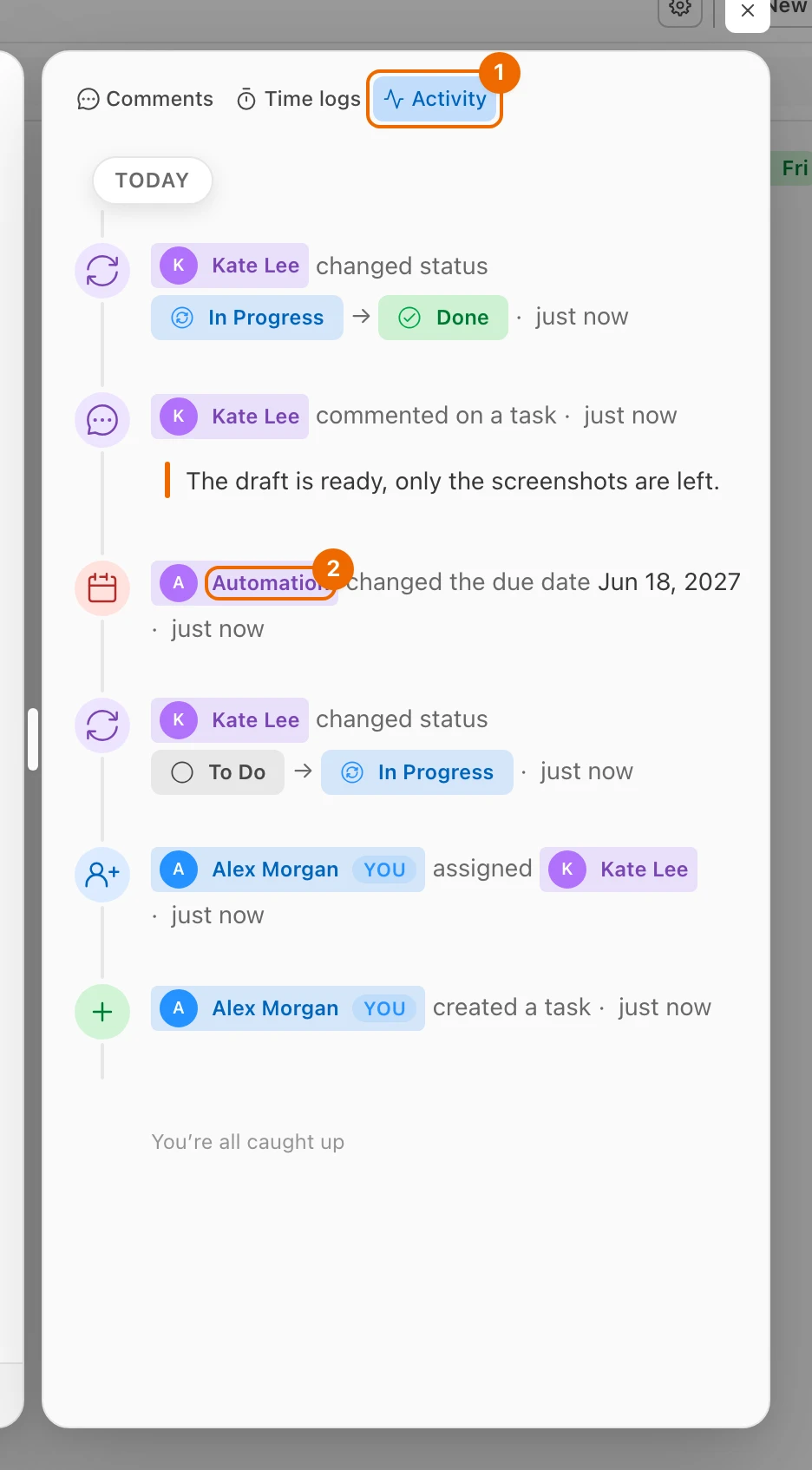
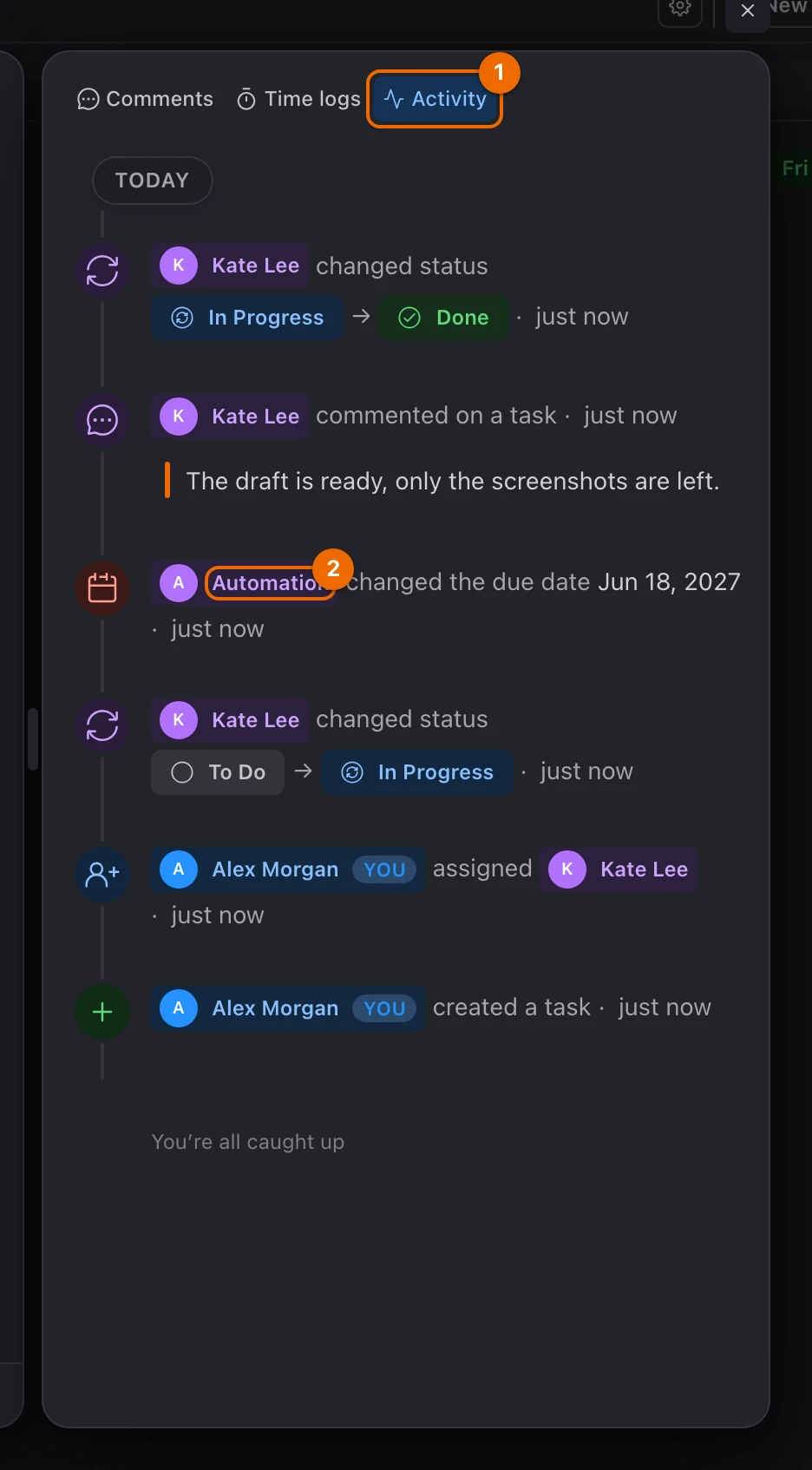
Each row names who did it and what changed — for example, Kate "changed status" followed by In Progress → Done. Who made the change shows as:
| Shown as | Means |
|---|---|
| a member's name and avatar | a person made the change |
| Automation | an automation made the change (see Create an automation) |
| System | Hule made the change itself |
Recorded changes
| Change | In the history |
|---|---|
| Creating and moving the task | Yes |
| Changes to the repeat | Yes |
| Title, status, assignee, priority | Yes |
| Start and due dates, tags, time estimate | Yes |
| Description | Only that it changed, not the text itself |
| Comments and logged time | Yes |
| Watchers added or removed by hand or by an automation | Yes |
| Watchers added automatically, for example by being assigned or by commenting (see Who watches automatically) | No |
| Story points | No |
| Tracked time edited by hand | No |
The fields themselves are described in Task fields.
History is kept for 60 days
Rows older than 60 days are deleted. The comments and time logs themselves stay on the Comments and Time logs tabs.
Who created the task, at a glance
The foot of the task card shows "Created … by …" and "Updated … by …".
Follow changes across a list or folder
To see what changed in a whole list or folder — for example, everything your team did in the Product folder — add a Feed view. It shows changes from every list in its sources, whether or not the list has Activity on.
Permission to add a Feed view
Adding a view to a list or folder needs Create in the Views block of your permission set. The List/Folder manager, Admin and Super Admin sets have it; the Worker set doesn't.
Open the list or folder and click + (Add view) at the end of the view tabs. If the tabs end in + N, or in a grid icon (All views) in a narrow window, click it and choose Add view. A list of view types opens.
Choose Feed. The view shows changes from all its tasks, newest first.
"Nothing here yet"?
Nothing in the view's sources changed in the last 60 days, or its settings hide the changes. Turn more on in Feed settings (next steps), or add sources to the view.
Click the gear (Feed settings). The settings open beside the feed; every toggle is on.
Under Events and Task edits, turn off the changes you don't want to follow. The feed hides them at once.
Under Authors, turn off the kinds of author you don't want to follow:
- People
- System
- Automations
Their rows leave the feed at once. To follow only some people, pick them in Only these people, under People.
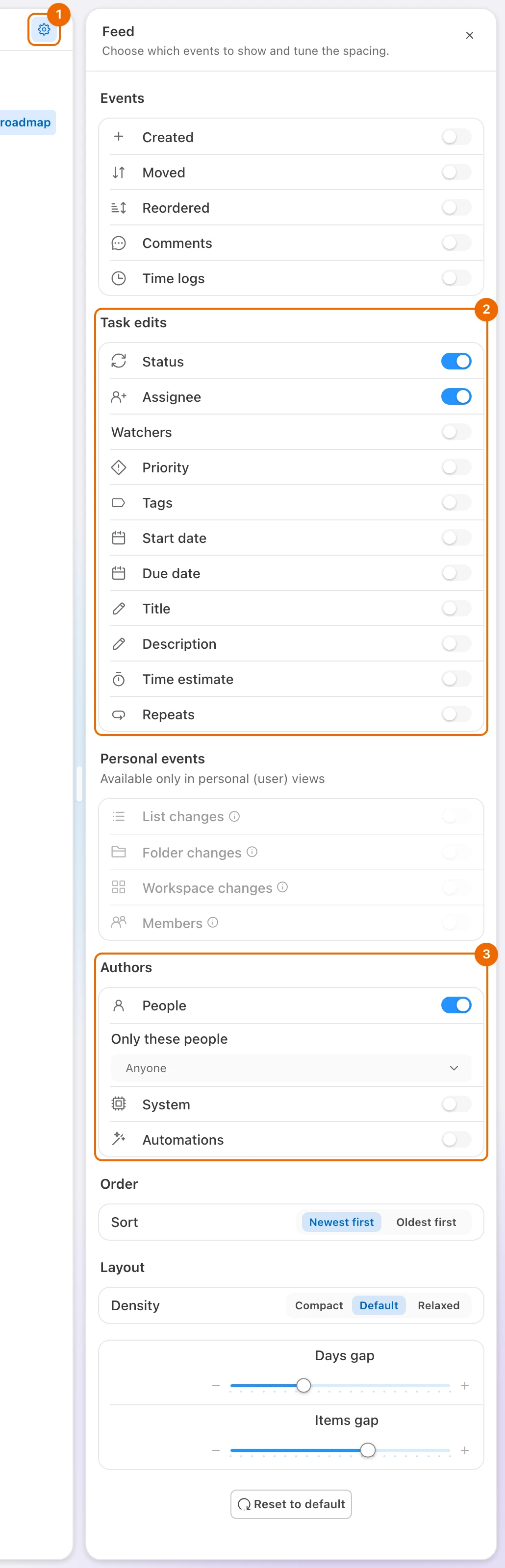
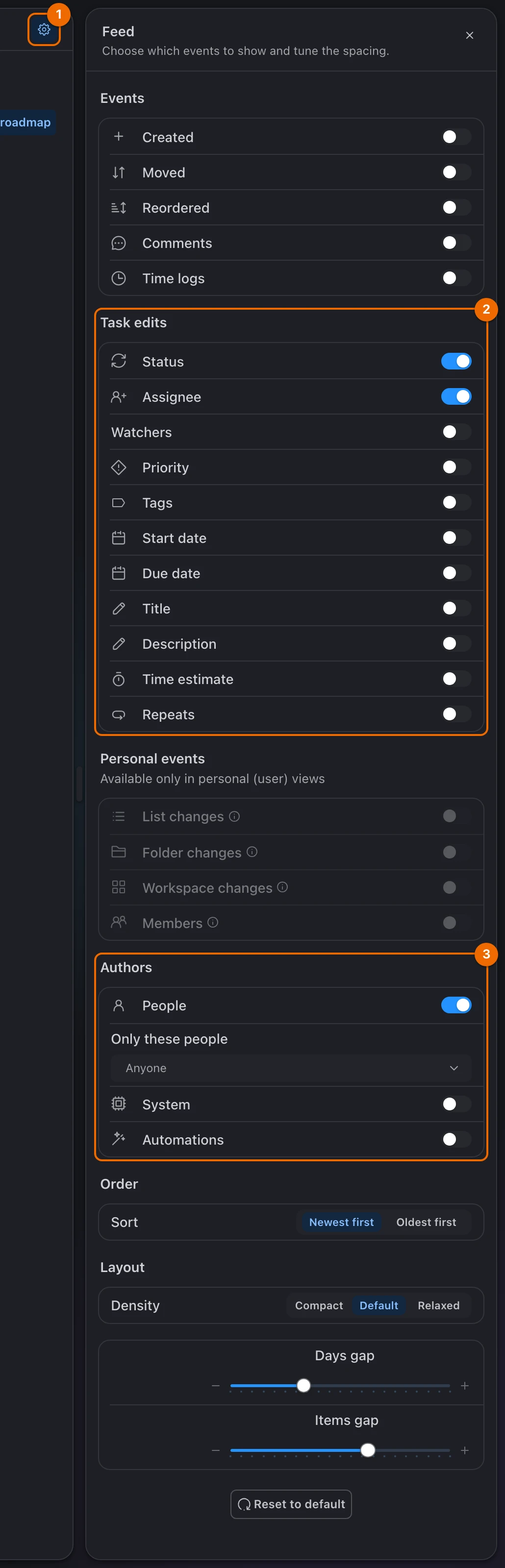
For example, a Feed view on Product with every toggle under Events off, only Status and Assignee on under Task edits, and only People on under Authors shows who changed a status or handed a task over by hand, without the noise of automations. More ways to narrow a view: Filter, sort and group a view.
Extra events in a personal Feed
A personal Feed view (in User Views) can also show:
- List changes
- Folder changes
- Workspace changes
- Members
On a list or folder Feed they appear greyed out under Personal events.
If it doesn't work
- There is no Activity tab. The list has Activity off: turn it on in the list's More actions (…) menu → Configure → Features (see Set up a list). If Configure is missing, you can only read the list, or your permission set can't change lists. Ask a workspace admin for Edit access (Share a folder or a list) and a set such as List/Folder manager (Permissions and access). Changes were recorded while it was off, so the history appears at once. On a phone, the task screen has no activity; open the task on a computer.
- A change you expected is missing. It may be older than 60 days. A watcher added automatically — for example by being assigned or by commenting — is not recorded either; see Who watches automatically.
- You can't add a Feed view. Your permission set lacks Create in Views. Ask a workspace admin; see Permissions and access.
- The Feed view says "Nothing here yet". Nothing in its sources changed in the last 60 days, or its filters hide it. Widen the Events or Authors in Feed settings, or add sources to the view (see Views as lenses on tasks).
Related
- Comment and mention people — the discussion that sits next to the history.
- Create an automation — where rows marked Automation come from.
- Views as lenses on tasks — what a Feed view is and where its tasks come from.
- Filter, sort and group a view — narrow any view to the tasks you need.
- Set up a list — turn on the Activity feature and choose a preset.
- Assign and watch tasks — who becomes a watcher, and when.