Invite members and grant permissions
Invite someone when they should work in your workspace: see what you share with them, take tasks and comment. You invite by email, and their permission sets decide what they may do once they are in. Sharing then decides where they can do it — see Share a folder or a list.
Before you start
Each section below names the permission your permission set needs for it.
The owner can do everything
The person who created the workspace is its owner: they have every permission and full access to everything in the workspace, need no permission sets, and can't be removed.
Invite a member
Permission to invite
You need Manage members in the Workspace block. The Admin and Super Admin sets include it. Without it, there is no Invite people button.
Click your name at the bottom of the sidebar. A menu opens.
Choose Workspace settings (with several workspaces, pick one in the submenu). The workspace settings open.
In the Workspace section, open Members. You see the roster under Members; Invited and Former appear once someone is in them.
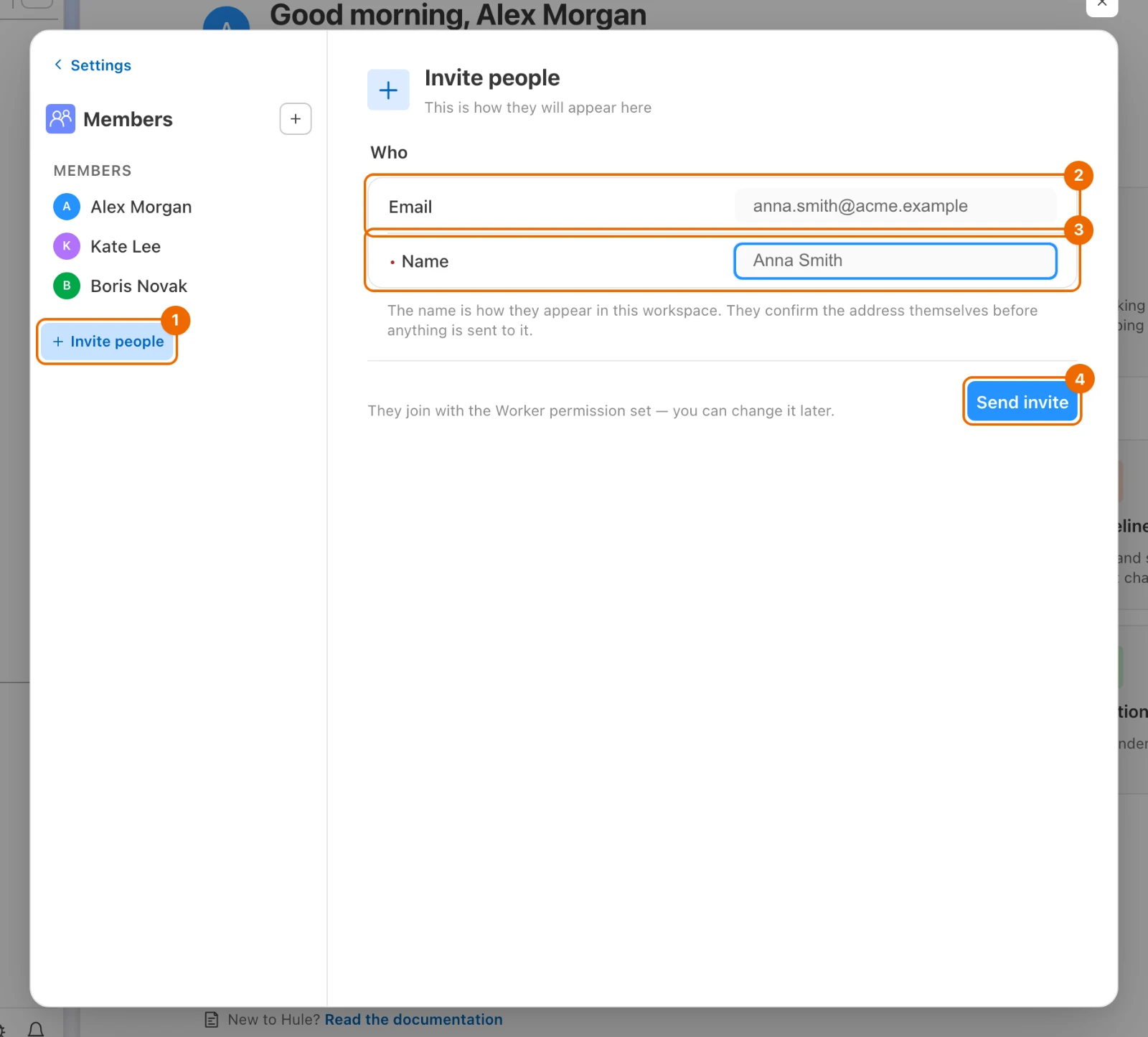
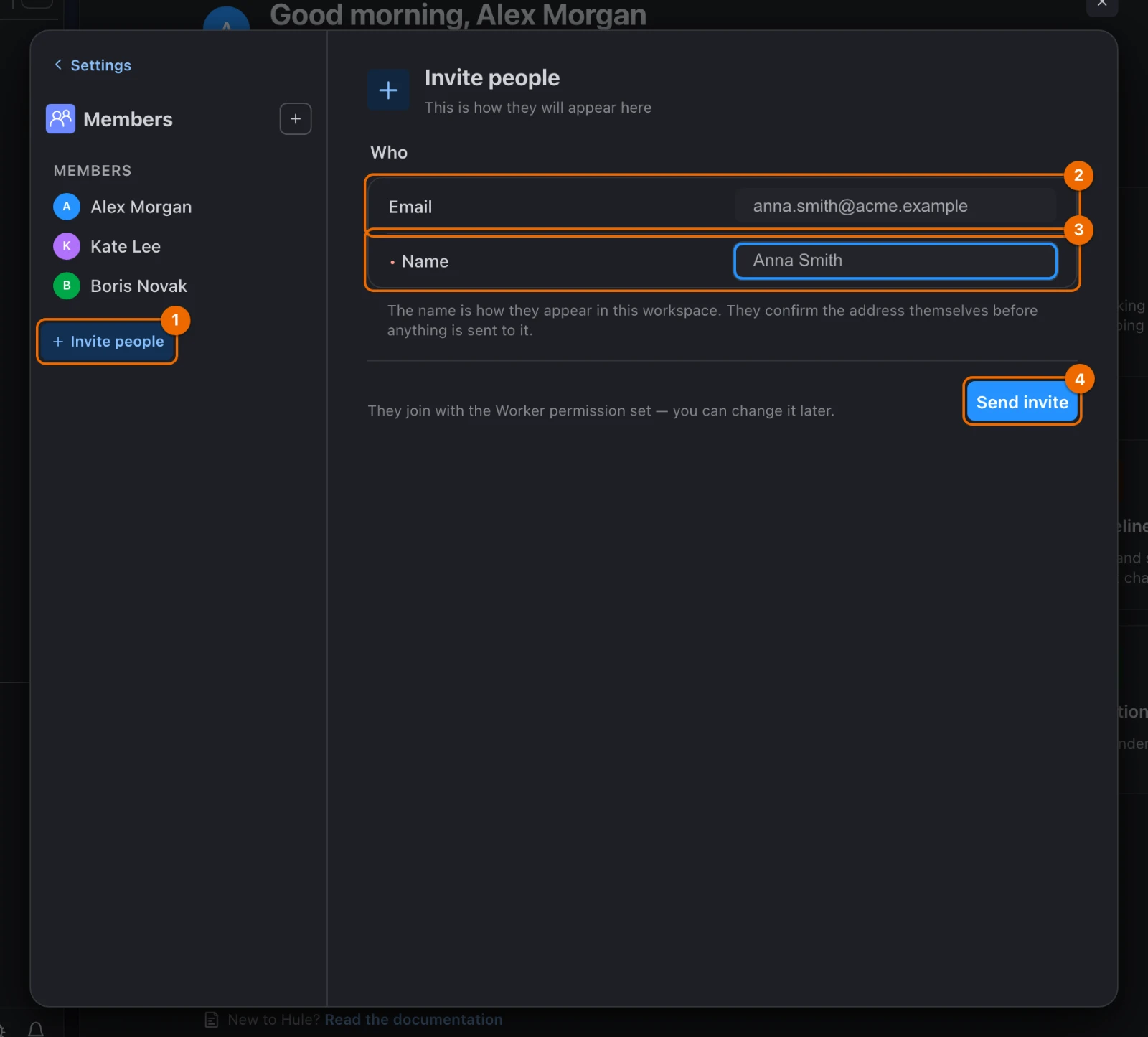
Click Invite people. The invite form opens with an Email field.
Type the person's Email. A Name field appears.
In Name, enter the name your colleagues will see in this workspace.
Click Send invite. The message "Invitation sent to …" appears, and the person shows up under Invited.
"Failed to send the invitation"?
User is already a member or User is already invited: look for the person under Members or Invited. Invite already sent to this email: the earlier link still works.
Hule gives every new member the Worker permission set (whoever can manage permission sets, such as the owner or a Super Admin, sees it switched on in their card), so they can work on tasks in whatever you share with them. Nothing is shared yet: they see only what you share with them next.
Invitation by notification or email
How the invitation arrives depends on whether the email already belongs to a Hule account:
| The email… | They get | They accept by |
|---|---|---|
| belongs to a Hule account | a Workspace invite notification in their Inbox, under Invites (and by email, Telegram or push if they turned those on) | clicking Approve in the notification, or Accept in User settings → Workspaces → Pending invitations |
| has no Hule account yet | an email "You're invited to "Acme" on Hule" | clicking Accept the invitation in the email, then Accept invitation if they are signed in or Sign in and accept if not. Either way, Create a separate account instead opens a new account for this workspace |
Until the person accepts, they appear under Invited with the date you invited them. The link in the email works for 7 days: an emailed invitation nobody accepts in that time drops off the list, and you can invite the same address again.
Link expired?
If the person has signed up to Hule since you invited them, the invitation waits in User settings → Workspaces → Pending invitations. Otherwise send a new invitation.
Grant permission sets
A permission set is a named bundle of permissions. A member can hold several sets; their rights are everything the sets allow together. Every workspace has four system sets:
| Set | For | Adds |
|---|---|---|
| Worker | people who do the tasks | works on tasks, comments and time logs in whatever is shared with them; votes in Scrum Poker |
| List/Folder manager | people who organise a part of the workspace | everything a Worker can do, plus creating folders, lists and views and sharing them |
| Admin | people who run the workspace | everything a List/Folder manager can do, plus members, tags, templates, automations, import and workspace settings; cannot manage permission sets or open what is not shared with them |
| Super Admin | a deputy owner | every permission, including permission sets and access to everything without sharing |
The full list of permissions in each set is in Permissions and access.
Permission to give out sets
You need Manage permission sets in the Workspace block. Of the system sets only Super Admin includes it. Without it, a member's card has no Available permission sets section.
To change a member's sets:
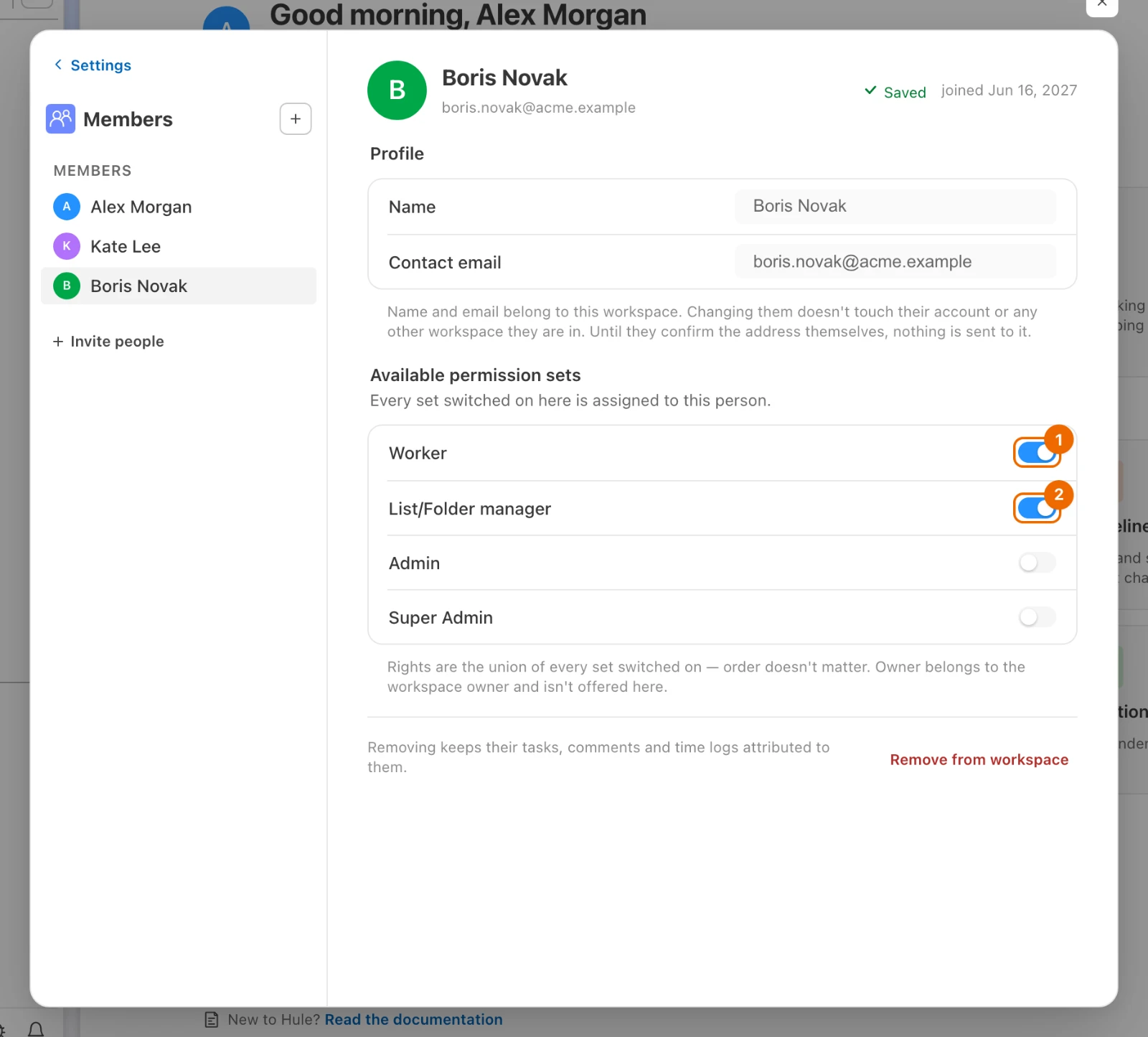
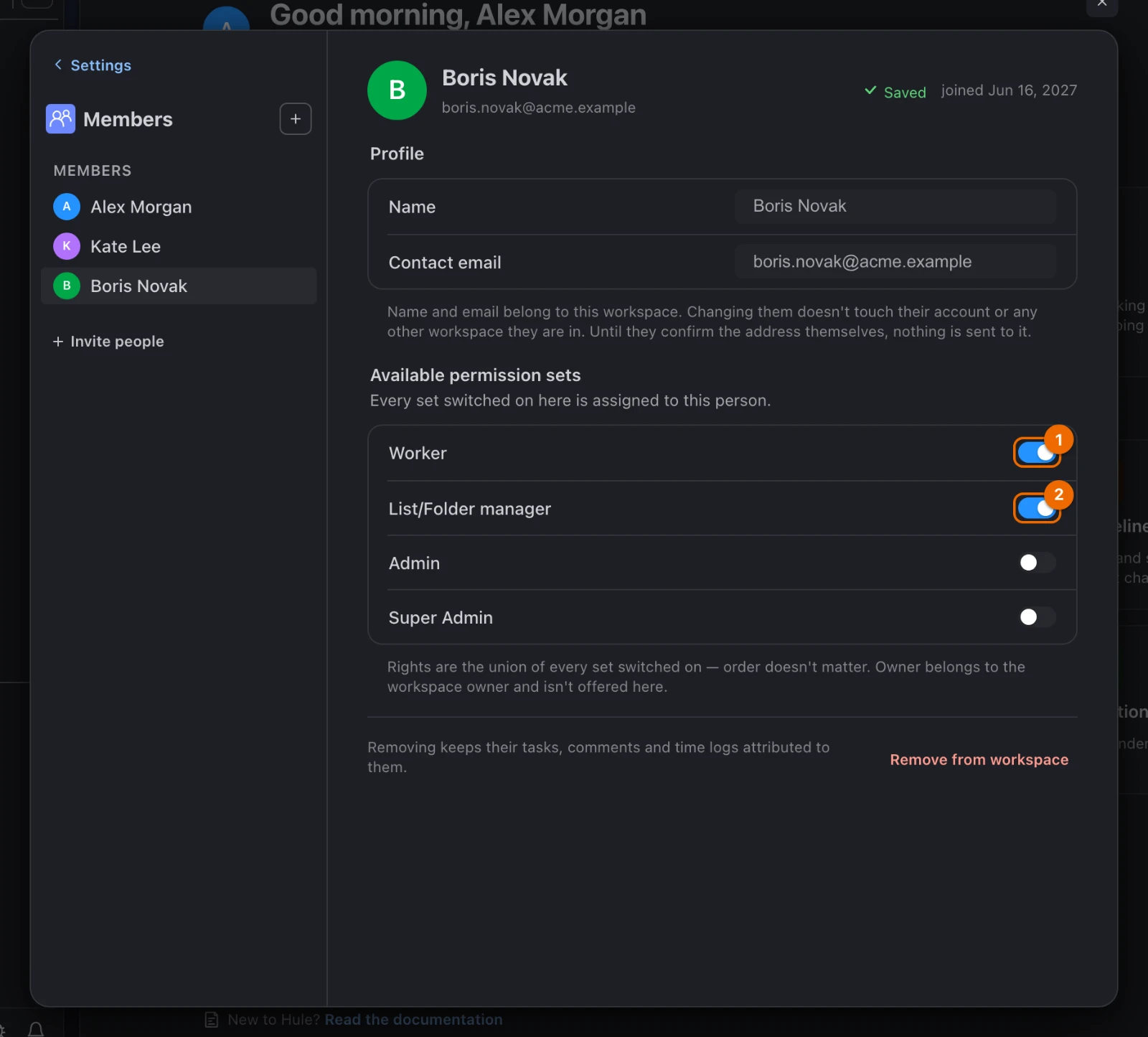
- In Workspace settings → Members, click the person. Their card opens on the right.
- Under Available permission sets, switch on each set they should hold and switch off the ones they should not. The change saves at once.
Team of four: who gets which set
| Person | Sets | What they can do |
|---|---|---|
| You | — (owner) | everything |
| Anna, team lead | Admin | invites people, sets up tags, statuses and automations |
| Boris, project manager | List/Folder manager | builds the "Product" folder and shares it with the team |
| Kate, designer | Worker | works on the tasks in the lists shared with her |
Custom sets
When none of the system sets fits, make your own.
Permission to make sets
Creating a set also needs Manage permission sets in the Workspace block.
In Workspace settings → Permission Sets, click New set. A new set opens with nothing ticked.
Give it a Name, for example Support agent.
Open a block, for example Tasks, and switch on the permissions the set grants.
Give the set out: in Members, open the person's card and switch it on under Available permission sets.
System sets are read-only
You can't edit the four system sets. To change what a system set allows, make a custom set instead.
Remove a member
Permission to remove
You need Manage members in the Workspace block. Nobody can remove the owner.
- In Workspace settings → Members, click the person. Their card opens on the right.
- Click Remove from workspace (or Revoke invitation if they have not accepted yet). A confirmation asks "Remove …?" (or "Revoke the invitation for …?").
- Click Remove (or Revoke invitation) to confirm. A removed member moves to Former; a revoked invitation leaves the roster.
Removing deletes their access
A removed member loses access to everything shared with them at once, and those shares are deleted. If you invite them again, they come back with the Worker set only and nothing shared. A revoked invitation is deleted: its link stops working.
Their tasks, comments and time logs stay attributed to them.
If it doesn't work
- There is no Invite people button. You don't have Manage members. Ask someone with the Admin set, or the owner; see Permissions and access.
- "Failed to send the invitation: User is already a member" (or …User is already invited). The person is in the roster already: look under Members or Invited.
- "Failed to send the invitation: Invite already sent to this email". The earlier link is still valid. The person can use it, or you can revoke the invitation and invite again.
- The link says "This invitation link is invalid or has expired." or "This invitation link has expired." If the person has signed up to Hule since, the invitation is waiting in User settings → Workspaces → Pending invitations: they accept it there. Otherwise the link is older than 7 days or was revoked: send a new invitation (see Invitation by notification or email).
- A new member says they see nothing. That is expected until something is shared with them — share a folder or a list with them.
- The member's card has no Available permission sets section. You don't have Manage permission sets: ask a Super Admin or the owner; see Permissions and access.
Related
- Sharing along the hierarchy — why a member sees only what is shared.
- Share a folder or a list — the next step after inviting.
- Permissions and access — every permission, set by set.
- Start Hule with your team — the whole team setup, step by step.