Find anything (search, pins)
When you know roughly what you're looking for but not where it lives, search every workspace at once by a few letters of its name. Pin the lists, folders and views you open every day to the sidebar, so they stay one click away.
Search every workspace
Press
Cmd+K(Ctrl+Kon Windows and Linux), or click the search icon (Search) at the top of the sidebar. The search window opens with your Recent items: what you opened or created lately.Type what you remember of it:
- part of a name;
- a word from a task's description;
- a Task ID, such as
ADM-12.
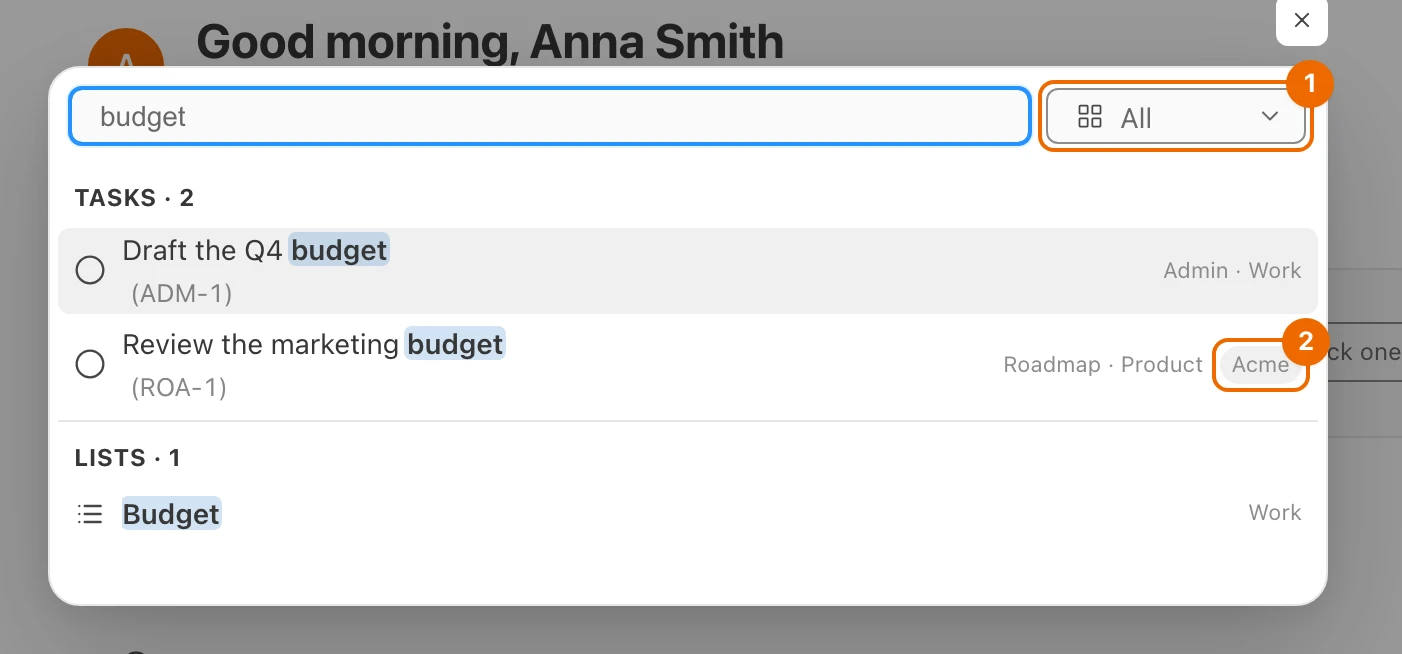
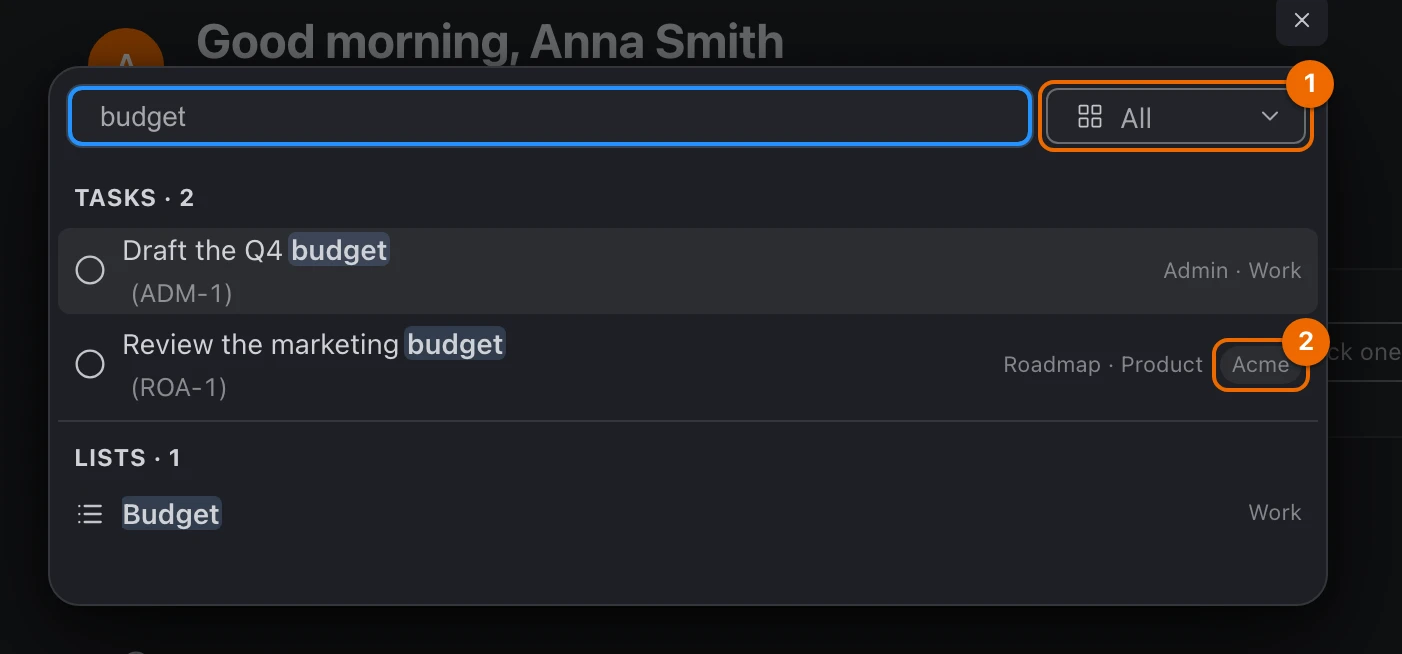
Results appear in groups by kind, each with its count, from every workspace you belong to.
How results are ordered
- The workspace you are in comes first in each group.
- Within a workspace, an exact Task ID comes first.
- Your personal views follow the views of the workspace you are in, each shown once.
- A result from another workspace carries that workspace's name.
Only ten of each kind
Search shows the first ten results of each kind. If what you want isn't there, type more of the name, or the whole Task ID.
Click a result, or pick it with the arrow keys and press
Enter. It opens.Folders open in the sidebar
A folder has no page of its own: picking one shows it in the sidebar tree.
Show one kind only
Change All in the dropdown next to the search field to one kind of result.
Pin lists, folders and views to the sidebar
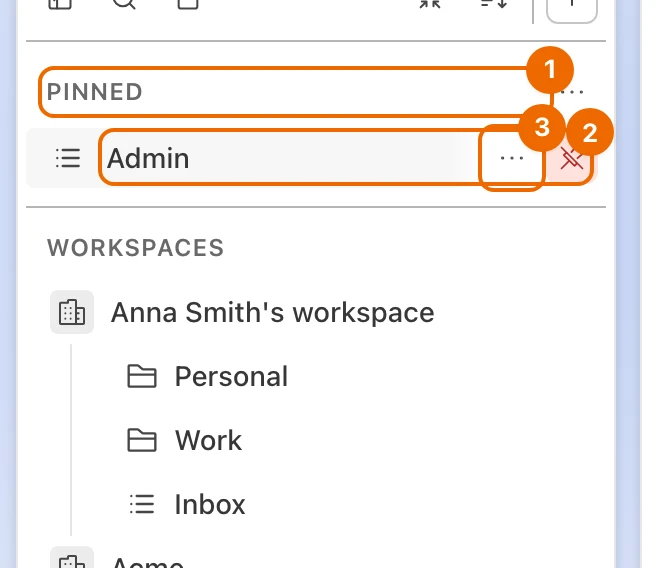
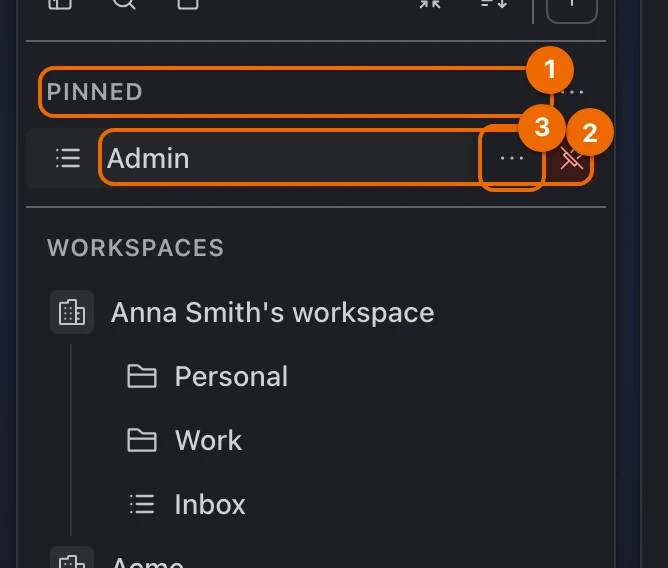
Open the … menu of a list, folder or view in the sidebar and choose Pin to…. A submenu opens with Sidebar and Collapsed sidebar.
Your own folders can't be pinned
Folders in your own space, outside any workspace, have no Pin to…. What your own space is: Personal and work tasks in one place.
Turn on Sidebar. A Pinned section appears at the top of the sidebar with the item.
Optionally, turn on Collapsed sidebar to keep it on the folded sidebar too. The item's icon appears on the collapsed sidebar. To fold the sidebar, click Collapse sidebar at its top, or press
Cmd+Option+S(Ctrl+Alt+Son Windows and Linux).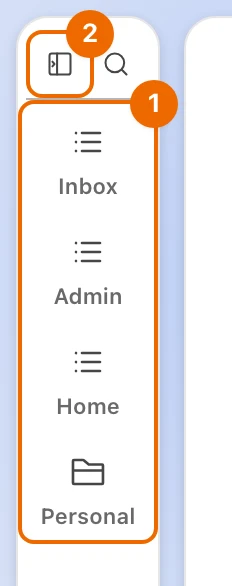
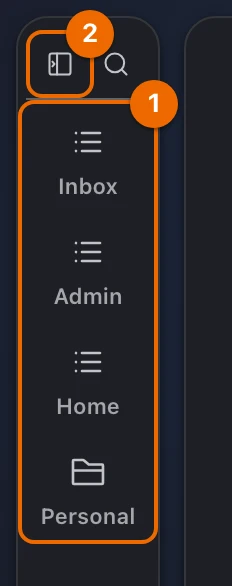
Pins are yours alone
Nobody else sees your pins, and they stay the same in every workspace.
Reorder, rename and divide pins
Drag pins to reorder them, or open a pin's … menu:
| Item | What it does |
|---|---|
| Rename | renames the pin; the list, folder or view keeps its own name |
| Go to source | opens the pinned list or view, even after you renamed the pin |
| Add divider before | puts a divider line above the pin; in the divider's own menu, Rename labels it and Remove divider deletes it |
| Move up, Move down | moves the pin one place without dragging |
| Unpin | takes the pin off the sidebar |
Open a pin from the keyboard
When the sidebar is collapsed, Alt+1 to Alt+9 (Option+1 to Option+9 on macOS) open the first nine items pinned to Collapsed sidebar. A folder is shown in the sidebar tree instead. The rest of the keys are in Keyboard shortcuts.
Sample pin bar for solo work
Five pins, top to bottom:
| Pin | What it is | Where to set it up |
|---|---|---|
| Today | your personal Today view | Build your own Today view |
| Inbox | your Inbox list, where new tasks land | Capture tasks to your Inbox |
| ── Work ── | a divider labelled "Work" | Add divider before in a pin's menu (Reorder, rename and divide pins) |
| Admin | a list | Organize folders and lists |
| Weekly | a dashboard | Build a dashboard |
If it doesn't work
- A task you know exists doesn't show up. Search shows ten of each kind, the workspace you are in first, and only tasks in lists you can see. Type the whole Task ID, or check your access in Permissions and access.
- You see "More tasks match — refine your query". Only the first ten of each kind are shown, and picking one kind in the dropdown doesn't show more. Type more of the name, or the whole Task ID.
- You can't pin a task. Only lists, folders and views can be pinned. Instead:
- pin the list that holds it;
- pin a view whose filter shows it;
- search for it with
Cmd+K.
- A folder of your own doesn't show up. Search finds folders in workspaces only. Open it from User Views in the sidebar (Personal and work tasks in one place).
- You can't pin a folder. It is in your own space, outside any workspace (Personal and work tasks in one place). Pin a view inside it instead.
- Cmd+K does nothing. Another app may use the shortcut, or it was turned off. Check it in User settings → Hot keys (Keyboard shortcuts), or click the search icon in the sidebar.
Related
- Keyboard shortcuts:
Cmd+K,Alt+1…Alt+9and the rest. - Personal and work tasks in one place: why search spans every workspace.
- Today view: build your own: the view worth pinning first.
- Raycast: use Hule from it: search your tasks without opening Hule.