Import from another tool
Import when you move to Hule from another task tracker and want your projects and tasks to come with you. You export a file from the old tool, upload it in Hule, and Hule builds folders, lists and tasks from it in your workspace.
Before you start
You need the Import data permission and an export file from your old tool.
You need the Import data permission
Your permission set must include Import data. The Admin and Super Admin sets include it, and the workspace owner always has it.
Files up to 25 MB, 1,000 new tasks a day
Imported tasks, subtasks included, count toward the daily limit of 1,000 new tasks per member, so a bigger export has to be split.
Export files by tool
| Tool | File | What you export there |
|---|---|---|
| ClickUp | CSV | a List or Table view: Customize → Export → CSV |
| Trello | JSON | a board: Show menu → More → Print and Export → Export as JSON |
| Todoist | CSV | a project: ⋯ → Export as CSV (completed tasks are not included) |
| Notion | CSV | a database: ⋯ → Export, format Markdown & CSV, content Current view; unzip the archive |
| Yandex Tracker | JSON | the response of the Tracker API issue search (for technical users) |
| Kaiten | JSON | spaces, boards, columns and cards from the Kaiten API, in one file (for technical users) |
| WEEEK | JSON | projects, boards and tasks from the WEEEK API, in one file (for technical users) |
| Hule | JSON | another Hule account's export: User settings → Export → Download my data (see Download your data) |
Advanced tools: export through the API
The tools marked "for technical users" are marked Advanced in Hule: they have no export button, so you call their API and save the answer. Hule shows the exact requests when you pick one.
Import a file
Export your data from the old tool: Export files by tool gives the file and the menu path for each one.
Click your name at the bottom of the sidebar and choose Workspace settings. With several workspaces, pick the one to import into: the file goes into the workspace whose settings you open. The settings open for that workspace.
In the Data section, open Import. You see a card for each tool.
Click the tool you are moving from. The page shows How to export with the steps for that tool, and an upload area.
Drag the file onto the upload area, or click it and choose the file. Its name and size appear.
"File is too large (max 25 MB)"?
Export a smaller part — one board, project or view at a time — and import each file.
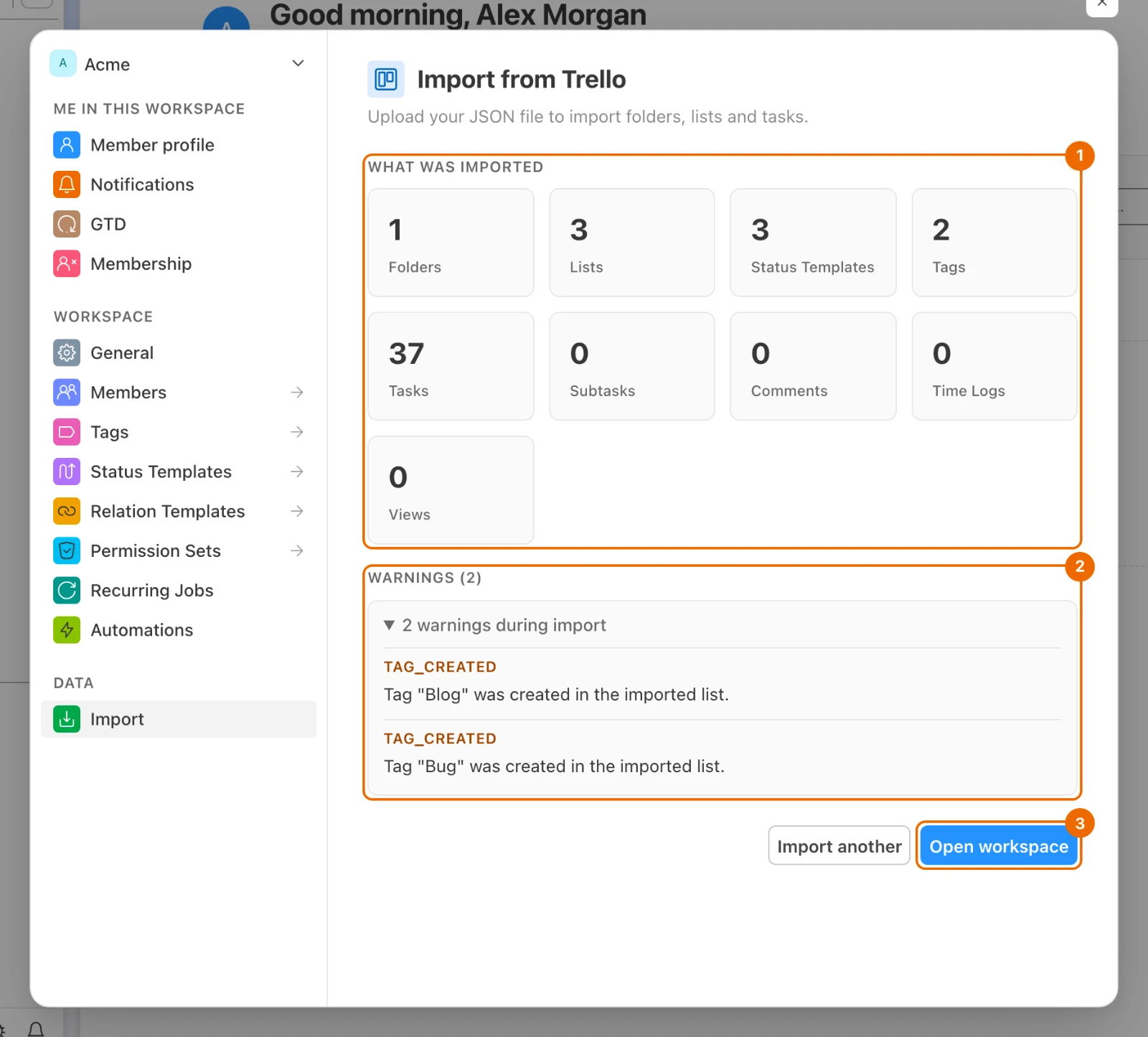
Click Start import. The button shows Importing… until the import finishes. Then the message "Imported … tasks from …" appears, and What was imported counts what was created, kind by kind.
"Import failed (429)"?
The file has more tasks than you can still create today, and nothing was imported. Split the file, or import it again after midnight UTC.
Click Open workspace. The settings close. The new folders are already in the sidebar.
Imported structure and data
For example, a Trello board Website with the lists Ideas, Doing and Done becomes:
📁 Website            a new folder at the end of the workspace
├── 📋 Ideas          one list per Trello list
├── 📋 Doing
└── 📋 Done
Cards keep their Trello list, not a status: a card is in the Done stage only if its due date was marked complete, otherwise it is Not started. Archived lists and cards are not imported.
Folders and lists follow the old tool's structure. Each import adds new folders at the end of the workspace; move them afterwards.
| Old tool | Becomes in Hule |
|---|---|
| ClickUp | a space becomes a folder, and a list a list |
| Trello | a board becomes a folder |
| Todoist | a project becomes a folder Todoist with one list, Imported from Todoist |
| Notion | a database becomes a folder Notion with one list, Imported from Notion |
| Yandex Tracker | a queue becomes a folder with one list, Issues |
| Kaiten | a space becomes a folder, and a board a list |
| WEEEK | a project becomes a folder, and a board a list |
What else comes across:
Tasks keep these, where the old tool had them:
- title and description;
- status and priority;
- dates, which become all-day dates;
- tags.
Subtasks and checklist items become subtasks.
What Subtasks counts
In What was imported, Subtasks counts the subtasks made from checklist items. Subtasks that were already subtasks in the old tool are counted under Tasks.
Statuses: each imported list gets its own status template, and each status goes to a stage by its name. A status Hule can't place becomes Not started, with a warning. If none of a list's statuses lands in Not started, Hule adds to do to its template. A Hule export keeps its own status templates as they were.
People are not carried over. Every imported task is assigned to you (subtasks made from checklist items are left unassigned), and imported comments and time logs are credited to you. Reassign tasks after the import.
Attachments are not imported.
Importing a Hule export copies each workspace you owned into this one, with comments, time logs and shared views; nested folders become top-level folders, and lists at the top of a workspace go into a folder named after that workspace.
If it doesn't work
A failed import leaves nothing behind
If an import fails, Hule removes everything it created in that attempt, so you can fix the file and try again.
There is no Import page in Workspace settings. You don't have the Import data permission. Ask an admin or the owner to grant a permission set that has it; see Permissions and access.
"File is too large (max 25 MB)". Export a smaller part — one board, project or view at a time — and import each file; see Limits.
"Import failed (429)". Nothing from this file was imported: it has more tasks than you can still create today (1,000 a day per member, subtasks included; see Limits). A file with more than 1,000 tasks never fits: split it. Otherwise import it again after midnight UTC, when your daily count resets.
"Could not parse the file." or a message about the file's format. The file is not the export Hule expects for that tool. Check that you picked the right tool and followed its How to export steps; see Export files by tool.
Warnings after the import. Hule lists what it created or had to guess:
- each new tag;
- a status it placed in Not started;
- a subtask it moved to the top level.
Fix those statuses by hand; see Change statuses. A warning that comments or time logs could not be imported means those were not copied; the tasks themselves were.
Related
- Organize folders and lists — rearrange what you imported.
- Manage your account — export your own Hule data.
- Limits — file size and daily task limits.
- Statuses and status templates — how stages work.
- Permissions and access — who holds Import data.
- The Hule model — how folders, lists and tasks fit together.