Create an automation
Create an automation when the same step keeps coming after the same event, for example:
- assign every new bug to its owner;
- move finished tasks to another list;
- remind the team before a deadline.
An automation is a rule in four parts, and its editor has a block for each:
- When: the event that triggers it;
- Where: the workspace, a folder or a list it applies in;
- Only if: conditions that must hold at that moment;
- Then: one or more actions to run.
Before you start
Automations live in Workspace settings → Automations, for the whole workspace, a folder or a list, and only admins build them.
Admins only
Creating and editing need the Automations permissions of your permission set: the Admin and Super Admin sets include them, and the workspace owner always has them. Other members see the list of automations read-only.
Presets: start from a ready automation
The quickest way is a preset: a ready automation with the trigger and action set, where you fill in the rest.
Click your name at the bottom of the sidebar and choose Workspace settings. The workspace settings open.
If you belong to several workspaces, pick the workspace.
In the Workspace section, click Automations. The list of automations opens.
Click New. The page New automation shows Start from scratch under Custom, then presets in groups:
- Notifications;
- New tasks;
- Task flow;
- On a schedule.
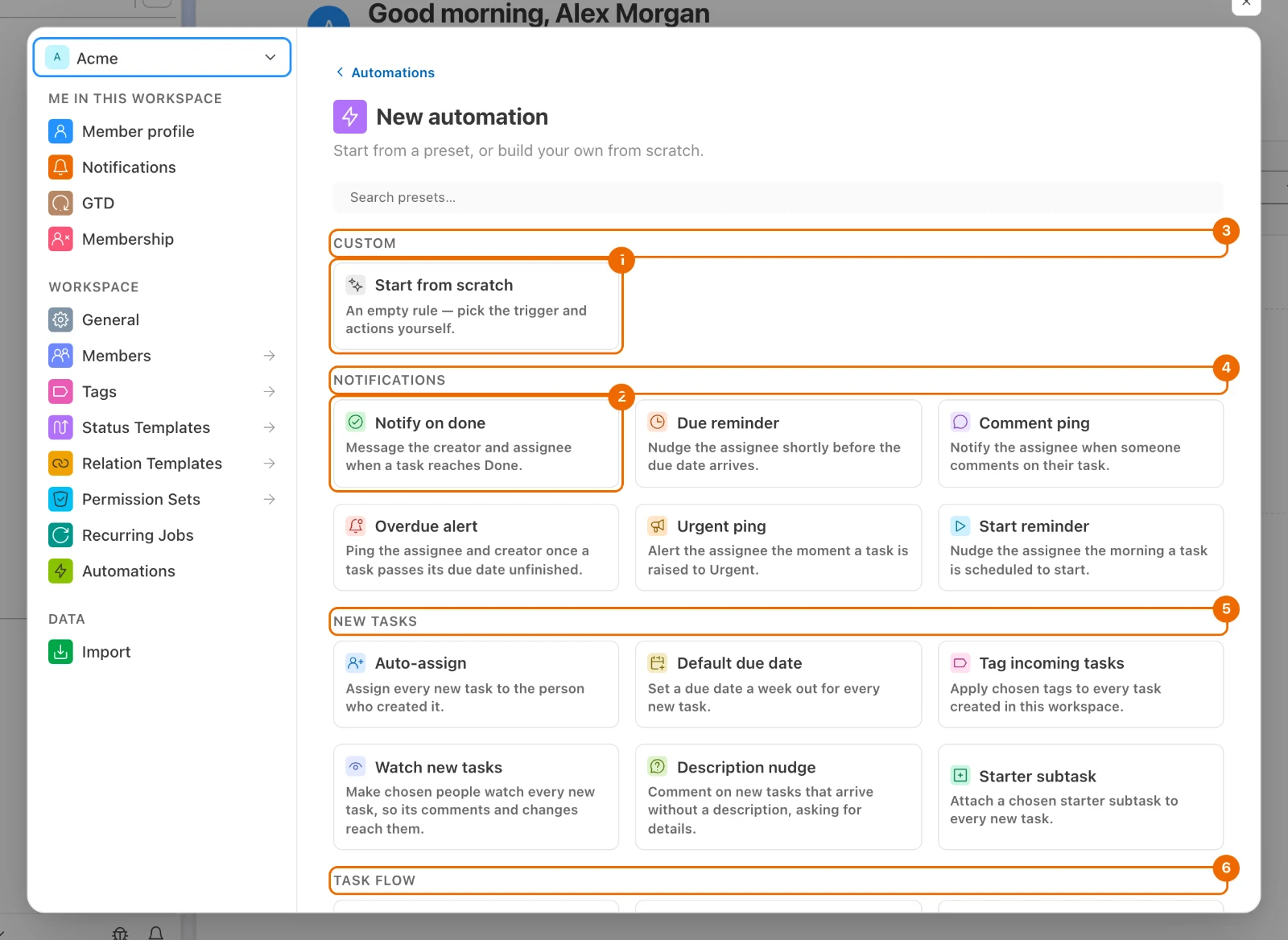
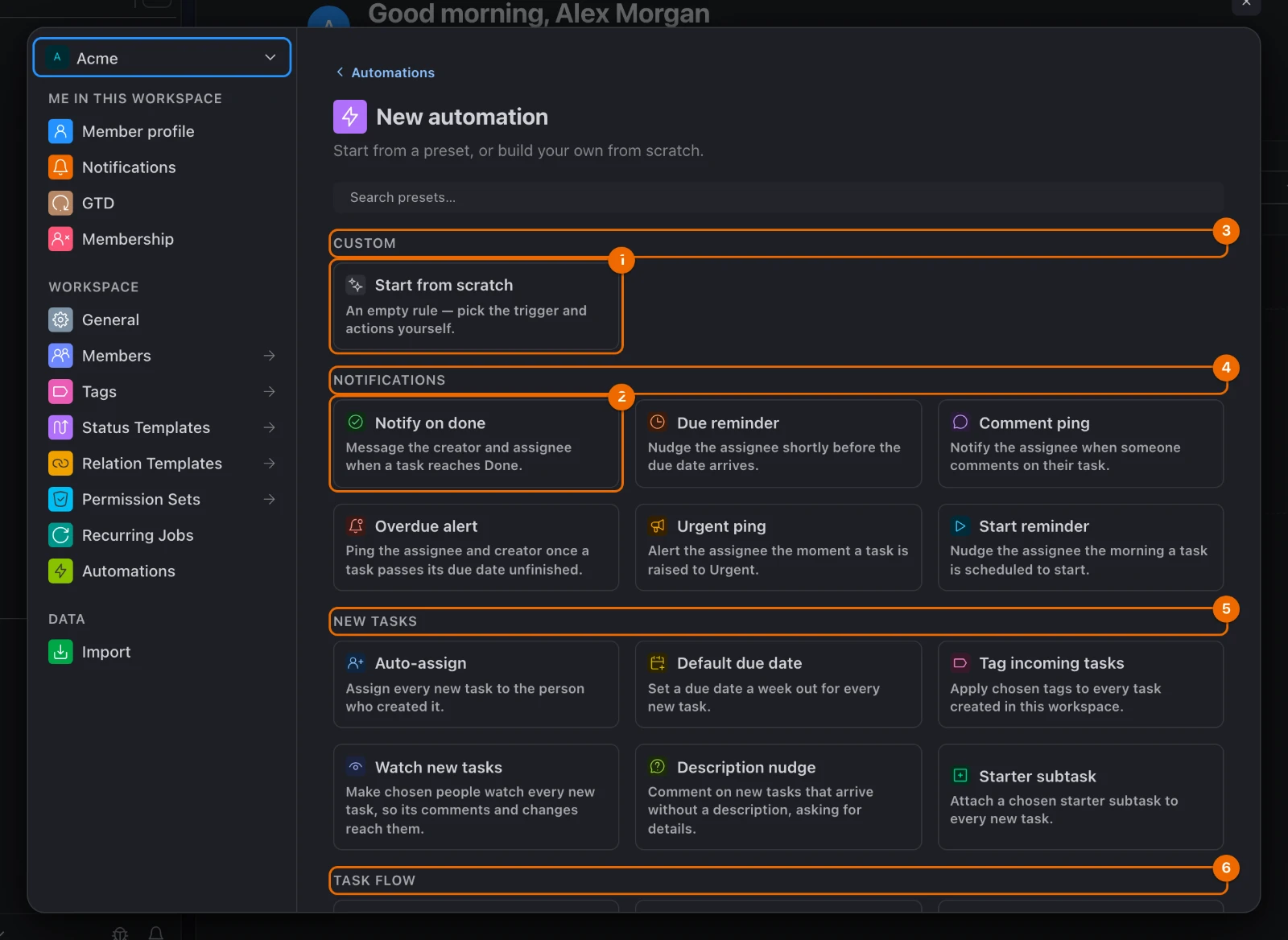
Click a preset, for example Notify on done. The editor opens with the name, the trigger and the action filled in.
Check the settings the preset filled in. Presets such as Move when done leave a value empty, such as the target list; fill it in.
Click Save. The message "Automation saved" appears, and the automation is in the list with its switch on.
Save names a missing value?
Something the preset leaves open is still empty, and the message names it, such as "Choose a target list." Fill it in and save again.
From scratch: tell the reporter an urgent bug is fixed
In the list Bugs, when an urgent bug is marked done, this automation tells whoever reported it. Other triggers and actions work the same way; each one is in Automation triggers, conditions and actions.
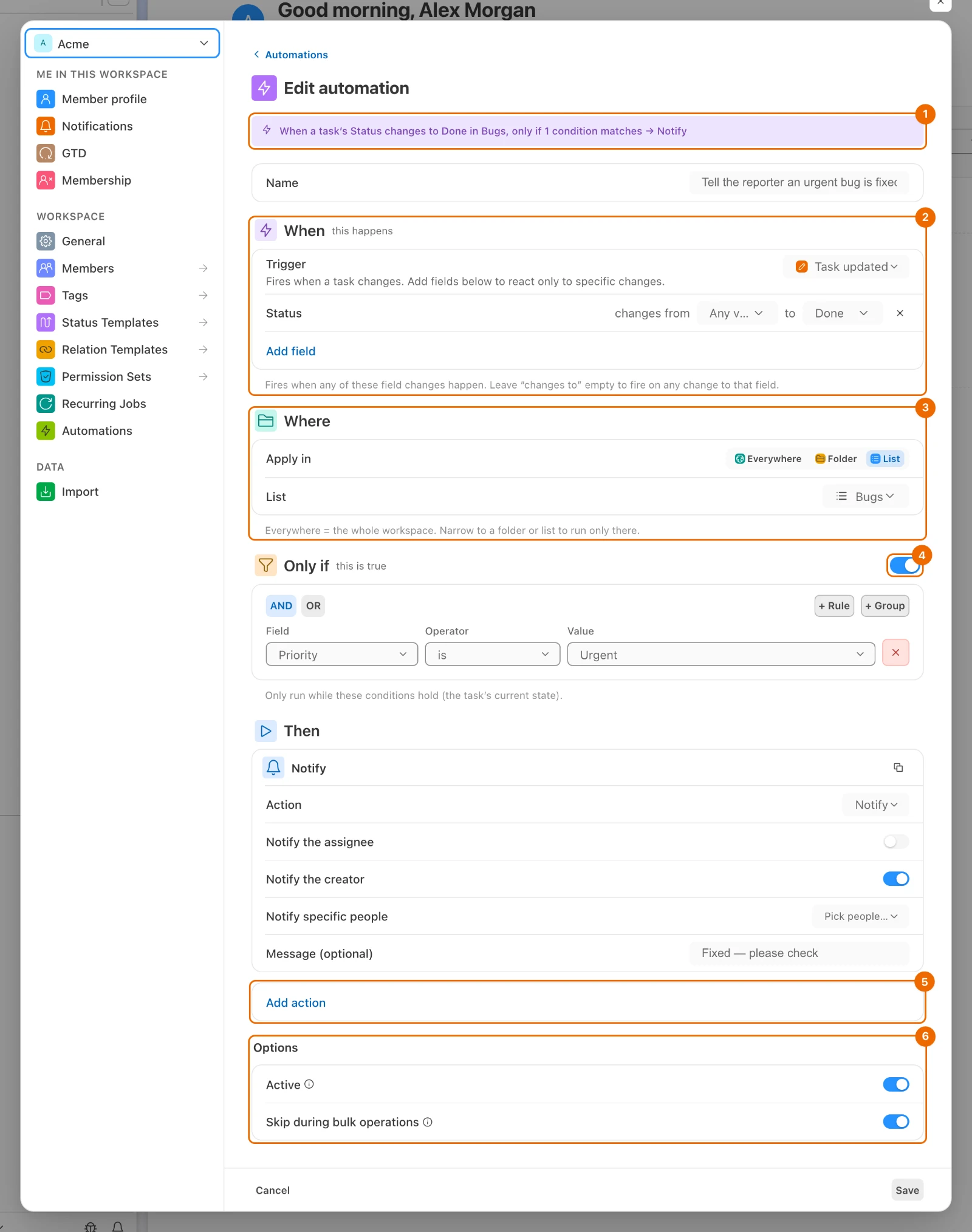
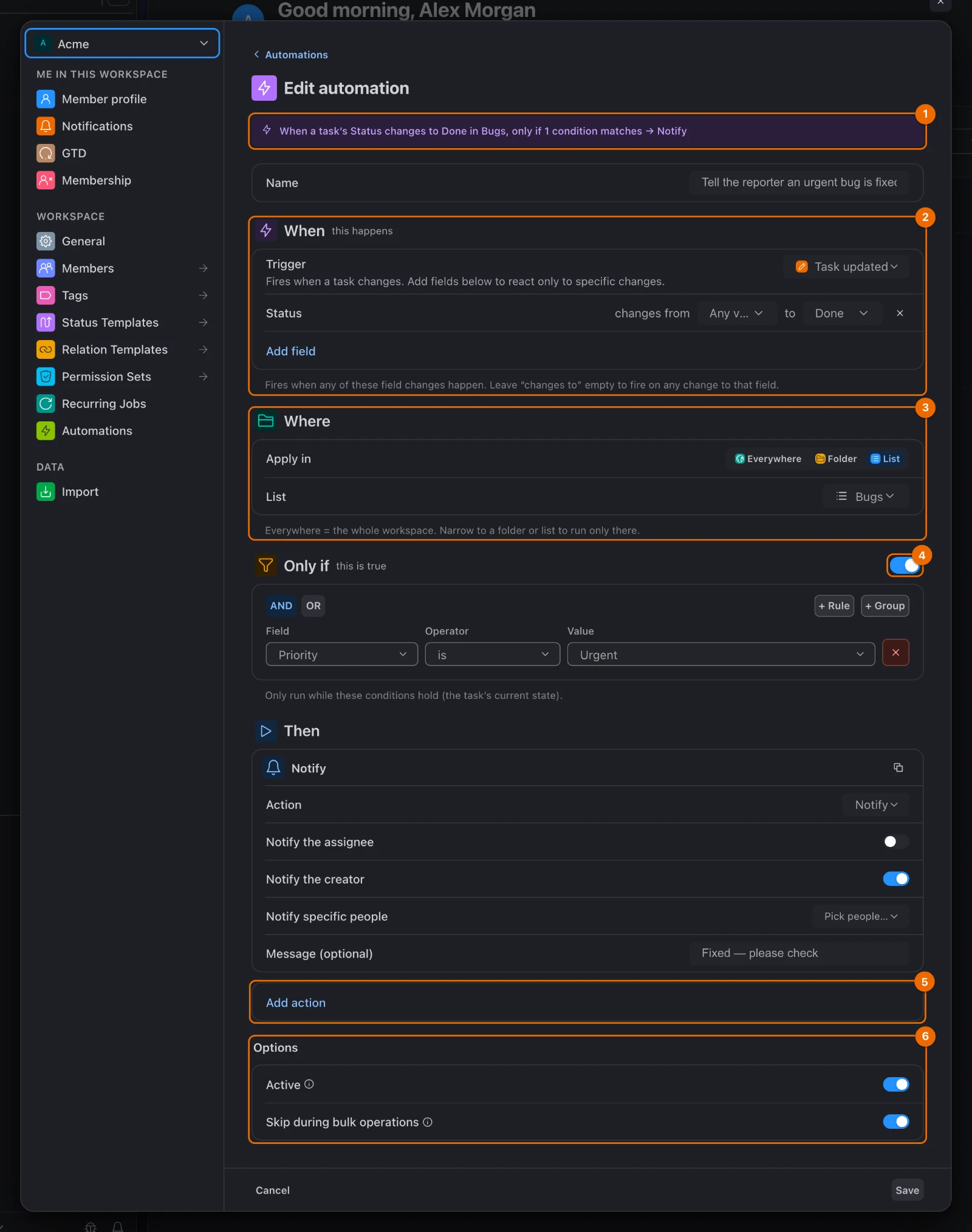
In Automations, click New, then Start from scratch. The editor opens. The sentence at the top reads the automation back as you build it.
Optional: type a Name. If you leave it empty, Hule makes one up.
Under When, open Trigger and choose Updated under Tasks. Add field appears under the trigger.
Under Where, set Apply in to List and pick Bugs. The other choices are Everywhere (the whole workspace) and Folder.
Click Add field and choose Status, then pick Done after to. The sentence at the top now names the status change. Without a field, Updated fires on any change to the task.
Switch on Only if and add the condition Priority is Urgent. Conditions are built like view filters. The automation now runs only while the condition holds.
Trigger or condition
The trigger is the event: the status changes to Done. The condition is the state at that moment: the priority is Urgent.
Under Then, open the picker of the first action (it starts as Set status) and choose Notify. The Notify settings appear.
Switch off Notify the assignee, switch on Notify the creator, and type in Message (optional):
textFixed — please checkTo run a second action, click Add action. Actions run in order; drag them to reorder.
Under Options, keep Active on to start the automation now. Keep Skip during bulk operations on (the default) so it stays quiet when someone edits many tasks at once.
Click Save. "Automation saved" appears.
Save shows "Choose a status to set."?
An action is missing a value, often the Set status action every new automation starts with. Fill it in, or choose the action you meant in its picker. Remove an empty second action.
The other choices under Trigger:
| Trigger | Fires |
|---|---|
| Created, Updated, Deleted under Tasks | when a task is created, changed or deleted |
| Created, Updated, Deleted under Comments | when a comment is posted, edited or deleted |
| On a schedule | at the times you set, not tied to a task |
| Before or after a date | a number of days, hours or minutes before or after each task's due or start date |
Other actions in the Then picker include:
- Set assignee;
- Add tags;
- Move to list;
- Add subtask;
- Add comment.
Scheduled automations
Automations On a schedule run at the times you set, in the time zone from your notification settings. They have no Where or Only if: there is no task to check. From scratch they can only Notify; to create a task on a schedule, start from the Weekly task or Monthly task preset.
Run log: check what an automation did
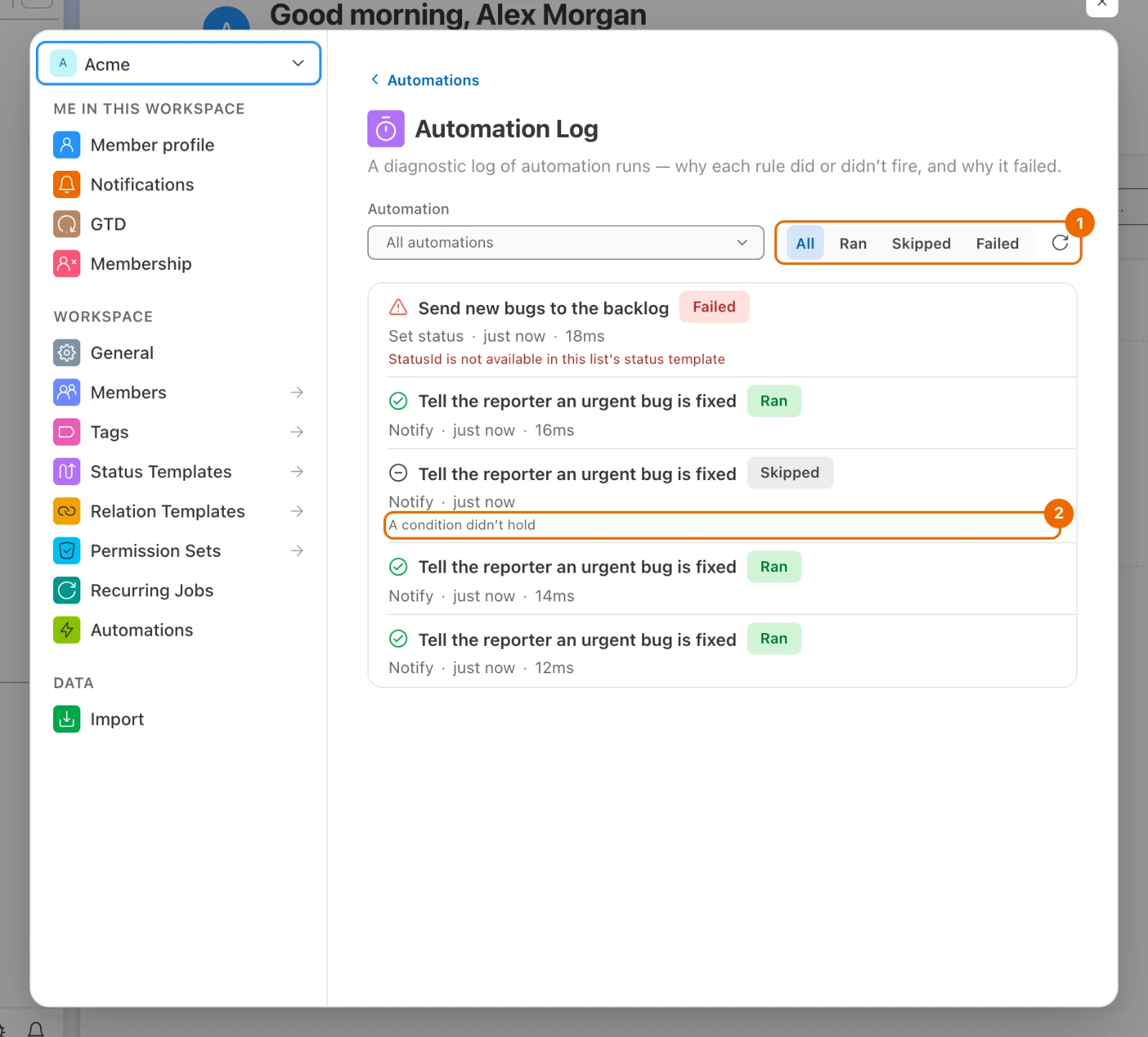
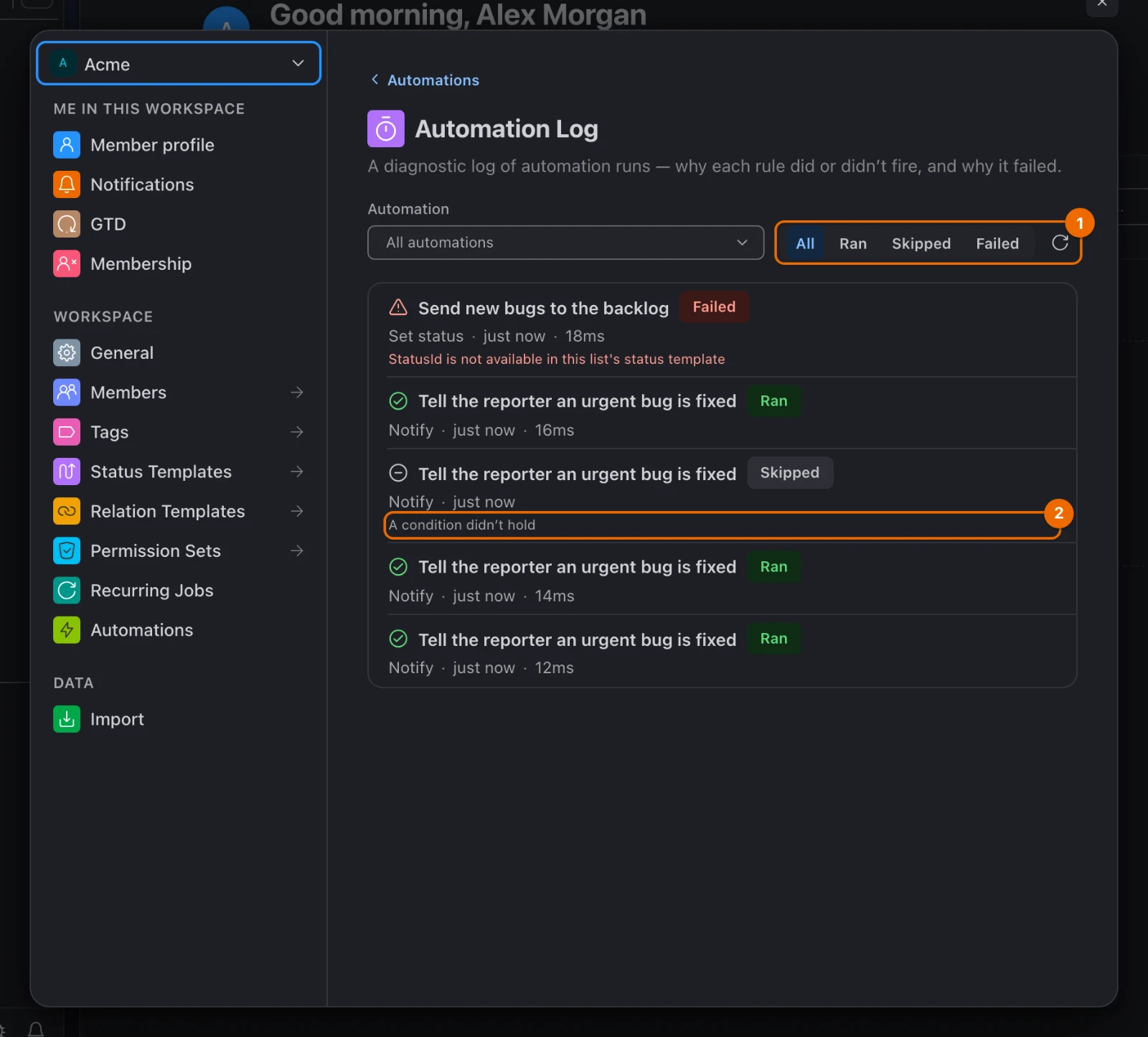
In Automations, click Run log, or View runs in an automation's ⋯ menu to see only that one. The Automation Log opens.
In the result filter, pick Skipped to see the runs that did not happen, or Failed for the errors. Each row says what the automation did, or why it did not run.
| Skip reason | What held it back |
|---|---|
| "A condition didn't hold" | the task did not match Only if at that moment |
| "Entity outside the rule's scope" | the task is outside the folder or list under Where |
| "Part of a bulk operation" | Skip during bulk operations is on, and many tasks changed at once |
| "The change-to transition didn't occur" | the field changed, but not to the value after to |
| "Already in this automation chain (cycle guard)" | the automation would have triggered itself again, and Hule stopped the loop |
The log keeps runs for 30 days (skipped runs for 7). In the list of automations each one also shows its last result, such as "Ran 5 min. ago". Changes an automation makes appear in the task's history as Automation.
Edit, pause, copy or delete an automation
Open an automation's ⋯ menu in the list of automations:
| Menu row | What it does |
|---|---|
| Edit | Opens the editor. |
| Pause / Resume | Stops the automation, or turns it back on. |
| Duplicate | Makes a paused copy named with "(copy)", to try a variant without touching the original. |
| View runs | Opens the run log for this automation. |
| Delete | Asks you to confirm with Delete automation. |
Deleting an automation can't be undone
The automation stops running and can't be restored. To stop it for a while, use Pause.
If it doesn't work
- "Only workspace admins can create or edit automations." Your permission set can't edit automations. Ask an admin; see Permissions and access.
- The automation is switched off with "Auto-disabled after 10 consecutive failures". Open the Run log, fix what fails, then click Re-enable.
- The automation says "References a deleted …". Something it uses, such as a list or a member, was deleted or removed; the message names what. Edit it to point elsewhere, then click Re-enable.
- It doesn't fire. Check the Run log: the skip reason says what held it back, such as Skip during bulk operations or a value after to that the field never reached.
- Save shows "Choose a status to set." or a similar message. An action is missing a value — often the Set status action that every new automation starts with. Fill it in, or open its picker and choose the action you meant; if you added a second action, remove the empty one. Then save again. Each action's values are in Automation triggers, conditions and actions.
Related
- Automations — how automations act on tasks, and why they stop loops.
- Automation triggers, conditions and actions — every trigger, condition and action.
- Automate the routine steps — ready setups for a small team.
- Permissions and access — who can build automations.
- View filters — the filters conditions are built like.