Edit tasks in bulk
Change many tasks in one go when the same edit applies to all of them. For example:
- move ten due dates to next Monday;
- tag a batch of tasks
@errands; - close everything left over from a project.
You select the tasks, and a bar at the top of the view applies each change to all of them.
Before you start
You can select several tasks in these views:
- List
- Kanban
- Table
- Timeline (Plan on the timeline and the calendar)
- GTD, before a session starts (Run a GTD session)
Other views have no Select.
Edit access needed
To change tasks you need:
- Edit access to their lists;
- Update in the Tasks block of your permission set;
- the field you change (such as Status or Dates) in the Task fields block.
Delete also needs Delete in the Tasks block. See Permissions and access.
Select tasks
Click Select in the view's header (the hand icon). The view is in selection mode, and the header turns into the bulk bar.
No Select button?
In a narrow window, Select is in the header's Tools menu. Some views have no Select: see If it doesn't work.
Click each task you want. A selected task gets an outline and a check mark. The bar counts them: … selected.
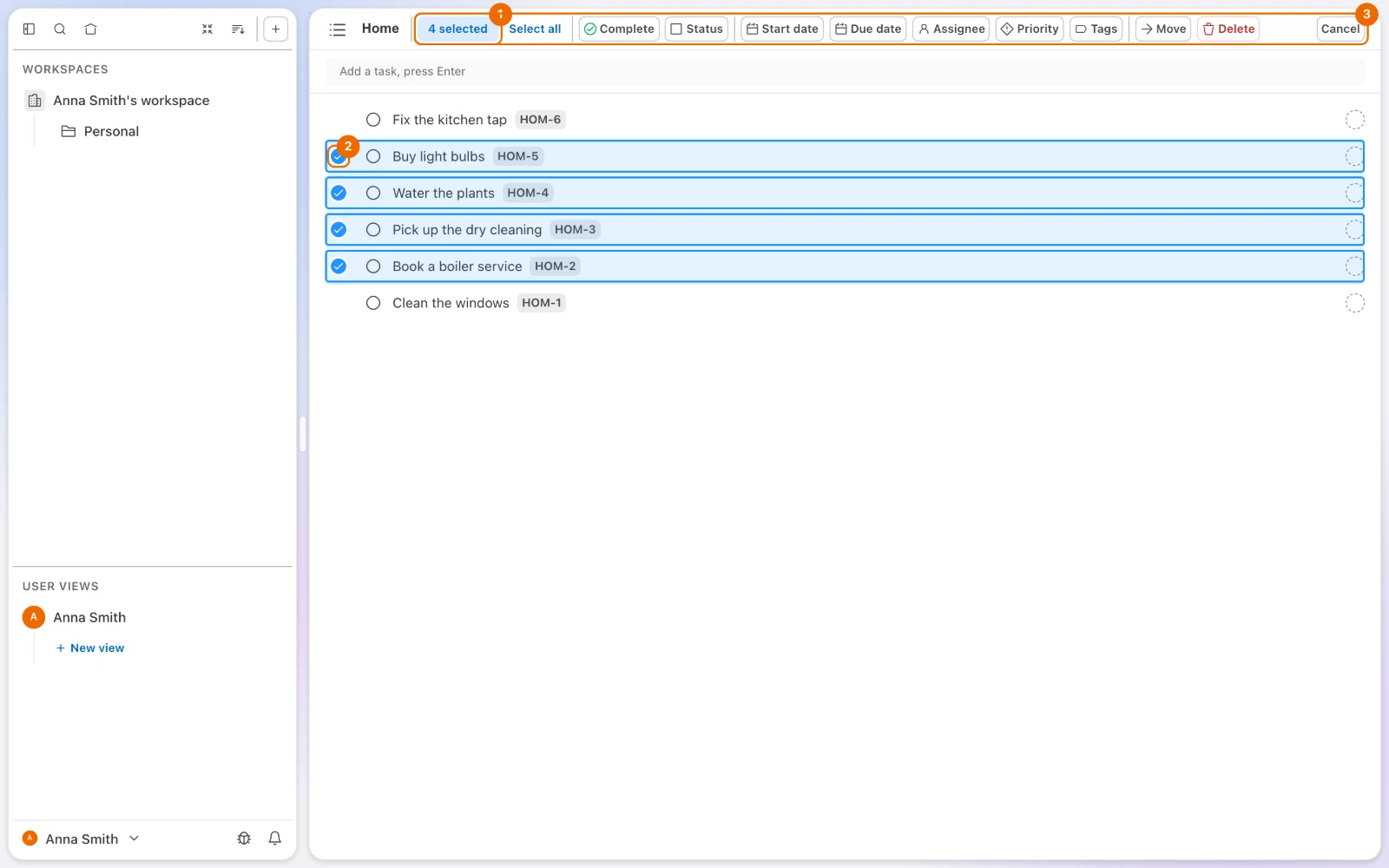
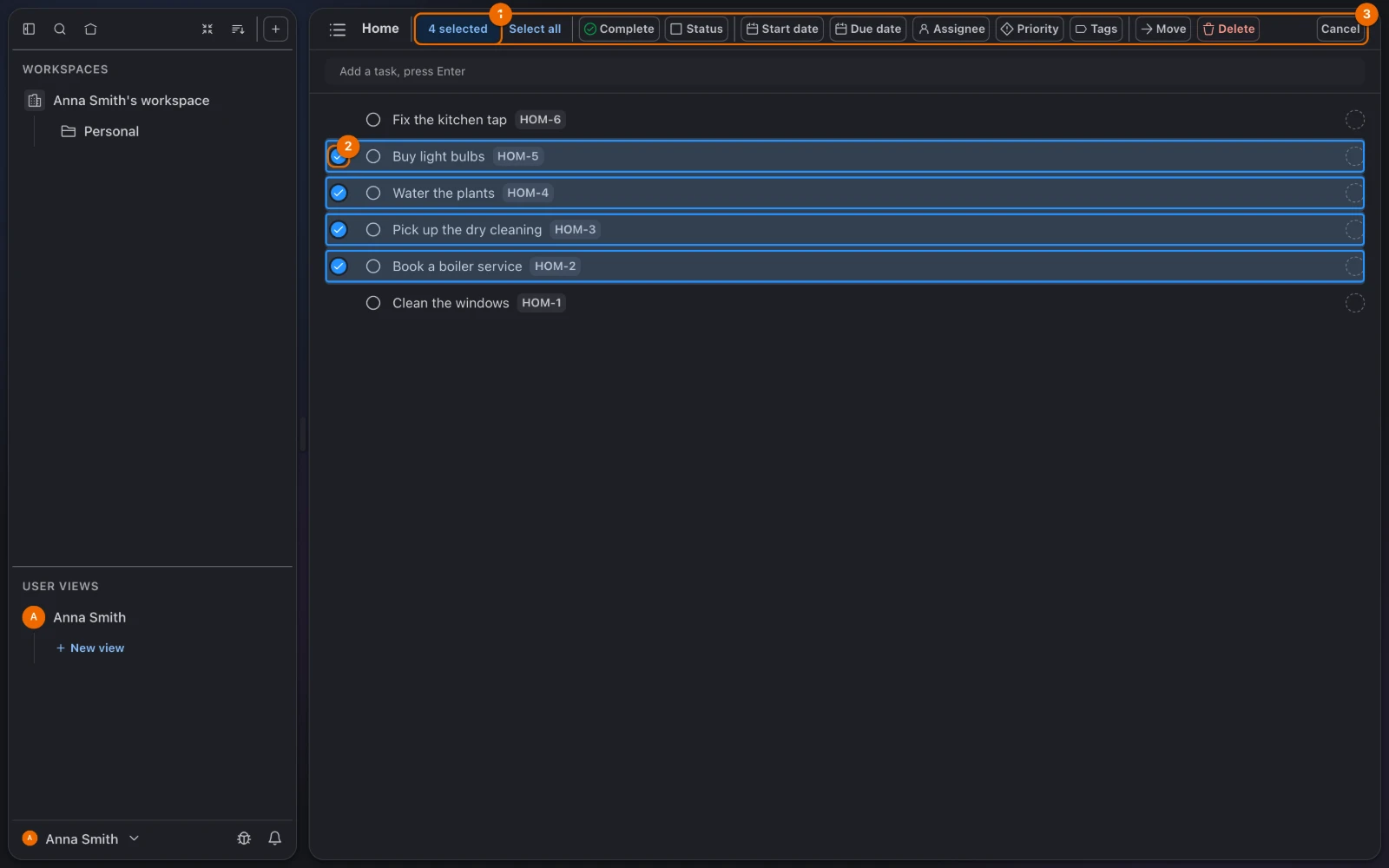
Other ways to start selecting:
Cmd+click a task (Ctrl+click on Windows and Linux). See Keyboard shortcuts.- Choose Select in a task's More actions (…) menu, in List, Kanban and Timeline views.
Select a group or everything
Once you are selecting, you can add a whole group. In List and Table, each group header shows Select; in Kanban, each column header does. It adds the whole group, including tasks not loaded yet. Deselect takes the group out again.
Select all in the bar changes as it works:
- Select all selects the tasks loaded on screen.
- Select all 240 (the view's total) appears once every loaded task is selected and the view holds more: click it to load and select the rest.
- Select first 1000 appears instead past 1,000 tasks.
To clear the selection, point at the … selected count and click it when it reads Deselect all. On a touch screen, Deselect all is a button next to the count.
To leave selection mode, click Cancel in the bar.
Leave with the keyboard
Press Esc to leave selection mode.
Change the selected tasks
In the bulk bar, click Due date. A calendar opens with shortcuts beside it.
Choose Next week. Every selected task is now due next Monday, and the tasks stay selected.
Some tasks didn't change
A message such as "Updated 5 of 7 tasks" means the rest were not changed; they stay selected. See If it doesn't work.
Every other change works the same way: click it in the bar and pick a value. If the window is narrow, the buttons that don't fit move into More actions (…) at the end of the bar.
Status greyed out
Status is greyed out when the tasks come from lists with different status templates: point at it to see "Selected tasks use different status sets". Select tasks from one template at a time.
Bulk changes and what each does
| Change | What it does | After it | More about it |
|---|---|---|---|
| Complete | Closes every selected task. Reads Reopen when all of them are already closed | Tasks leave the selection | Statuses and status templates |
| Status | Sets one status on all of them | Tasks stay selected | Statuses and status templates |
| Start date, Due date | Sets one date on all of them, from a calendar or a shortcut such as Next week (the coming Monday). The date is all-day, so a time on the task is dropped. Clear date removes it | Tasks stay selected | Task dates |
| Assignee | Gives every task the same assignee, or none with Unassigned | Tasks stay selected | Assign and watch tasks |
| Priority | Sets one priority on all of them | Tasks stay selected | Task fields |
| Tags | Opens the tag picker with every tag on the selection checked: check a tag to add it to all, uncheck it to remove it from all. Adding a tag to tasks in a list that lacks it copies the tag into that list | Tasks stay selected | Tag tasks |
| Move | Moves the tasks to another list, or under another task. A list on another task series gives them new Task IDs | Tasks leave the selection | Task menu: move, Task IDs and series |
| Delete | Deletes the tasks and their subtasks, after a confirmation | Tasks leave the selection | Task menu: delete |
Each change applies at once. When no tasks are left in the selection, selection mode ends; tasks that could not be changed stay selected.
No next repeat from a bulk complete
An After completion repeat series creates no next task when you complete its task in bulk, or move it to a Done status in bulk. Complete such tasks one at a time. See Repeat rules.
Delete can't be undone
Delete removes the selected tasks and all their subtasks for good. There is no trash to bring them back from.
Errands moved to next week: an example
- In a personal viewfiltered to the tag
@errands, click Select. The header turns into the bulk bar. - Click Select all. The bar shows 7 selected.
- Click Due date and choose Next week. All seven are now due next Monday, still selected.
- Click Priority and choose Low. The seven tasks have low priority.
- Click Cancel. The view leaves selection mode.
If it doesn't work
- There is no Select button. One of these:
- The window is narrow: open Tools in the view's header; Select is in that menu.
- The view has no Select: only the view types listed in Before you start support it. Switch to a List or Table view (Views).
- A GTD session is running: finish it first.
- On a list's own page, you have no Edit access to the list (Sharing) or no Update in the Tasks block (Permissions and access).
- There is no Delete. Your permission set lets you edit tasks but not delete them. Ask a workspace admin for Delete in the Tasks block (Permissions and access).
- Status is greyed out, with "Selected tasks use different status sets". The tasks come from lists with different status templates. Select tasks from one template at a time.
- You see "Updated … of … tasks". Some tasks were not changed, and they stay selected. The usual causes:
- you can't edit some of the tasks' lists (Sharing);
- your permission set lacks that field in the Task fields block (Permissions and access);
- the assignee you picked isn't a member of some lists (Assign and watch tasks).
- You see "Failed to update the selected tasks". None of the tasks changed, for the same reasons: check your access (Sharing) and your permission set (Permissions and access).
- You see "Failed to run the bulk action". The action stopped. Hule sends a selection in batches of 200 tasks, so with more than 200 selected, the batches before the error are already changed. For Move, you need Edit access to the list you move the tasks to (Sharing).
- A tag is missing from the bulk Tags picker. Adding it would copy it into a selected list where you can't create tags. Ask a workspace admin for Create in the Tags block (Permissions and access), or select tasks from lists that already have the tag.
- You can't create a new tag from the bulk bar. Create it in one task first (Tag tasks), then add it to the rest in bulk.
- A repeating task didn't come back after a bulk complete. Bulk completion skips After completion repeats. Reopen that task, then complete it on its own (Repeat rules).
Related
- Create and edit tasks: change one task at a time.
- Keyboard shortcuts:
Cmd+click and the other click shortcuts. - Filter, sort and group a view: narrow the view before you select.
- Statuses and status templates: why tasks from different lists can have different statuses.
- Permissions and access: what you need to edit and delete tasks.
- Repeat rules: how repeat series create the next task.
- Run iterative sprints by duplicating: bulk moves at the end of a sprint.