Track time on a task
Track time when you want to know how long work really takes: run a timer while you work, or log the time afterwards. The task's Time tracking row shows what you logged next to the estimate, and its bar shows any time over the estimate in red.
Before you start
A list you create in the app starts with the Simple list preset, which has Time Tracking and Timer off (Set up a list). Lists made any other way than New list, such as the lists of a folder copied with Duplicate, and older lists, have every feature on. If a task has no Time tracking row, turn them on:
- In the sidebar, open the list's More actions (…) menu and choose Configure. The list's settings window opens.
- Open Features. You see the feature switches.
- Switch on Time Tracking, then Timer. Tasks in the list show the Time tracking row.
Edit access needed
Turning features on needs Edit access to the list and Update in the Lists block of your permission set. See Permissions and access.
Run a timer
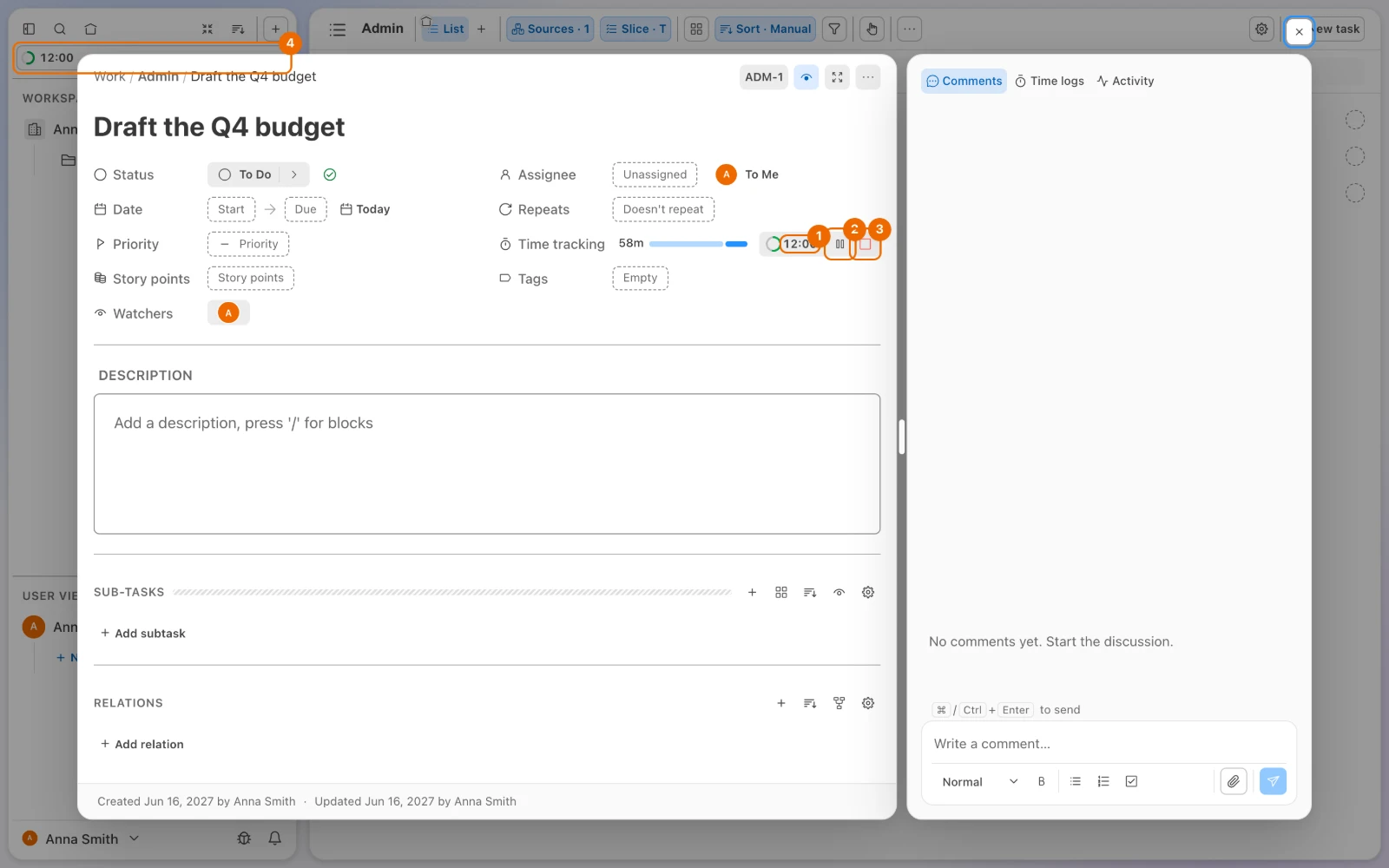
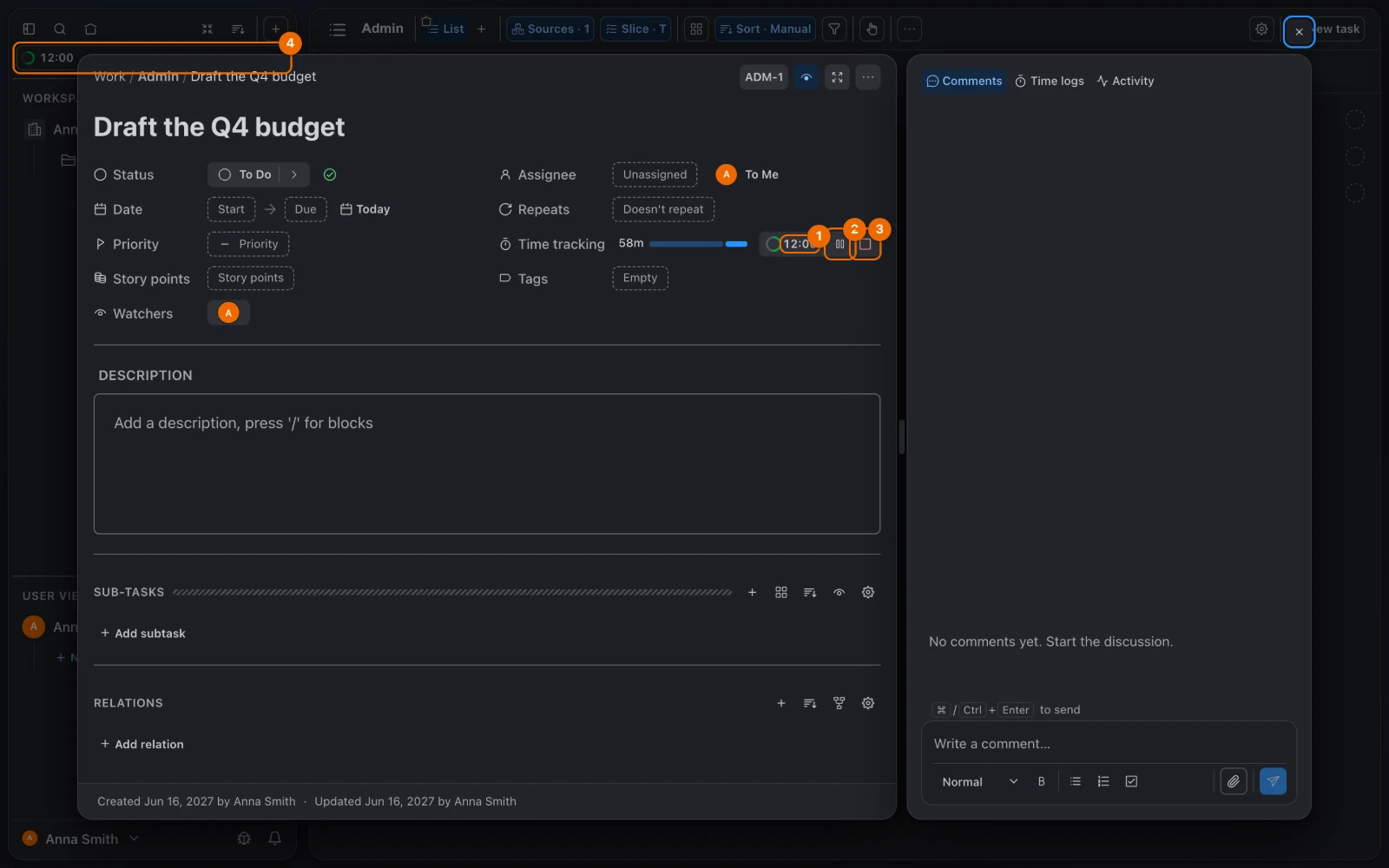
Open the task. Its Time tracking row shows a play button.
Click Start (the play button) in that row. The Focus session card opens: a timer for one stretch of work, as in Plan a focus day with a timer.
Logging time needs access
To run a timer or log time you need Edit access to the list and Create in the Time logs block (Permissions and access).
Only one timer at a time
If the button does nothing, a timer already runs on another task: stop that one first. The timer lives in this browser or app: it survives a reload, but another device doesn't see it.
Pick a length. The card opens on 90 minutes.
25, 50 or 90 minutes: a countdown, Pomodoro-style;
∞: a stopwatch that counts up until you stop it;
another length, typed in the field:
text40m
The card shows when the session ends, such as until 15:30.
Click Start. The clock runs in the task and at the top of the sidebar. Click that clock to open the task from anywhere.
For a break, click Pause. The clock stops.
When you are back, click Resume. The clock runs again, and a focus session's end moves by the length of the pause.
When you finish, click Stop. The time is logged on the task. A session with a length stops and logs by itself when it runs out, and says Focus session finished.
Log time afterwards
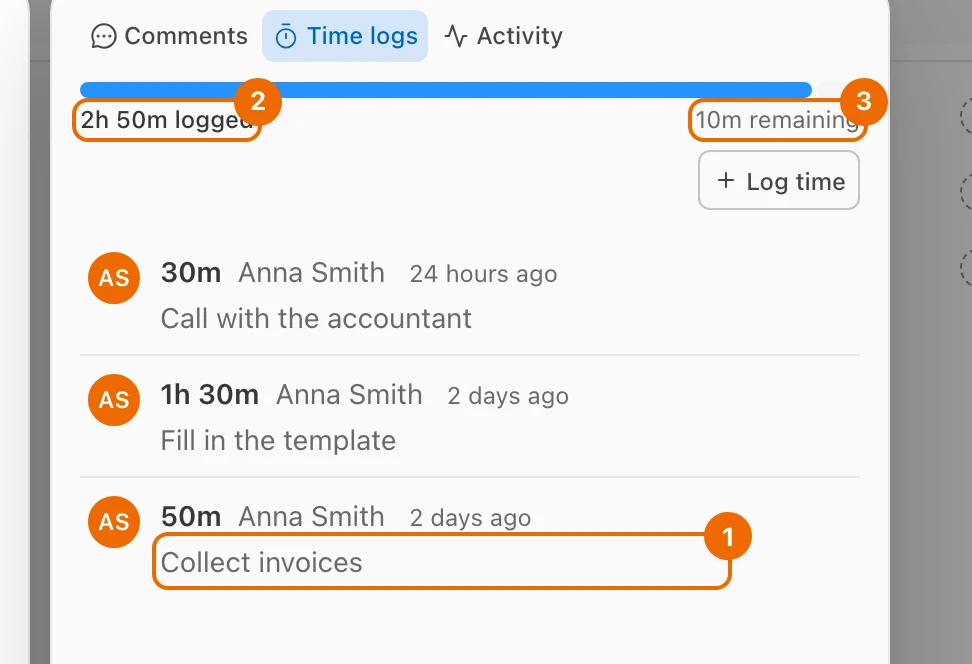
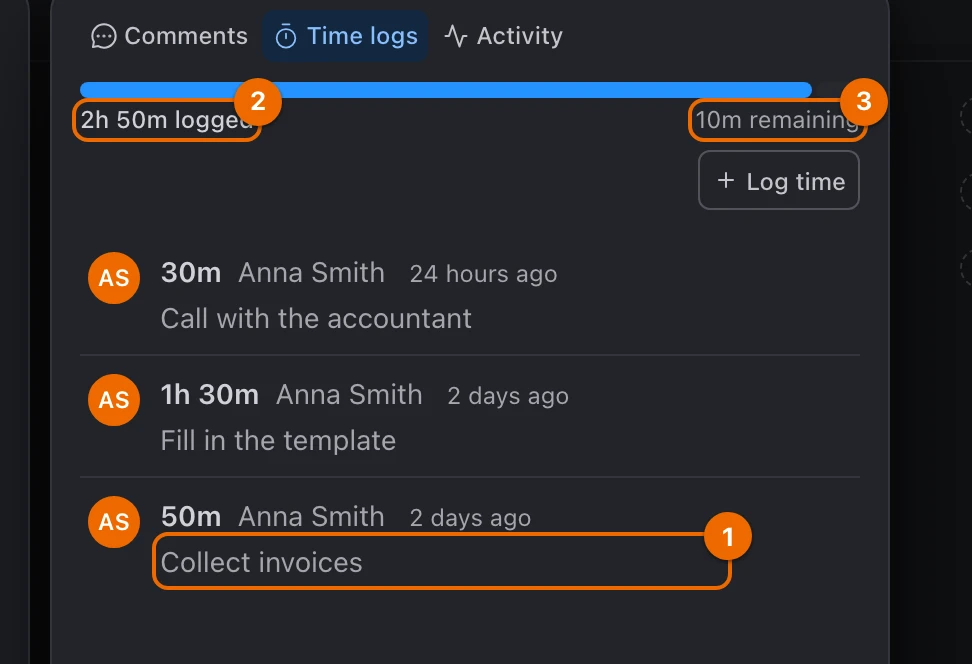
In the task's side panel, click the Time logs tab. The task's time entries appear.
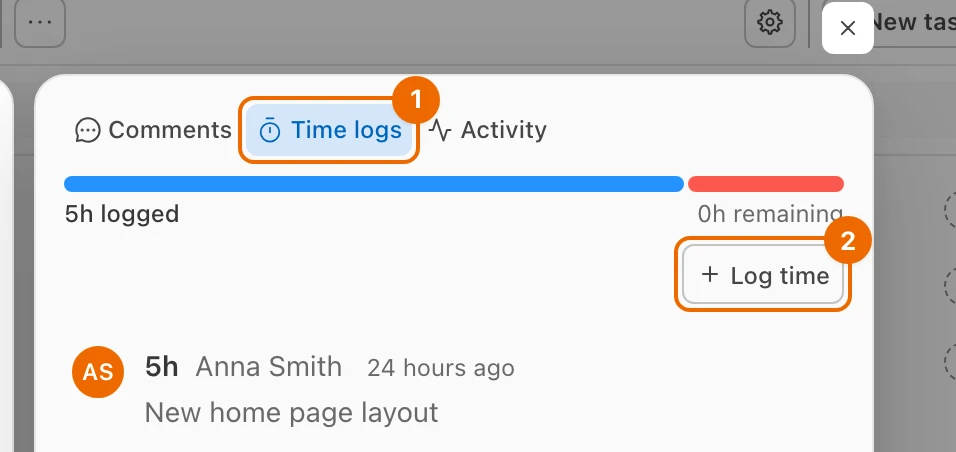
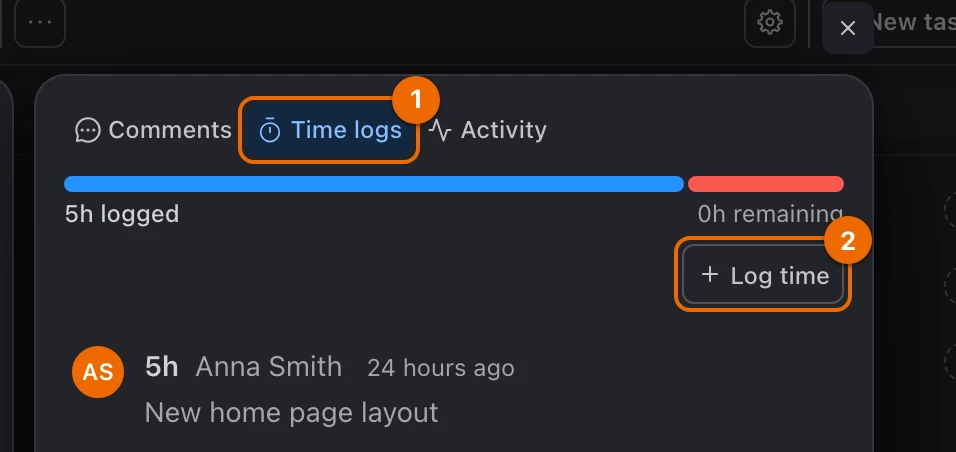
Click Log time. The Time tracking form opens.
Logging time needs access
Log time needs Edit access to the list and Create in the Time logs block.
In Time spent, type a duration:
text1h 30mDuration format
A duration is numbers with units, decimals allowed (
1.5h). A day counts as 24 hours and a week as 7 days, not working days. A bare number, such as45, isn't a duration.Unit Means wweek (7 days) dday (24 hours) hhour mminute ssecond A duration with every unit but seconds:
text2w 4d 6h 45mIf the work was on another day, change Date started.
Optionally, add a Work description.
Click Save. The entry appears in Time logs, and the row adds it to the total.
Estimate and overrun
Click the Time tracking row (or Add time when it is empty). The Time tracking form opens.
No Estimate field?
Setting an estimate needs Edit access to the list, and Time tracking in the Task fields block and Update in the Tasks block of your permission set.
In Estimate, type the estimate as a duration:
text4hClick Save. The row shows a bar:
- blue for time logged;
- gray for time remaining;
- red for time over the estimate.
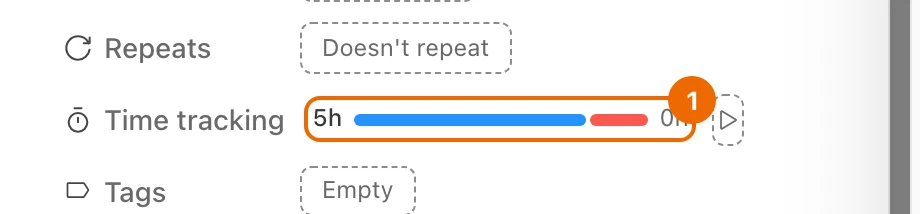
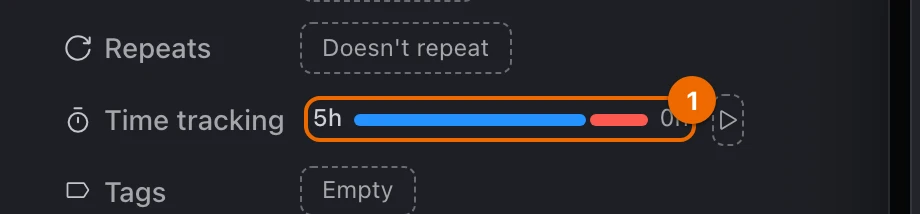
Invoice task example: three entries against 3h
| Work | Time spent | Date started |
|---|---|---|
| Collect invoices (timer) | 50m | Mon 09:00 |
| Fill in the template (timer) | 1h 30m | Mon 14:00 |
| Call with the accountant (logged later) | 30m | Tue 10:00 |
With an estimate of 3h, 10 minutes are left.
If it doesn't work
- There is no Time tracking row. The list has Time Tracking turned off. Turn it on in Configure → Features (Before you start, Set up a list).
- There is no play button. The list has Timer turned off, or you can't log time on this task. Turn Timer on in Configure → Features (Set up a list). If you lack the access to log time, see Log time afterwards and ask a workspace admin.
- The play button does nothing. A timer already runs on another task: hover the button to see "A timer is already running on another task", then click the clock at the top of the sidebar to open that task and stop it (Run a timer).
- There is no Estimate field. You have no Edit access to the list, or your permission set can't change the Time tracking field. Ask a workspace admin for both (Permissions and access).
- You see "Use a format like 2w 4d 6h 45m". A bare number isn't a duration. Add the unit, such as
45m(Log time afterwards). - You can't edit or delete an entry. Only the person who logged it can change it. They also need edit access to the list and Update or Delete in the Time logs block (Permissions and access).
- The timer is gone after you cleared your browser data. The timer is stored in the browser. Log the time by hand (Log time afterwards).
Related
- Focus day: Plan a focus day with a timer, timers and a Today view together.
- Set up a list: turn Time Tracking and Timer on.
- Permissions and access: who can log, edit and delete time.
- Today view: Build your own Today view, to pick what to work on next.