Share a folder or a list
Share a folder, list or view when a member of your workspace should see it or work in it. Being a member is not enough: a member sees only what is shared with them, apart from views at the top of the workspace. Share a folder once, and everything inside it is shared too (Sharing along the hierarchy).
Who sees everything without sharing
The owner sees everything, and so does anyone whose permission set has See all or Edit all for folders, lists and views, such as Super Admin.
Share with a member
Before you share
- The person must already be a member of the workspace: invite them first. You can't share with someone outside it.
- You need Share in the Folders, Lists or Views block, for the kind of item you share. The List/Folder manager, Admin and Super Admin sets include it; the owner always has it. Without it, there is no Share… in the menu.
In the sidebar, open the item's menu: point at the folder, list or view and click ⋯ (More actions), or right-click it. The menu opens.
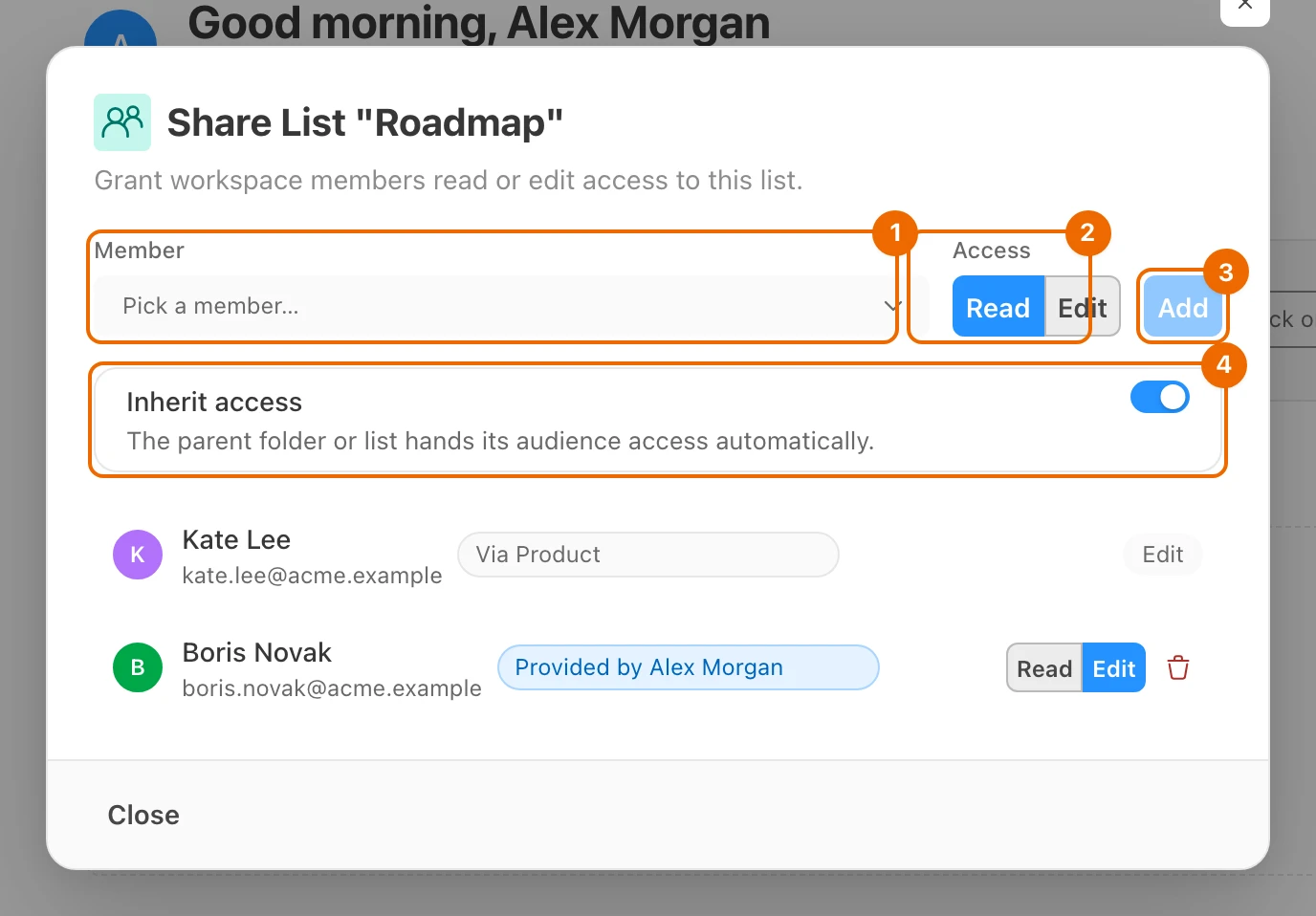
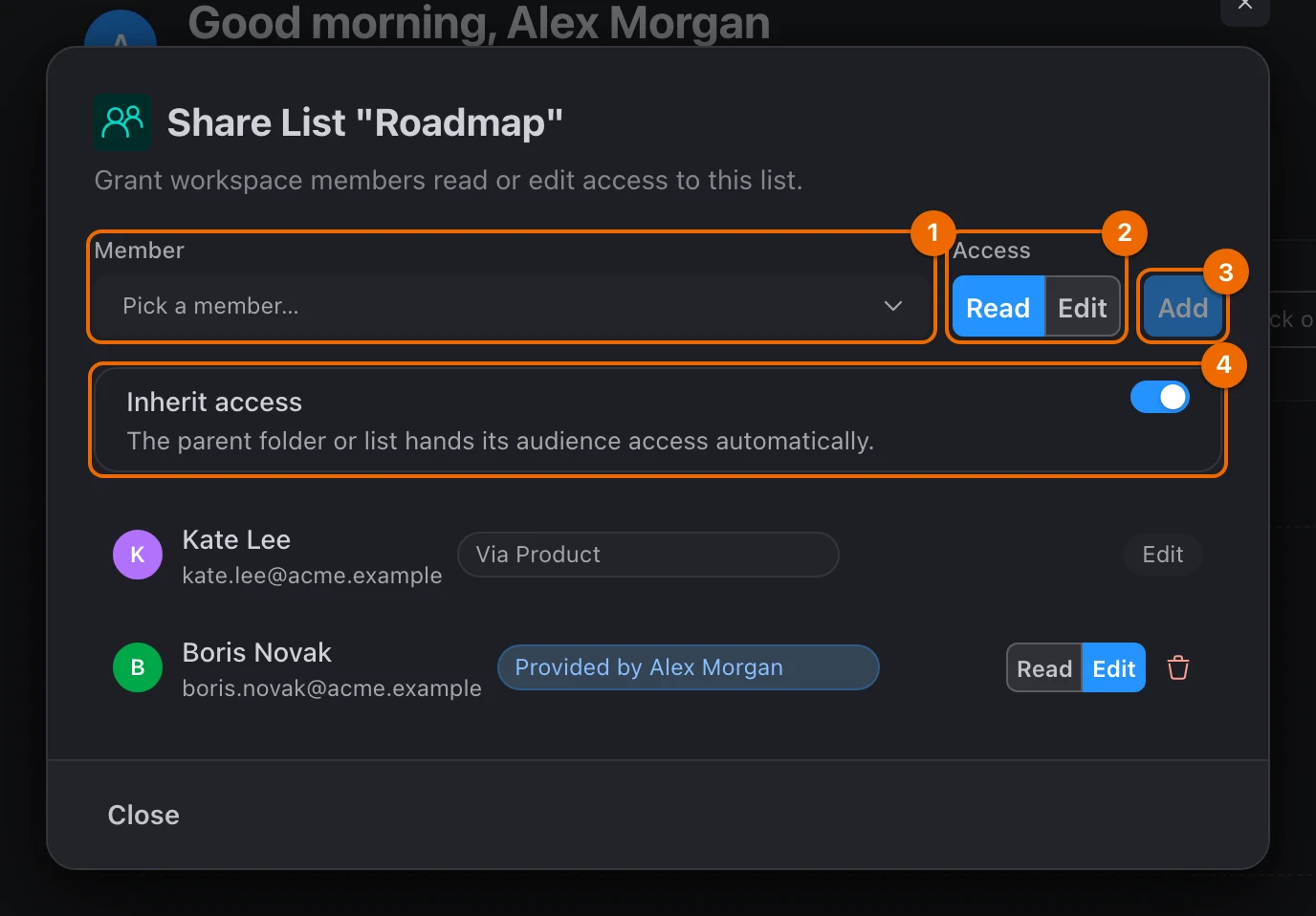
Choose Share…. A dialog titled with the item opens, for example "Share Folder "Product"".
In Member, pick the person. Their name shows in the field.
The person is not in the list?
Only active members appear. If they have not accepted the invitation yet, wait for them to accept.
Under Access, choose Read or Edit. Read is selected by default.
Click Add. The person appears in the list, marked "Provided by" and the workspace owner's name. The access works at once.
What each access lets the member do:
| Access | The member can |
|---|---|
| Read | see the tasks and comment on them |
| Edit | also create, change and delete tasks |
Their permission sets still apply: with Edit on a list, a Worker changes its tasks, but renaming or configuring the list needs a set with Update for lists. The details are in Permissions and access.
Change or remove access
Open the item's share dialog (⋯ → Share…). The members with access are listed.
To change someone's access, switch their row between Read and Edit. The change applies at once.
To take access away, click the trash icon (Remove manual access) on their row. A confirmation asks "Remove manual access?".
Click Remove. They lose access at once, unless they also get it from a folder above.
Removing access takes effect at once
The member loses this item and everything inside it that they reached through this share. To give it back, share the item again.
Still has access?
They also get it from a folder above: the confirmation warns about this. Remove the share on that folder, or make this item Private.
Access down the tree
Sharing a folder shares everything inside it, and items you add to it later get the same access. For example, share the folder Product with Kate for editing:
📁 Product              Kate: Edit (shared here)
├── 📋 Roadmap          Kate: Edit (via Product)
├── 📁 Releases         Kate: Edit (via Product)
│   └── 📋 2.4          Kate: Edit (via Product)
└── 📋 Hiring  🔒       Kate: no access (Private)
In the share dialog, inherited access shows as "Via Product"; you change it on the folder it comes from. Why access works this way, and what happens when you move an item, is in Sharing along the hierarchy.
Private branches
Make a folder, list or view Private when it should not get the access of the folder above it — for example a hiring list inside a shared team folder.
Permission to make an item private
You need Share and Update for that kind of item in your permission set, and Edit access to the item. List/Folder manager, Admin and Super Admin have both.
Open the item's share dialog (⋯ → Share…). The Inherit access switch is above the member list.
Switch off Inherit access. The item and everything inside it lose the access they inherited; people you added to the item directly keep theirs. The item shows a lock in the sidebar.
Inherit access greyed out?
On a view, this means it is the list's default view, which everyone with access to the list sees. Make the list private instead, or open another view's menu (⋯) and choose Set default.
Private doesn't hide the item from everyone
The workspace owner, and anyone whose permission set has See all or Edit all for that kind of item (for example Super Admin), still see a private item and everything inside it.
Switch Inherit access back on to give the item the parent's access again. When you create a list inside a folder, or a view inside a folder or a list, the same switch is in the creation form, on by default.
If it doesn't work
- There is no Share… in the menu. You don't have the Share permission for that kind of item, or it is personal (personal folders and views are never shared). Ask someone with the List/Folder manager or Admin set; see Permissions and access.
- The person is not in the Member picker. Only active members appear. If they have not accepted the invitation yet, wait for them to accept; check under Invited in Workspace settings → Members (see Invite members and grant permissions). You, the owner and people who already have direct access are not listed.
- Inherit access is greyed out on a view. It is the list's default view, which everyone with access to the list sees. Make the list private instead, or open another view's menu (⋯) and choose Set default.
- After Remove manual access the person still has access. They also get it from a folder above: the confirmation warns about this. Remove the share on that folder, or make this item Private; see Access down the tree.
Related
- Sharing along the hierarchy — why access flows down the tree.
- Invite members and grant permissions — add the person to the workspace first.
- Permissions and access — what each permission set allows.
- Give a contractor one branch — share one folder and keep the rest private.
- Split a team's work into folders — one shared folder per group.