Link related tasks
Link two tasks with a relation when one depends on the other (a dependency) or they belong together. The tasks can be in different lists in the same workspace. For example:
- "Paint the walls" blocks "Lay the floor";
- "Book the venue" relates to "Send the invitations";
- a new bug report duplicates an older one.
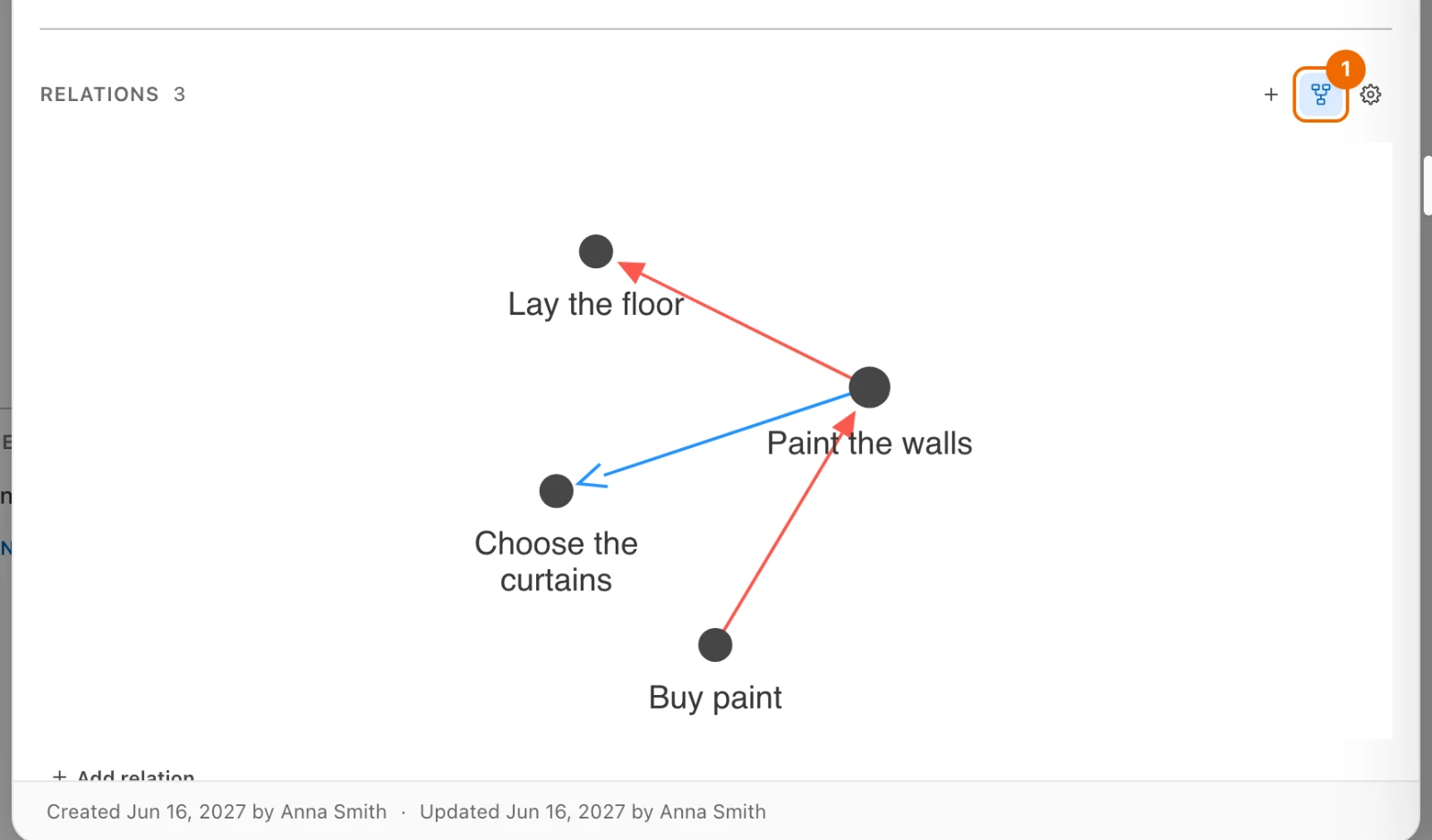
Each relation shows on both tasks, and a Relations view draws them as a graph.
You need Relations turned on in the list, and Edit access to one of the two tasks' lists.
Link two tasks
In the steps below, three relations plan a room renovation:
| Task | Relation | Linked task |
|---|---|---|
| Buy paint | Blocks | Paint the walls |
| Paint the walls | Blocks | Lay the floor |
| Paint the walls | Relates to | Choose the curtains |
Open the task. The Relations section is under Sub-tasks, or under the description if the list has Subtasks turned off. If the task has no relations yet, it holds only Add relation.
No Relations section?
Turn on Relations in the list's … menu → Configure → Features. If it is already on, your permission set may lack Read in Relations; ask a workspace admin. See Permissions and access.
Click Add relation. A field opens with Search relation….
No Add relation?
You need Edit access to this task's list and Create in Relations. If you can edit the other task's list, open that task instead. If your permission set lacks Create in Relations, ask a workspace admin.
Pick the relation type, for example Blocks. You can also pick the reverse, such as Is blocked by, from the task that waits. The field changes to Search tasks….
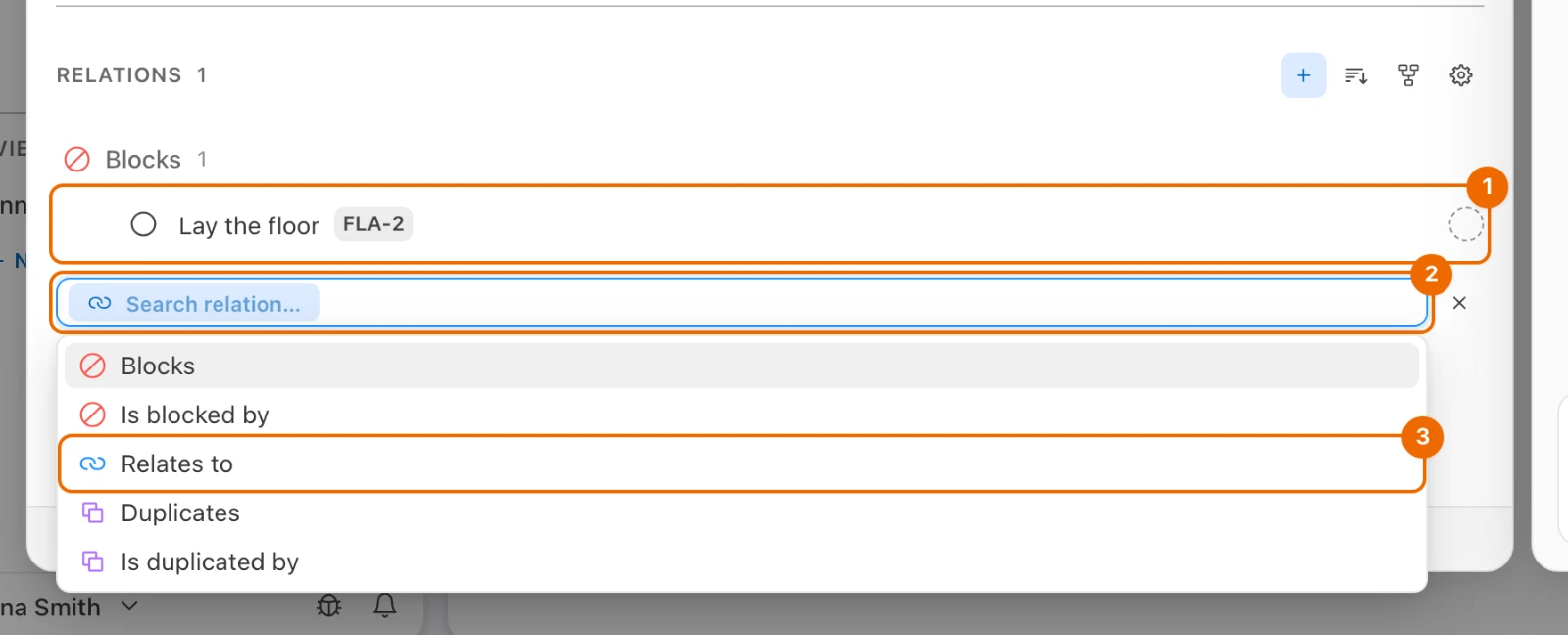
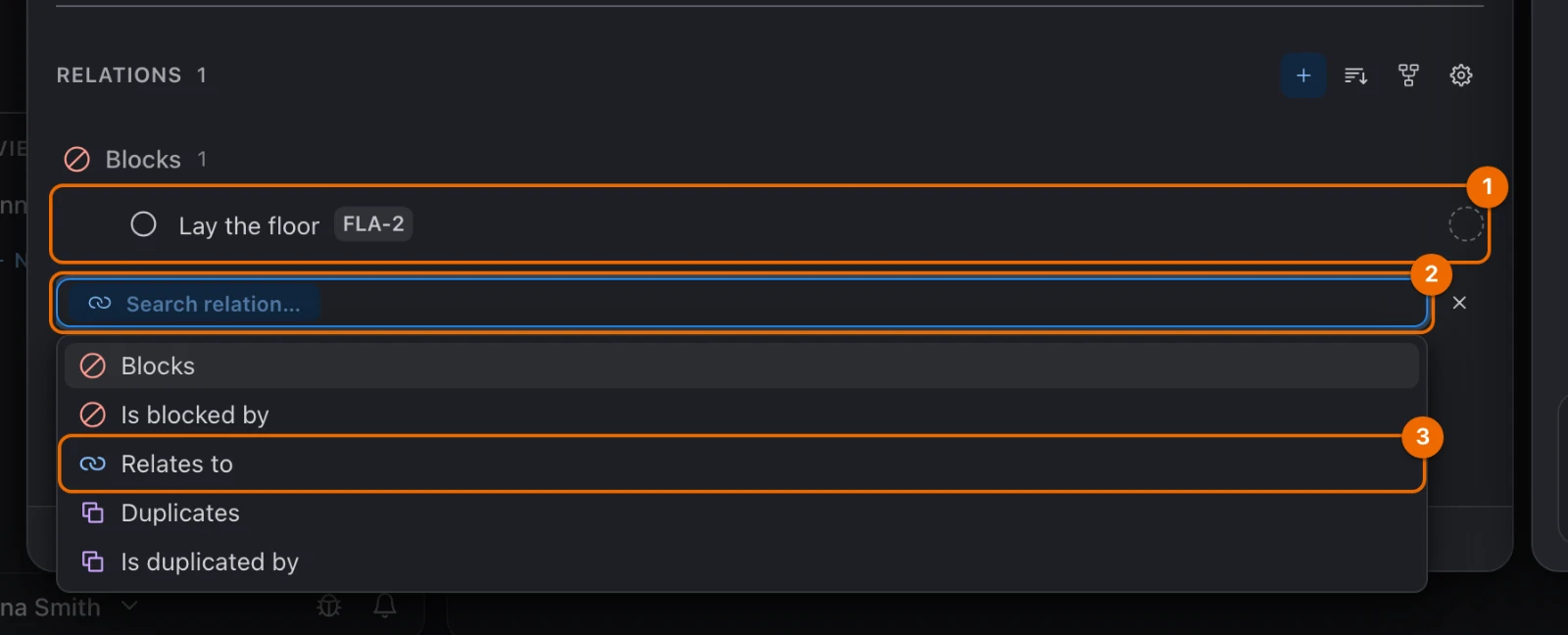
Pick one of the tasks you opened recently, shown before you type, or type part of the task's title and pick it. If the task doesn't exist yet, create it as you link. If the task isn't listed, see Troubleshoot relations and views. The relation appears in the section, and the other task shows the reverse, such as Is blocked by. The field is ready for the next relation.
With all three linked, "Paint the walls" shows each relation in its own group:
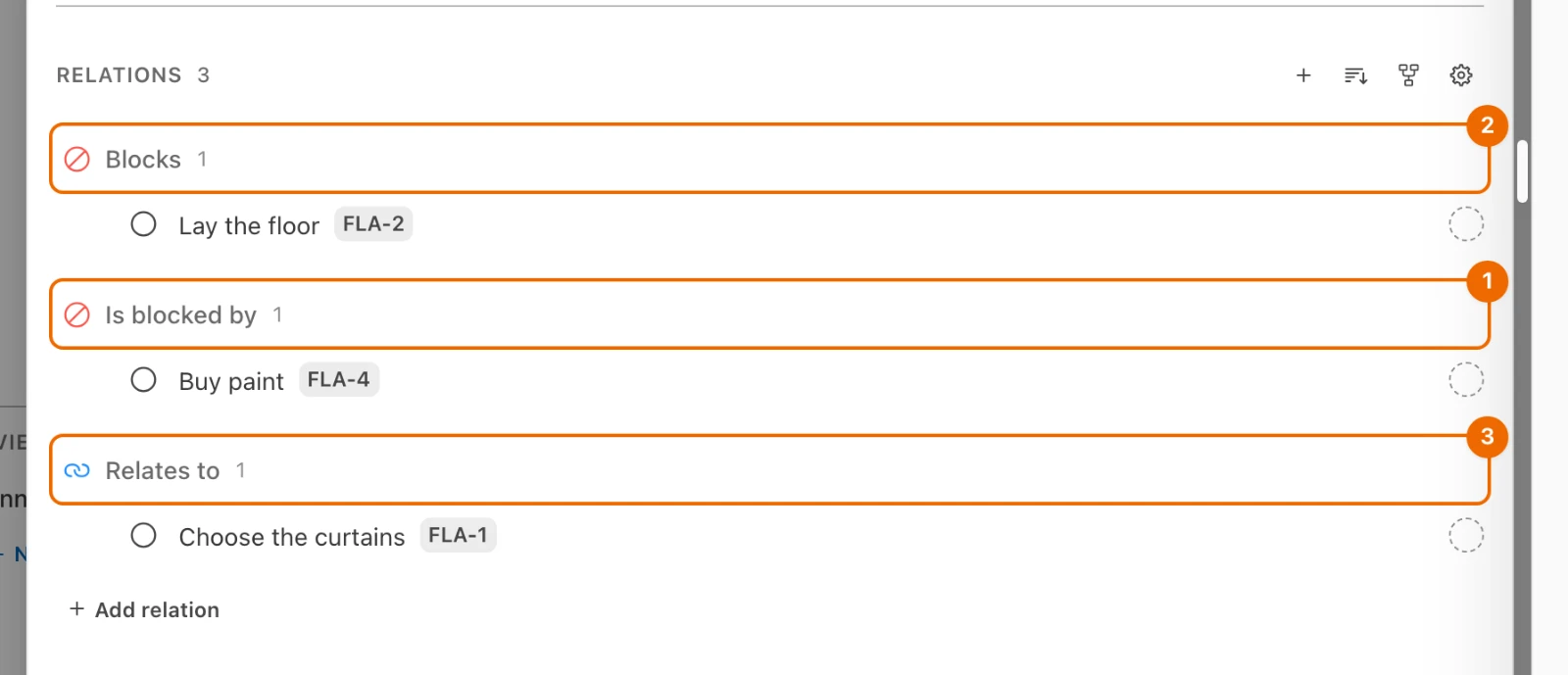
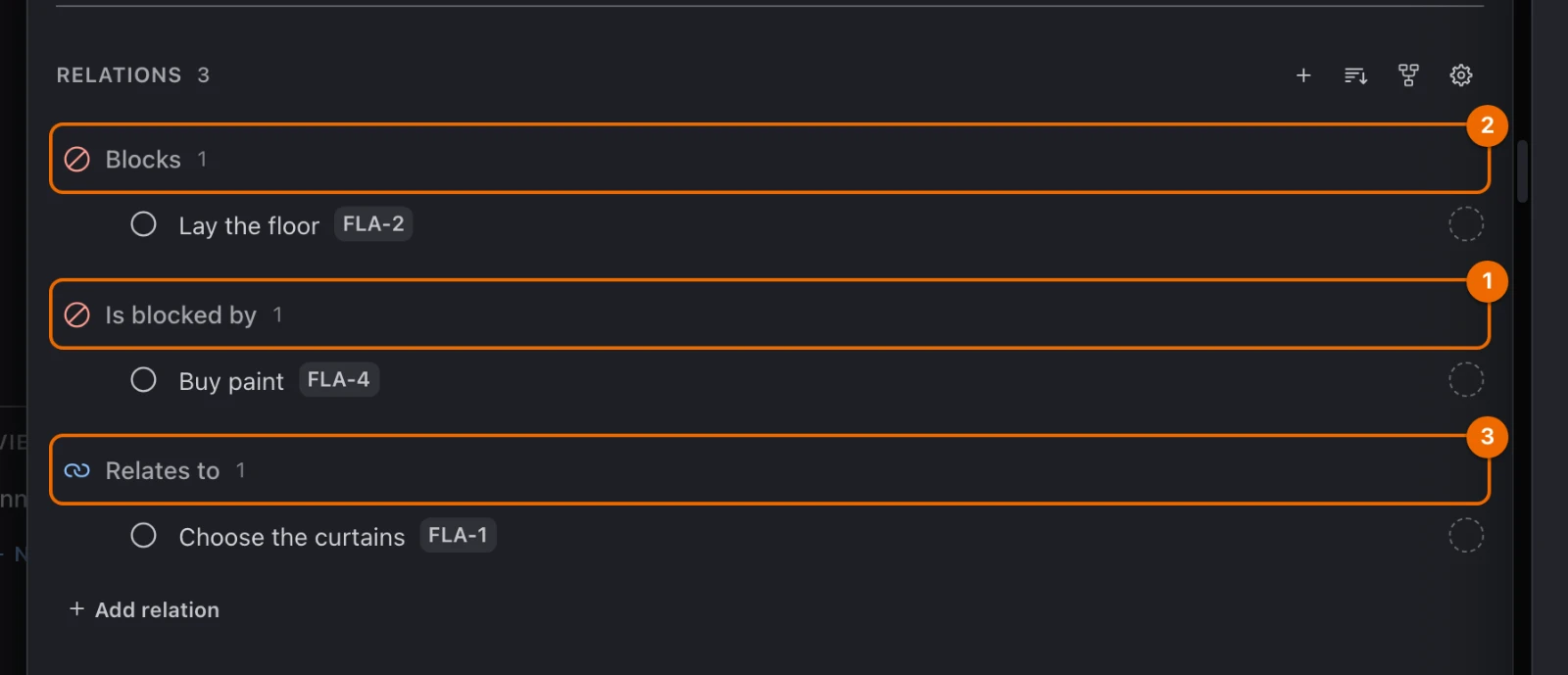
A relation records an order; it does not stop anyone from starting Lay the floor.
Create the other task as you link
If the other task doesn't exist yet, create it from the same field after step 3 above:
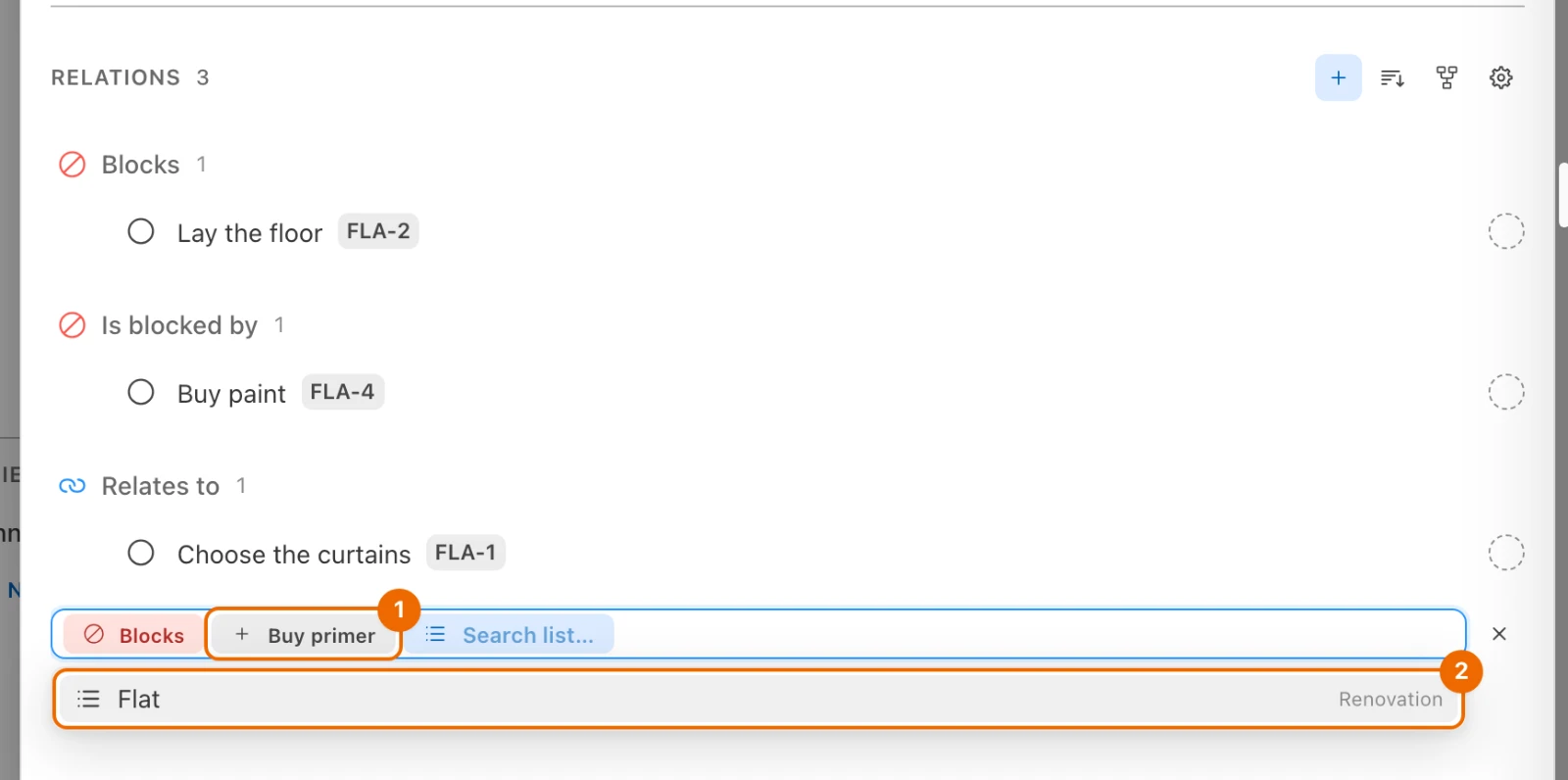
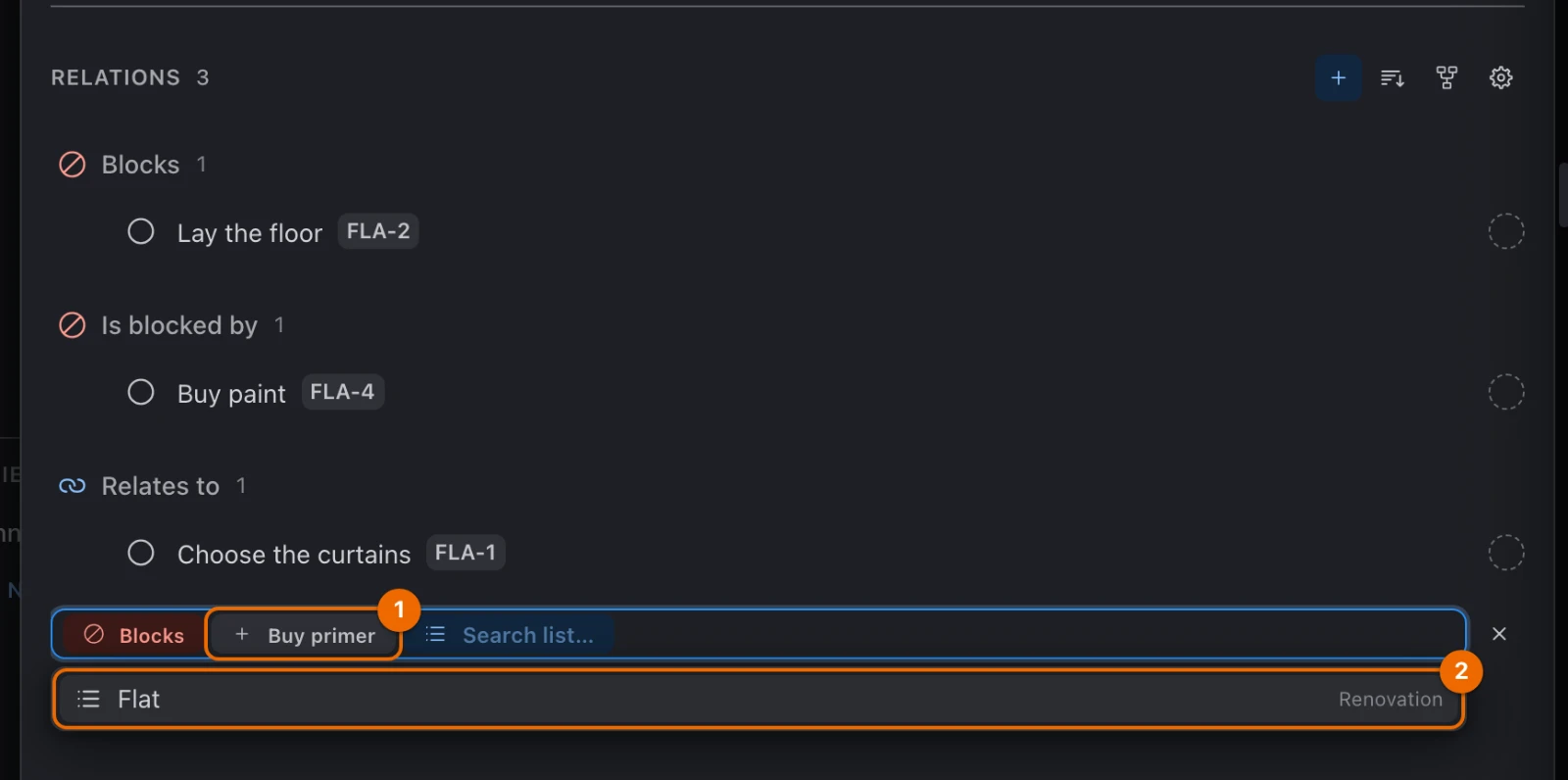
Type its title, for example Buy primer, and pick Create "Buy primer", the last row under the field. You can also reach it with the arrow keys and press Enter. The title moves into a chip of its own and the field changes to Search list…, with this task's list first if you can create tasks in it.
No Create row?
You need Create in the Tasks block and Edit access to at least one list of the task's workspace. The list step offers only those lists. See Permissions and access.
Press Enter to create the task in the list at the top, or type part of another list's name and pick it. Hule creates the task and links it, and the field is ready for the next relation.
Changed your mind about the title?
Press Backspace in the empty Search list… field: the title goes back into the field.
Relation types
For the renovation example, use Blocks when one task must finish before another and Relates to when the tasks belong together without an order. See Task relations and the relations graph for the other built-in types and the labels shown from each task.
Mentions come from # mentions
Hule adds Mentions from # mentions; you cannot pick it in Add relation.
To add your own type:
Open the menu at the bottom of the sidebar (your name) → Workspace settings (pick the workspace if you have several) → Relation Templates. The workspace's relation templates are listed on the left.
Click New template. An empty template opens.
Creating a type needs a permission
You need Create in the Relation templates block: Admin has it, Worker doesn't.
Name both readings: under This task…, type implements; under …and the linked task, type is implemented by. For a type that reads the same both ways, type the same text twice. Create becomes available once both names are filled in.
Click Create. The template joins the list on the left, and Add relation offers Implements and Is implemented by.
Remove a relation
Permissions to remove a relation
Without this access, there is no ×. You need:
- Delete in the Relations block;
- Read access to both tasks;
- Edit access to the list of the task you have open; if you can edit only the other task's list, open that task instead.
- In the Relations section, point at the linked task. An × appears at the end of its row.
- Click the × (Remove relation). The relation disappears from both tasks.
Relations graph: see the connections
Task graph: one task's relations
To see one task's relations as a graph:
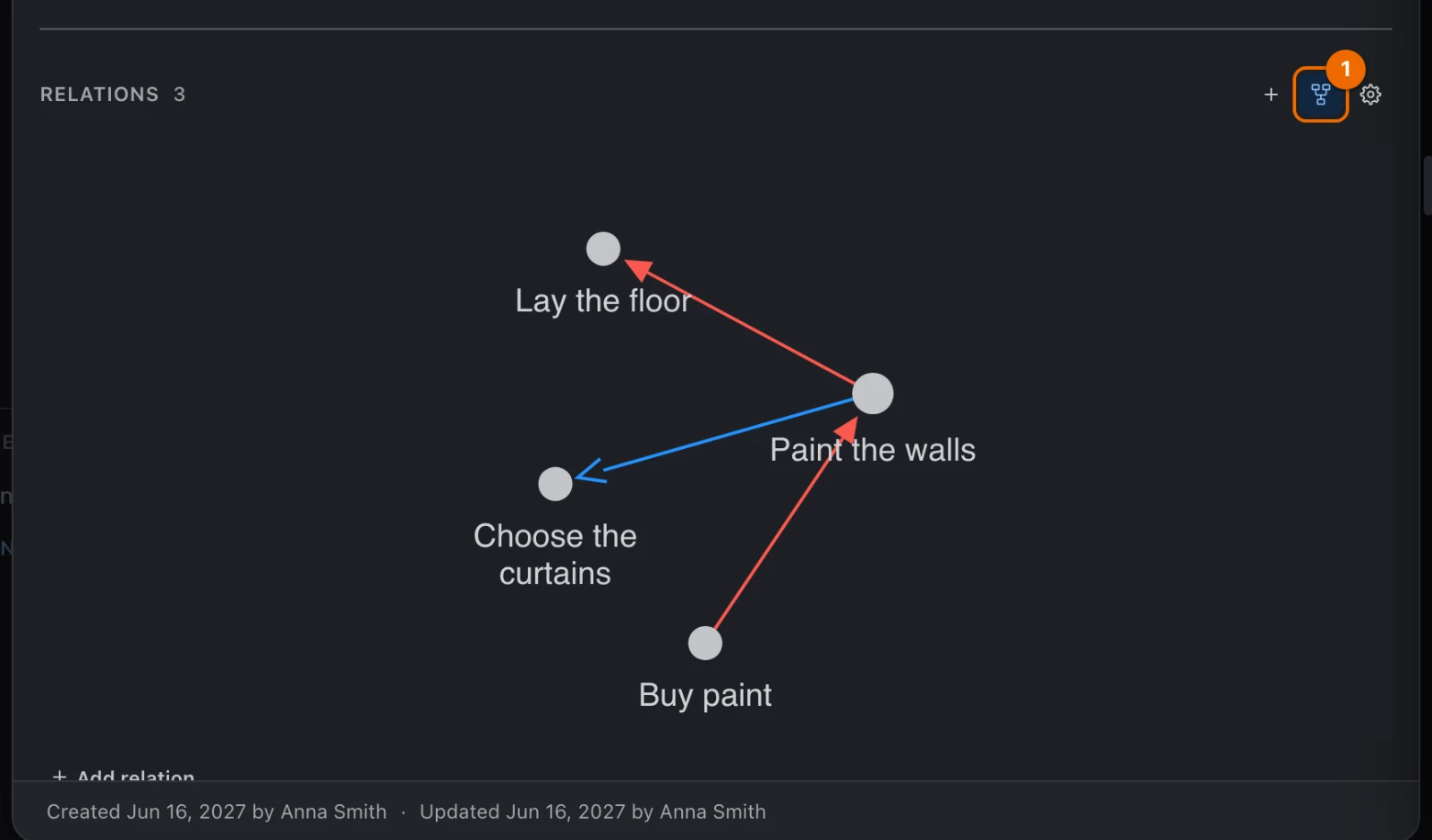
- In the Relations section header, click the graph icon (Show graph). The section draws the task and its linked tasks as a graph.
- To go back, click the icon again (Show list). The section shows the list of relations.
Relations view: the whole graph
To see the relations across many tasks, add a Relations view:
In the sidebar, open the folder's … menu and choose New view. For a personal view, under User Views in the sidebar, point at the row with your name, click + and choose New view. The new view form opens. A view made from a list's … menu shows that list alone.
No New view?
In a folder's menu, you need Edit access to the folder; creating a view in a folder or a workspace also needs Create in the Views block: List/Folder manager and Admin have it, Worker doesn't. Without it, make a personal view: start from User Views in the sidebar instead of a folder.
Type a name under Name. The name is one of the two things Create waits for; the other is a source.
Under Display Mode, choose Relations. The Icon row below takes the Relations view's icon.
Under Source, pick the folder or the lists that hold your tasks, for example Renovation. A check mark appears next to each list you pick, and Create becomes available.
Pick both lists
A relation shows only when both of its tasks are in the view.
Click Create. The view draws every task in it as a node, with its relations as arrows. Click a node to open the task.
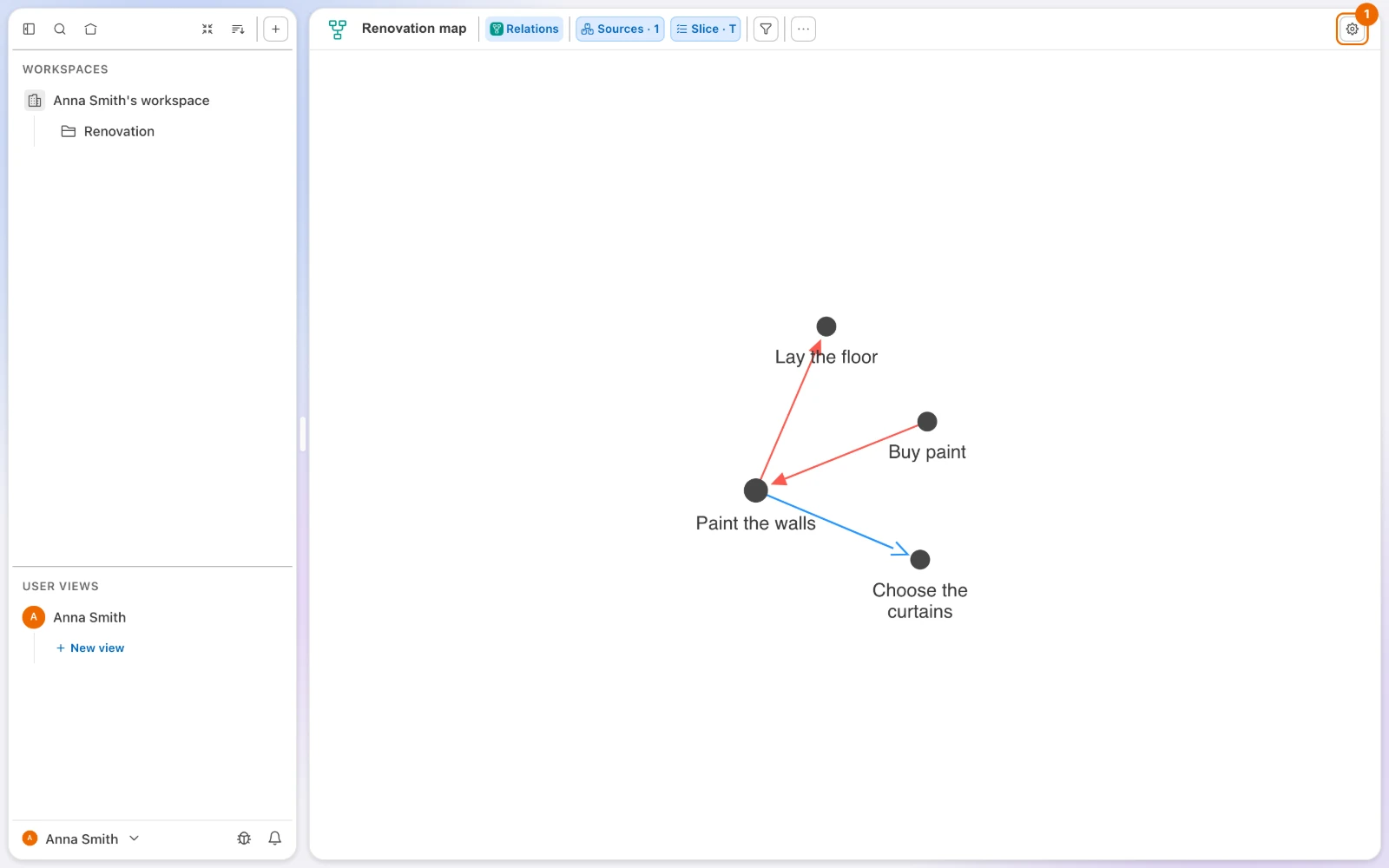
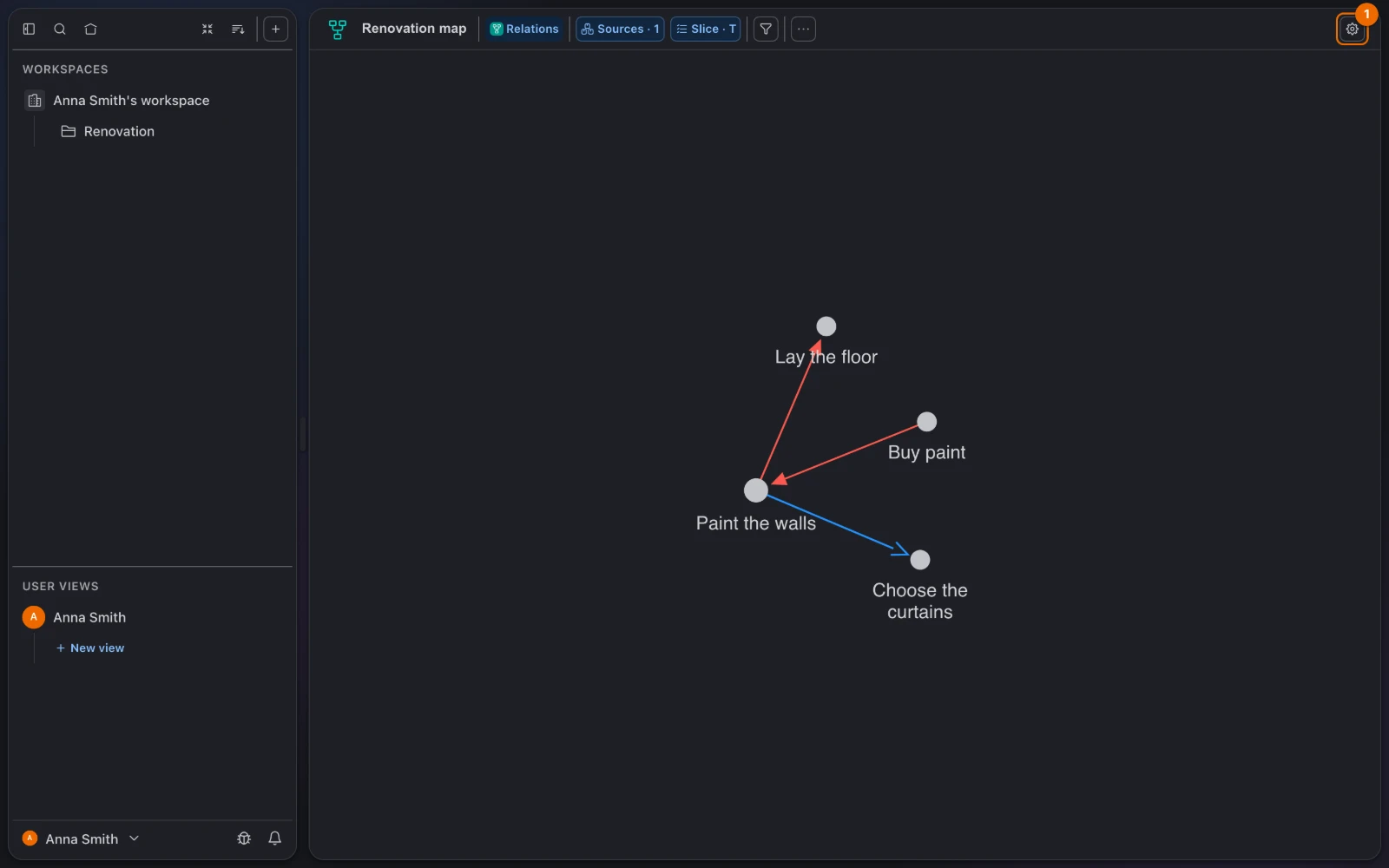
In the view's toolbar, click the gear (Configure graph) to switch relation types on or off and change how the graph is laid out; see Relations view: the whole graph.
Troubleshoot relations and views
| Symptom | Cause | Fix |
|---|---|---|
| The other task doesn't appear in the search | It is already linked to this task with this relation, in this direction | Look for it in the Relations section, or pick another type. |
| The other task doesn't appear in the search | It is the task itself | A task can't be linked to itself. |
| The other task doesn't appear in the search | It is in another workspace | Link tasks in the same workspace only. |
| The other task doesn't appear in the search | You can't see it | Ask for access to its list; see Share a folder or list. |
| You can't pick Mentions | Hule creates it from # mentions in a description or a comment | Type # and the task's name; see Comment and mention people. |
| A task is missing from the graph view | The task's list is not among the view's sources | In the view's toolbar, click Sources and add the list. |
| A relation is missing from the graph view | The linked task's list is not among the view's sources | Click Sources and add that list too. |
| Sources can't be changed | The view was made from a list's … menu or at the top of the workspace, or you can only read it | Make a new view from a folder's … menu or under User Views, with both lists (see Relations view). |
| A relation type is missing from the graph view | The type is switched off | In the gear (Configure graph), turn it back on under Filters (see Relations view: the whole graph). |
Related
- Task relations and the relations graph: why typed relations make a map of your work.
- Second brain: Build a second brain with relations, a workflow built on relations.
- Comment and mention people:
#mentions that create relations. - List features: Set up a list, to turn Relations on or off.
- Views compared: what the Relations view shows.
- Permissions and access: the Relations and Relation templates blocks.