Use the Telegram bot
Use the Hule bot when you live in Telegram. It:
- tells you what is due today;
- completes a task with one command;
- brings your notifications with Done and Open buttons.
The bot is @hule_the_project_stuff_bot. It works for the tasks assigned to you in all your workspaces.
Before you start
You need a Hule account and Telegram; you connect the two once, in the Hule web app.
Connect in the web app
Writing to the bot doesn't connect it, and in the desktop app the Telegram row says Connect from the web app. Use the web app.
Don't sign in with Telegram
If you already have a Hule account, don't use Telegram on the sign-in page: while Telegram isn't linked, that creates a new account. Link it to your account as below; see Sign-in methods.
Connect the bot
In the web app, click your name at the bottom of the sidebar. A menu opens.
Choose User settings, then open Sign-in. The Telegram row says Not connected.
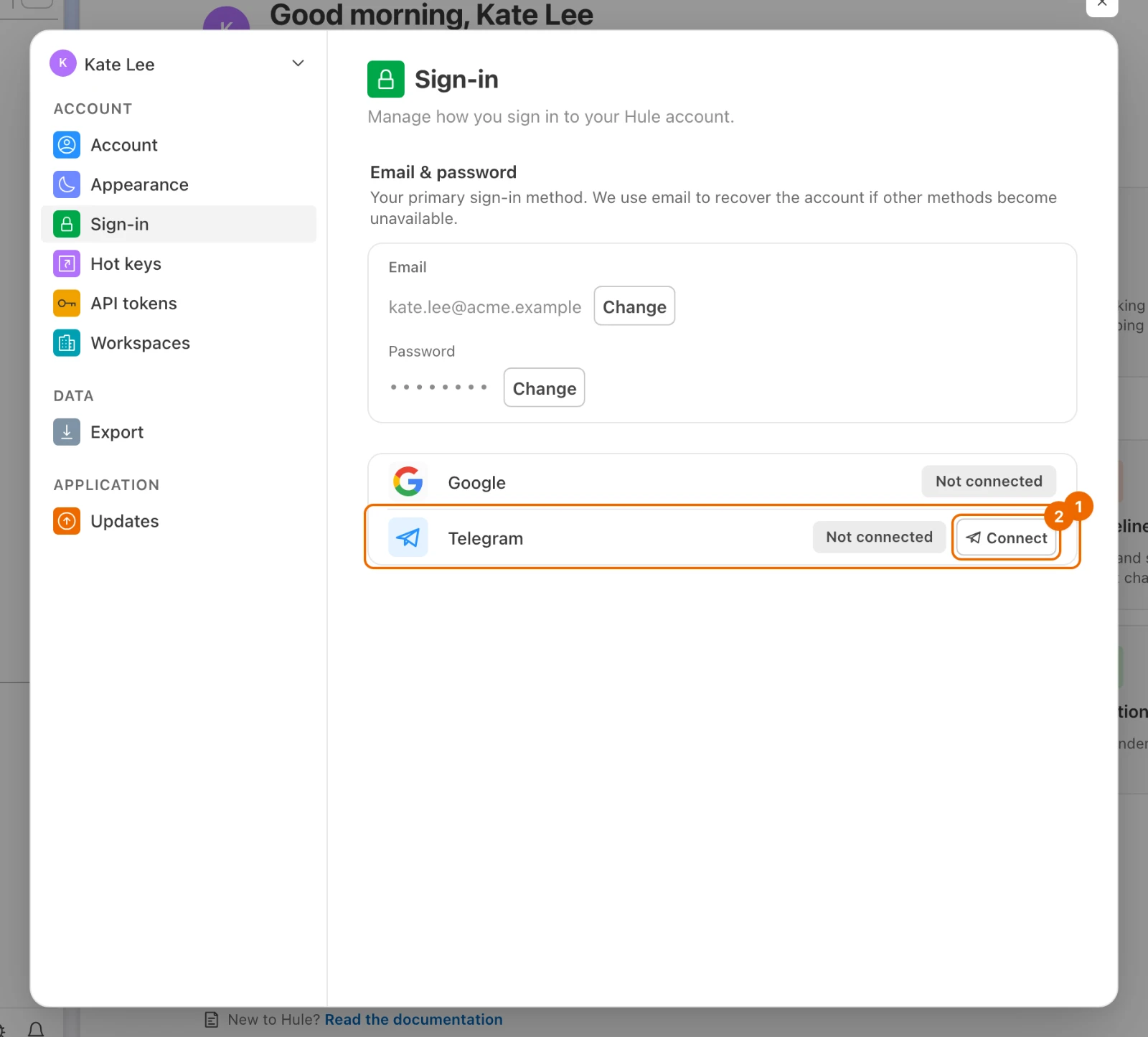
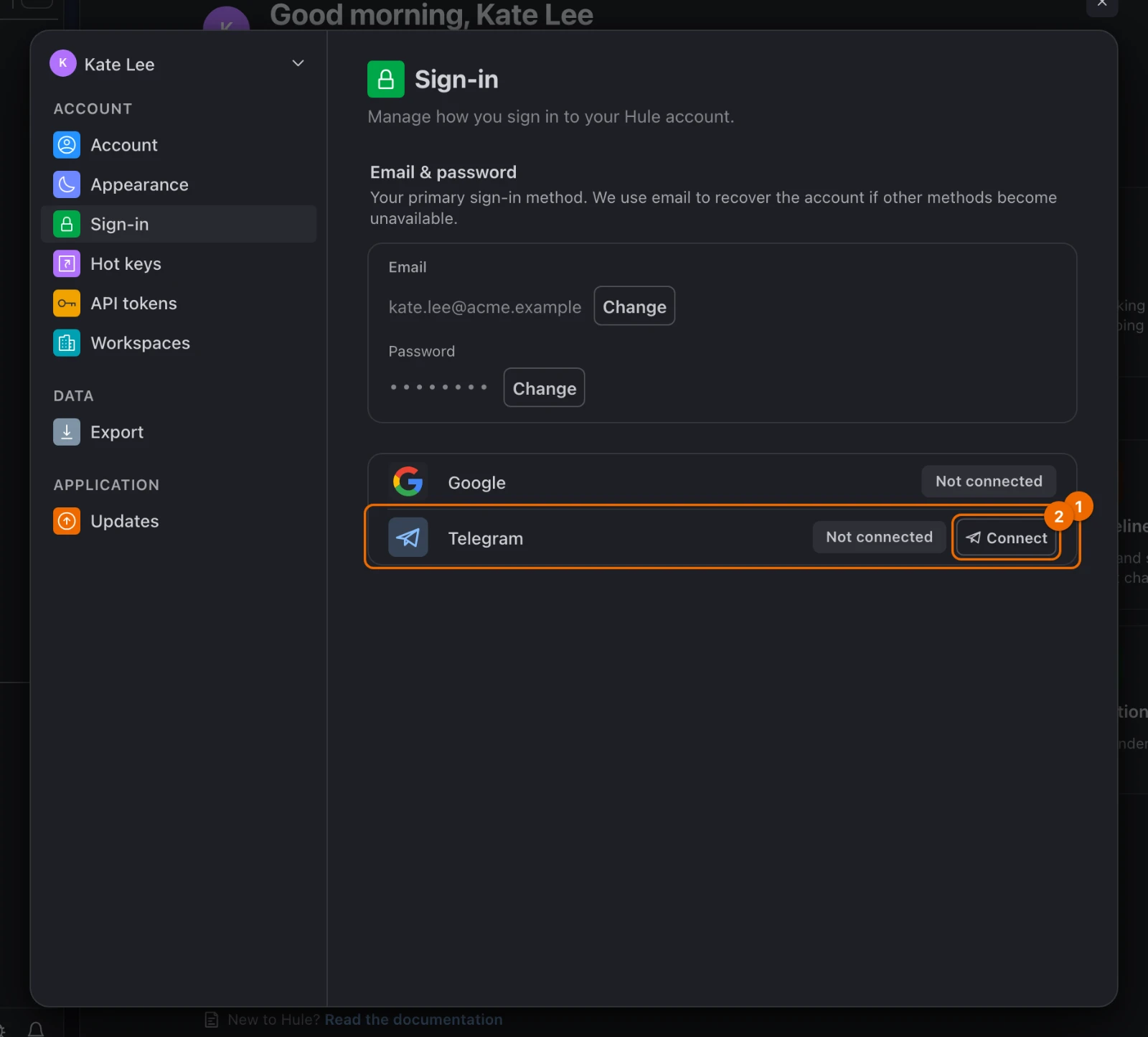
Click Connect. A Telegram window asks to let the bot message you.
Confirm in that window. "Telegram connected" appears, and the row reads Connected as with your Telegram username (or your Telegram ID if you have none).
"This Telegram account is already linked to another user"?
You once signed in with Telegram, which made a second account. Disconnect Telegram there (see Sign-in methods), then connect it here.
In Telegram, open @hule_the_project_stuff_bot and send:
text/startThe bot greets you, in your Hule interface language, and lists its commands.
"Your account is not connected yet"?
The bot doesn't know your Hule account yet. Do steps 1–4 in the web app, then send
/startagain.
Every workspace at once
Connecting adds Telegram to every workspace you are in. The Telegram switch under Channels in each workspace's notification settings is on unless you turned it off.
Due tasks: /today, /overdue, /week
Send one of these commands. Each lists the open tasks assigned to you, in all workspaces, sorted by due date:
| Command | Shows |
|---|---|
/today | tasks due today |
/overdue | tasks past their due date |
/week | tasks due from tomorrow to the end of the week (Sunday); empty on Sundays, use /today |
Each row shows:
- the title;
- the due date (the time, for
/today); - the task ID, such as
BT-0042, which is what/donetakes.
The bot shows up to 20 rows; when there are more, it says "Showing the first 20 of …".
A task with no ID
A task in a list without task IDs appears without one. Complete it with the ✅ Done button of its notification, or in the app.
Forgot a command?
Send /start: the bot lists every command it knows.
Complete a task
Send
/donewith the task ID from the list:text/done BT-0042The bot answers "✅ Completed:" with the title and where the task lives: its workspace and list.
Only your own tasks
/donecompletes only tasks assigned to you, in a list that has a "done" status. For any other task, open it in Hule."I could not find a task with that key"?
Check the ID against the
/today,/overdueor/weeklist.
Add a task from the chat
Send
/newwith the task's text:text/new Call the printer tomorrowThe bot asks "Where should this go?" and shows your lists as buttons.
Tap a list. The bot answers "Task created" with the list and workspace. A day named in the text becomes the due date; see Add tasks from Telegram.
Plain messages are ignored
The bot acts only on commands. All of them are in Telegram bot commands.
Notification buttons
Notifications about a task arrive with buttons:
| Button | What it does | Then reads |
|---|---|---|
| ✅ Done | Marks the task done if it is assigned to you; for anyone else's task the bot answers "I could not find that task among the ones assigned to you", so use Open. | ✅ Completed |
| Open | Sends a link that opens the task in Hule. | — |
| 💤 +1h | On Due soon and Overdue notifications only: hides the notification from your Hule Inbox for an hour. It comes back there, not in Telegram. | 💤 Snoozed |
Which events notify you, in Telegram and every other channel, is set per workspace under Events in notification settings.
No notifications?
Check that Telegram is on under Channels in that workspace's notification settings, and that quiet hours are not on. If you blocked the bot, unblock it and send /start.
Example: a day in Telegram
Kate sends
/todayand gets three tasks, among them "Send the invoice" with the IDBT-0042.She finishes another one on the way and sends:
text/done BT-0041At 23:30, with the default Remind me before, a Due soon message for the invoice arrives: it is still open. She sends the invoice, then taps ✅ Done on the message. The button changes to ✅ Completed.
Disconnect the bot
Open User settings → Sign-in.
In the Telegram row, click Disconnect, then Confirm disconnect. "Telegram account disconnected" appears, and the bot stops sending messages.
"Set up email sign-in to disconnect"?
Telegram is your only way to sign in. Add an email and password on the Sign-in page first (see Manage your account), then disconnect.
Disconnect from the chat
Send /unlink to the bot.
If it doesn't work
- The bot says "Your account is not connected yet". Connect it in the web app: User settings → Sign-in → Connect next to Telegram; see Connect the bot.
- "Failed to open Telegram sign-in window. Please allow popups." Allow pop-ups for Hule in your browser and click Connect again.
- "I do not know that command." Send
/startfor the list, or see Telegram bot commands. - "I could not find a task with that key." Check the ID against the
/today,/overdueor/weeklist; see Task IDs. - "That task lives in a list with no "done" status". Open it in Hule to finish it; see Statuses.
- "That task is not assigned to you".
/donecompletes only your own tasks. Close it in the app, or ask the assignee; see Assign and watch tasks. /unlinksays Telegram is your only way to sign in, or the row says "Set up email sign-in to disconnect". Add an email and password on the Sign-in page first (Manage your account), then disconnect.- Notifications stopped after you blocked the bot. Unblock @hule_the_project_stuff_bot in Telegram and send
/start. - Notifications don't arrive. Check that Telegram is on under Channels in that workspace's notification settings, and that quiet hours are not on.
- The Telegram row says "Connect from the web app". You are in the desktop app. Open Hule in a browser and connect there; see Web app from your browser.
Related
- Telegram bot commands — the command list.
- Add tasks from Telegram — capture a task with
/new. - Set up notifications — choose what reaches Telegram.
- Manage your account — sign-in methods and email.
- Task IDs — the keys
/donetakes.