Filter, sort and group a view
Filter a view, then sort and group it, when it shows more tasks than you can act on. This guide builds one view you can open every Monday:
- Filter: open tasks due this week with High or Urgentpriority;
- Sort: soonest due date first;
- Group: one group per list.
Before you start
Pick a view that draws from several lists, such as a folder view or a personal view: grouping by list needs more than one list. The steps use a List view.
Edit access needed
A shared view needs Edit access and a permission set that can update views; see Permissions and access.
Your teammates see the change
In a shared view the settings are saved for everyone who opens it; to keep them to yourself, use a personal view.
Filter by due date and priority
Click Filter (the funnel icon) in the header. The filter strip opens under the header.
Click + Rule. A chip reading Title = … appears. Save and Discard appear on the right of the strip, Save greyed out.
Click the chip. Its editor opens with Field, Operator and Value.
In Field, pick Due date.
In Operator, pick on or before / ≤.
Next to Value, click Relative; the value becomes Today. Open it and pick This week. The chip reads
Due date <= This week.This week includes overdue tasks
A week runs Monday to Sunday in your Time zone, set in Settings → Notifications of the workspace you own (if you own none, the first one you joined). on or before keeps overdue tasks too; to leave them out, pick is. More: View filters.
Repeat steps 2–5 for a Priority rule: any of, then pick High and Urgent. The chip reads
Priority: High, Urgent.Repeat them for a Stage rule: is not, Done. The chip reads
Stage != Done, and the header button reads Filter · 3.Click Save. The view shows only tasks that match all three rules. The rules are joined by AND; for OR and nested groups, see View filters.
Save stays greyed out
A rule has no value yet. Point at Save to see why, then pick a value, or point at the empty chip and click its × to remove it.


Sort by due date, then priority
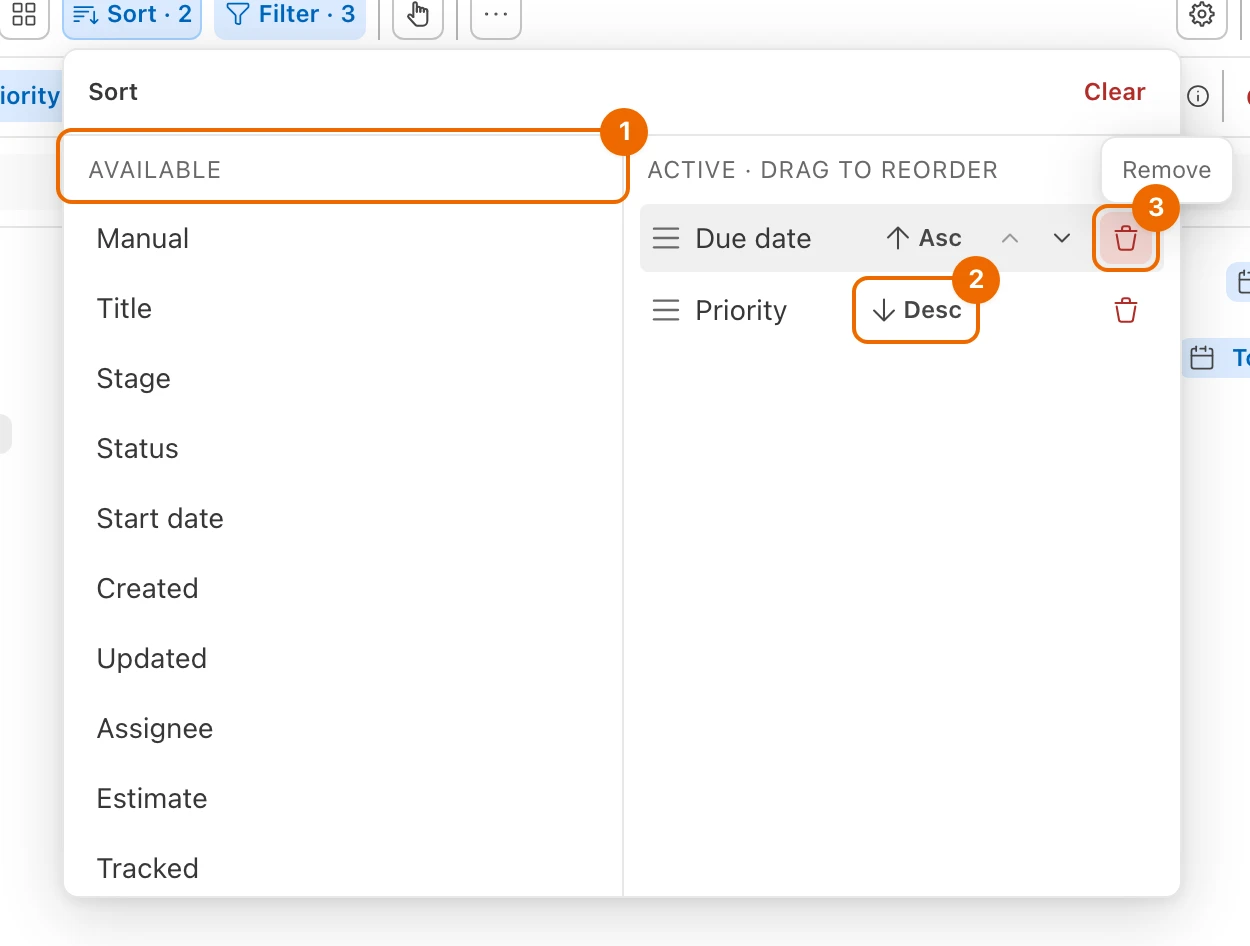
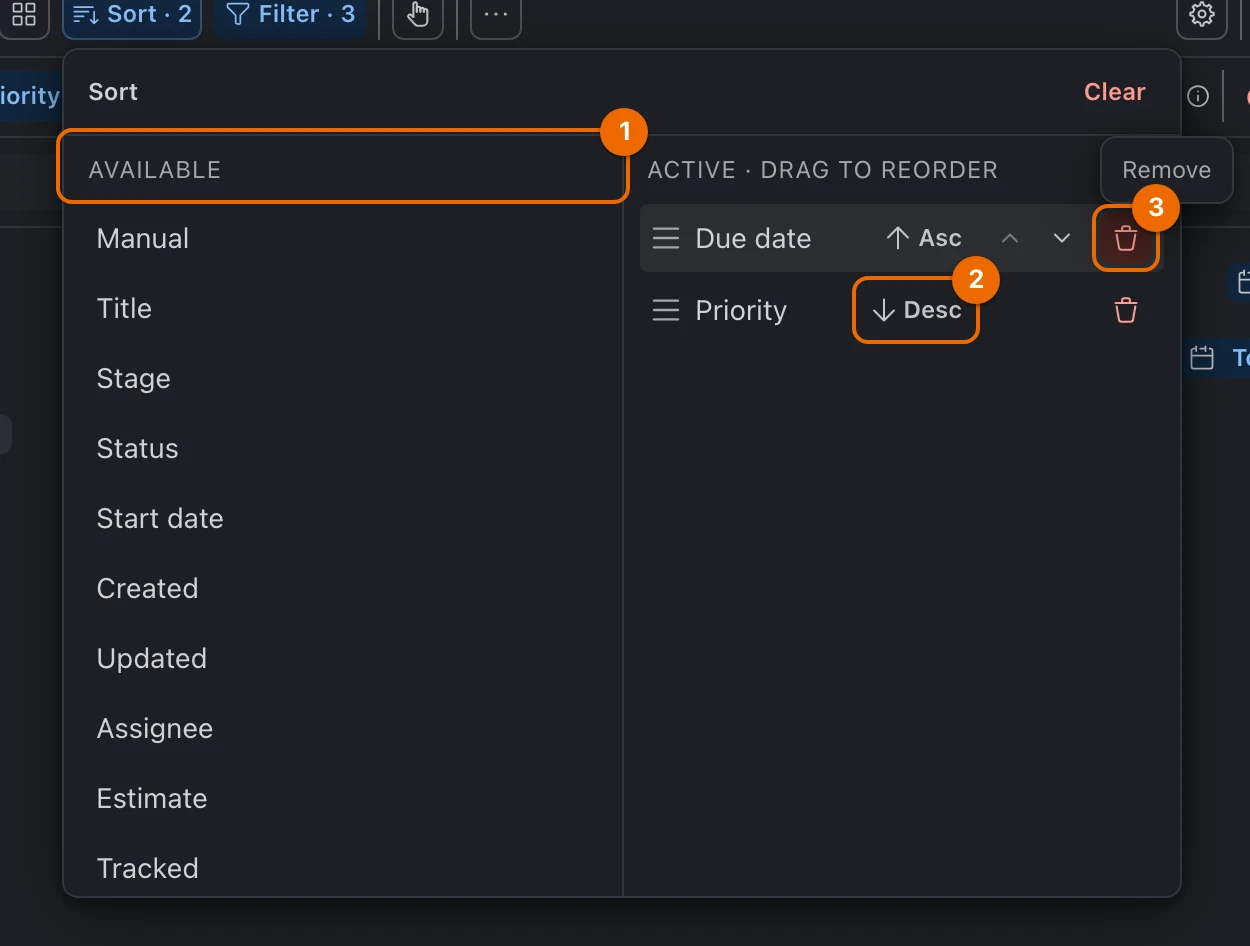
- Click Sort · Manual in the header. The Sort card opens: Available fields on the left, the active sort on the right with Manual, the order you drag tasks into.
- Click Due date under Available. It joins the active sort below Manual, as Asc. The view doesn't change yet: Manual still comes first.
- Click Priority under Available. It joins the sort below Due date, as Asc.
- Click Asc on the Priority row. It switches to Desc, so Urgent will come before High.
- Click Remove (the trash icon) on the Manual row. The view reorders: soonest due date first and, on the same day, Urgent first. The button reads Sort · 2.
Manual order still breaks ties
Tasks with the same due date and priority keep your drag order. To put Manual back, click it under Available. More: View sorting.
Each view type keeps its own sort
Switch this view to Kanban and it shows the Kanban's own sort and grouping; your List settings come back when you switch back. Details: View sorting.
Group by list
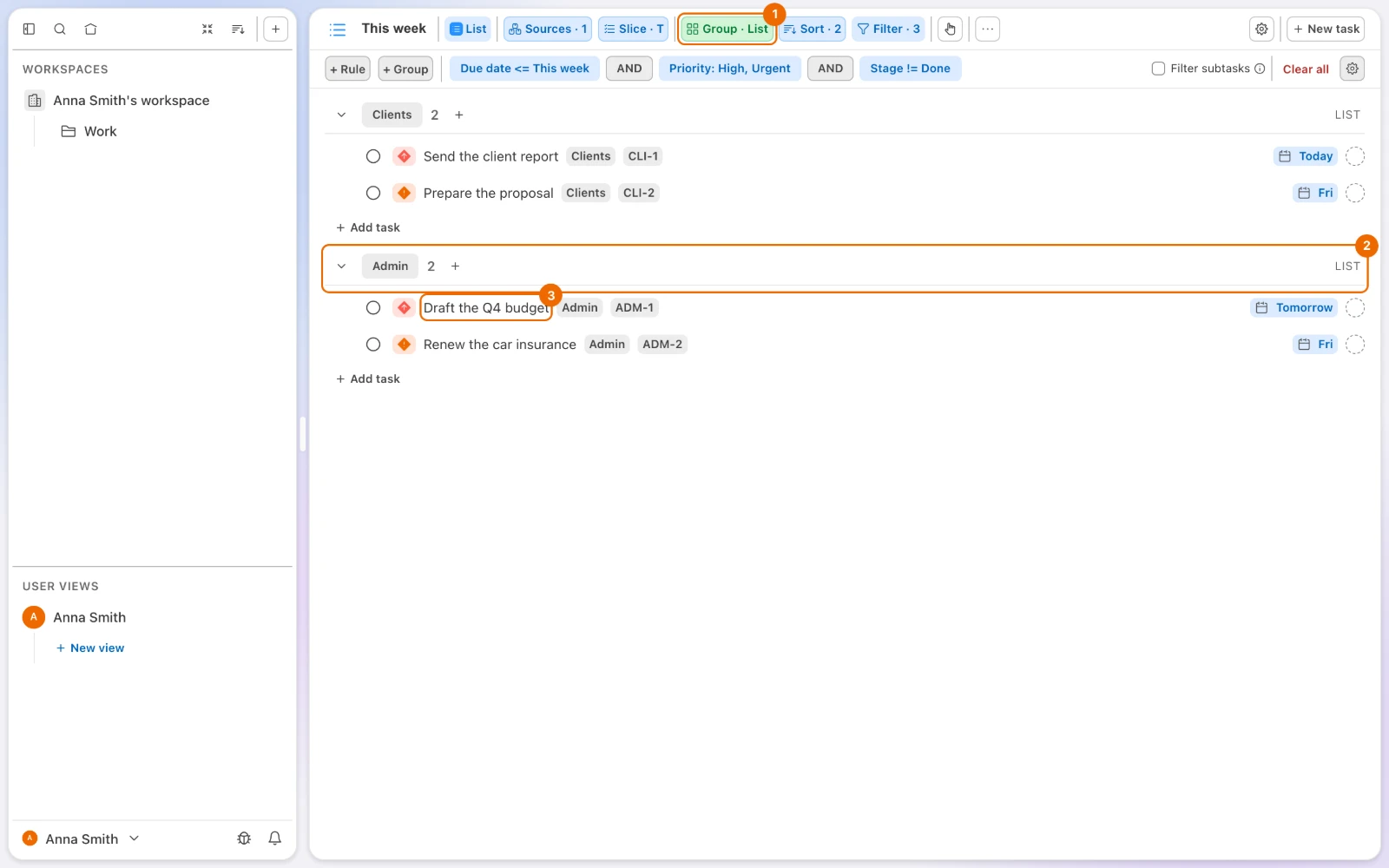
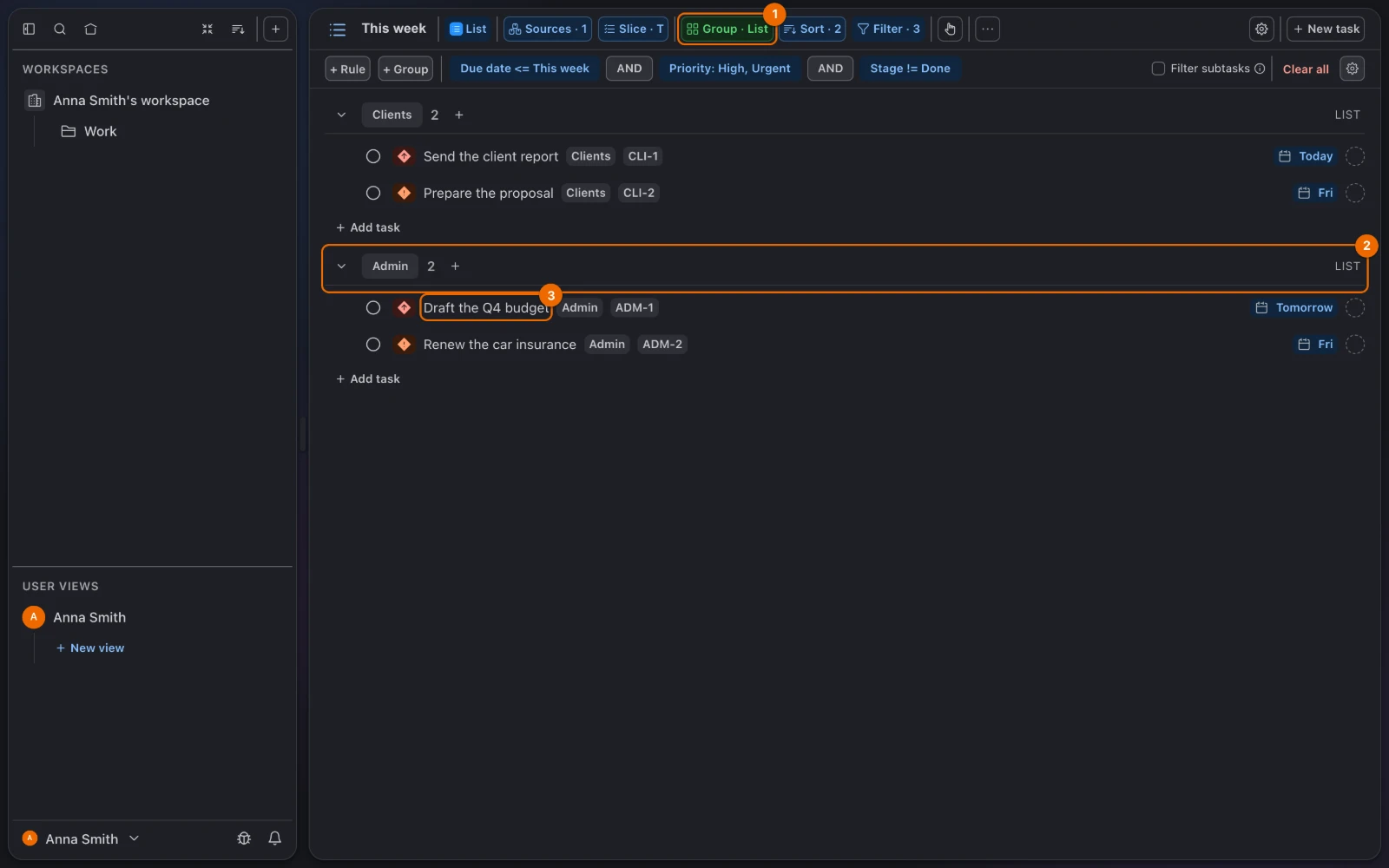
- Click Group by (the grid icon next to Sort). A menu of fields opens, with None at the top.
- Click List. The view splits into one group per list, each under a header with the list's name. Inside each group, tasks follow your sort. The button reads Group · List.
Some fields appear only with their list feature on
Priority, Assignee and Story points show in the menu only when one of the view's lists has that list feature on. In a view whose source is a folder or a workspace, they always show. Every groupable field: View grouping.
If it doesn't work
- Save is greyed out. A rule has no value. Pick one, or remove the rule; see View filters.
- Your teammates see your filter. View settings are shared. Build a personal view for your own filters.
- There are no Group or Sort buttons on a list's page. You have Read access to that list's view, so only Filter shows, read-only. Ask for Edit access; see Permissions and access.
- Your filter, sort or group change doesn't stick. You have Read access to the view, or your permission set can't update views. Ask for Edit access; see Permissions and access.
- There is only a Tools button. The header is narrow: all three buttons are inside Tools; see View sorting.
- Sorting by a field changes nothing. Manual is still above it. Remove Manual or move the field above it; see View sorting.
- Remove is greyed out on Manual. In List and Kanban views Manual can't be removed while it is the only sort; add another field first. See View sorting.
- A field is missing from the Group menu. None of the view's lists has that field's feature on. Turn it on in the list's features.
- Tags are not in the Group menu. You can't group by tags. Filter by Tags instead; see View filters.
- There is no Group or Sort button. This view type has only Filter (Views compared), or a running GTD session hides all three.
Related
- Views as lenses on tasks: why a view changes what you see, not the tasks.
- View filters, View sorting, View grouping: every option, rule by rule.
- Today view: Build your own Today view, a filter you open every morning.