Set up a recurring task
Make a task repeat when you do the same thing on a rhythm, for example:
- pay rent on the 1st of every month;
- review the week every Friday;
- water the plants every 3 days, counted from when they were last due.
Hule creates each new occurrence as its own task, in one of two modes: on a Fixed schedule, or After completion of the previous task. The full rules for both modes are in Repeat rules.
Before you start
Turn on Repeats in the list
The list must have Repeats turned on. Of the presets, only Scrum turns it on. Turn it on in the list's … menu → Configure → Features; see Set up a list.
Edit access and a permission needed
You need Edit access to the list and Create in the Recurring jobs block of your permission set; the default Worker set has it. With Read access the Repeats field shows the rule but doesn't open.
Repeat on a fixed schedule
Use Fixed schedule when the date matters, whether or not the last task is done: rent is due on the 1st every month.
Open the task, or start one with New task (see Create and edit tasks).
Click Doesn't repeat next to Repeats (in the New Task form, the Doesn't repeat chip). The repeat editor opens on After completion, every 1 day.
In Mode, choose Fixed schedule. An at field appears under Frequency, set to 09:00: the time each new task is created.
In Frequency, set the unit to Month. An on day field appears, set to the day of the task's due date (or today's).
Type 1 in on day. The line under the form reads Every month on day 1 at 09:00.
Days 29–31 skip short months
A monthly rule on day 29, 30 or 31 creates no task in months without that day. For a task at the end of every month, tick Last day of the month instead: the line under the form reads Every month on the last day at 09:00, and each task falls on the month's last day, February included.
Optional: in Ends, pick On date or After N occurrences to stop the series (see Ends).
Optional: open Carry over and clear the fields new tasks shouldn't copy (see Carry over).
Click Save. The Repeats field shows Every month on day 1 at 09:00, and the task's due date moves to the next 1st: this task is the series' first (see First date of a series).
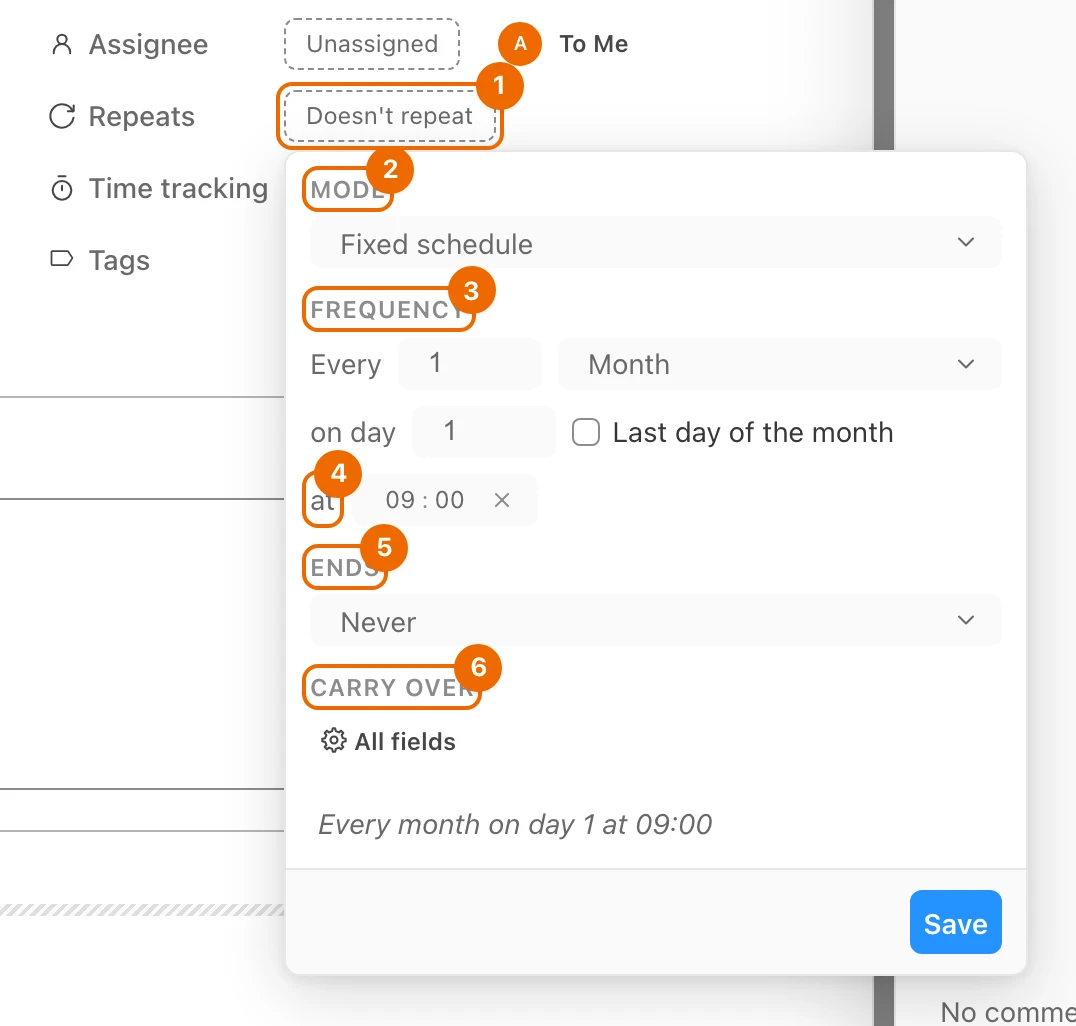
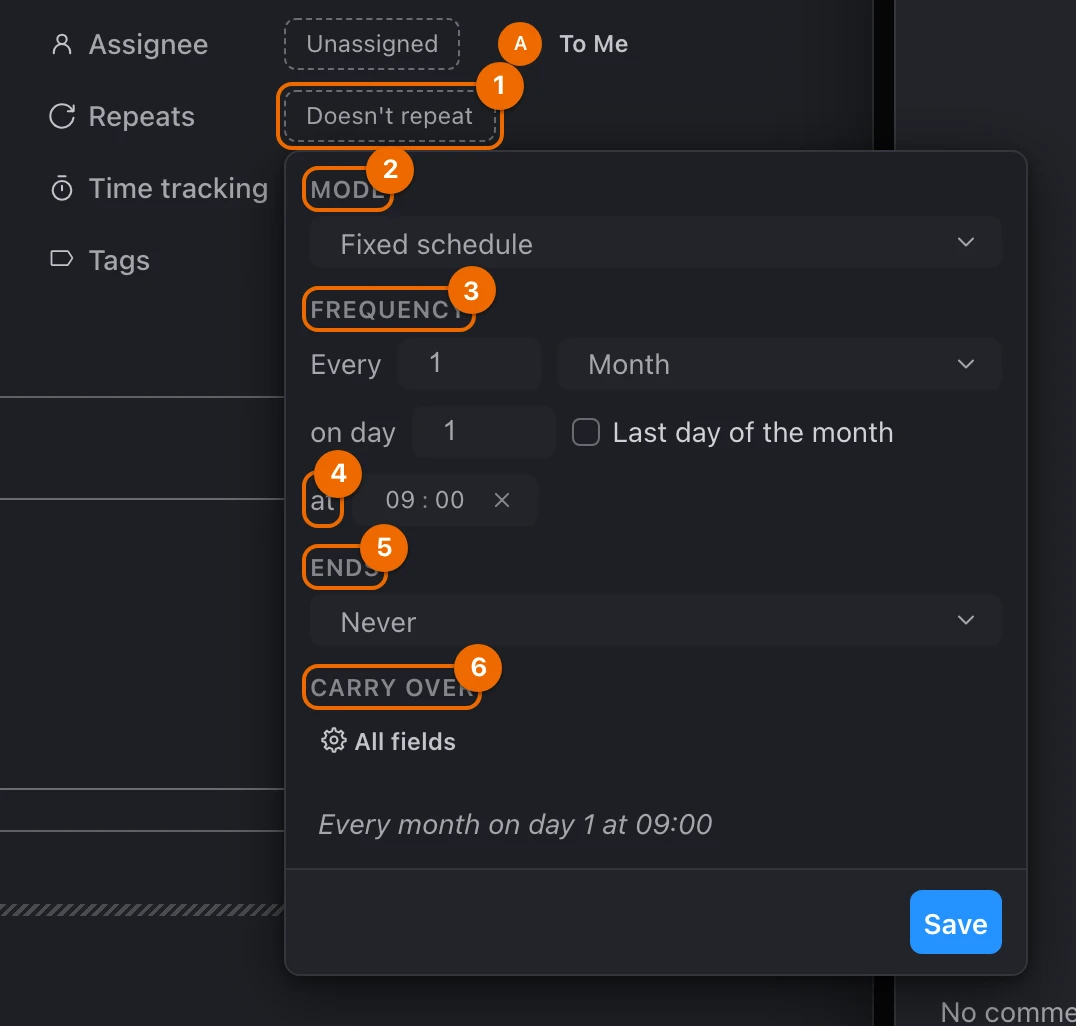
On the 1st of each month at 09:00 a new "Pay rent" task appears in the list, even if last month's is still open. See Next date: Fixed schedule.
Repeat after completion
Use After completion when the next task should wait for the last one to be done: watering the plants every 3 days, with missed ones not piling up.
Open the task "Water the plants", due today.
Click Doesn't repeat next to Repeats. The repeat editor opens with Mode set to After completion, every 1 day.
In Frequency, type 3 in Every. The unit reads Days, and the line under the form reads Every 3 days · after completion.
No time and no end in this mode
After completion has no at time. The Ends field shows while you set the rule up, but isn't saved: the series runs until you stop it.
Click Save. The Repeats field shows the rule. The task stays due today: it is the series' first (see First date of a series).
When the task is done, complete it: move it to a status in the Donestage. If it is more than 3 days overdue, first move its due date to today, or the next task is overdue at once. The next "Water the plants" task appears at once, due 3 days after this one's due date.
Complete it on its own
Completing tasks several at a time from the bulk bar creates no next task.
The next date counts from the task's due date, not the day you complete it: watered a day early or a day late, the next task is still due 3 days after the last due date. Worked examples: Next date: After completion.
Pause, skip or stop a series
Click the rule next to Repeats in any task of the series. The editor opens with the series' buttons at the bottom.
Permissions to manage a series
You need Edit access to the list and Update in the Recurring jobs block. Don't repeat needs both Update and Delete there; without them the button is hidden. The default Worker set has both.
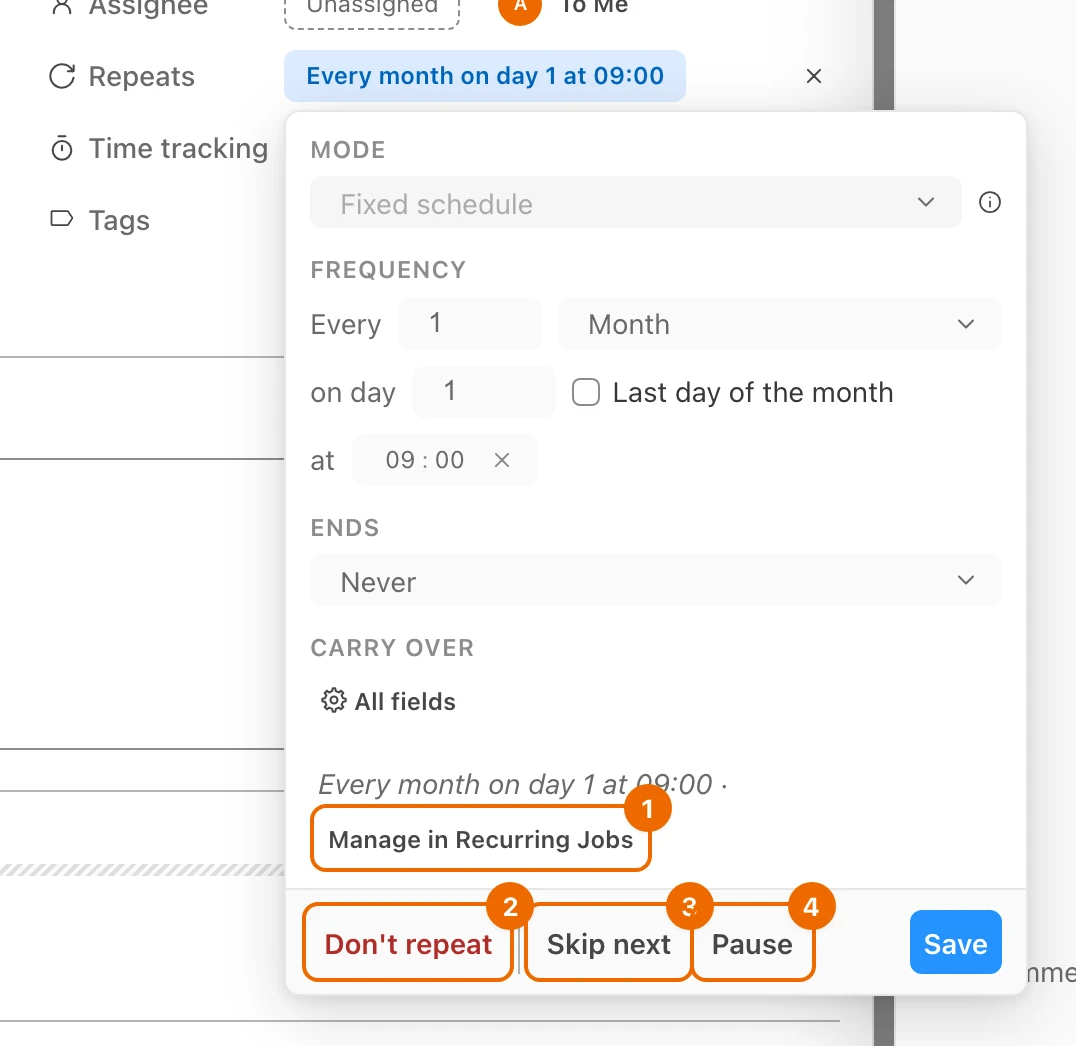
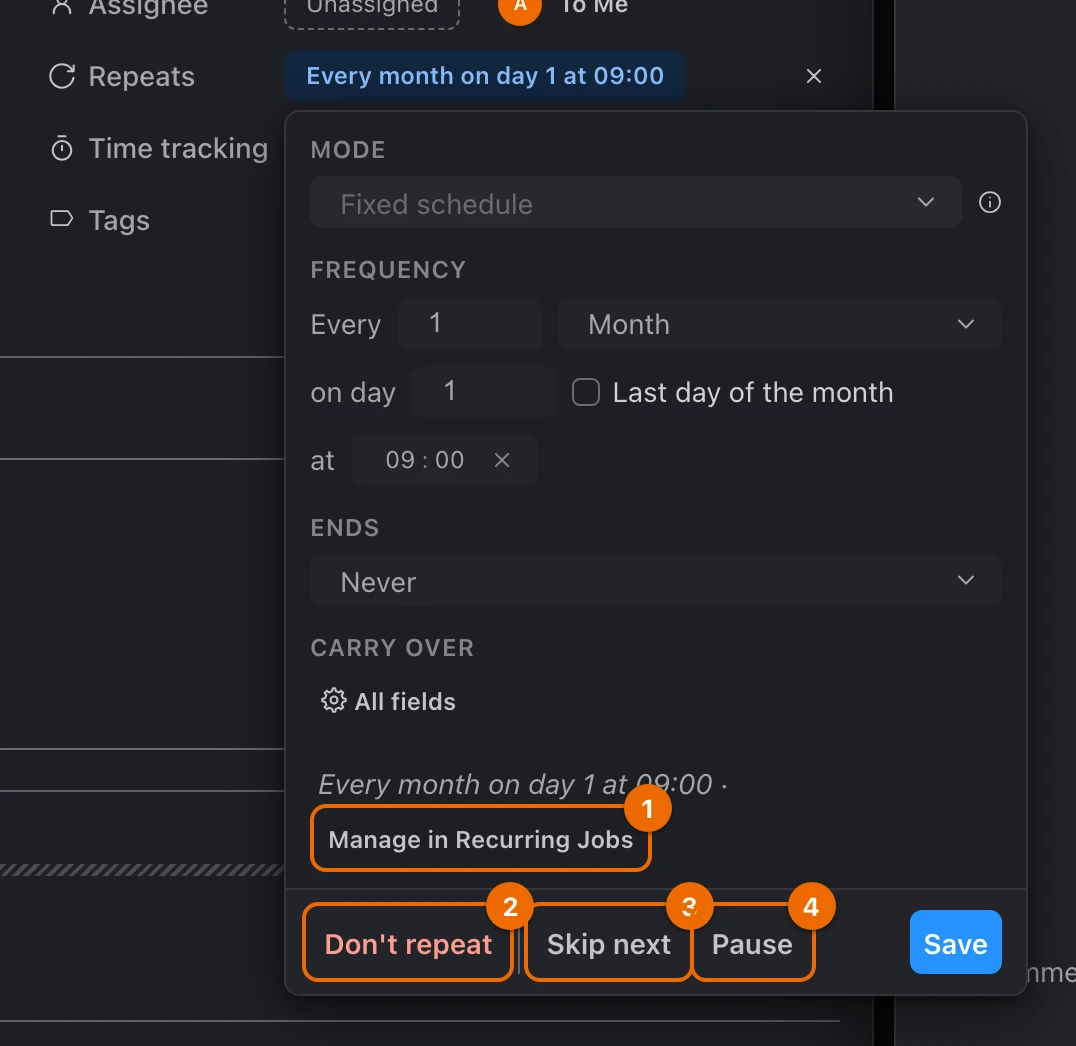
| Button | What it does |
|---|---|
| Pause | Stops new tasks until you click Resume. The field reads Paused · and the rule. |
| Skip next | Skips the next date. Fixed schedule only: on After completion it gives an error. |
| Don't repeat | Deletes the series: no new tasks. Tasks already created stay. |
Don't repeat can't be undone
The rule is deleted and can't be restored. To repeat the task again, set a new rule.
All controls: Series controls. To see every series in lists you can open, click Manage in Recurring Jobs at the end of the summary line, or open Workspace settings → Recurring Jobs.
If it doesn't work
- There is no Repeats field. The list has Repeats turned off. Turn it on in Configure → Features; see Set up a list.
- Repeats can't be clicked. You have Read access to the list, or your permission set lacks Create (for a new rule) or Update (for a series) in Recurring jobs. Ask a workspace admin; see Permissions and access.
- You can't switch between After completion and Fixed schedule. A saved series keeps its mode. Click Don't repeat, then set the rule again in the other mode; see Edits to a saved series.
- A month was skipped. A monthly rule on day 29, 30 or 31 skips months without that day. For the end of every month, tick Last day of the month; see Last day of the month.
- Skip next gives an error. Skipping works only for Fixed schedule series; see Series controls. For After completion, complete the current task. To move the next date, change the current task's due date first; see Next date: After completion.
- No next task appeared after you completed it. You completed it from the bulk bar, which doesn't continue an After completion series. Complete a recurring task on its own; see Edit tasks in bulk.
- The next task is already overdue. An After completion task was completed long after its due date. Move the due date to today before you complete it; see Next date: After completion.
- Tasks keep appearing after you turned Repeats off in the list. Turning the feature off hides the field, but existing series still run. Stop them in Workspace settings → Recurring Jobs; see Edits to a saved series.
Related
- Repeat rules: every rule behind both modes.
- Create and edit tasks: the due date and fields to fill in before you make a task repeat.
- Set up a list: turn on Repeats and the list's other features.
- Run a weekly review: a recurring task that anchors your week.
- Task fields: every field, including Repeats.