Give a contractor one branch
This recipe is for a lead who brings in a freelancer or an agency for one project and wants them to work in that project's folder without seeing the tasks in the rest of the workspace. Hule has no guest links: the contractor joins your workspace as a member, and sharing decides which lists and tasks they see.
You need the contractor's email address and a folder for their project.
Contractor's view: one folder, the rest hidden
Acme (workspace)
├── Product           ← the contractor doesn't see it
├── Marketing         ← the contractor doesn't see it
└── Website redesign  ← shared with the contractor: Edit
    ├── Design (list)
    ├── Build (list)
    └── Budget (list) ← private: the contractor doesn't see it
In Website redesign the contractor can:
- create and edit tasks;
- comment;
- log time.
No task outside the folder reaches them.
What every member sees anyway
Like every member, they also see:
- the member list;
- the workspace's automations, tags and status templates;
- the views at the top of the workspace, which show them only tasks from lists shared with them.
Setup: move views off the top
Views at the top are open to every member
Any member, the contractor included, can open a view that sits outside every folder and see its name and filters. Moving the view under a folder hides it from them.
Click Sort sidebar at the top of the sidebar and choose Manual order (Reorder and move). You can now drag rows.
Drag each view at the top of the workspace that the contractor shouldn't see onto a folder the contractor won't get, such as Product. The view appears under the folder.
Moving a view needs two permissions
You need an Edit share on the view and Update in the Views block of your permission set. The workspace owner always has both. Ask someone who has them to move it.
If your team uses a moved view, share it with them again (… → Share…). A moved view keeps its own shares: only its creator, people it is shared with directly, the owner and holders of See all see it. The folder's members don't get it.
Setup: invite the contractor
Open Workspace settings → Members and click Invite people (Invite a member). The invite form opens.
You need Manage members
Inviting needs Manage members in your permission set. The workspace owner and the Admin set have it.
Enter the contractor's Email and Name, then click Send invite. They appear under Invited. Once they accept, they hold the Worker permission set. They can work on tasks but can't:
- create folders;
- share;
- change workspace settings.
Link expired?
Invitation links last 7 days. Send a new invitation from Members.
Wait for them to accept, from the invitation email or from their Inbox if they already have a Hule account. They move from Invited to Members.
Setup: share the folder
If the folder holds a list the contractor shouldn't see, such as Budget, make it private first: click … next to Budget in the sidebar, choose Share… and turn Inherit access off (Private branches). The list shows a lock in the sidebar. The folder's share won't reach it, so the contractor never holds access to it.
You need Share on folders and lists
Sharing the folder needs Share for folders. Making the list private needs Share and Update for lists, and Edit on the list. The workspace owner has all of them; see Permissions and access.
Click … next to Website redesign in the sidebar and choose Share…. The share dialog of the folder opens.
Pick the contractor in Member, set Access to Edit and choose Add (Share with a member). They appear in the list with Edit, and every list inside the folder except the private ones is now shared with them.
Not in the Share dialog yet?
Only members who have accepted appear there. Check Invited in Members.
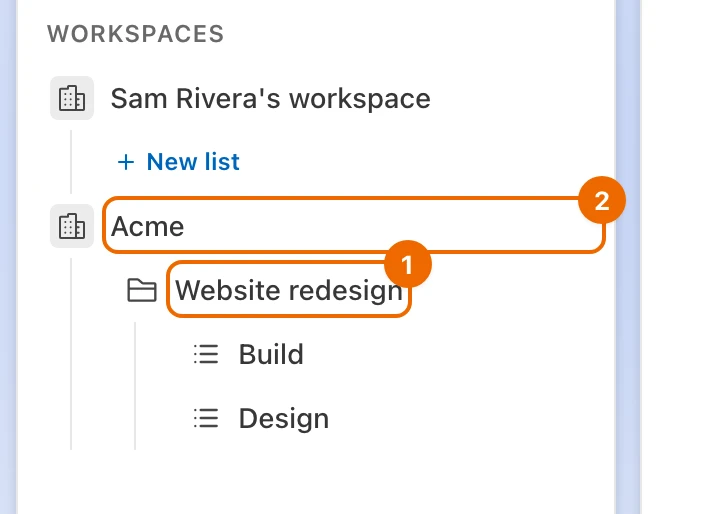
The contractor's sidebar now shows only the shared folder:
Daily work with the contractor
- Assign tasks in Website redesign to the contractor as to anyone else (Assign a task).
- To show them a task from elsewhere, move it to a list in the project folder, such as Build. Sharing its list instead would open all of that list's other tasks to them as well.
- If they only need to follow along, not edit, set their access to Read (Change or remove access): they can still comment and watch tasks.
Offboarding when the project ends
- In Workspace settings → Members, click the contractor. Their card opens.
- Click Remove from workspace and confirm with Remove (Remove a member). They move to Former.
Removing takes access away at once
They lose access to everything shared with them, and those shares are deleted. Their tasks, comments and time logs stay attributed to them.
Contractor access problems
| You see | Why | Fix |
|---|---|---|
| The contractor isn't in the Share dialog's Member list | They haven't accepted the invitation yet | Check Invited in Members; see Invitation by notification or email |
| The invitation link says it has expired | Links last 7 days | Send a new invitation; see Invite a member |
| The contractor sees Acme with no folders or lists in it | Nothing is shared with them yet | Check the folder's Share… dialog; see Share with a member |
| They can open tasks but not change them | Their access is Read | Change it to Edit on the folder's direct share; see Change or remove access |
| Dragging a view onto a folder does nothing | The sidebar is sorted alphabetically, and dragging works only in manual order | Switch Sort sidebar to Manual order; see Reorder and move |
Variations: more contractors, read-only clients
| Variation | What to do | Guide |
|---|---|---|
| Two contractors, two branches | Repeat the invitation and the share per person and folder. Neither sees the other's folder | Share with a member |
| A client who only reviews | Share the folder with Read access: they can comment on tasks but not change them | Change or remove access |
| A whole team from an agency | Lay out several areas with their own people | Split a team's work into folders |