Split a team's work into folders
This recipe is for the lead of a small team, three to ten people, who is setting up a workspace or cleaning up one that grew by accident. The goal is a sidebar where everyone knows where a new task goes and sees only the areas they work in.
To invite people and build the tree you need the Admin set or higher. Giving someone a permission set (setup step 2) needs the workspace owner or a Super Admin.
Building and sharing needs List/Folder manager
A List/Folder manager can build and share the folders; see Permissions and access.
Folder tree: one folder per area
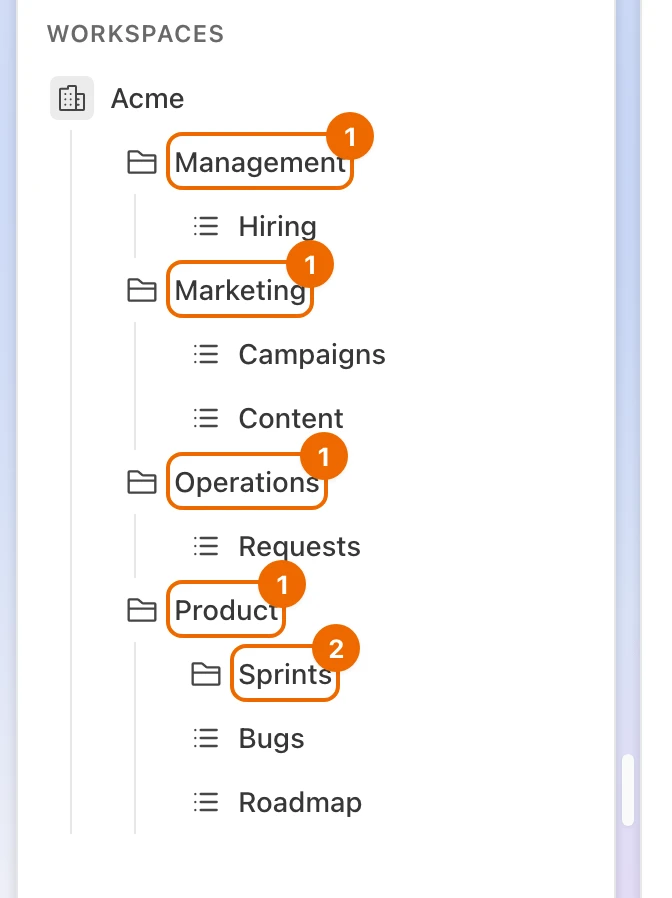
One folder per area of work, lists inside for the kinds of work, and access given per folder:
Acme (workspace)
├── Product (folder)          shared with: Anna, Ben, Chen
│   ├── Roadmap (list)
│   ├── Bugs (list)
│   └── Sprints (folder)      ← folders nest as deep as you need
├── Marketing (folder)        shared with: Dana, Eli
│   ├── Campaigns (list)
│   └── Content (list)
├── Operations (folder)       shared with: every member, one by one
│   └── Requests (list)
└── Management (folder)       not shared: the lead only
    └── Hiring (list)
Operations is where anyone can ask anyone for something; Management stays private.
Setup: invite the team
Invite the team (Invite a member). They appear under Members once they accept, with the Worker permission set.
Inviting needs Manage members
The Admin set and higher have it.
If someone other than you will build the tree, give them the List/Folder manager set (Grant permission sets). The set shows switched on in their card.
Giving a set needs Manage permission sets
Of the system sets, only Super Admin includes it; the workspace owner always has it.
Setup: folders, lists and shares
Write down the areas your team works on, for example:
- Product;
- Marketing;
- Operations.
Folders follow areas of work, not people: people move between areas, areas stay.
In the sidebar, point at the workspace, click + (Add) and choose New folder (Create a folder). An empty row appears; type the area's name and press
Enter. The folder appears under the workspace.Inside each folder, create one list per kind of work that has its own statuses, and on the form's Features step pick Teamwork (Create a list). The lists appear under the folder. Teamwork turns on every feature except Repeats and Story Points.
BugsandRoadmapmove through different steps, so they are separate lists.Open each folder's … menu, choose Share…, pick a member in Member, set Access to Edit and choose Add; repeat for each person (Share with a member). Each person appears as a row with Edit; everything inside the folder is shared with them.
Access starts on Read
Switch Access to Edit before you click Add, or they can only read. Only members who have accepted the invitation are listed in Member.
Leave
Managementunshared. Being a member gives no access by itself, so a top-level folder you don't share is seen only by:- you, its creator;
- the workspace owner;
- members whose set has See all or Edit all in Folders (Permissions and access).
Private inside a shared folder
For a private folder inside a shared one, turn Inherit access off in its Share… dialog; it gets a lock in the sidebar (Private branches).
Daily use: where each task goes
- New task, obvious place. A bug goes to
Product / Bugs, a campaign idea toMarketing / Campaigns. If nobody knows where something goes, it goes toOperations / Requestsand the lead files it later. - Cross-area work stays in one list, the one of the area that owns it. Share that single list with the helpers from the other area rather than copying tasks between lists.
- Someone joins the team. Share
Operationsand their area's folder with them; they see all the lists inside at once.
Access problems and fixes
- A member sees nothing. Nothing is shared with them yet. Share at least one folder (Share with a member), or check that their permission set includes Read on folders and lists (Permissions and access).
- A member can see a list but can't edit tasks. Their share is Read. Open Share… on the folder or list where you gave it — the row reading Provided by and the owner's name, not Via … — and change it to Edit (Change or remove access). If the share is already Edit, check that their permission set has Update in Tasks.
- No Share… in the menu. You need the Share permission, which List/Folder manager and higher give; see Permissions and access.
Variations: per client, one contractor
- Folder per client. Agencies often use one folder per client with the same lists inside. Build one, then Duplicate it for the next client (Duplicate a folder). Leave Copy sharing off so the first client's people don't get the copy, then share the copy with the new client's team.
- One outside person. To let a contractor into one folder only, see Give a contractor one branch.