Run iterative sprints by duplicating
This recipe is for a small team that works in one- or two-week sprints and doesn't want to rebuild its board every time. You set up one sprint folder once; each new sprint is a copy of it, and whatever didn't get done moves over in one step.
You need a team that already works in the workspace.
Permissions to create and duplicate folders
A permission set that can create folders, lists and views, such as List/Folder manager or Admin; see Permissions and access.
Sprints folder: one sub-folder per sprint
Each sprint is its own folder with the same lists and views:
Sprints (folder)
├── Backlog                  ← the list new work waits in
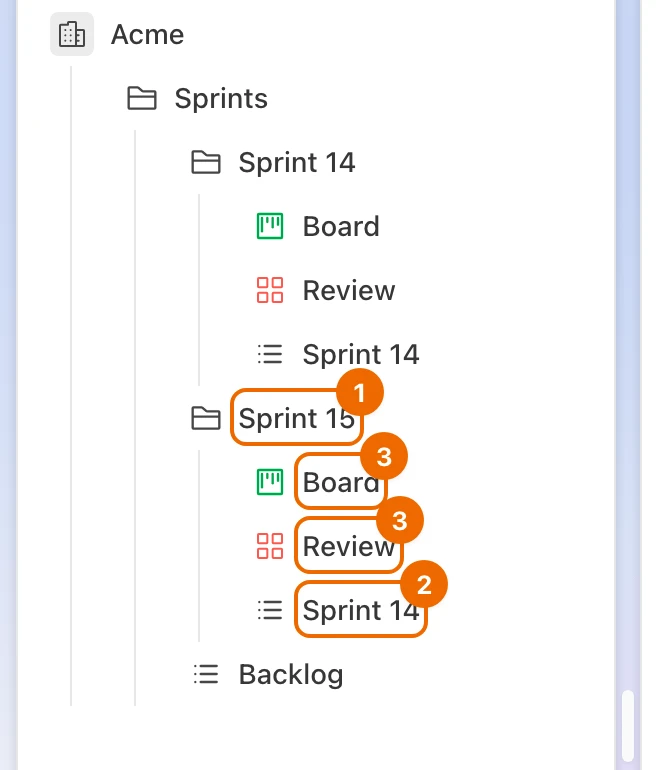
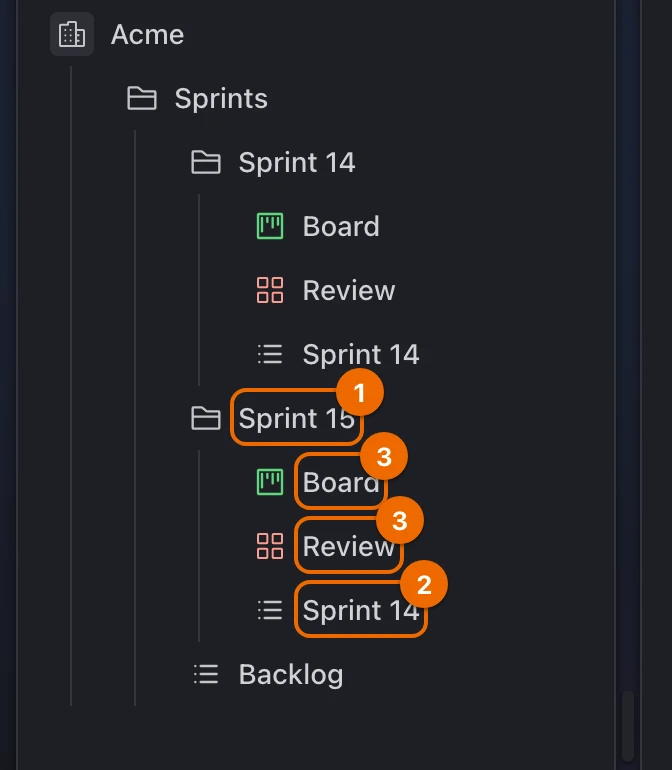
├── Sprint 14 (folder)
│   ├── Sprint 14 (list)     ← this sprint's tasks
│   ├── Board (Kanban view)
│   └── Review (Dashboard view)
└── Sprint 15 (folder)       ← a duplicate of Sprint 14, without its tasks
    ├── Sprint 15 (list)
    ├── Board (Kanban view)
    └── Review (Dashboard view)
Finished sprints stay as they were, so you can always look back at what a sprint held.
Set up the sprint folder
- Create a Sprints folder (Create a folder). It appears in the sidebar.
- Inside it, create a Backlog list (Create a list).
- Inside Sprints, create a Sprint 1 folder.
- Add a list inside Sprint 1, then in its Configure → Features pick the Scrum preset (Turn features on or off). Every feature is on, story points and time tracking included.
- In the Sprint 1 folder's … menu choose New view, pick Kanban with the sprint list as its source, and set Group to Status (Grouping by view type). The board shows a column per status, for the daily stand-up.
- Add a Dashboard view with Completed per week the same way, for the review (Build a dashboard).
- Share the Sprints folder with the team (Share with a member). Sprint folders inside it get the same access.
Run each sprint
Plan the sprint
Open the last sprint folder's menu and choose Duplicate (Duplicate a folder). The Duplicate "…" dialog opens with Folder name set to the name plus
(copy).Type the new sprint's name in Folder name, keep Destination as Sprints, and click Duplicate. The copy has the same lists and views with their settings, and no tasks.
Views outside the folder keep their sources
A view that draws from a list outside the sprint folder still points there in the copy.
Rename the list inside it to the new sprint's name (Rename and change icons).
In Backlog, select this sprint's tasks with
Cmd+click (Ctrl+click on Windows and Linux), choose Move in the selection bar and pick the new sprint's list (Change the selected tasks). The tasks leave Backlog."The current status isn't available"?
The target list uses other statuses. Pick the matching status from the target list.
Estimate them together in a Scrum Poker view (Estimate with Scrum Poker).
Work the sprint
Work from the sprint's Kanban view. Each person moves their own cards.
Close the sprint and carry over
- In the old sprint's list, filter to tasks whose Stage is none of Done (Filter by due date and priority). Only unfinished tasks remain.
- Click Select in the view's toolbar. The selection bar appears.
- Choose Select all in the selection bar, then Move and the new sprint's list or Backlog. The old list keeps only finished tasks.
- Look at the dashboard together, then collapse the old sprint folder in the sidebar.
Duplicate and move problems
- No Duplicate in the folder menu. You need permission to create folders, which the List/Folder manager set gives; see Permissions and access.
- "The current status isn't available" when moving. The target list uses other statuses. Pick the matching status from the target list; see Change statuses.
- A view in the copy shows tasks from another list. It draws from a list outside the sprint folder, and such sources stay as they were. Change the view's Sources to the new sprint's list; see Views.
Variations: one list, timeline, ceremonies
- One list per sprint, no folders. Lists can't be duplicated, so keep the views on a workspace level and change their Sources to the new sprint list each time.
- Fixed-length sprints on a timeline. Give each sprint's tasks start and due dates and plan them on a Timeline view (Timeline).
- Recurring ceremonies. Create the stand-up and retro as recurring tasks in the sprint list; the Scrum preset has Repeats on. Each occurrence appears in that list on its day. Duplicating doesn't stop the old series: when you close a sprint, open each ceremony in the old list and set its repeat to Don't repeat, then create the series again in the new sprint's list.