Plan a focus day with a timer
This recipe is for anyone whose day gets eaten by switching between tasks. In the morning you choose what today is for; during the day you work on one task at a time with a timer running, and in the evening you see the time logged on each task.
You need tasks with a due date, assigned to you. New tasks have no assignee unless you set one. After step 1 turns Assignee on, assign your tasks to yourself as you create them, or add the Auto-assign automation (Create an automation).
The lists need three features on
A list you create in the app starts with the Simple list preset, which has the three features of step 1 off. Step 1 turns them on.
End result: a Today view and a timer
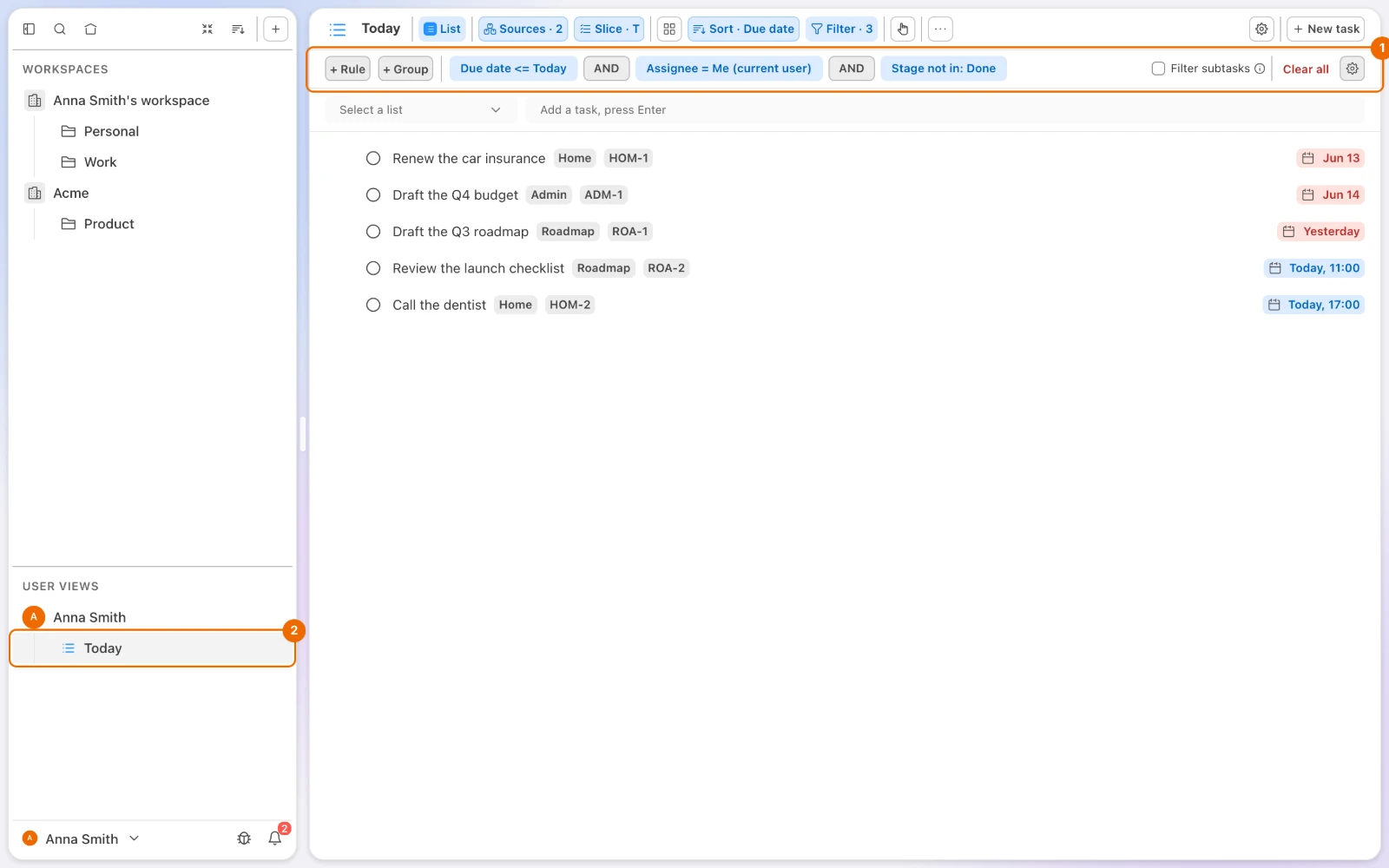
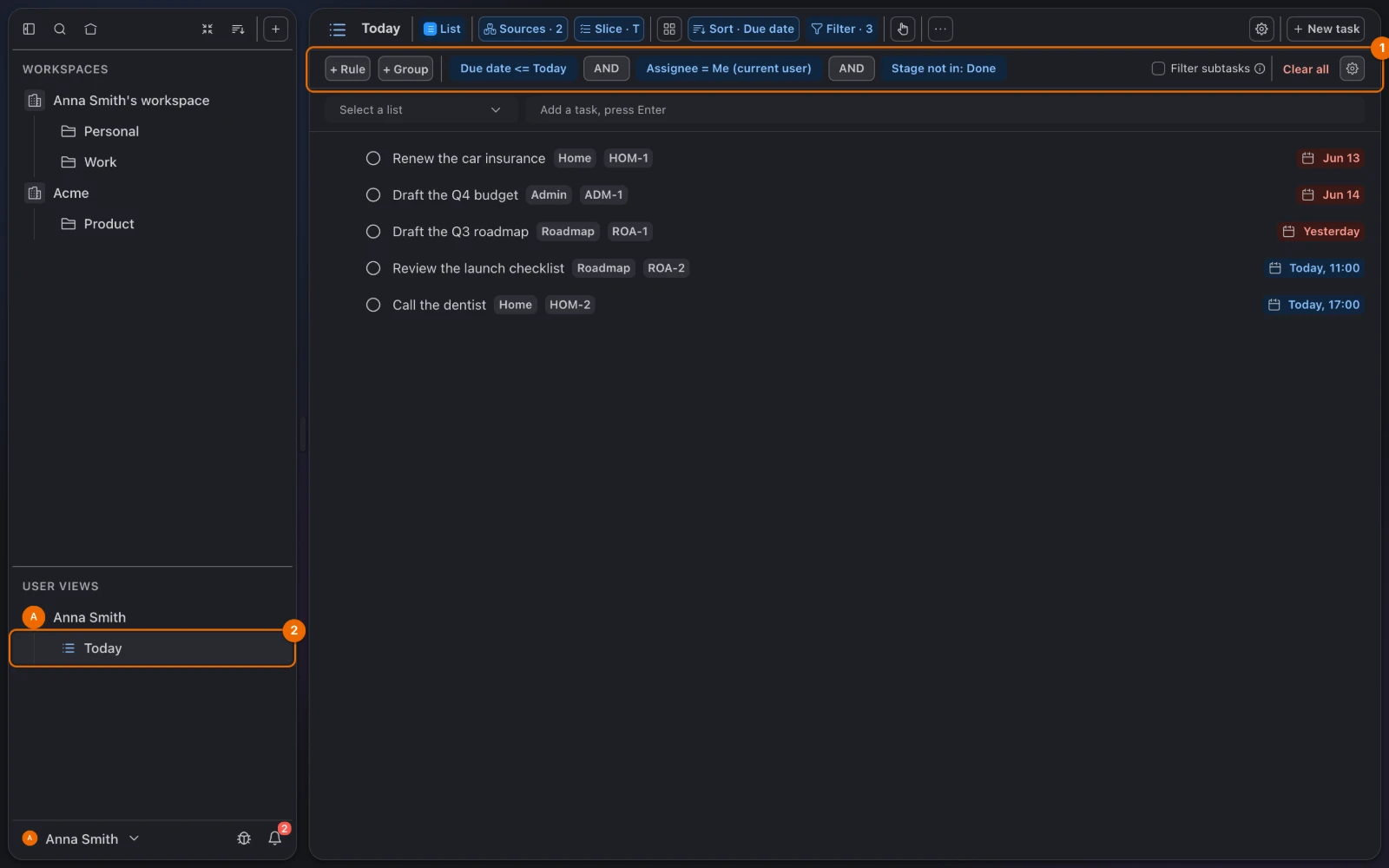
- A personal view Today that opens when you open Hule and shows your open tasks that are due today or overdue, across all your workspaces.
- A timer on the task you are working on, which logs its time to that task.
- A record of the day: the time logged on each task.
Lists and Today view setup
In each list you take today's tasks from, open Configure → Features and switch on (Turn features on or off):
- Assignee;
- Time Tracking;
- Timer.
Tasks show an assignee field and a play button (Start) in their Time tracking row.
One click with a preset
The Teamwork preset turns all three on, but it replaces the list's whole set: it turns Repeats and Story Points off.
In the sidebar's User Views, hover over the row with your name and choose + → New view (Create the view). The view form opens.
In Name, type Today, and in Display Mode choose List.
In Source, pick every workspace you work in, and choose Create. Today appears under User Views.
Click Filter in the view's header and add three rules with + Rule (Today's filter):
- Due date · on or before / ≤ · Today (on the Relative tab);
- Assignee · is · Me (current user);
- Stage · none of · Done.
Click Save on the filter strip. Today now lists only your open tasks due today or earlier.
Today is empty?
Only tasks with a due date that are assigned to you show. Give today's tasks a due date and assign them to yourself.
Right-click Today in the sidebar and choose Set as home (Home page). Hule now opens on Today.
Daily routine: morning, day, evening
Morning, five minutes.
- Open Hule. Today is the first thing you see.
- For each task, keep it or move its due date. Aim for a list you could really finish.
- To move several at once, Cmd+click (Mac) or Ctrl+click (Windows, Linux) them and change Due date in the bulk bar (Edit tasks in bulk).
During the day.
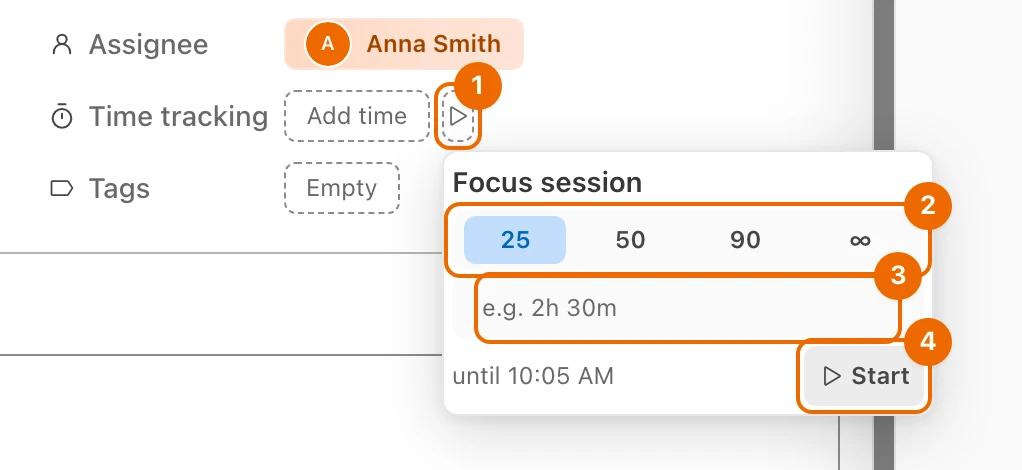
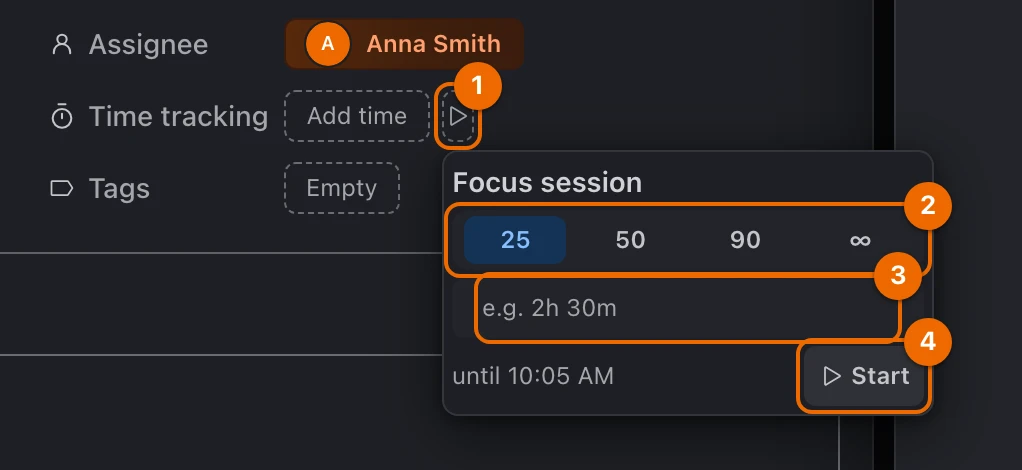
Open the top task and press the play button (Start) in its Time tracking row. The Focus session card opens (Run a timer).
Start does nothing?
Only one timer runs at a time. Click the clock at the top of the sidebar to open the task it runs on, and press Stop there.
Pick a length, then press Start:
- 25, 50 or 90 minutes;
- your own length, typed in the field, such as
45m; - ∞, a timer that counts up.
The clock runs in the task and at the top of the sidebar.
Work only on that task. When you finish, press Stop. The time is logged on the task. A session with a length stops and logs by itself when it runs out.
Evening, two minutes.
- Mark finished tasks complete.
- Open a task's Time logs tab to see what you logged.
- Select what's left and set Due date to Tomorrow in the bulk bar.
Timer and Today problems
- No Start button on a task. Its list has Timer or Time Tracking switched off: turn both on in the list's Configure → Features (Turn features on or off). Or you can't log time there: you need Edit access to the list and Create in Time logs (Permissions and access).
- Start does nothing. A timer already runs on another task. Click the clock at the top of the sidebar to open that task, then press Stop; see Run a timer.
- No assignee field on a task. Its list has Assignee switched off, as new lists do. Turn it on in the list's Configure → Features (Turn features on or off).
- Today is empty but you have work. Your tasks have no due date or aren't assigned to you. Give today's tasks a due date and assign them to yourself, or drop the Assignee rule; see Build your own Today view.
Variations
- Time-blocked day. Use a Calendar view in Day range instead of a list, and give tasks a due time to place them on the day (Calendar).
- Pomodoro. Use 25-minute Focus session blocks with a break after each one, as in the Pomodoro Technique.
- Where the time goes. Create a personal view with Display Mode set to Dashboard, pick your workspaces in Source, and add the Time logged by List widget (Add widgets). It shows all the time tracked on each list's tasks, not one week's.