Run a weekly review
This recipe is for anyone who uses Hule as their system for getting things done and feels it slowly fill with stale tasks. Once a week, in about half an hour, you bring your Inbox list and your other lists back to a trusted state. The weekly review is a step of the GTD method.
You need an Inbox list in each workspace and a GTD view on it.
Set up the Inbox list first
Pick an Inbox list under Workspace settings → Me in this workspace → GTD (Inbox list setting) and add a view with Display Mode set to GTD on it (GTD view on your Inbox list).
Configuring a list needs a permission
Switching on Repeats needs Update in the Lists block of your permission set, such as List/Folder manager or Admin.
Review task, Review view and an empty Inbox list
- A recurring task Weekly review that appears every Friday and holds the checklist.
- A personal view Review that shows everything open and overdue or undated, across your workspaces.
- An empty Inbox list and a planned next week, every week.
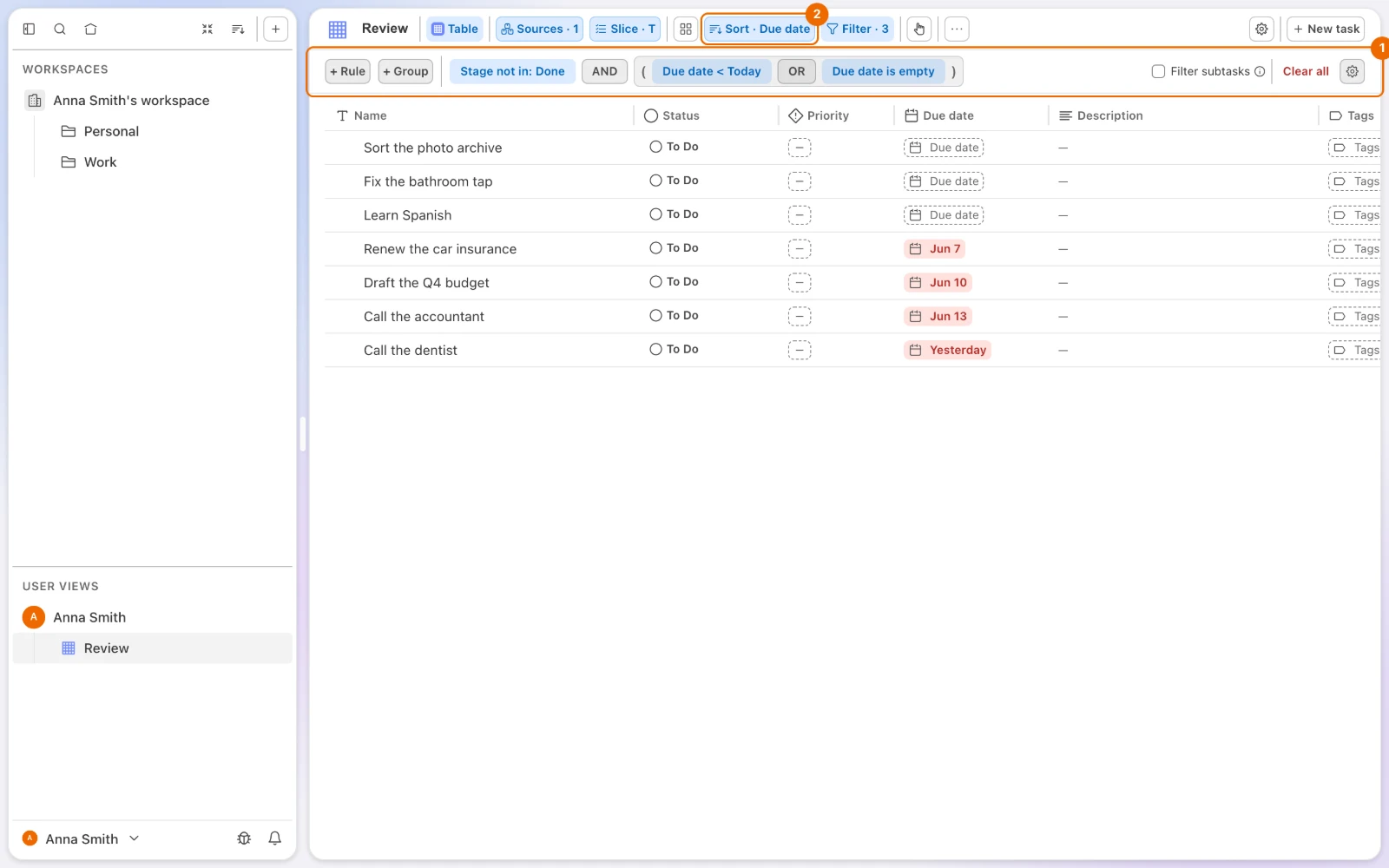
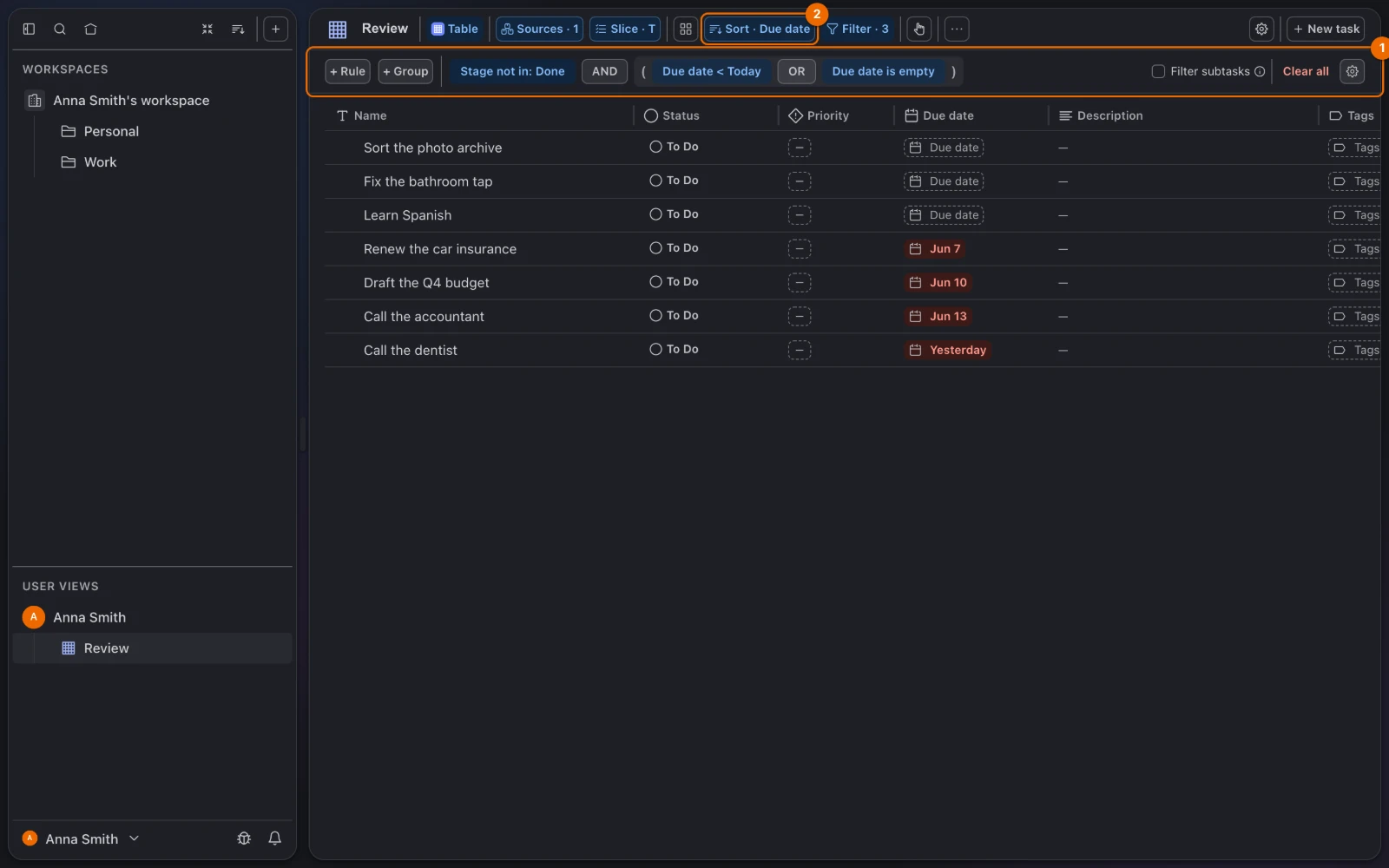
Review task setup
In a list you use for your own tasks, open the list's … menu → Configure → Features and switch on Repeats (Turn features on or off). A new list starts without it.
Create the task Weekly review, due this Friday. The Repeats field shows in its card.
In the task's description, type
/, choose Checklist and add four items (Slash menu):textInbox list empty Tasks without a date: still needed? Overdue tasks: done, moved or dropped Next week: 3 main outcomes chosenWrite the checklist before the repeat
The repeat copies the task as it is when you save the rule. Editing the description later doesn't change next week's copy (Edits to a saved series).
Click Doesn't repeat next to Repeats and set (Repeat on a fixed schedule):
- Mode: Fixed schedule;
- Frequency: every Week, on Friday, at 16:00;
- Ends: Never.
Leave Description on in Carry over; it is on by default.
Why Fixed schedule
Fixed schedule keeps the review on Friday even in a week you skip.
Click Save. The Repeats field shows Every week on Fri at 16:00.
Review view setup
In the sidebar's User Views, hover over the row with your name and choose + → New view (Create the view). The view form opens.
In Name, type Review, and set Display Mode to Table (Views compared). Type reads User: the view is personal.
In Source, pick each workspace you work in, and click Create. The view opens.
Too many tasks?
Pick only the workspaces you plan in, or add Assignee is Me (current user) in step 4.
Click Filter and add rule 1 with + Rule. Then click + Group, add the two Due date rules inside it, and click the join between them to set it to OR (Rules and groups):
Rule Field Operator Value 1 Stage none of Done 2 (a group with OR) Due date before / less than Today (Relative) Due date is empty Click Save on the strip. Only open tasks that are overdue or undated remain.
Click Sort and add Due date (View sorting). Tasks without a date come first, then the overdue ones, oldest first.
Weekly run, step by step
When Weekly review comes up on Friday, work through its checklist:
Empty the Inbox list (10 minutes). In the GTD view on each workspace's Inbox list, press Start GTD session and clarify every task (Run a GTD session). The view shows Inbox zero.
Question the undated (5 minutes). Open Review and go through the tasks at the top, which have no due date: delete what no longer matters and date what does.
Deleting a task can't be undone
A deleted task goes with its subtasks. If unsure, give it a date next month instead.
Clean up what is late (10 minutes). Below them come the overdue tasks. Select several with Cmd+click (Mac) or Ctrl+click (Windows, Linux) and set Due date for all of them at once, or finish or delete them one by one (Change the selected tasks).
Plan next week (5 minutes). Pick three outcomes and give their tasks due dates next week.
Close the review task. Mark Weekly review done. Next Friday's copy appears on Friday whether or not you closed this one.
Review problems and fixes
- You skipped a week. The missed copy stays overdue. Do the review now and close it; next week's copy is unaffected (Next date: Fixed schedule).
- The checklist is missing in the new copy. The checklist was added after the repeat was set, or Description was turned off in Carry over. Choose Don't repeat, make sure the description holds the checklist with every item unticked, then set the repeat again; see Edits to a saved series.
- Review shows too much. Narrow the view's Source to the workspaces you plan in (Create the view), or add a rule Assignee is Me (current user); see People fields and Me.
Variations: team, daily, monthly
- Team review. Create the Review view as a workspace view (New view in the menu of the folder your team shares (Share a folder or list)) with the same filter, and review it together with a lead's dashboard open on Completed per week. Creating it needs Edit access to the folder and Create in the Views block, such as List/Folder manager or Admin.
- Daily five minutes. A short daily GTD session on your Inbox list keeps the Friday session small; see Run a GTD session.
- Monthly look back. Once a month, check that each folder is shared with the right people.