Start Hule with your team
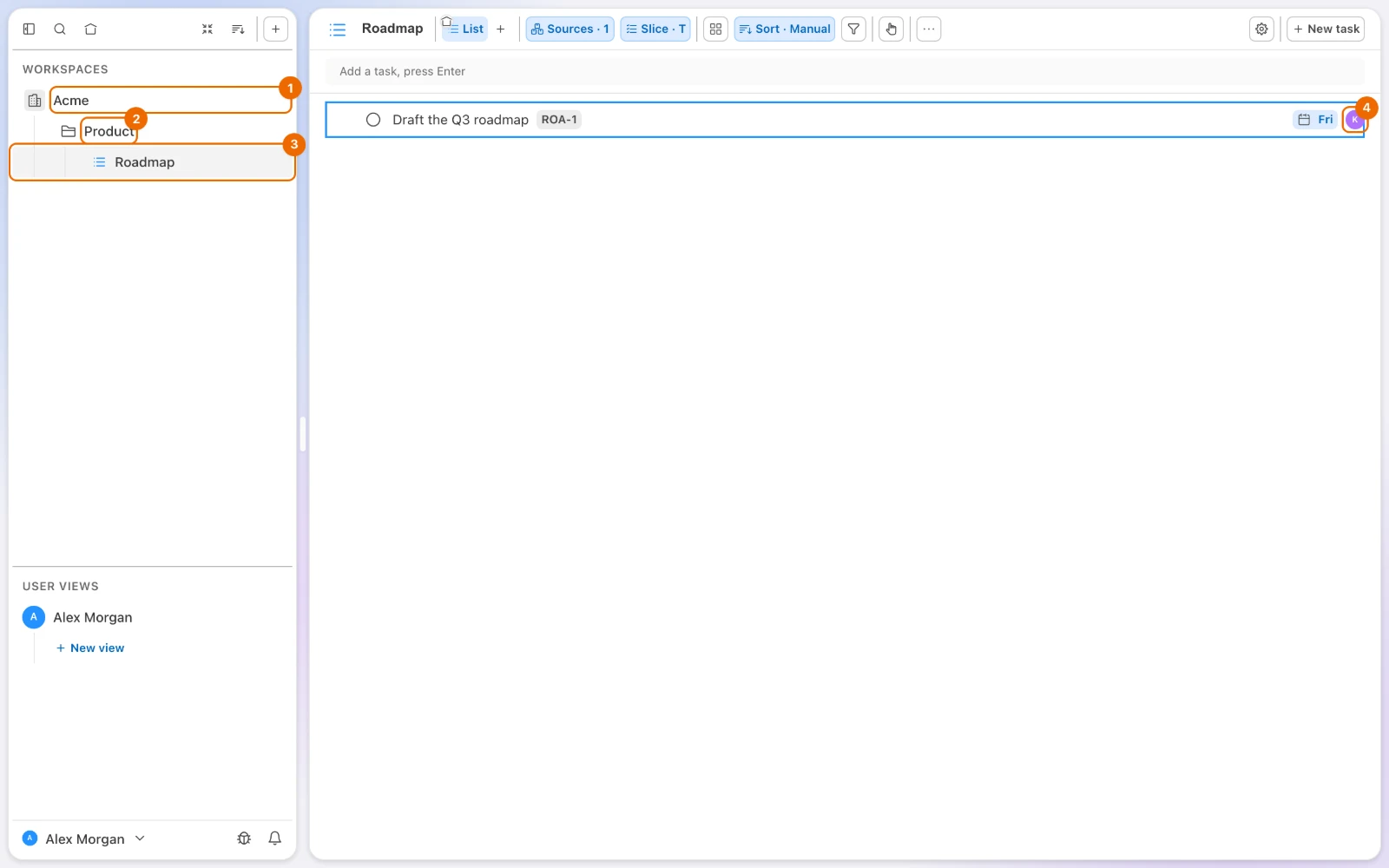
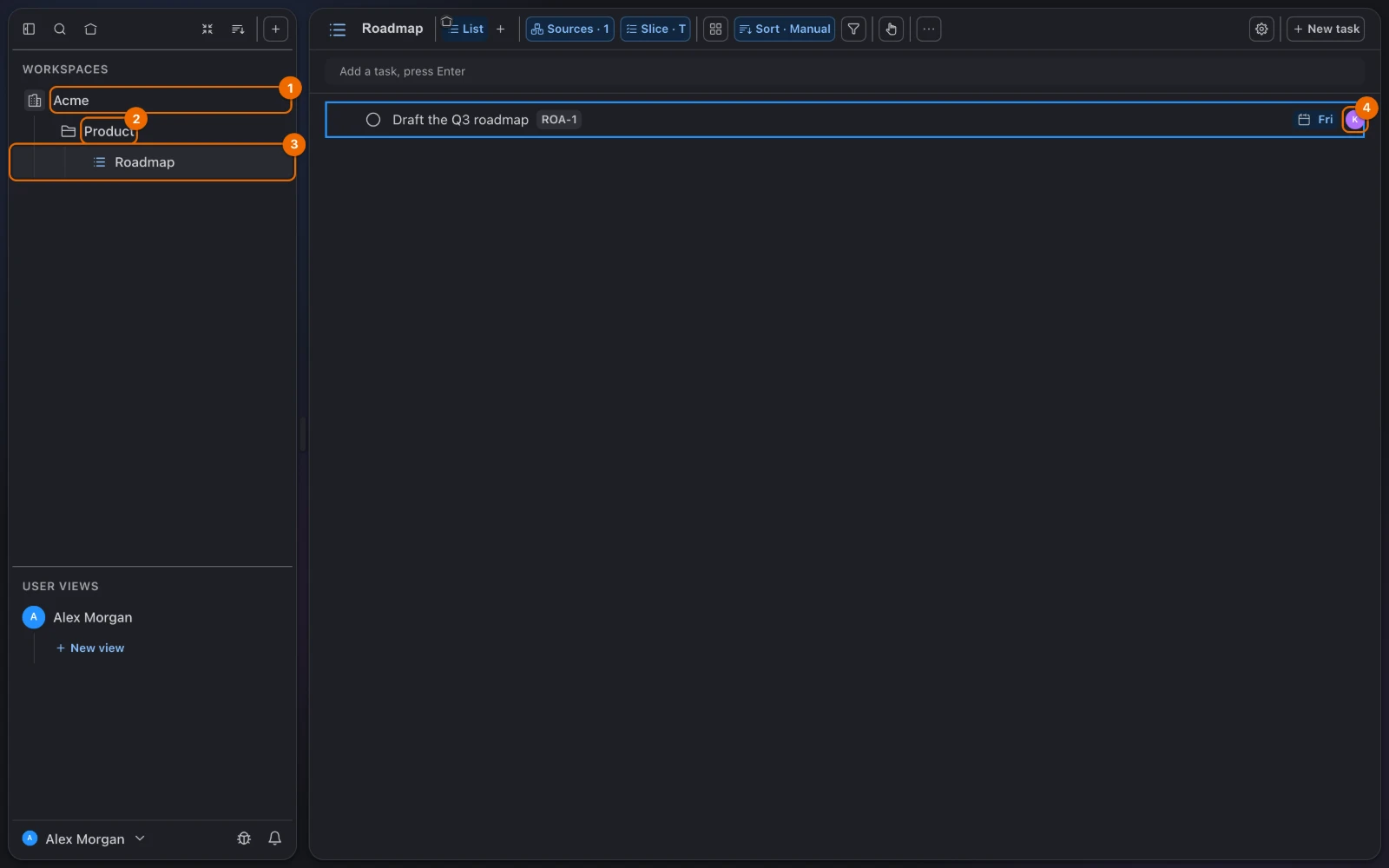
In about 15 minutes, plus the time your team takes to accept the invitation, you will have a workspace your team works in:
- a Product folder with a Roadmap list;
- two members who can see it;
- a first task assigned to one of them, with a comment that brings them in.
What you need
- A Hule account. When you sign up, Hule creates a workspace for you, named after you — for example "Alex Morgan's workspace". You are its owner, so you can do every step below (Permissions and access).
- The email addresses of one or two people on your team.
Name the workspace after your team
In the sidebar, under Workspaces, point at your workspace and click ⋯ (More actions). A menu opens.
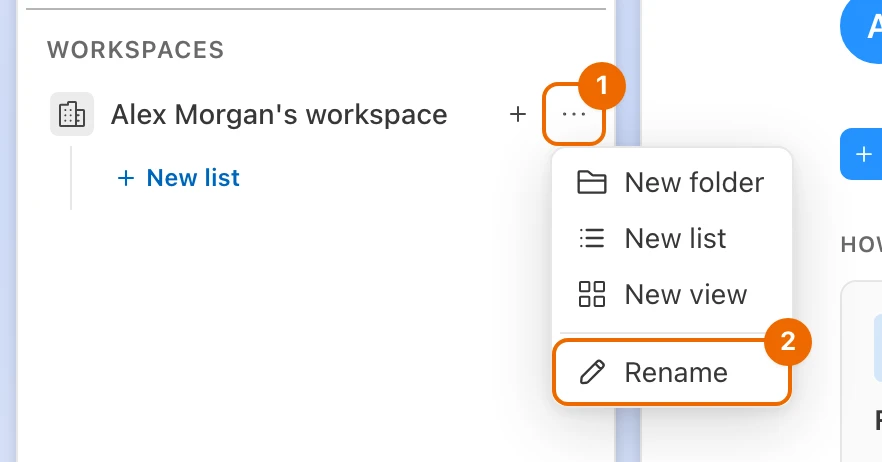
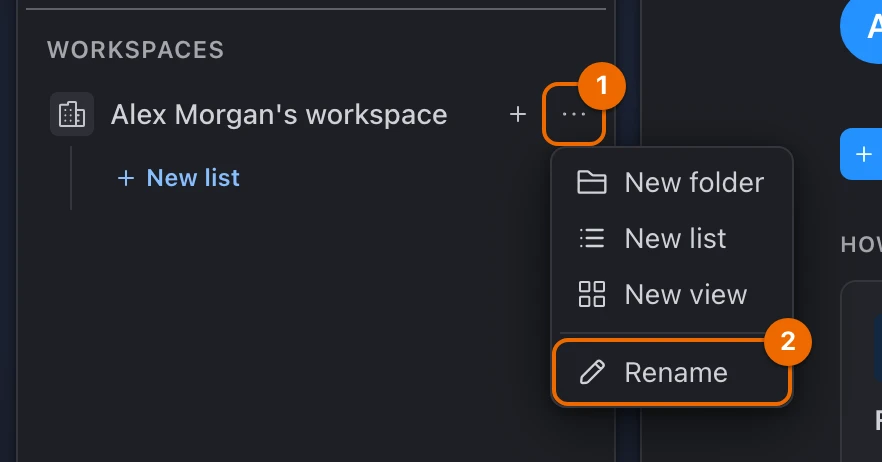
Choose Rename. The name becomes editable.
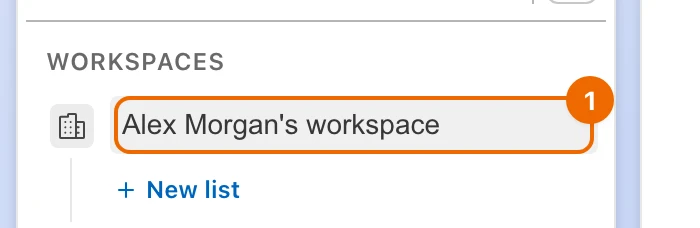
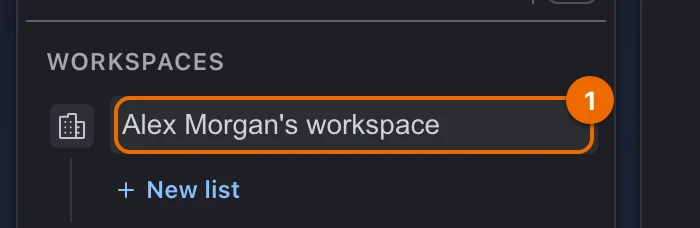
Type your team's name — here, Acme — and press
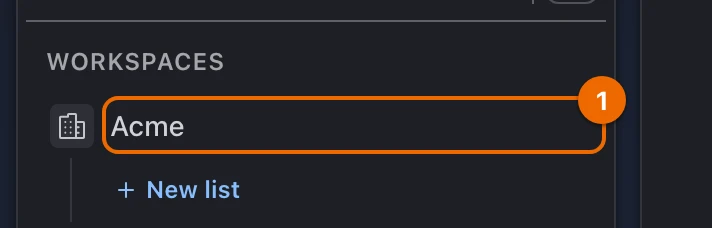
Enter. The sidebar shows the new name.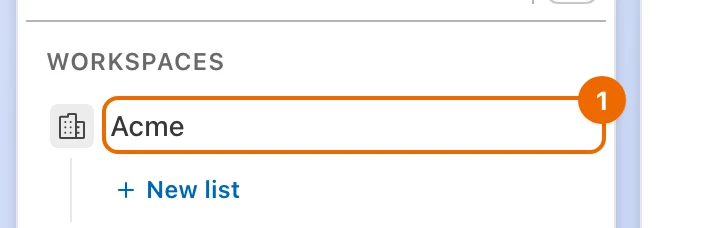
Add the Product folder
A folder holds the lists of one area of work.
Folders nest
You can put folders inside folders later.
Point at Acme, click + (Add) and choose New folder. An empty row with Folder name appears.
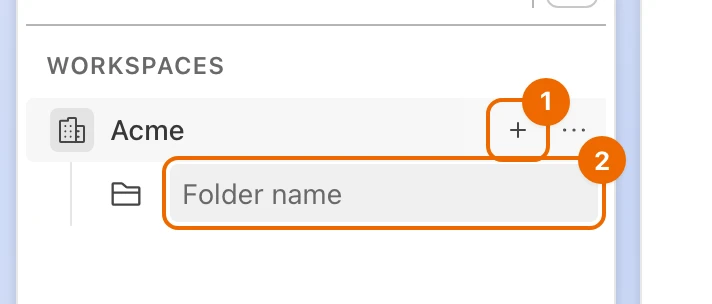
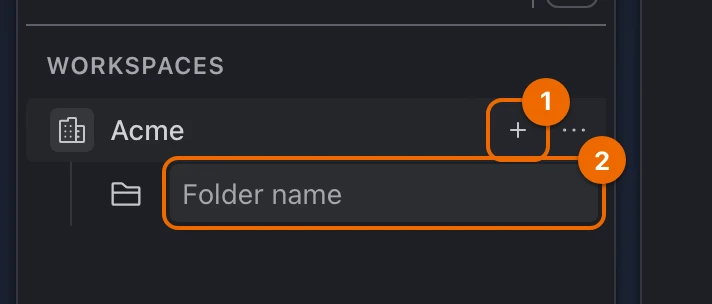
Type Product and press
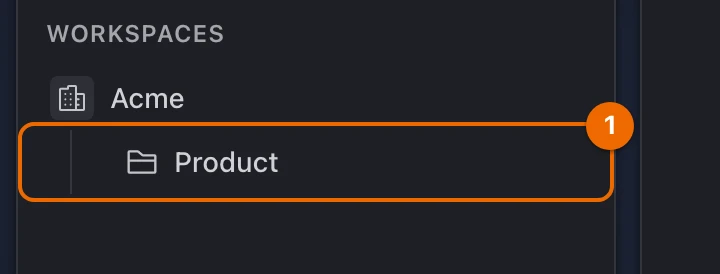
Enter. Product appears under Acme.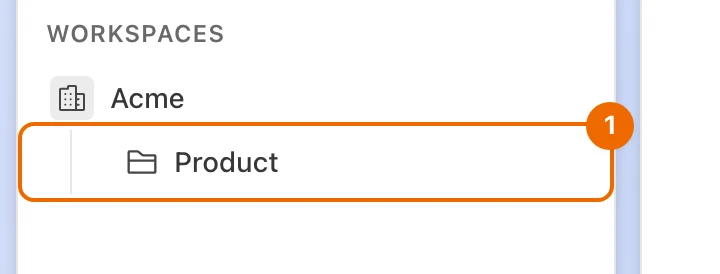
Create the Roadmap list
Point at Product, click + and choose New list. A form opens and asks About the list.
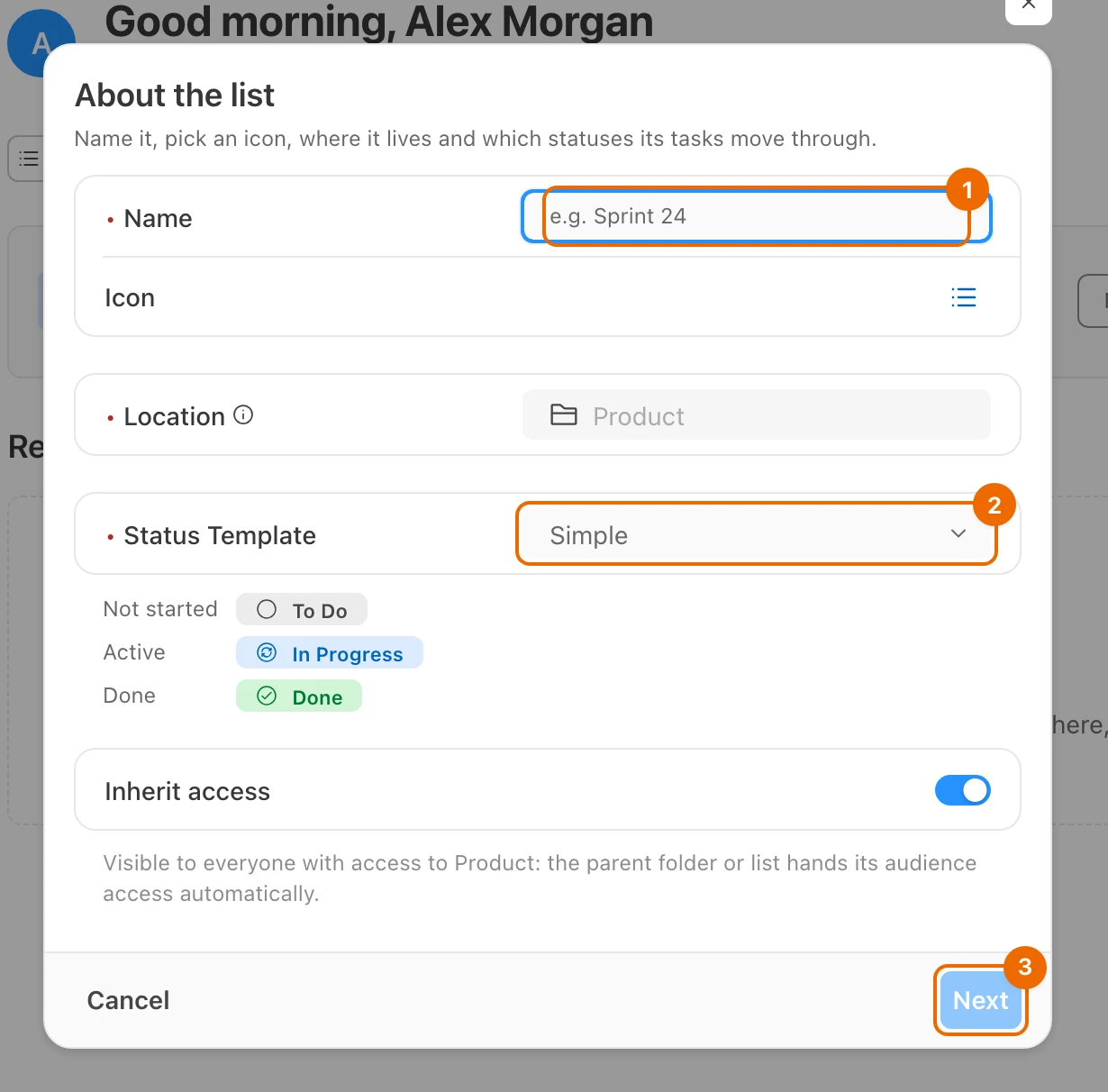
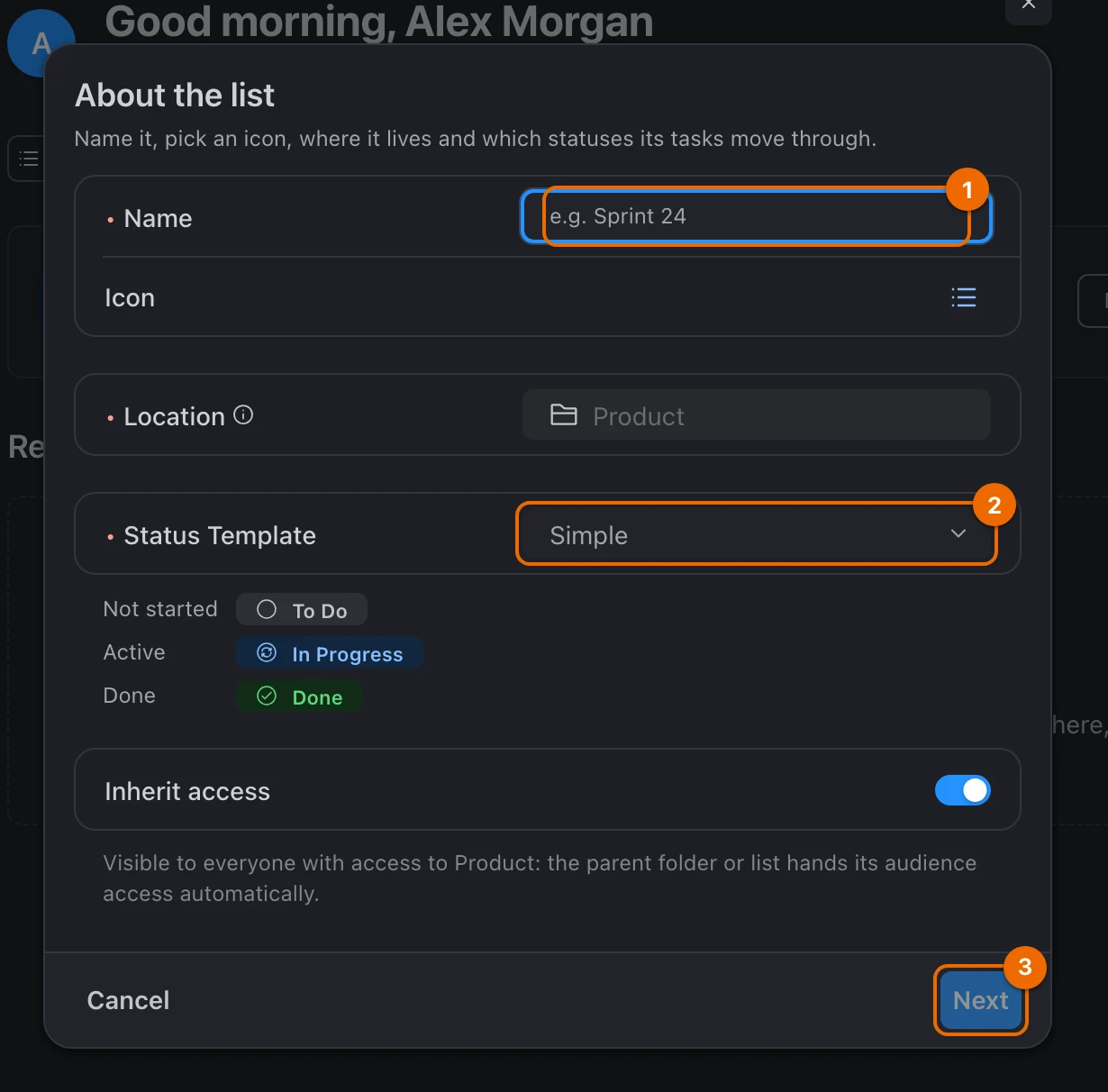
In Name, type Roadmap. The name shows in the field.
Leave Status Template (statuses) on Simple. Its statuses are:
- To Do
- In Progress
- Done
Click Next. The form asks What do its tasks need?
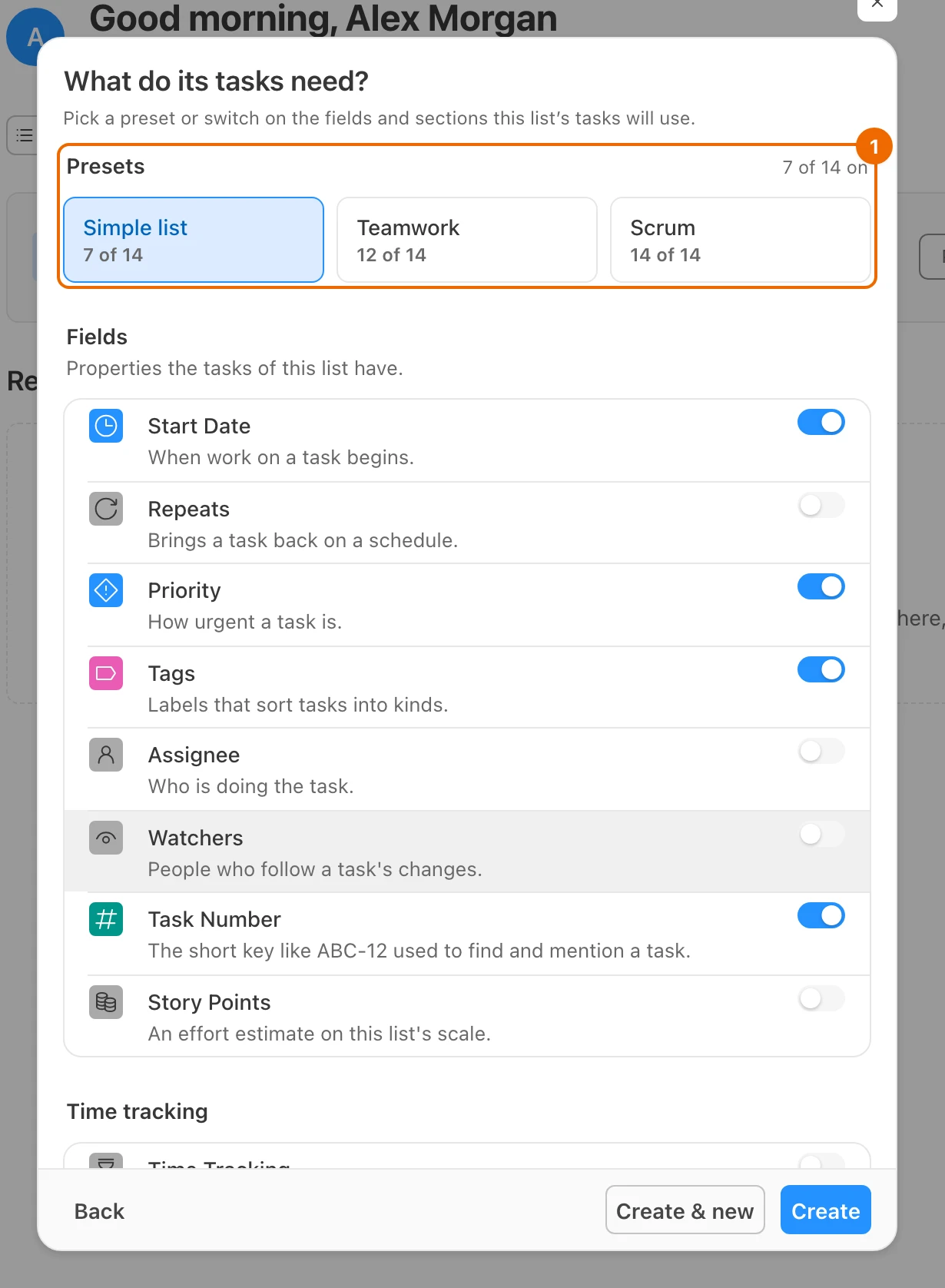
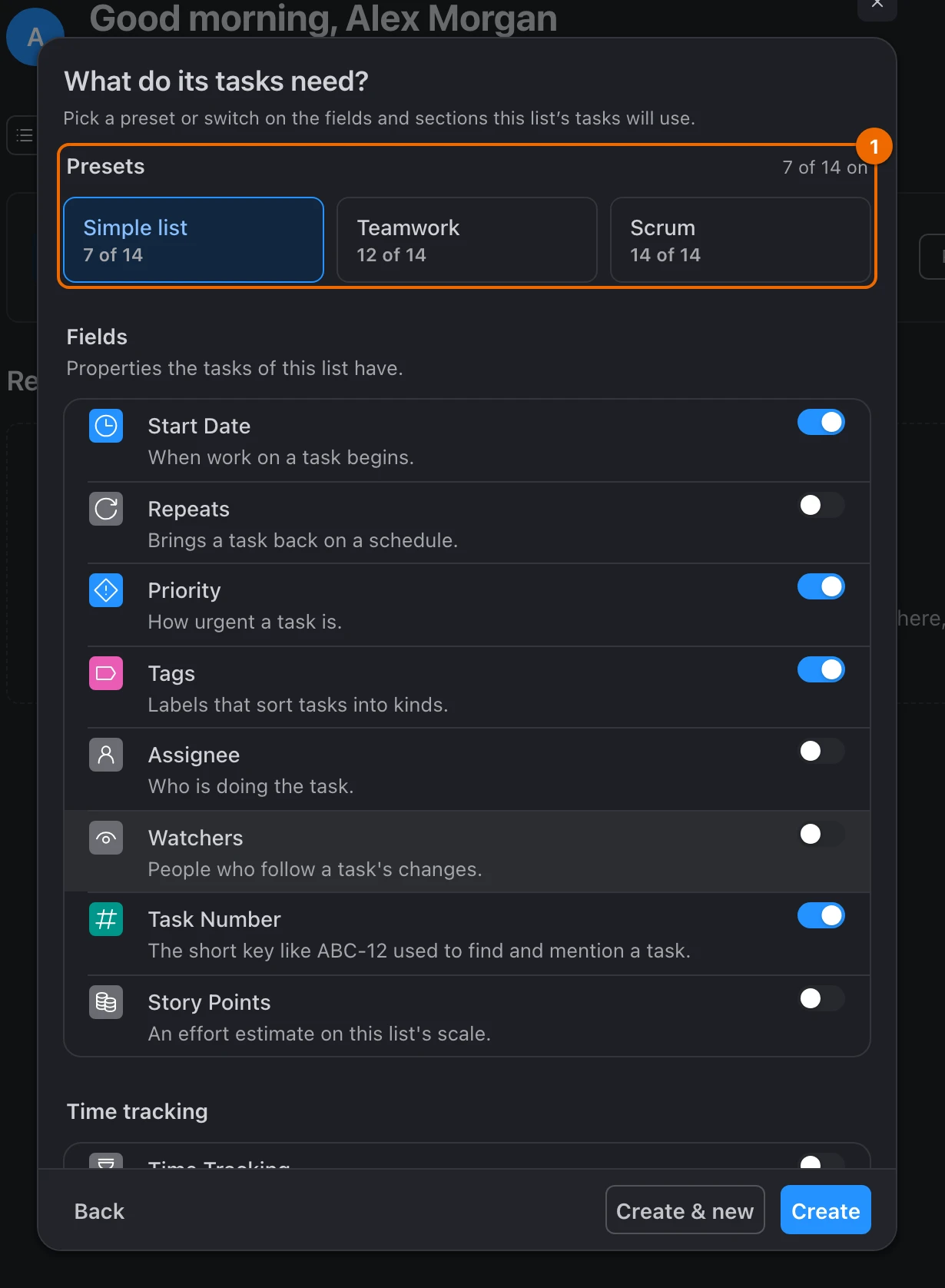
Under Presets (list features), choose Teamwork. Teamwork turns on 12 of the 14 features, among them Assignee and Watchers (Assign and watch tasks).
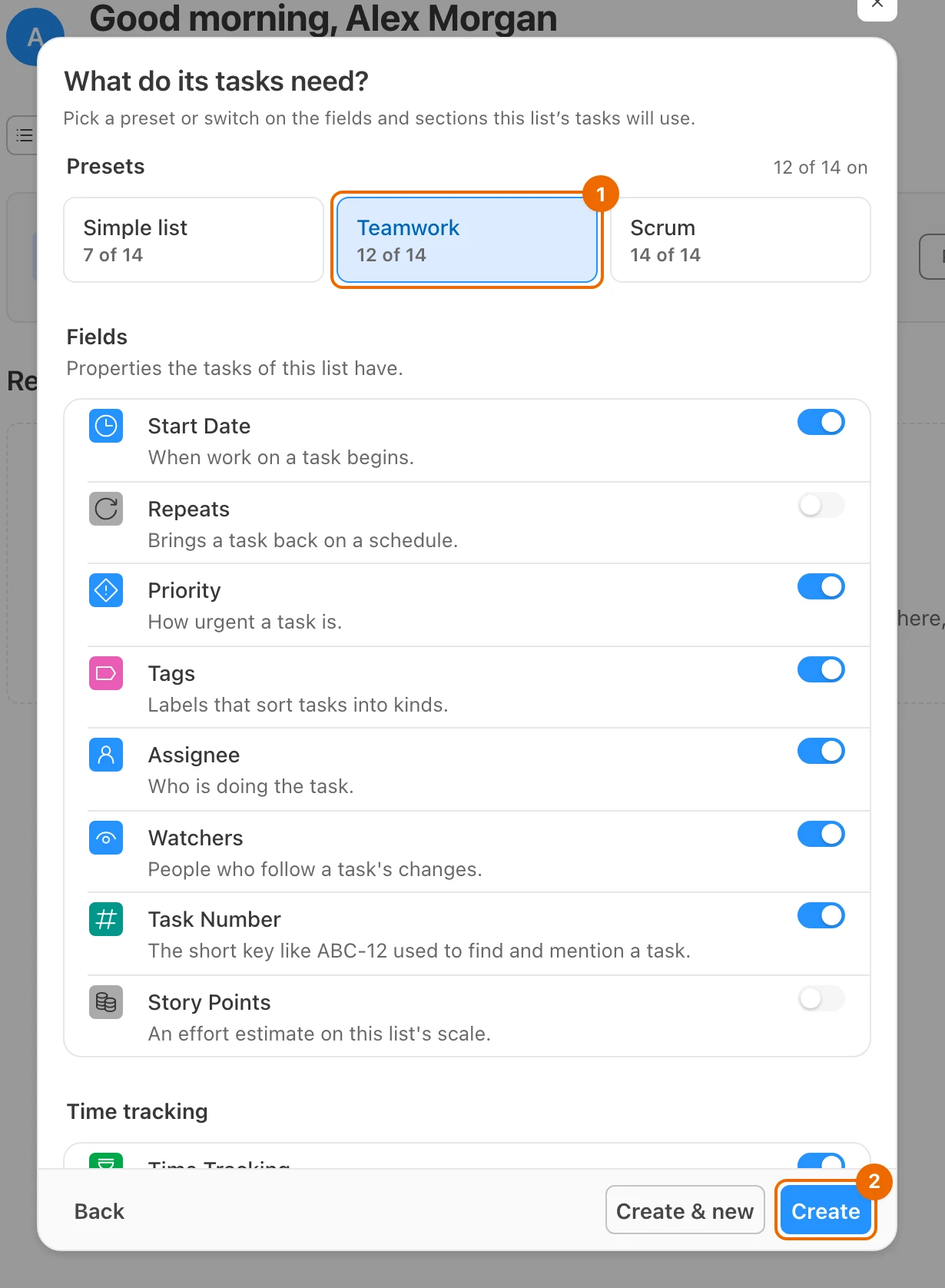
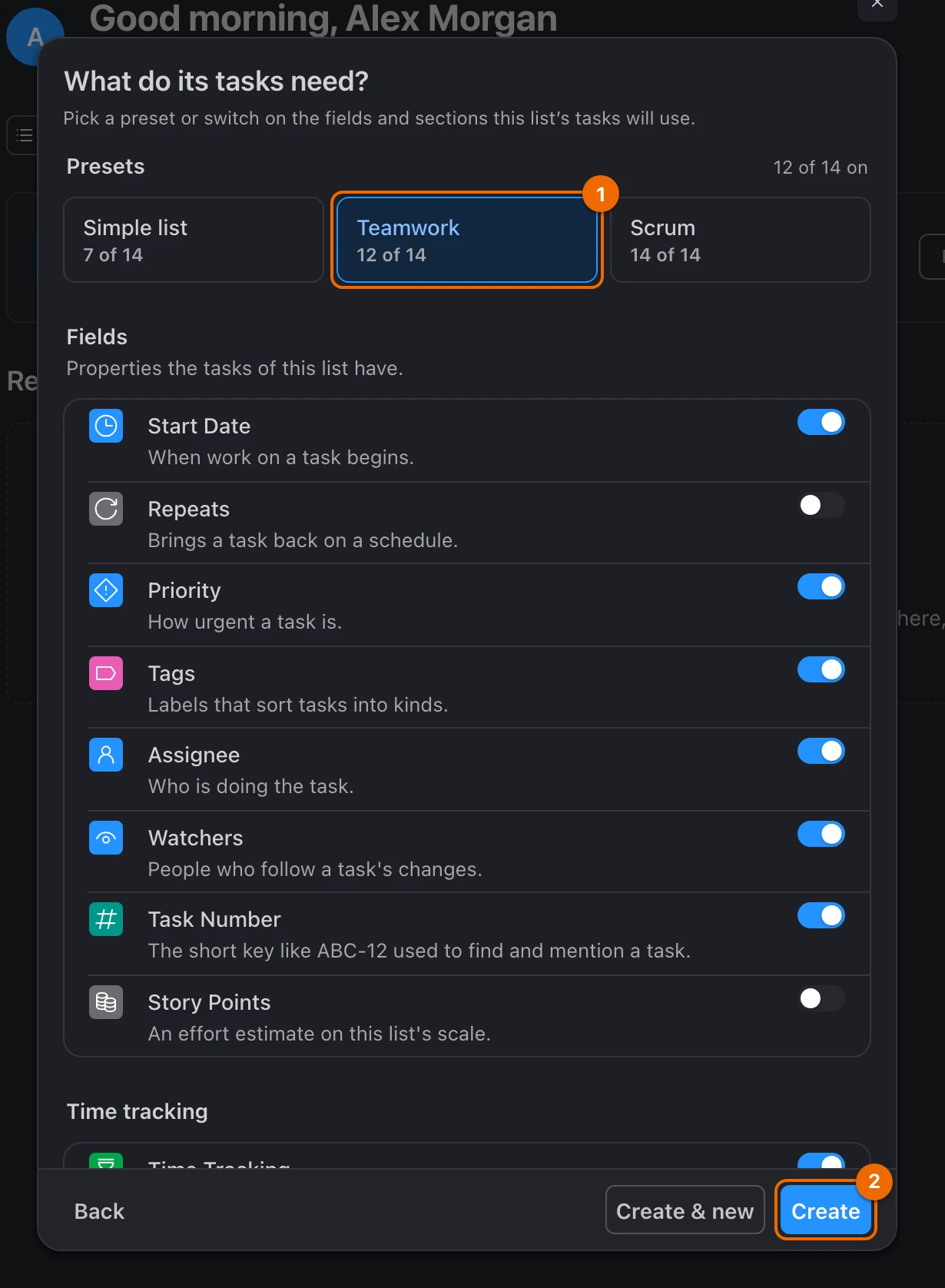
Pick Teamwork, not Simple list
The default Simple list has no Assignee field, so you could not assign the task later.
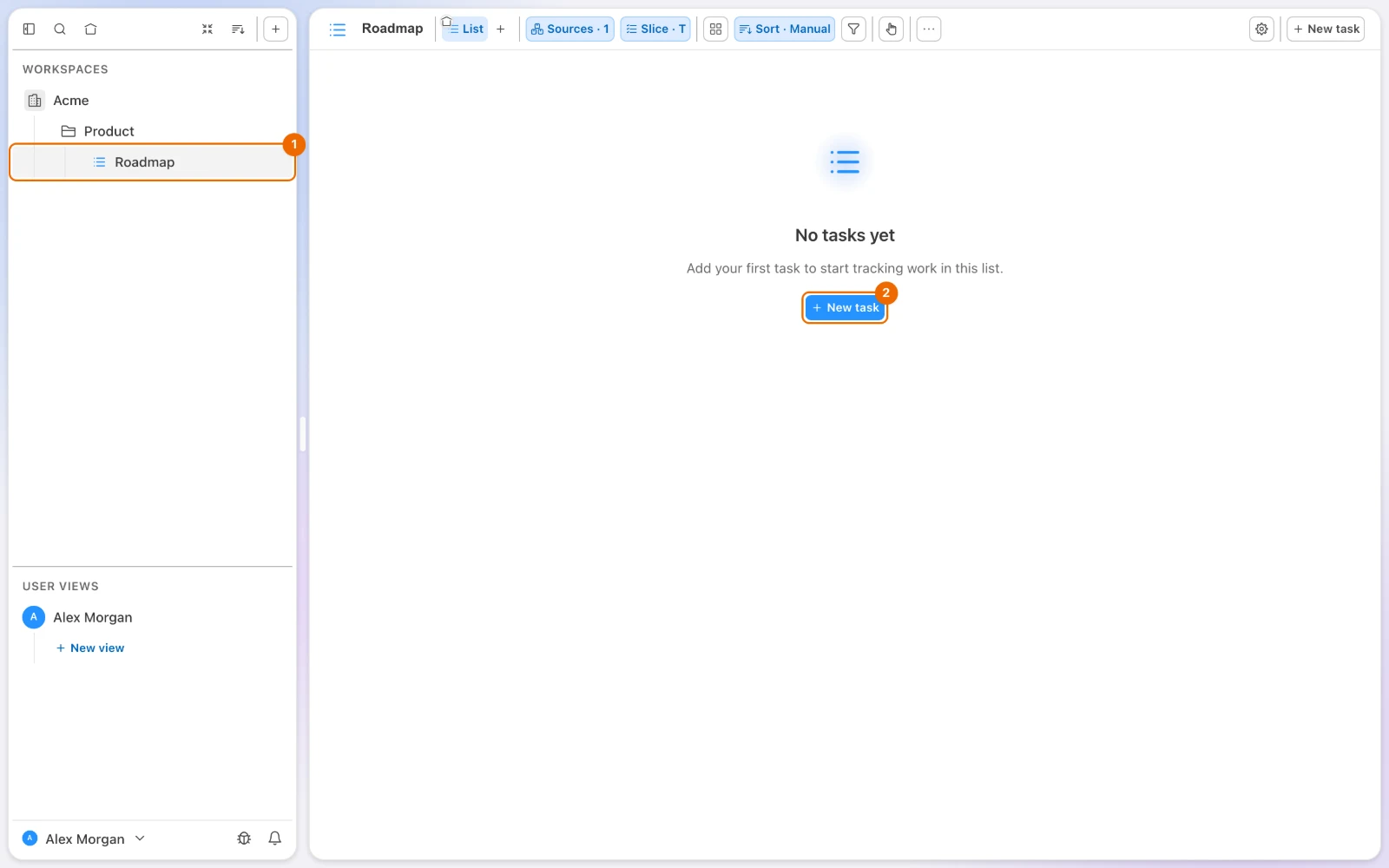
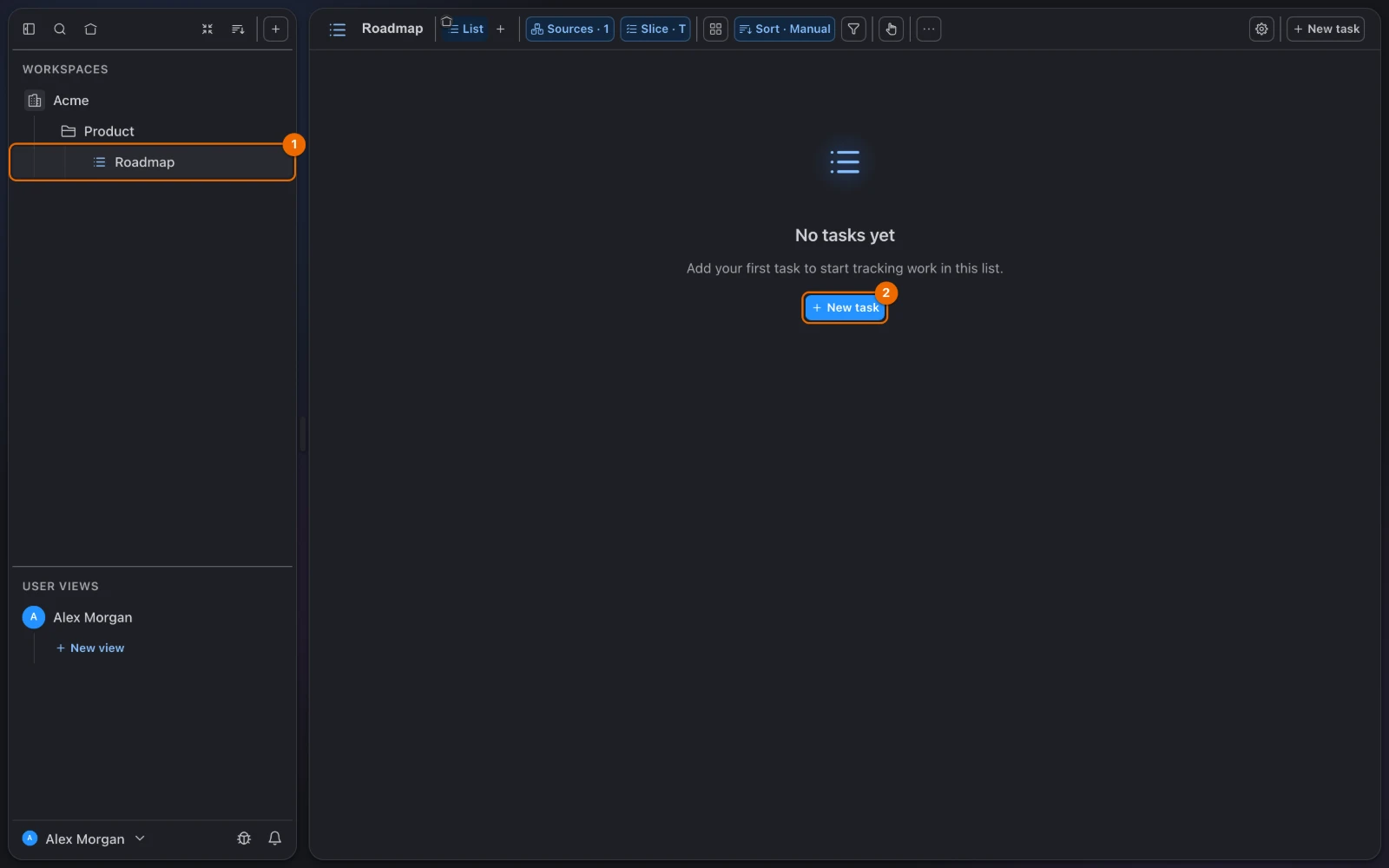
Click Create. The form closes and Roadmap opens in its List view, under Product in the sidebar.
More list options are in Set up a list.
Write the first task
In the empty list, click New task. The New Task form opens, with Roadmap already chosen as the list.
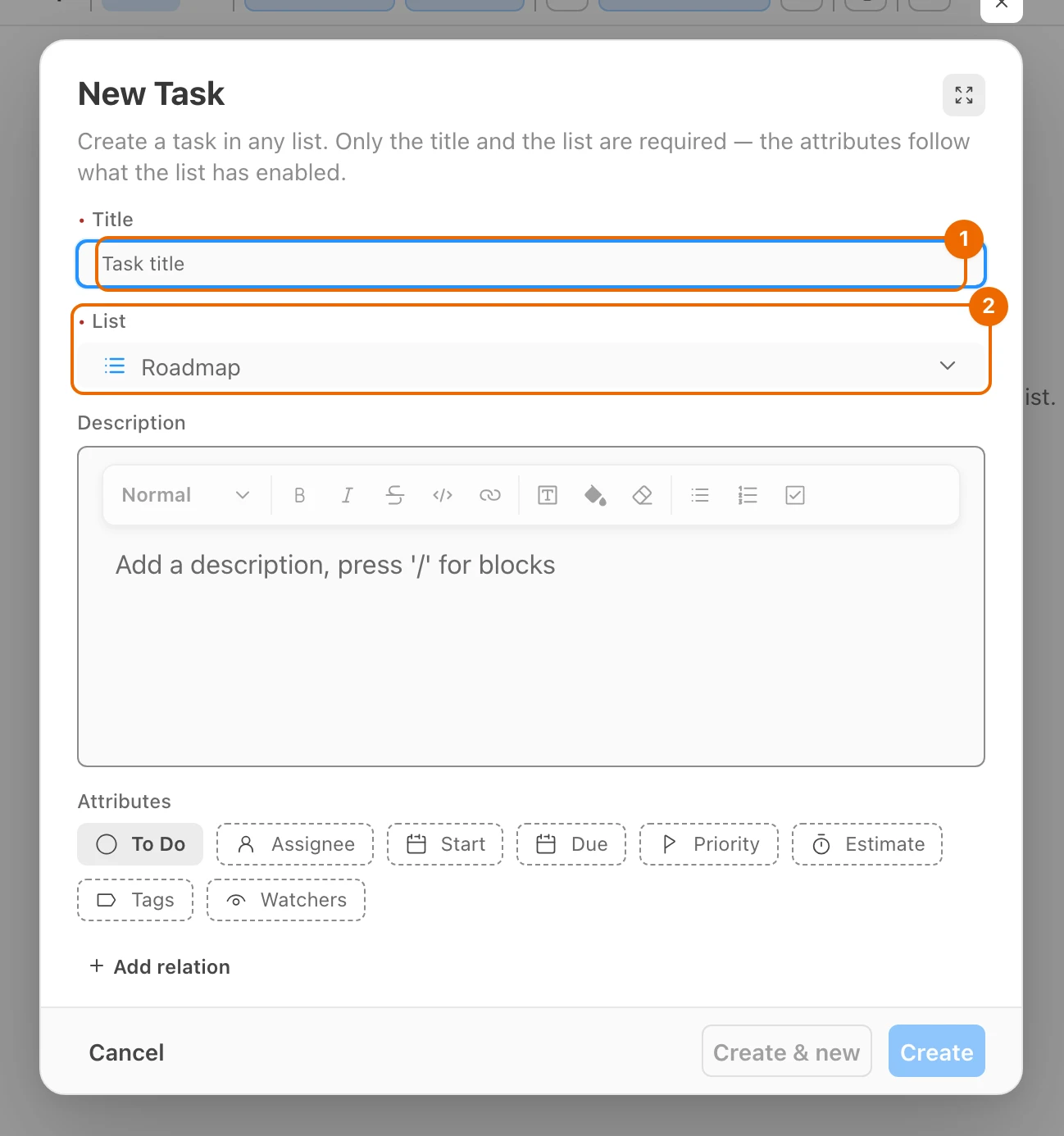
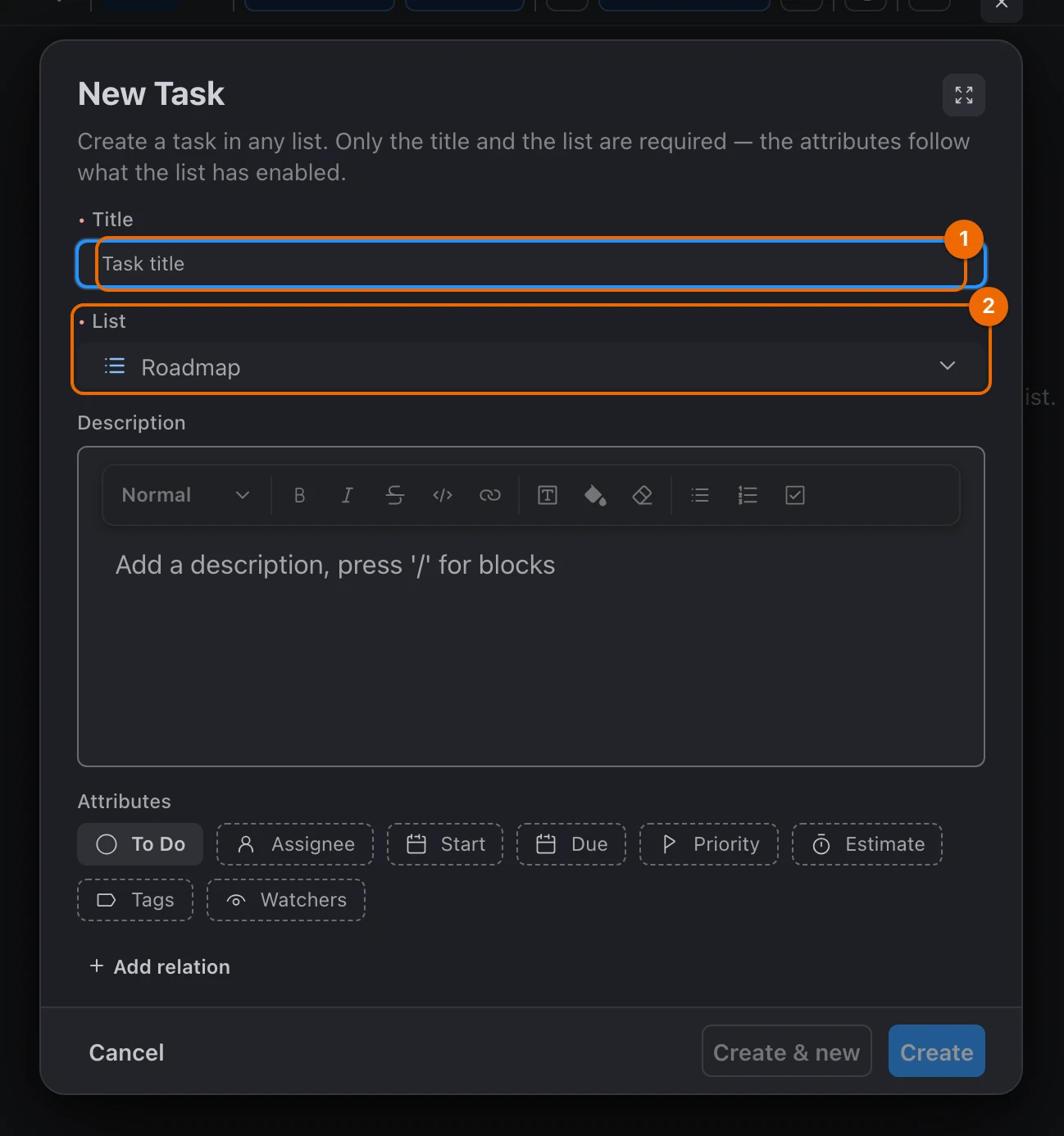
In Title, type Draft the Q3 roadmap and click Create. The task appears with the status To Do.
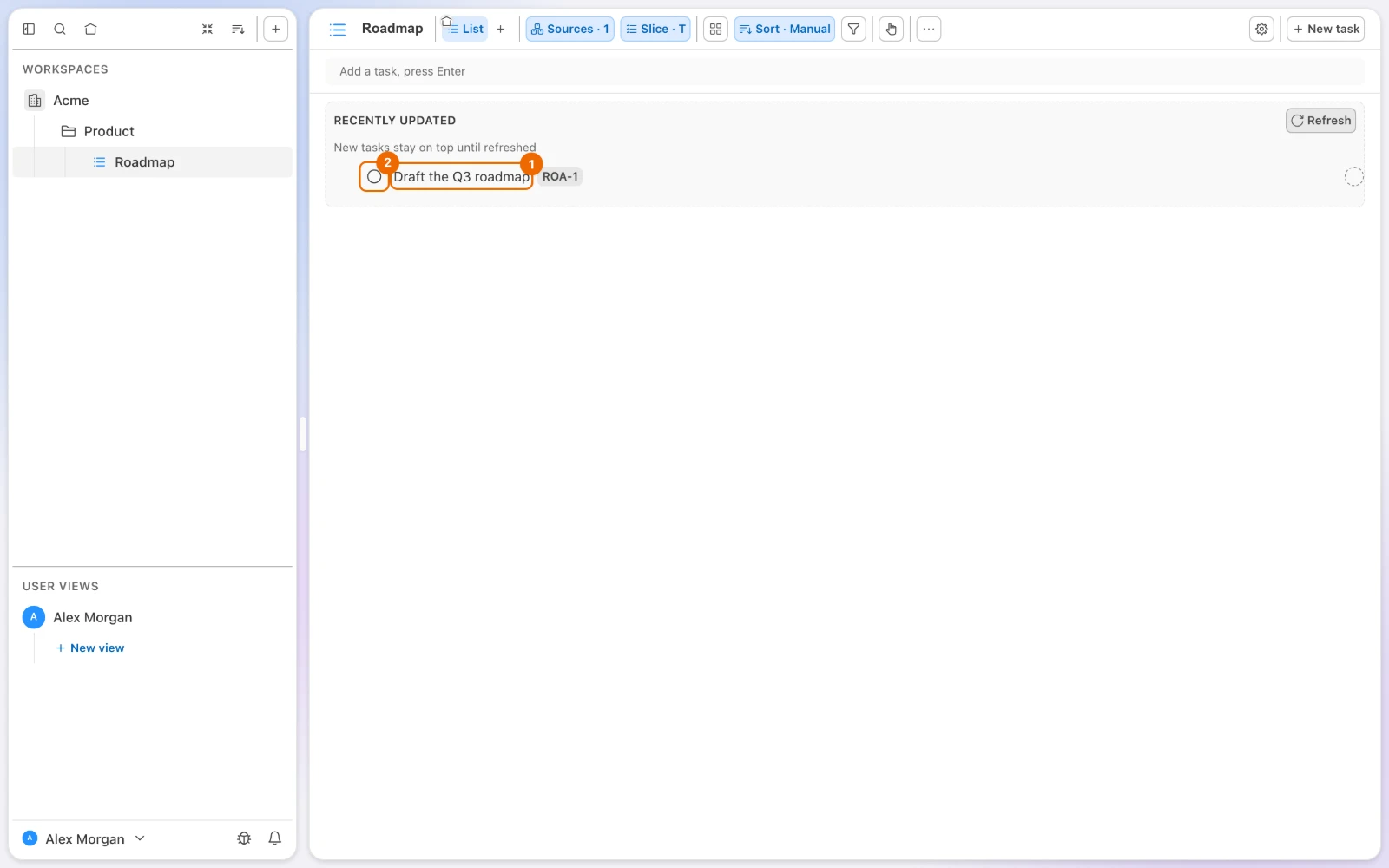
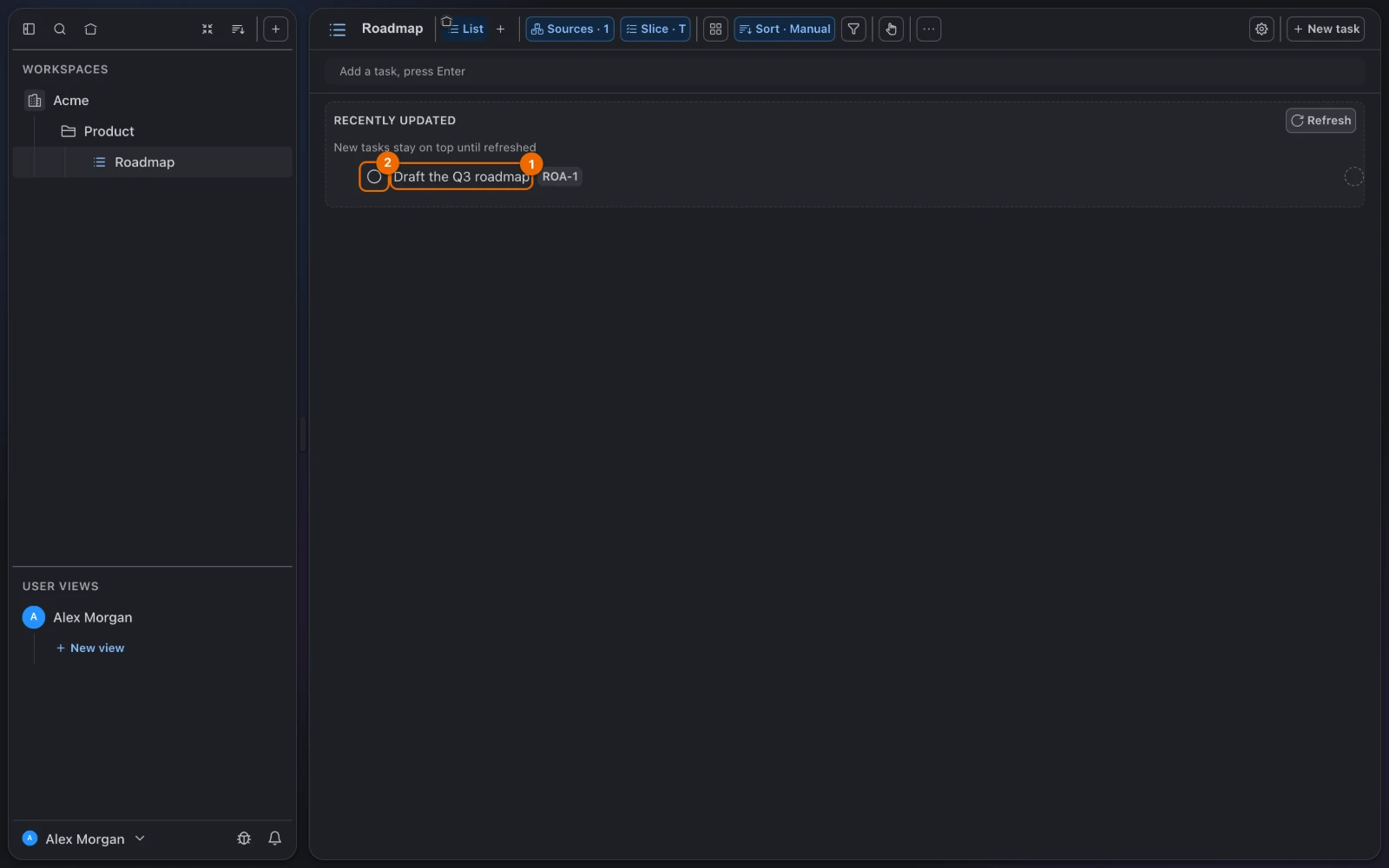
Add two or three more, so your team has something to see: once the list has a task, the Add a task, press Enter row at its top adds the next one.
Invite team members
Click your name at the bottom of the sidebar. A menu opens.
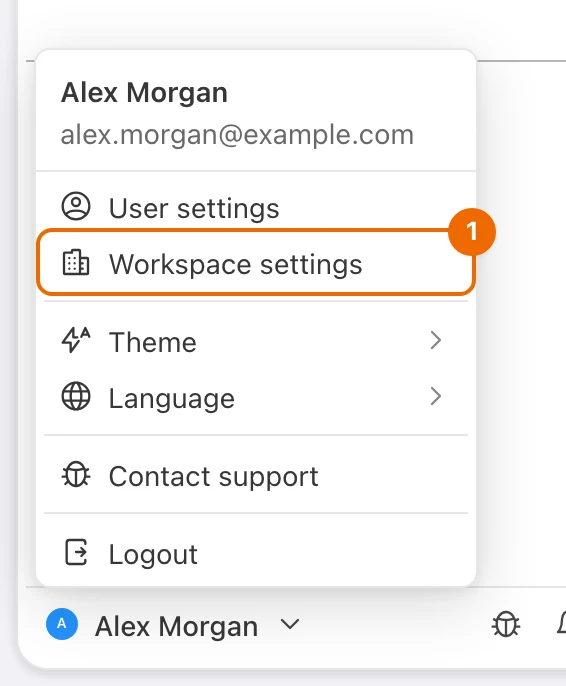
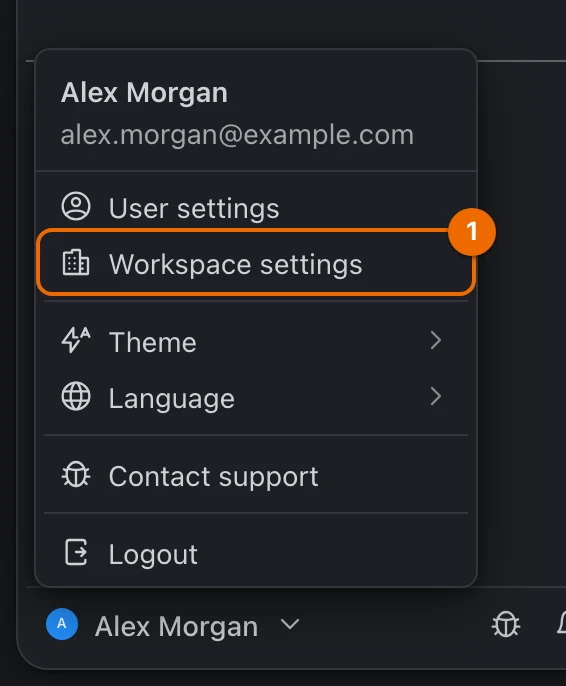
Choose Workspace settings. If you belong to several workspaces, pick Acme in the submenu. The settings open.
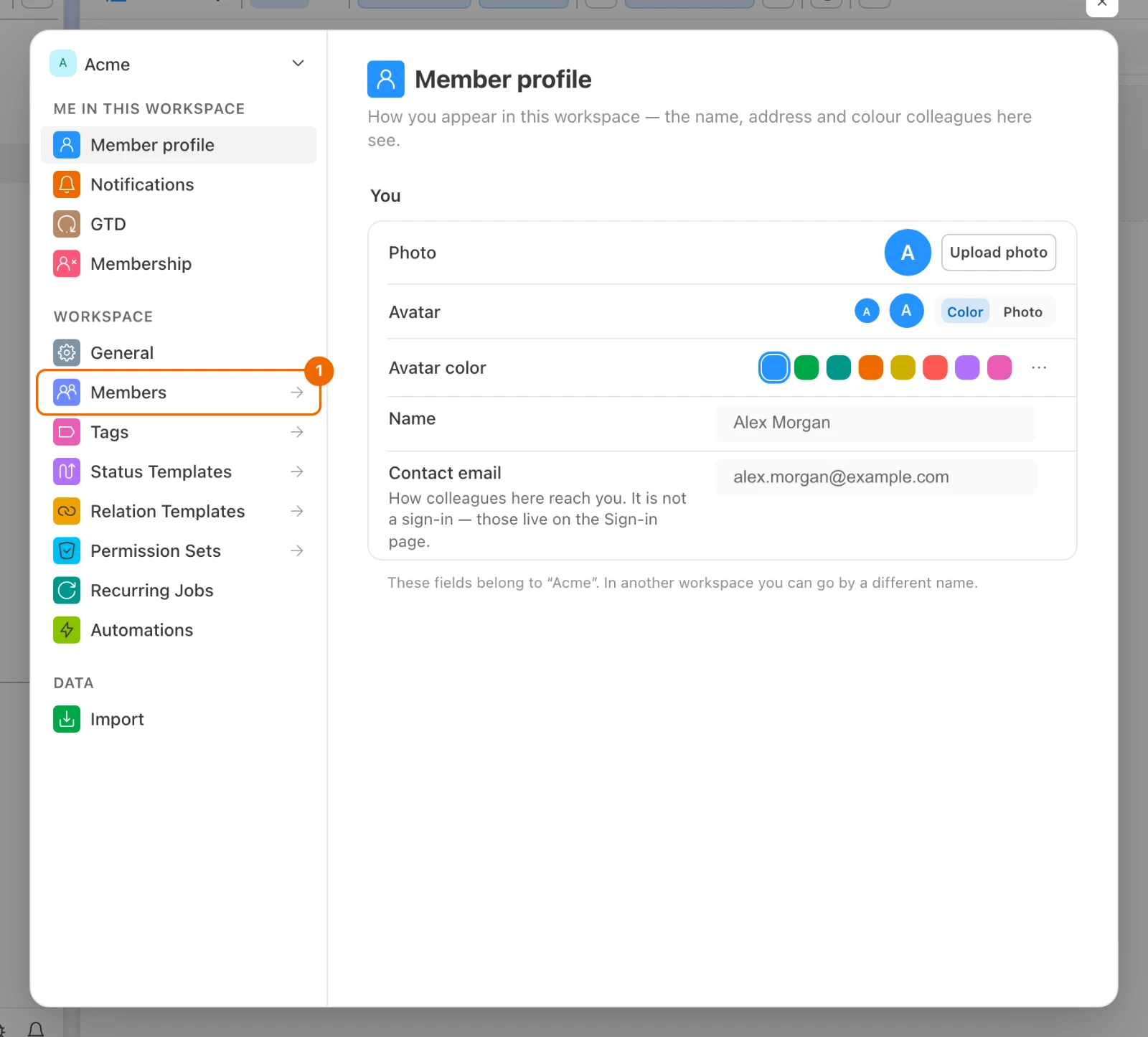
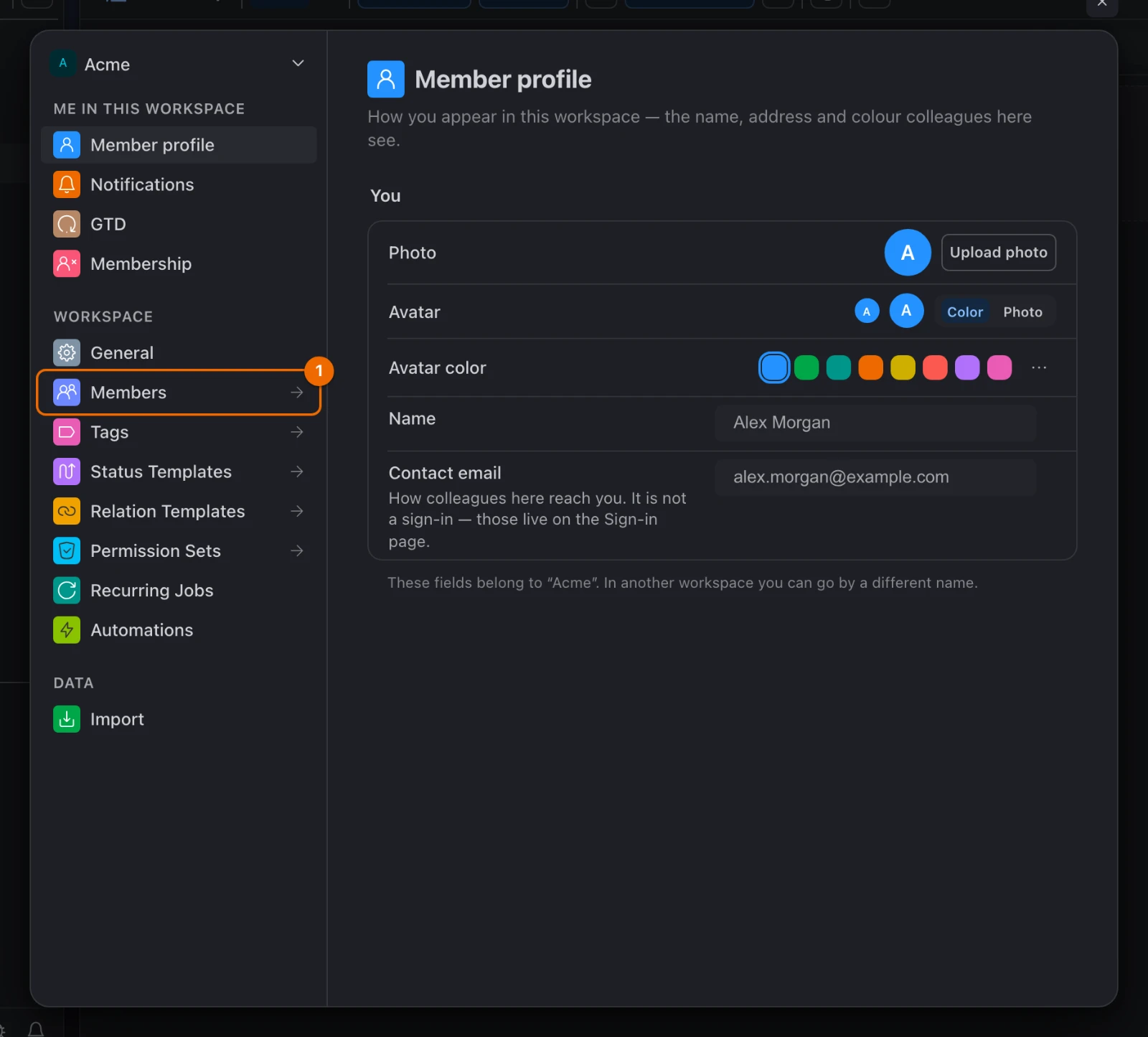
Open Members. The Members page opens.
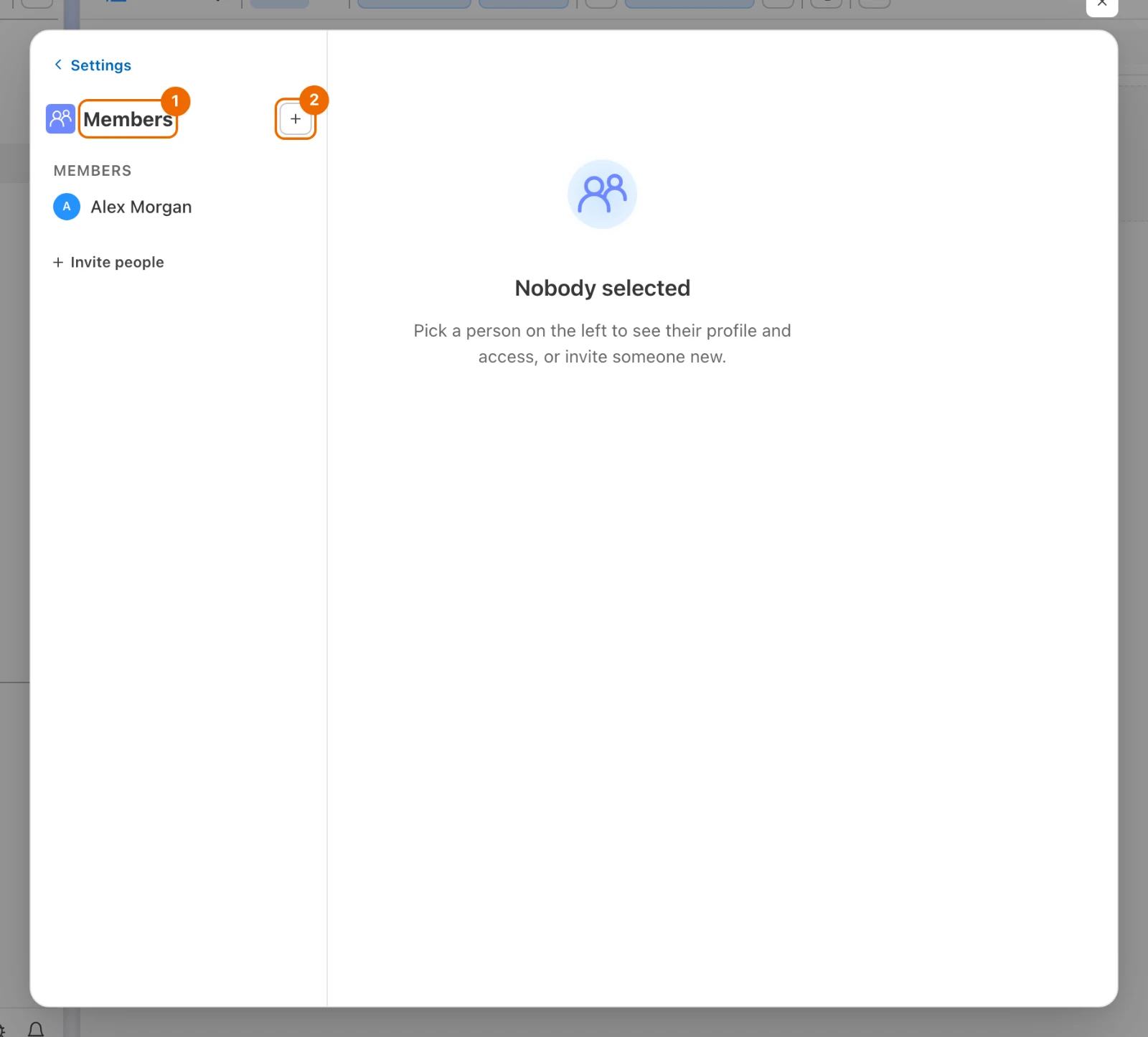
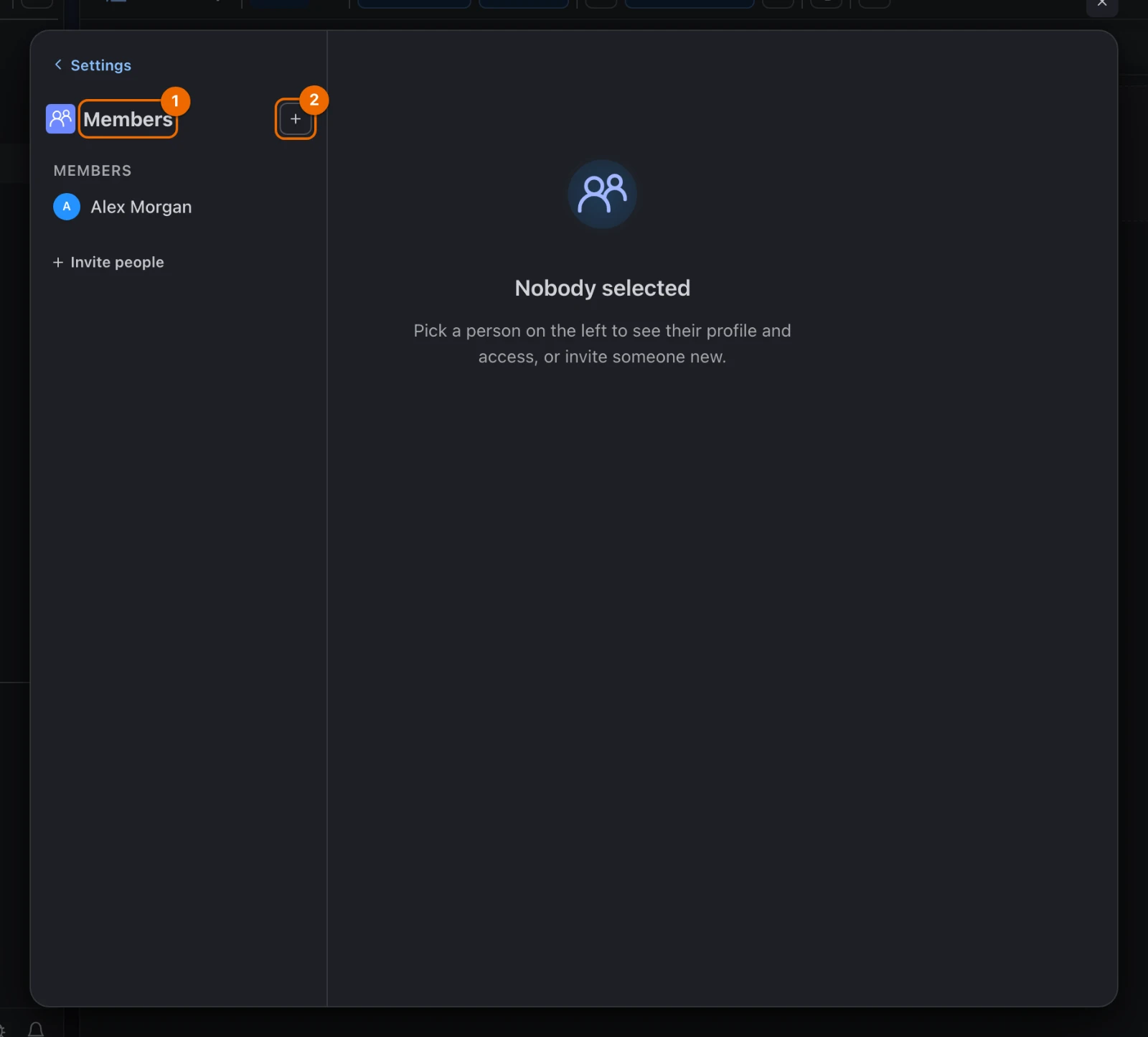
Click Invite people. The invitation form opens.
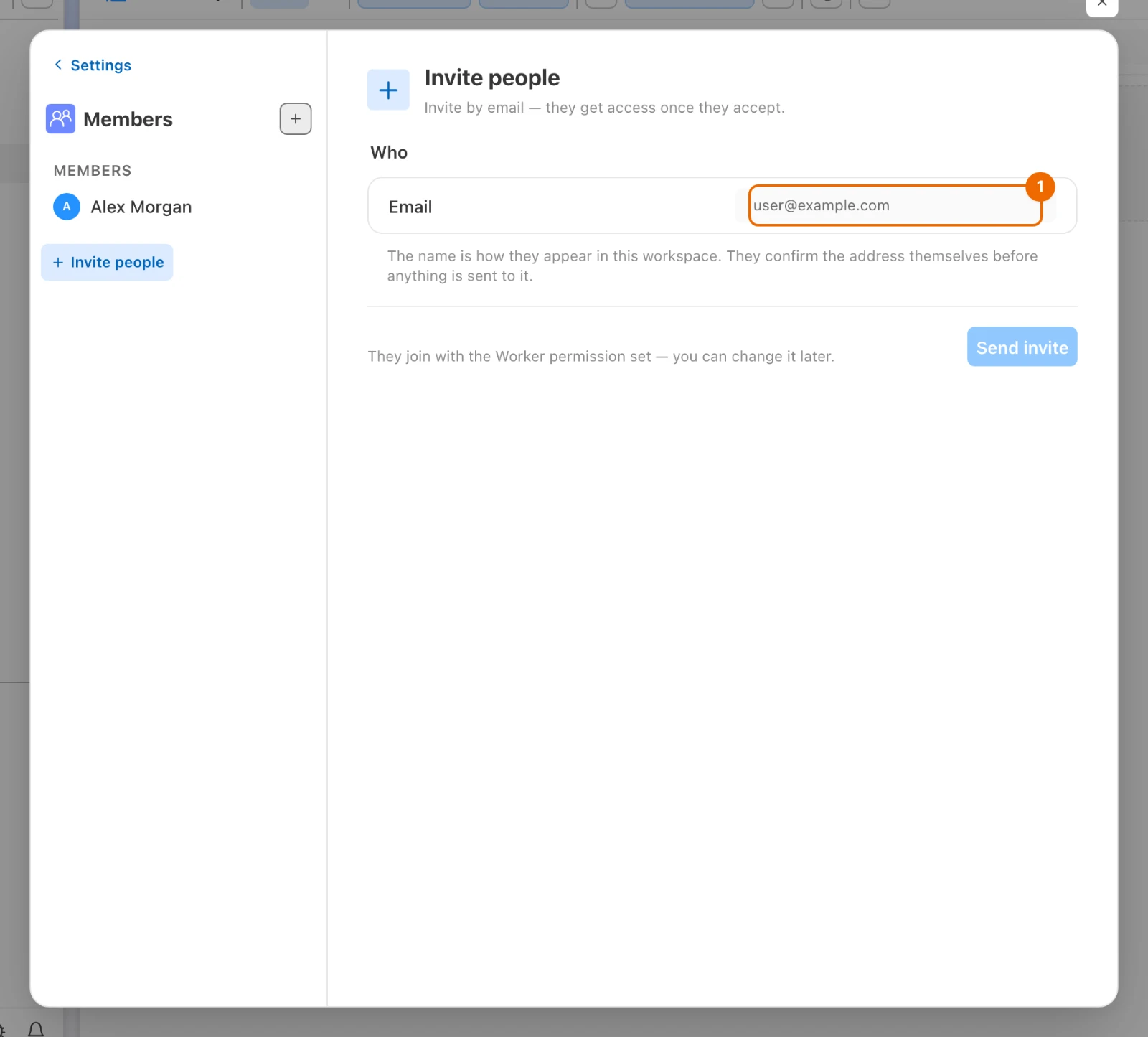
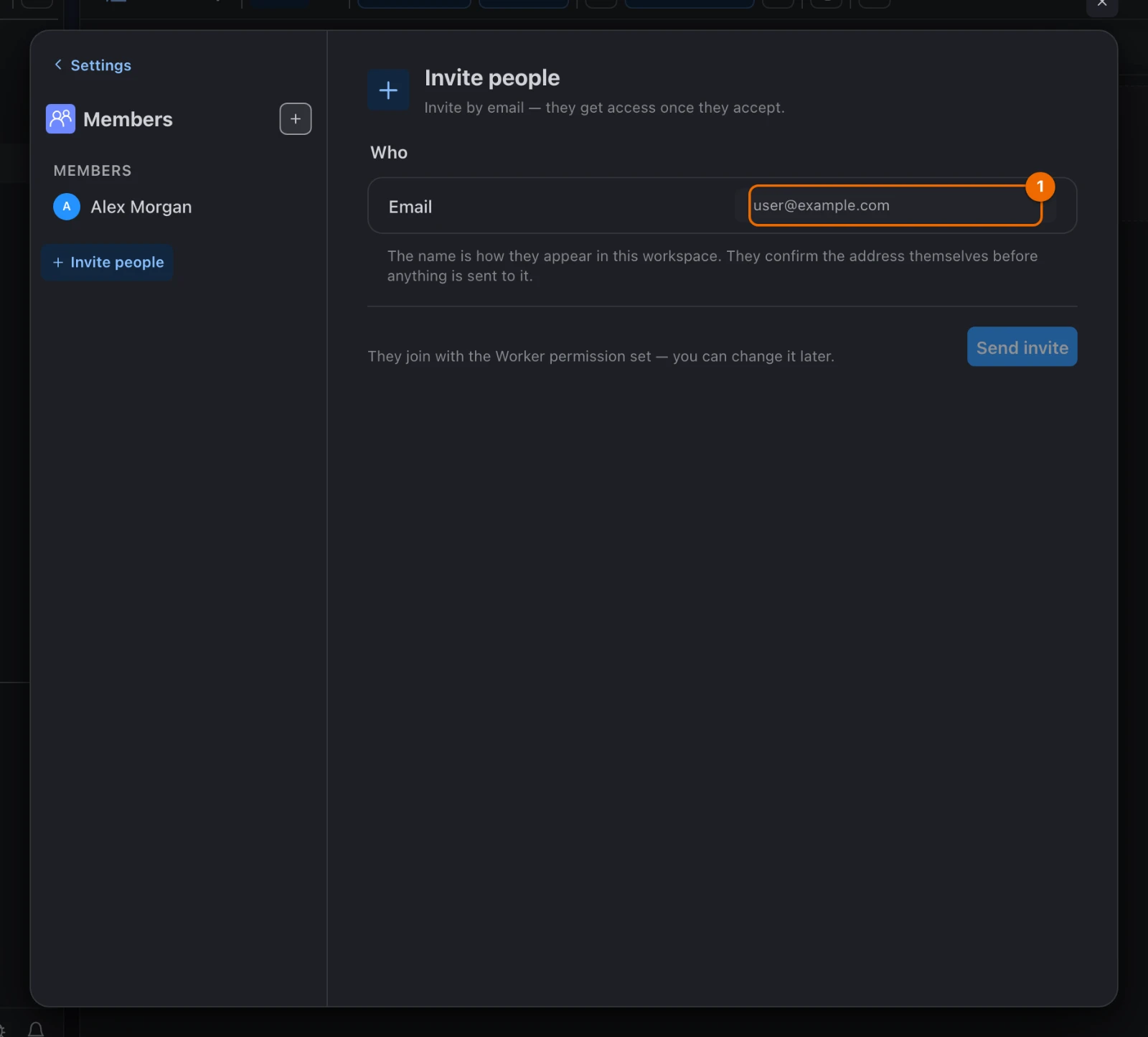
Type the person's Email. A Name field appears.
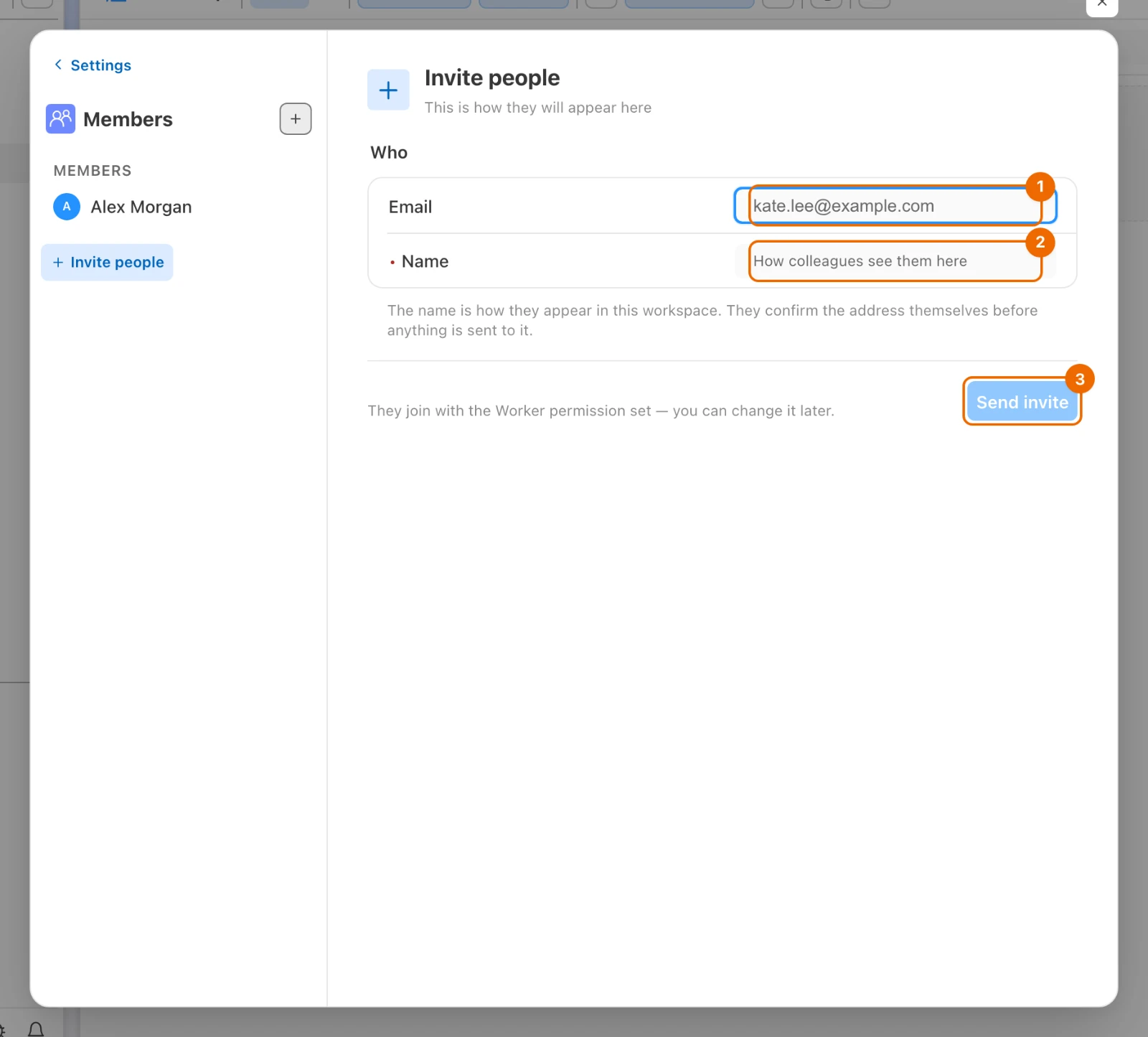
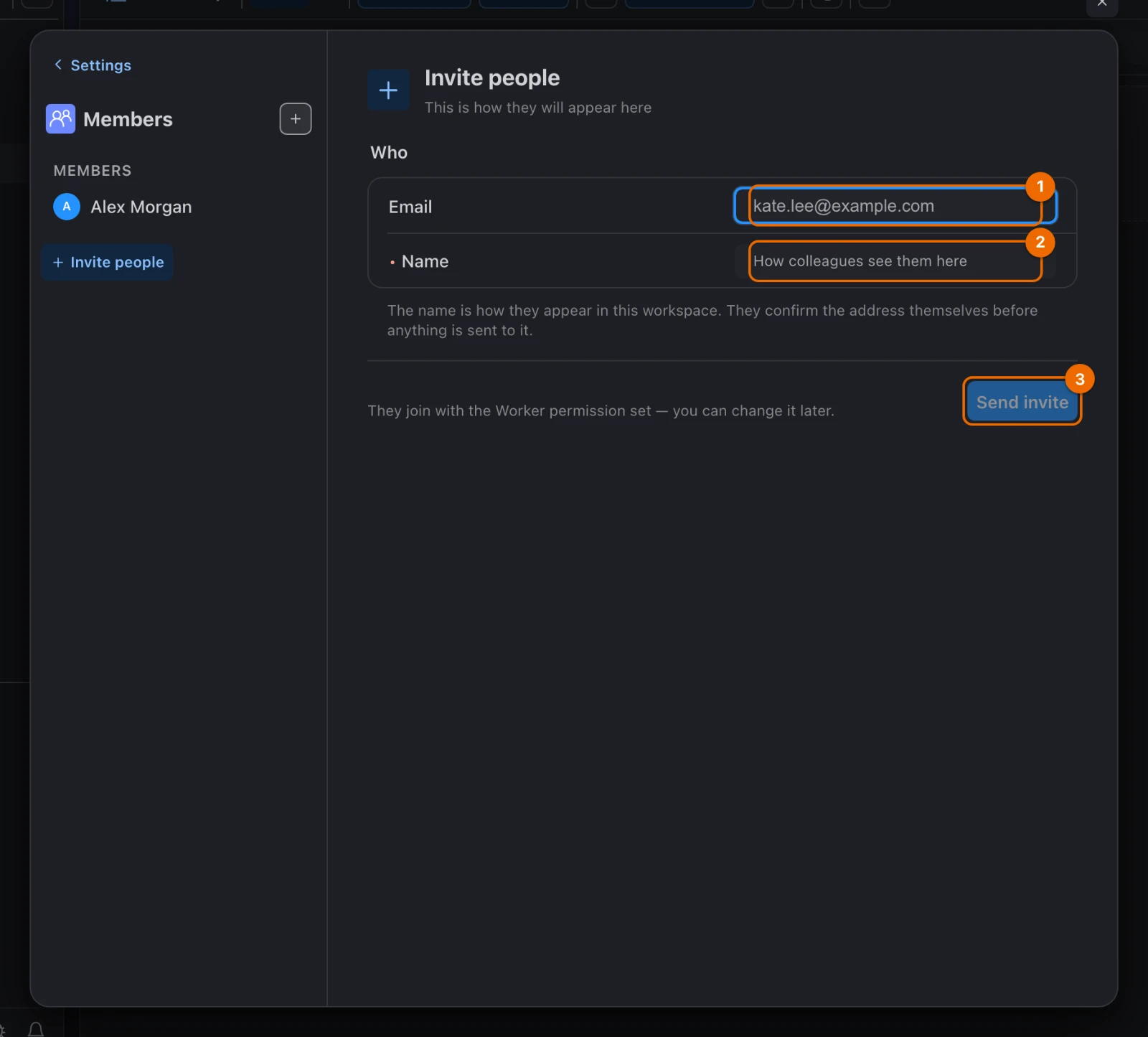
In Name, type the name the team will see — here, Kate. Send invite becomes available.
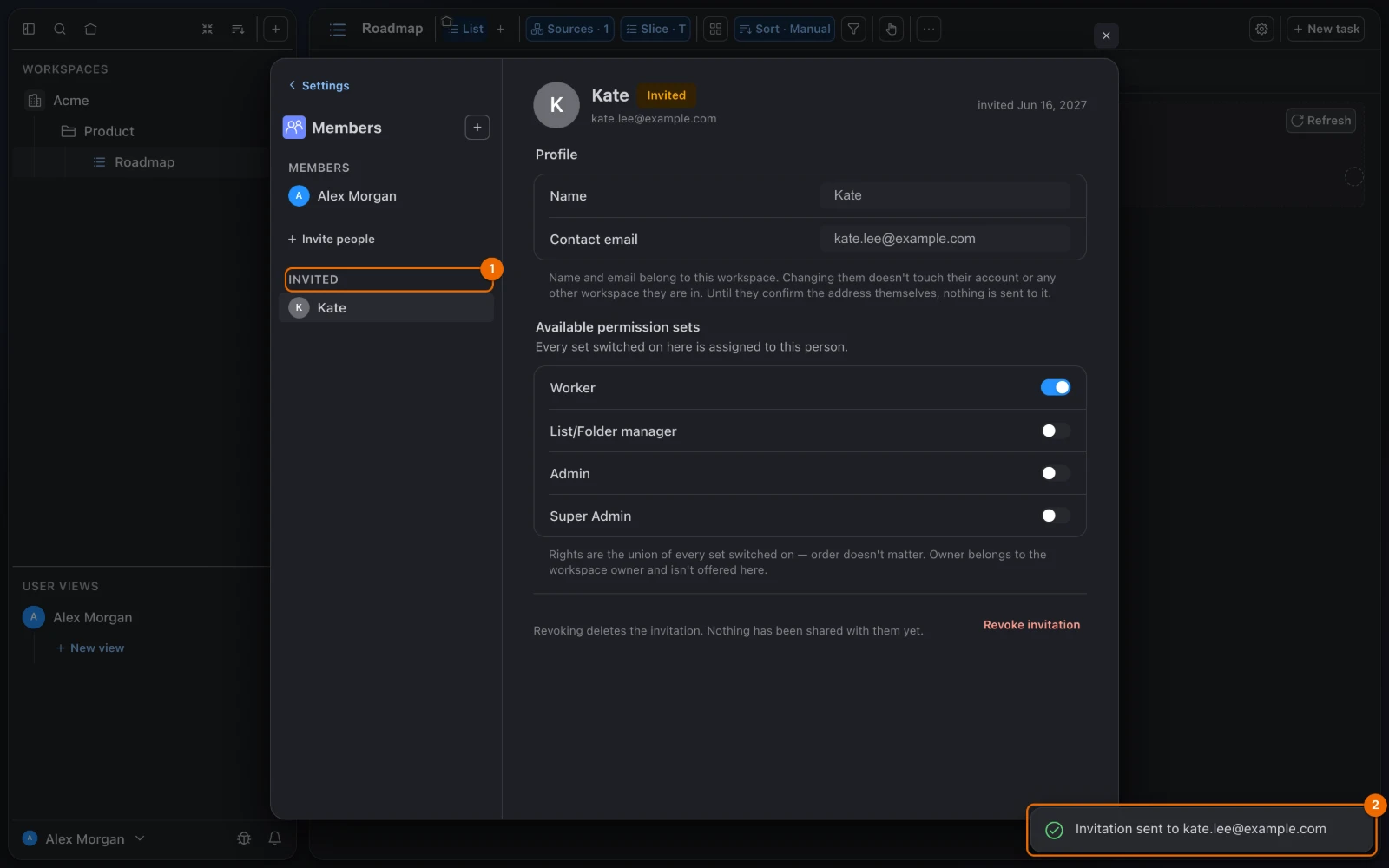
Click Send invite. The message "Invitation sent to …" appears, and Kate is listed under Invited.
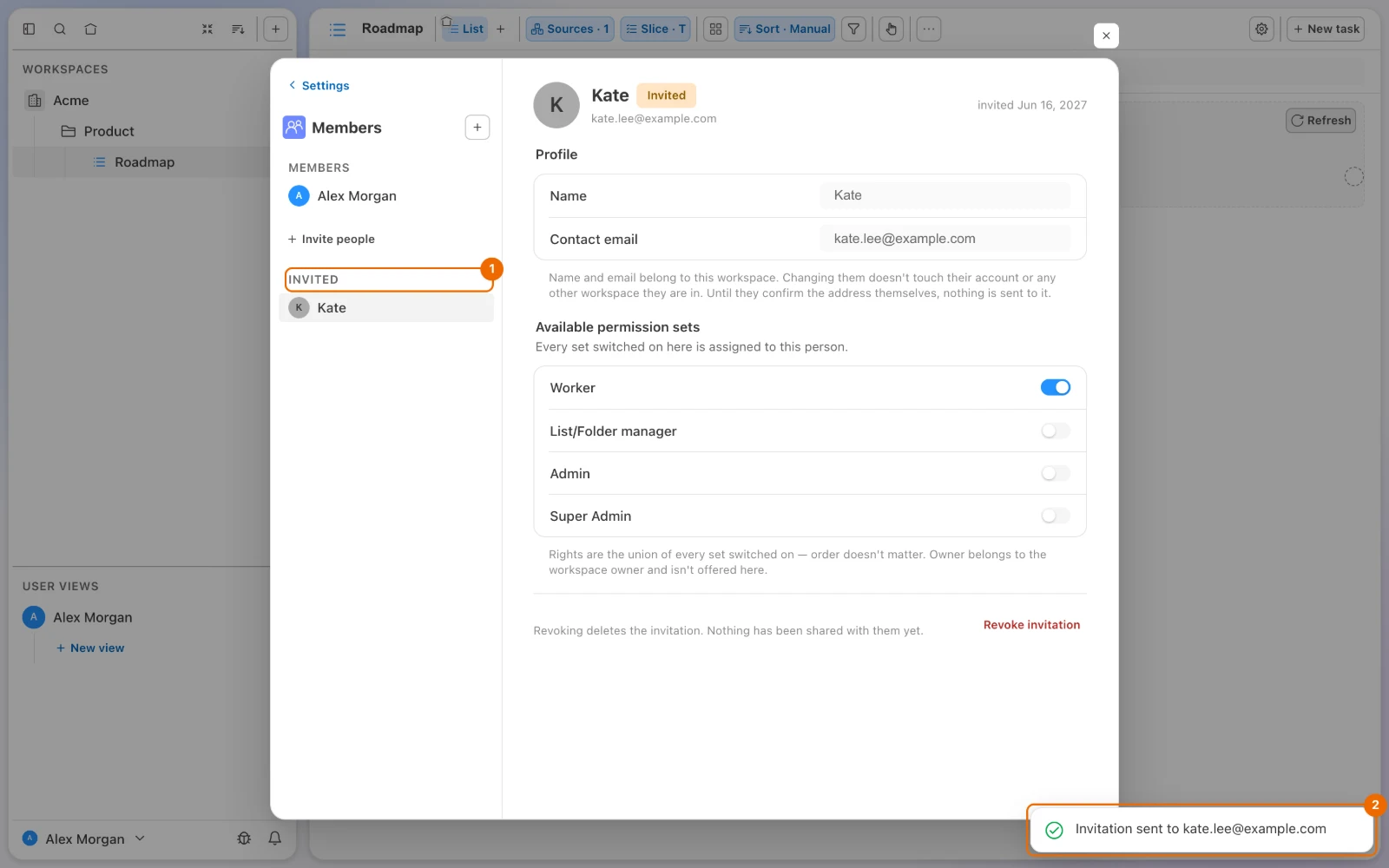
Invite a second member the same way.
Kate gets an email, or a notification if she already uses Hule, and accepts it. When she does, she moves from Invited to Members, and you can share the folder with her. Details: Invite members and grant permissions.
New members start as Workers
New members hold the Worker permission set: they can edit tasks in whatever is shared with them, and nothing is shared with them yet.
Share the folder with the team
Close the settings. The list Roadmap is back.
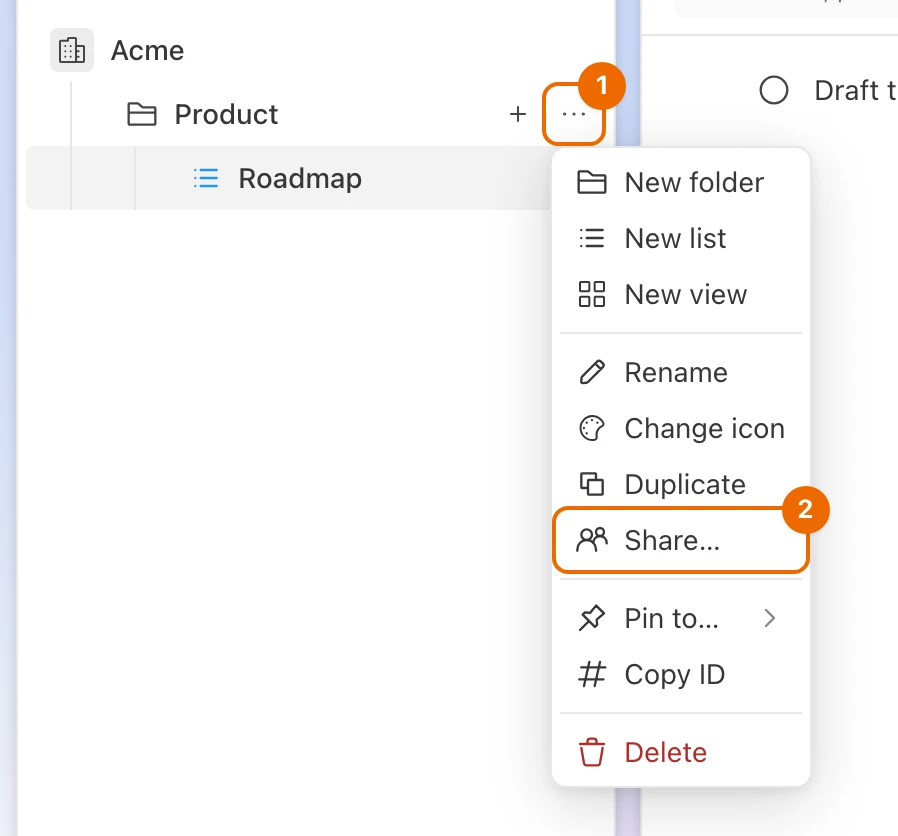
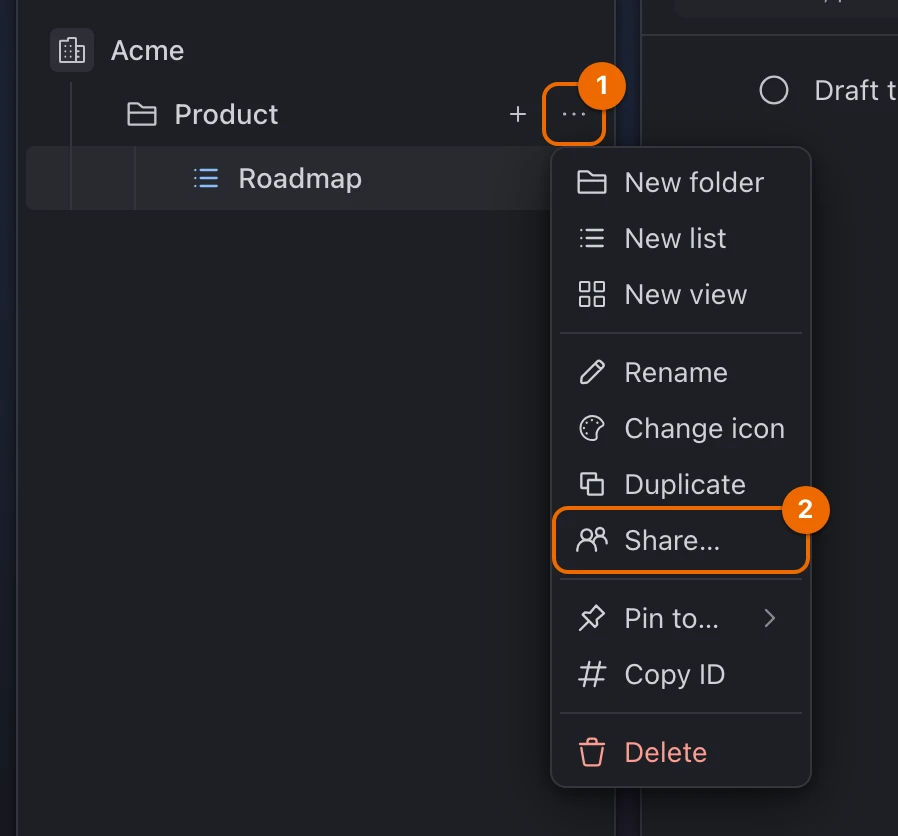
Point at Product in the sidebar and click ⋯ (More actions). The folder's menu opens.
No Share… in the menu?
Check that you are in your own workspace: only the owner, or members with the right permission set, can share.
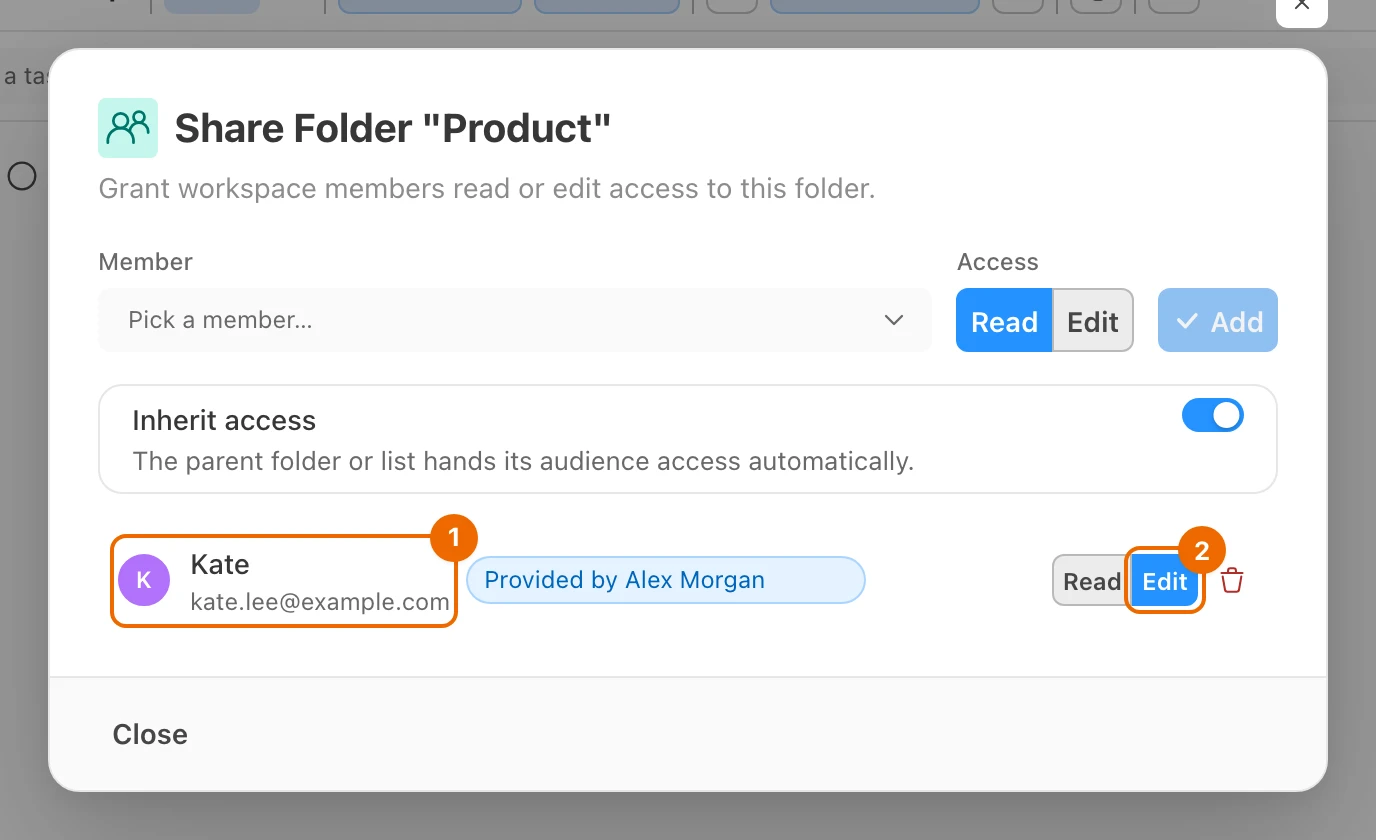
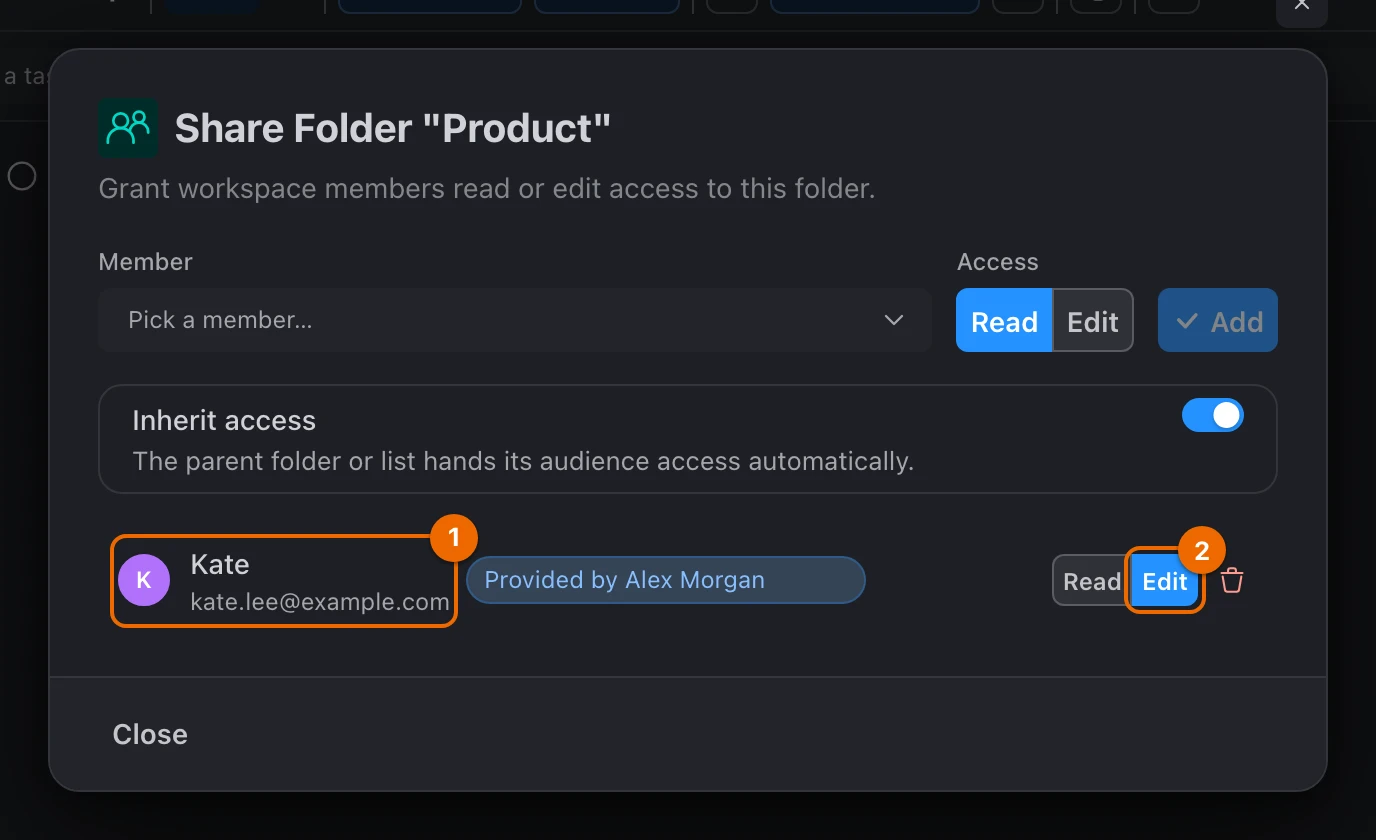
Choose Share…. The dialog "Share Folder "Product"" opens.
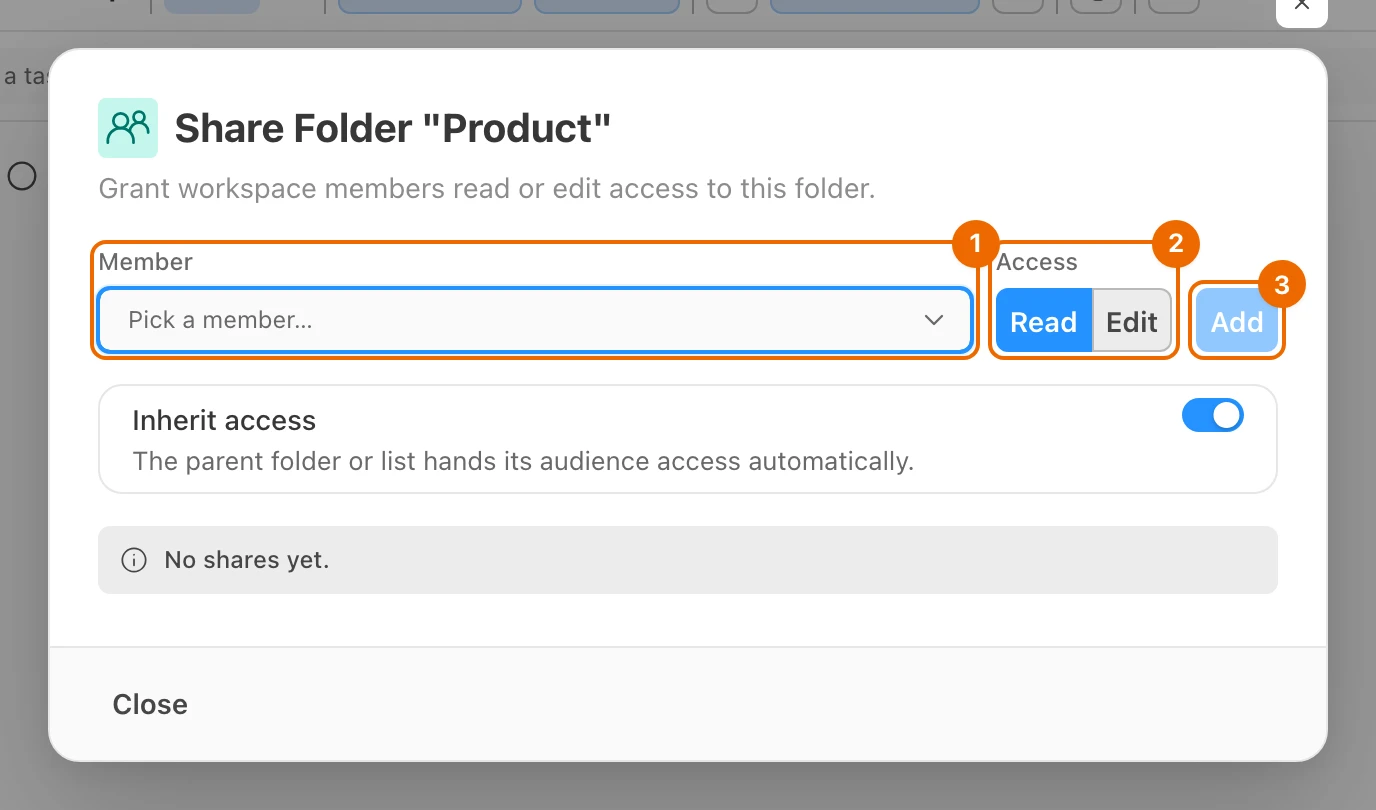
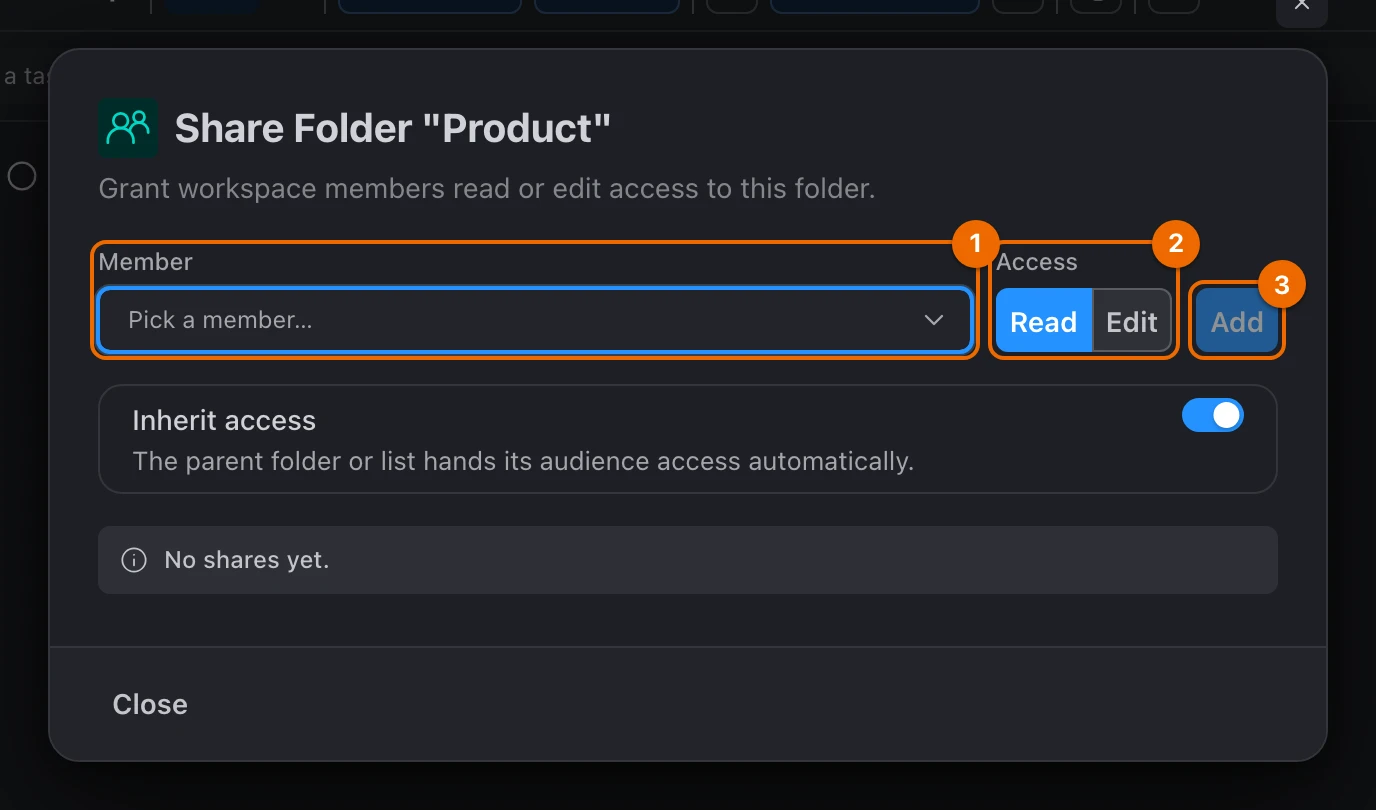
In Member, pick Kate. Her name fills the field.
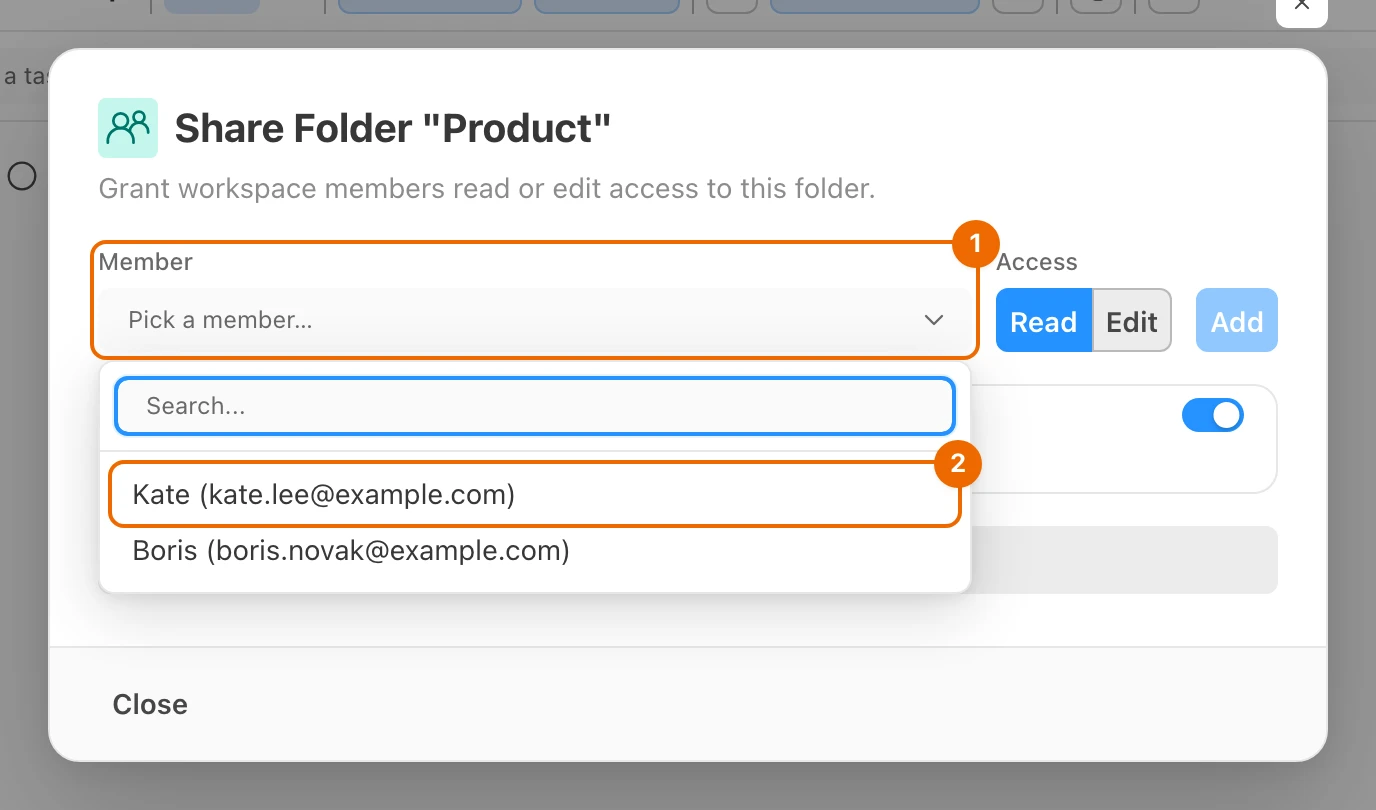
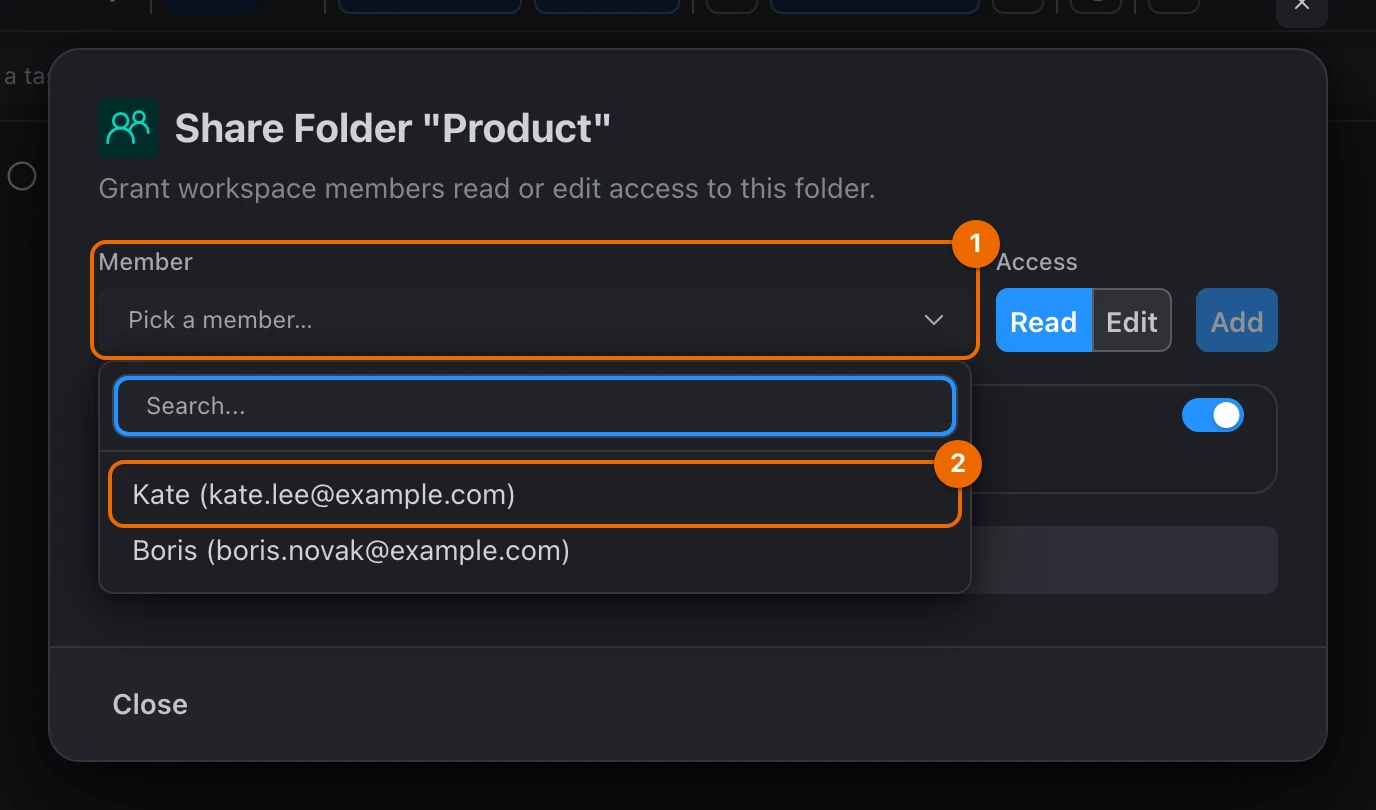
Kate is not in the list?
She has not accepted the invitation yet. Add more tasks to Roadmap while you wait, and come back once she is under Members in Workspace settings.
Under Access, choose Edit. Edit is selected.
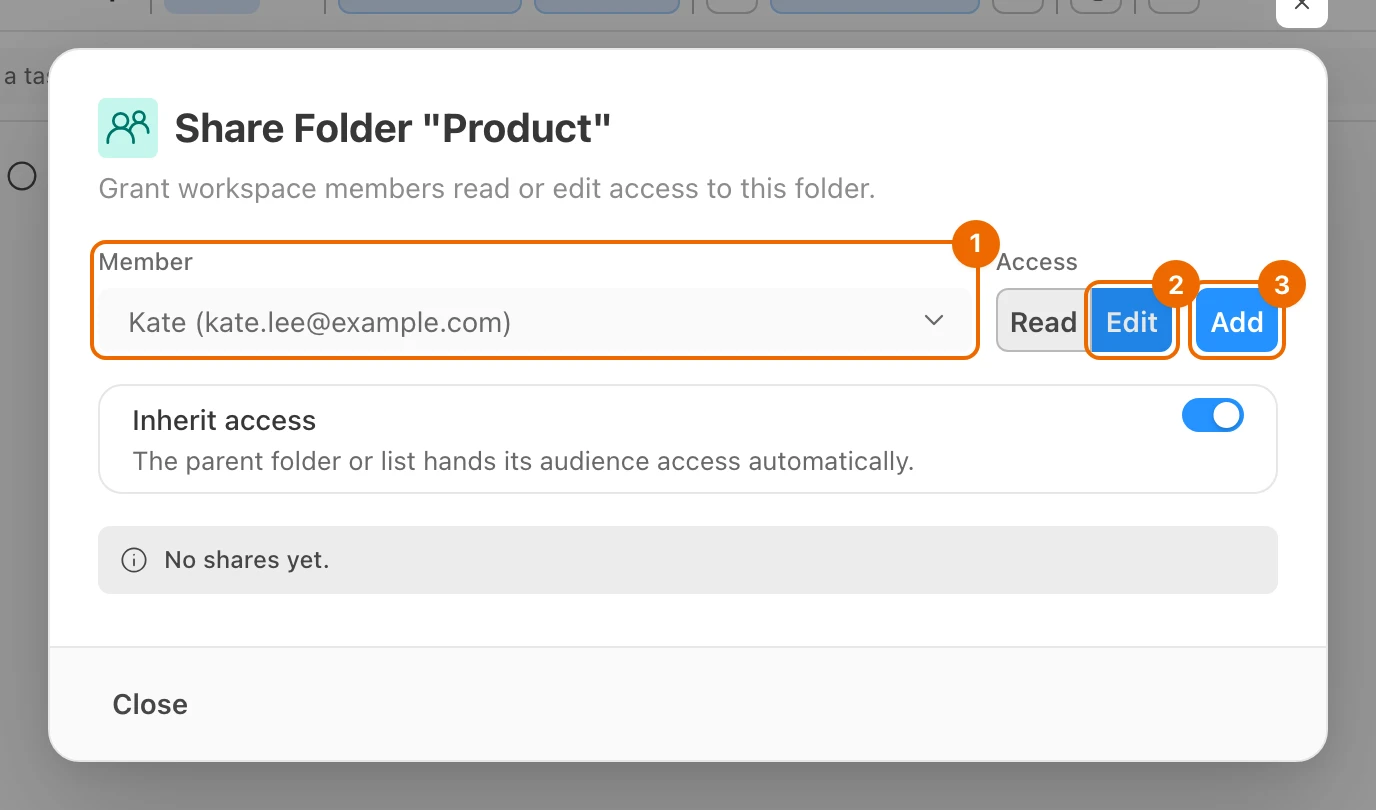
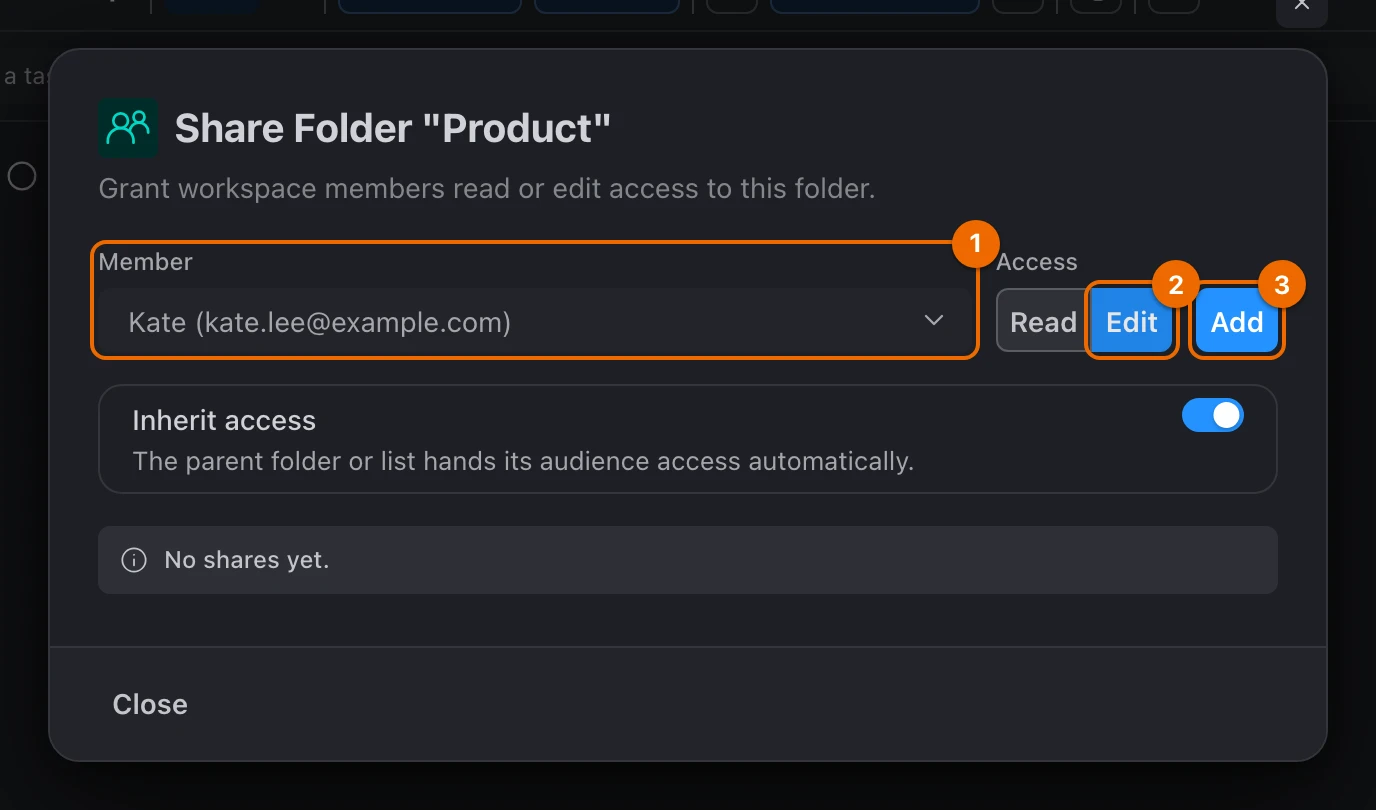
Click Add. Kate appears in the list of people with access.
Add your second member the same way.
Kate now sees:
- Product
- the Roadmap list
- every list you add to the folder later
Your other folders and lists stay hidden from her (Sharing along the hierarchy). Details: Share a folder or a list.
Assign the task and mention Kate
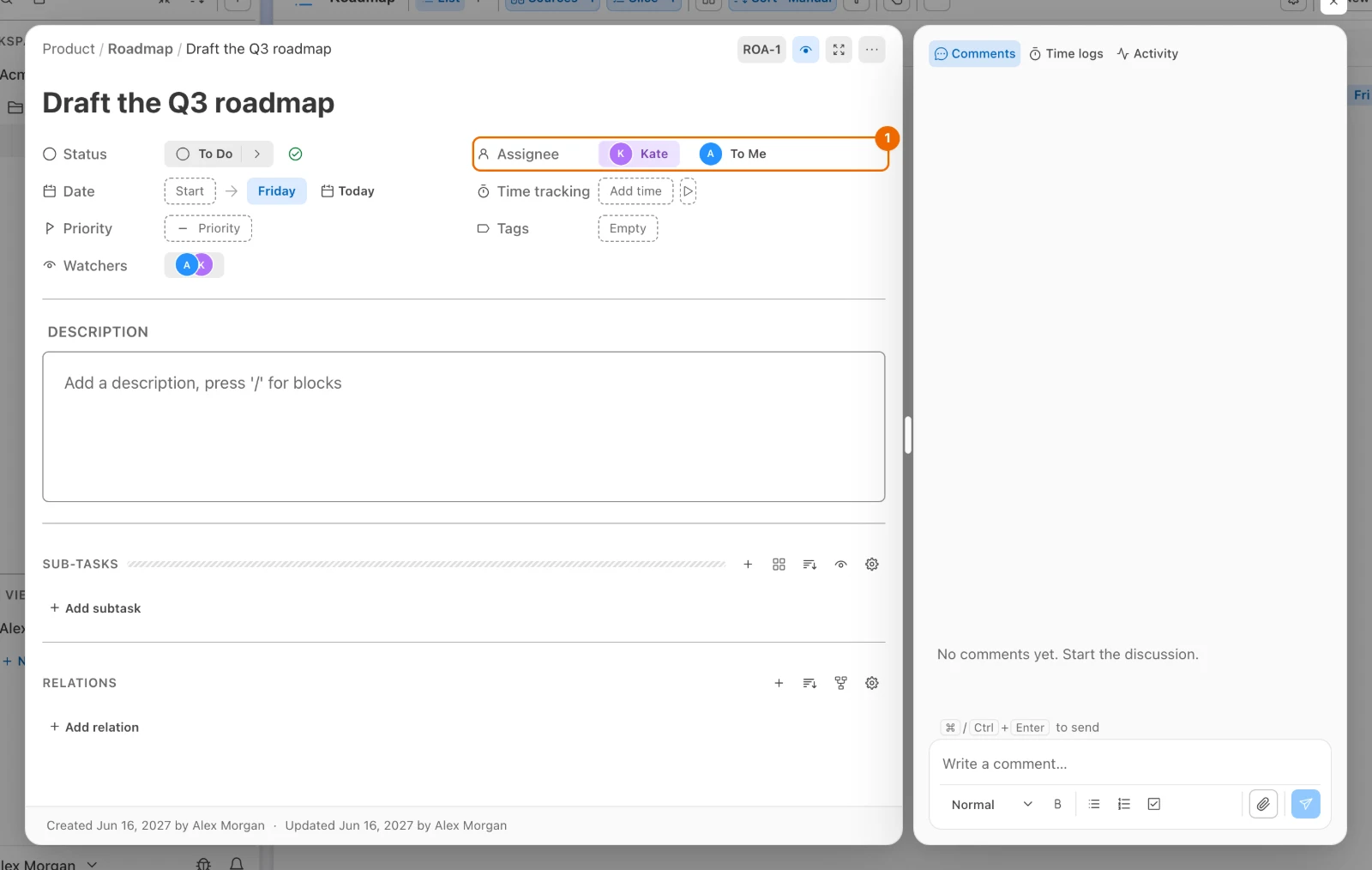
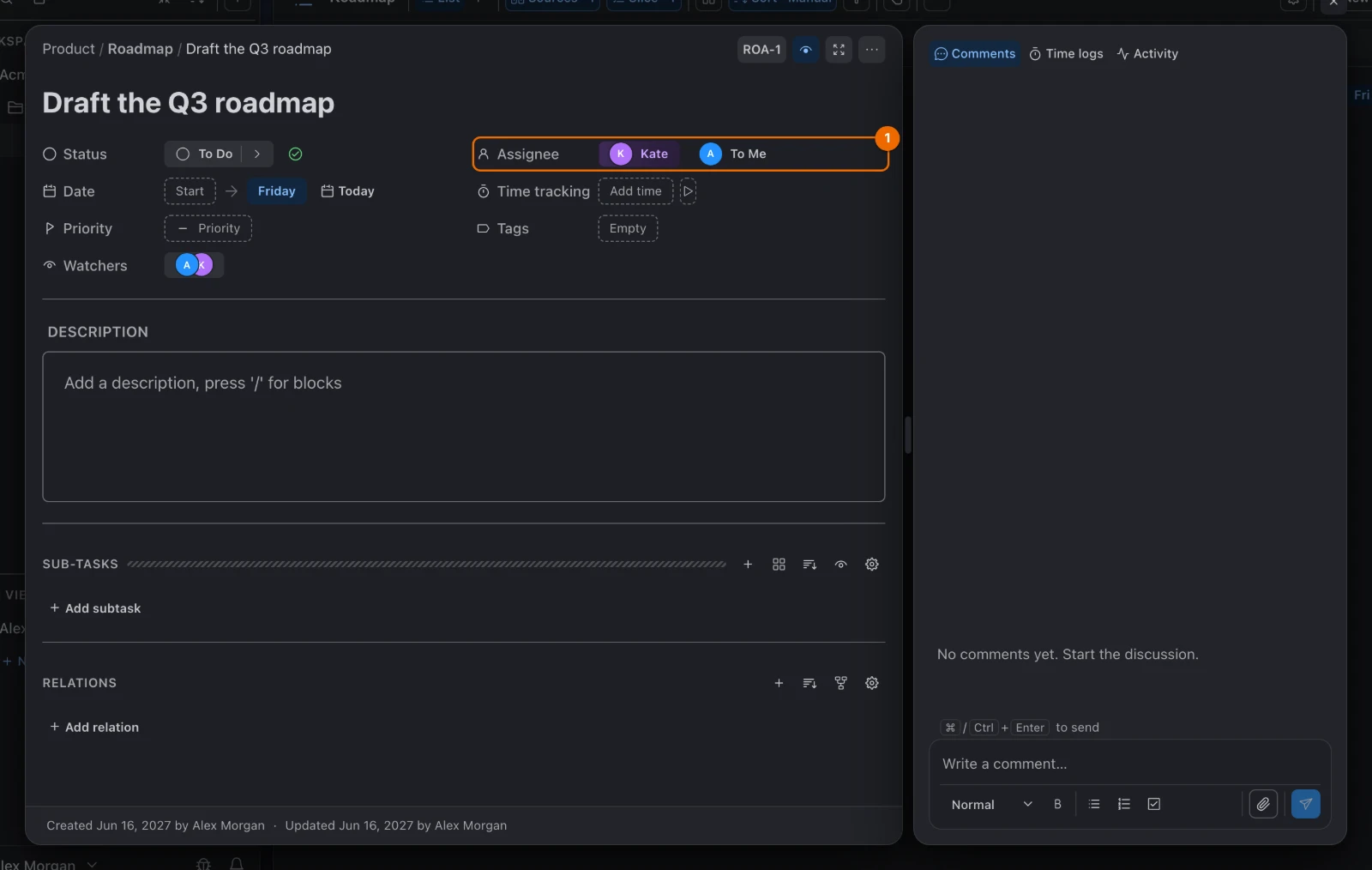
Click Draft the Q3 roadmap. The task opens.
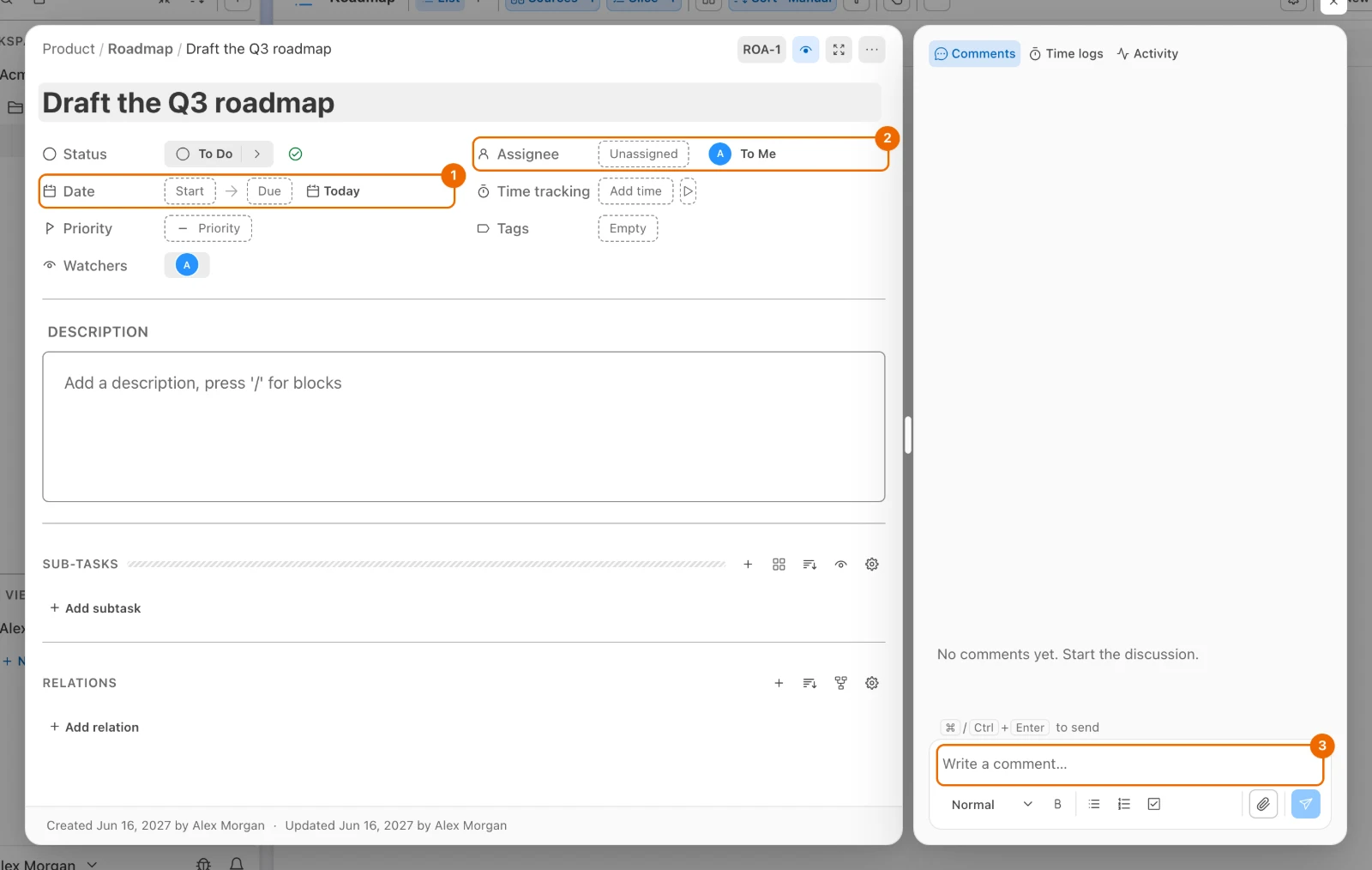
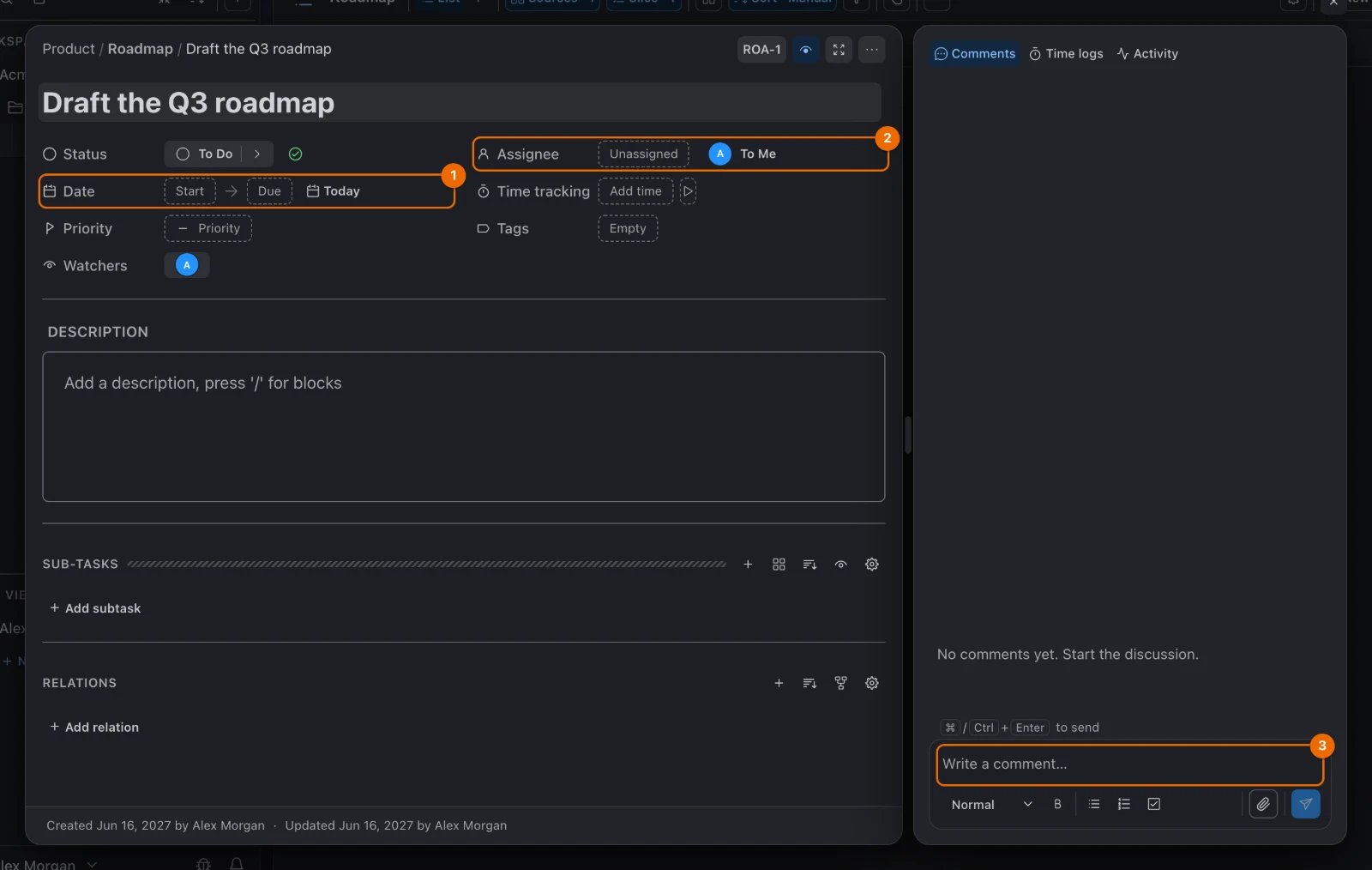
In the Date row, click Due. A calendar opens.
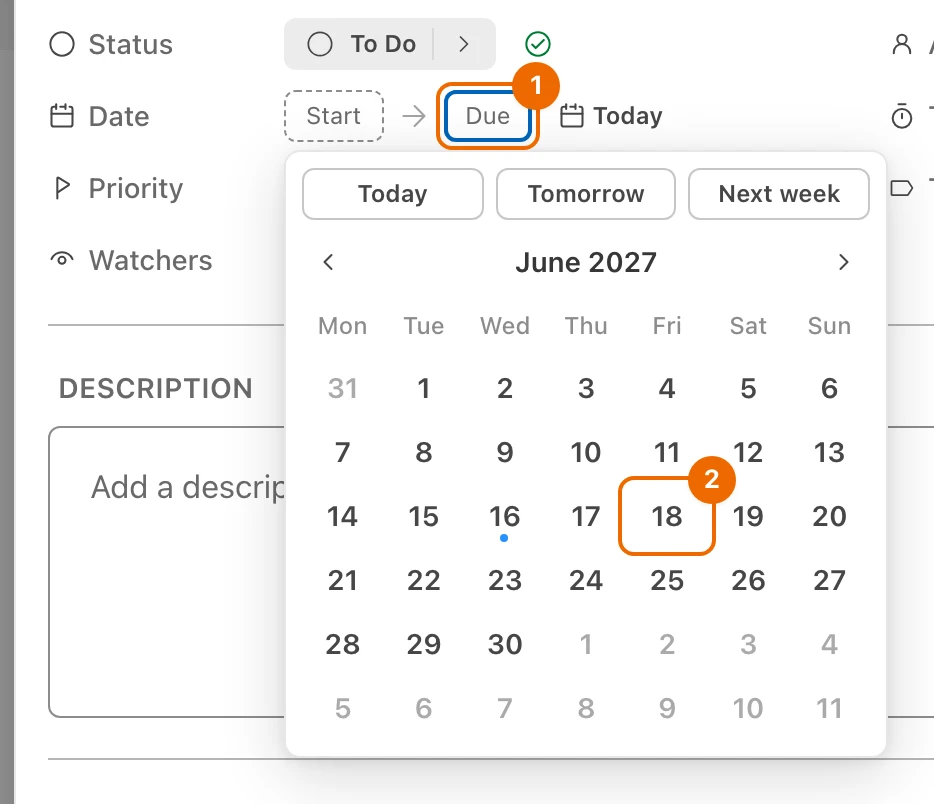
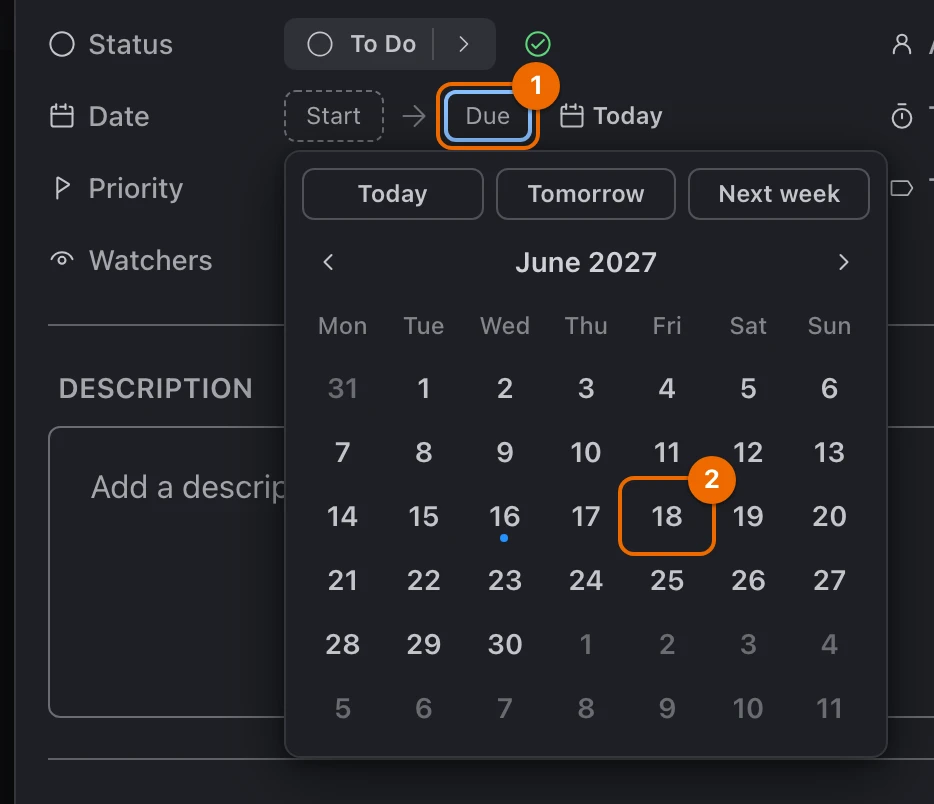
Pick this Friday (task fields). The date shows in the field.
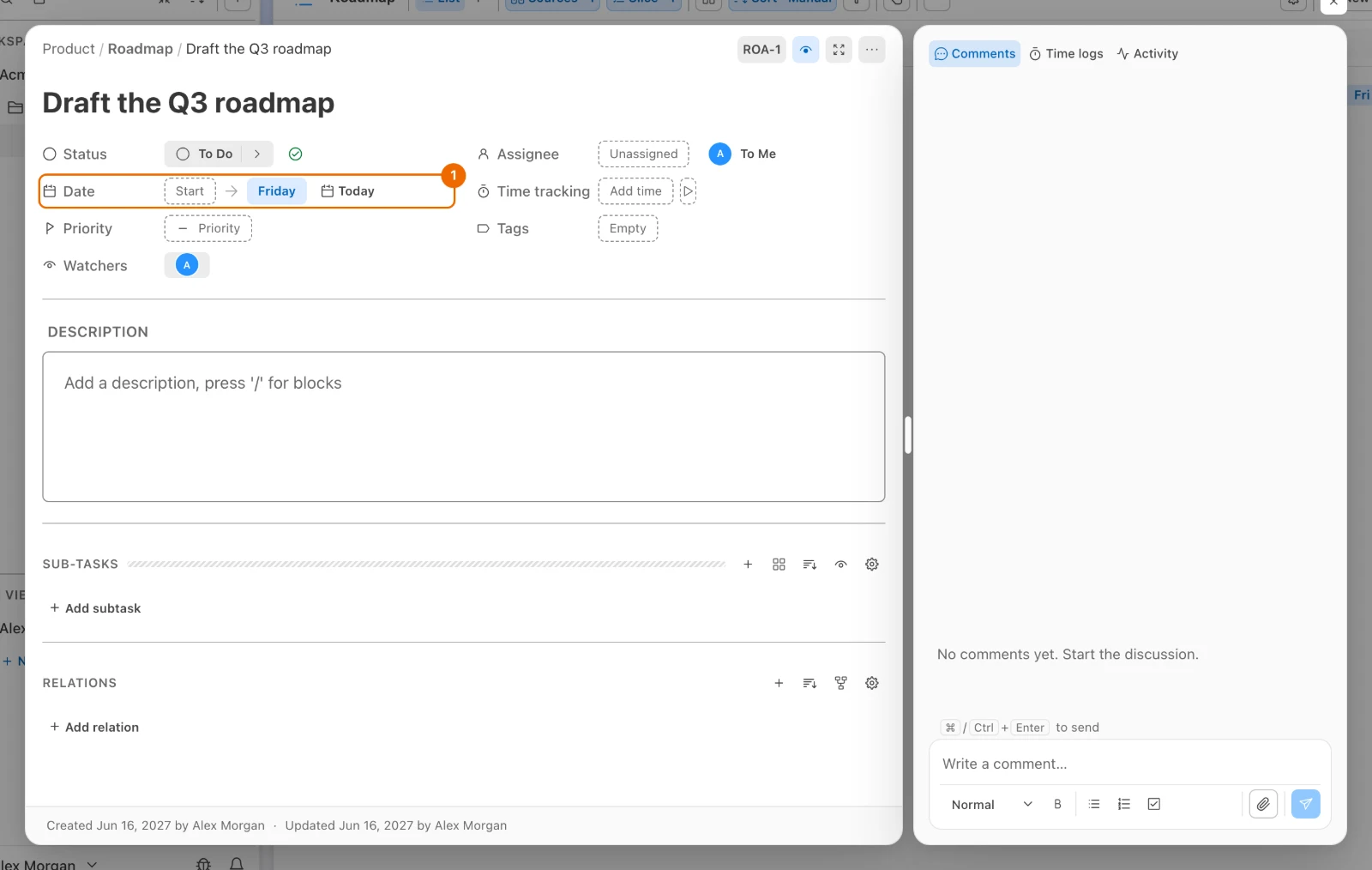
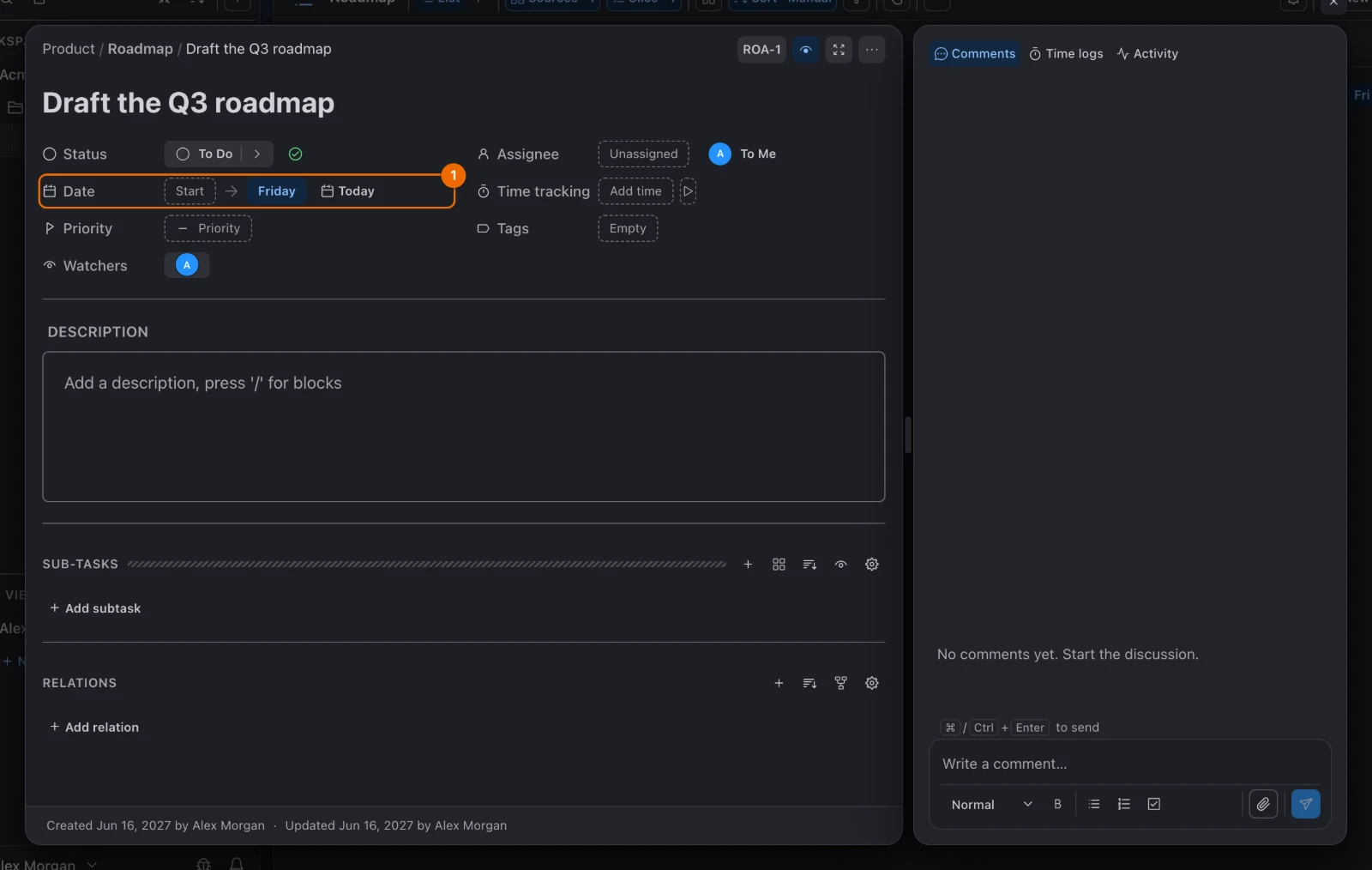
Click Assignee and pick Kate. Her avatar appears in the field.
No Assignee field?
The list was created with Simple list. Open the list's ⋯ → Configure → Features and turn on Assignee (Set up a list).
Click Write a comment… on the right and type @Ka. A list of people appears.
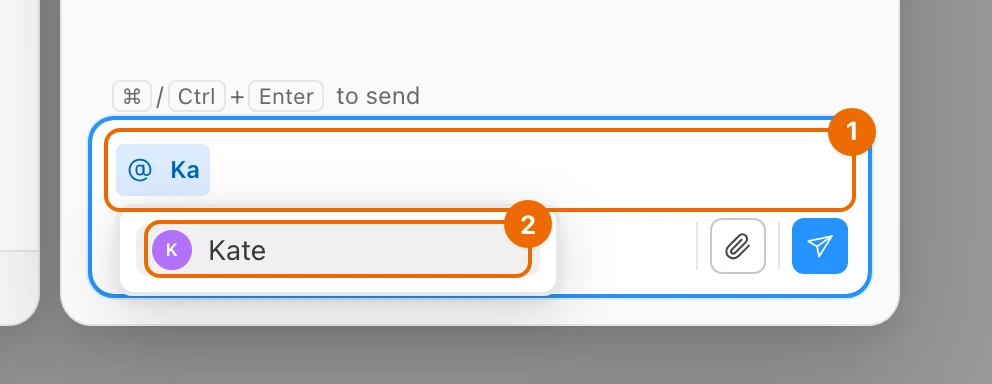
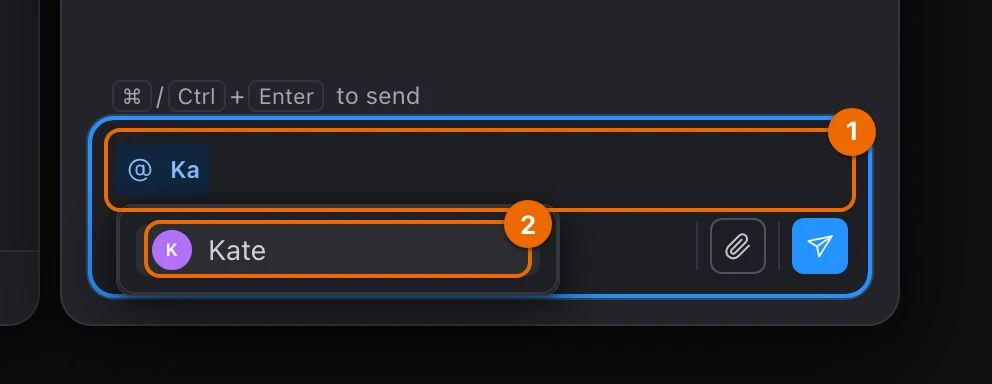
Pick Kate. Her name appears in the comment as a mention.
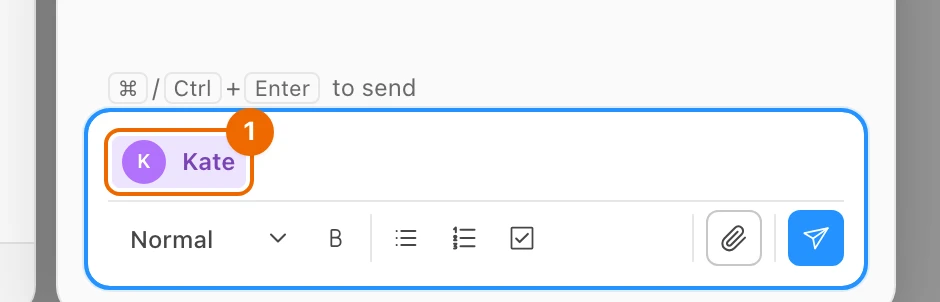
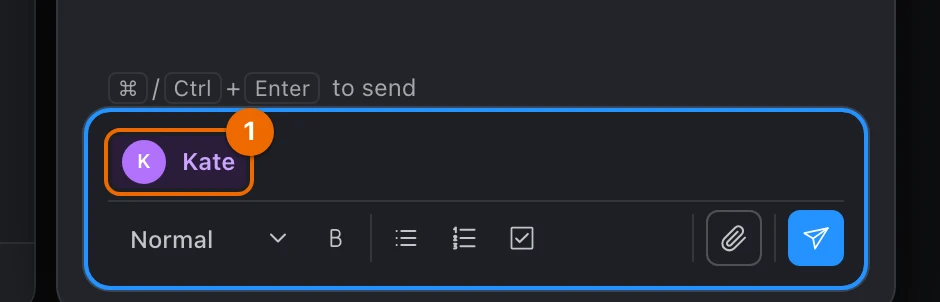
Finish the comment so it reads as below, and press
Cmd/Ctrl+Enter:text@Kate here is the outline from our callThe comment appears in Comments, above the box.
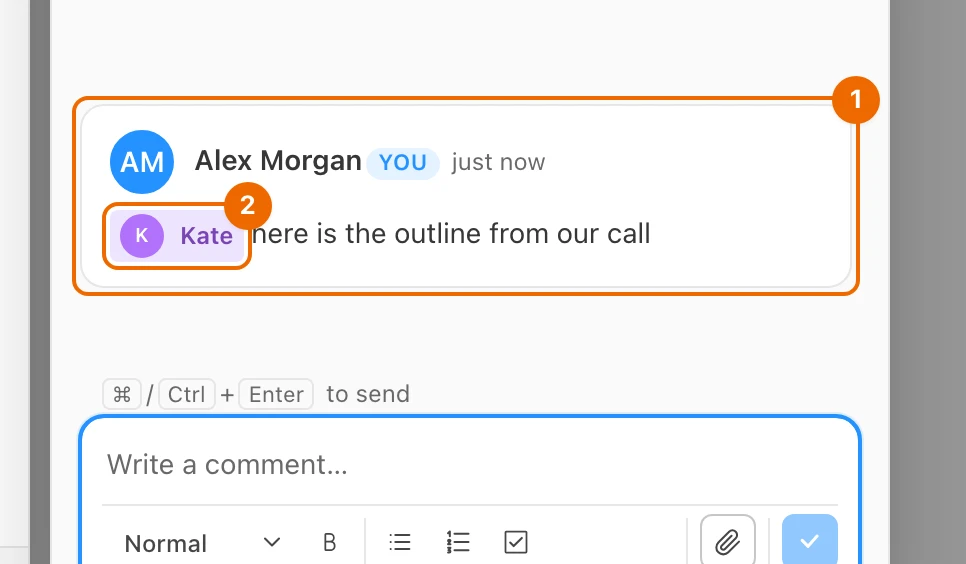
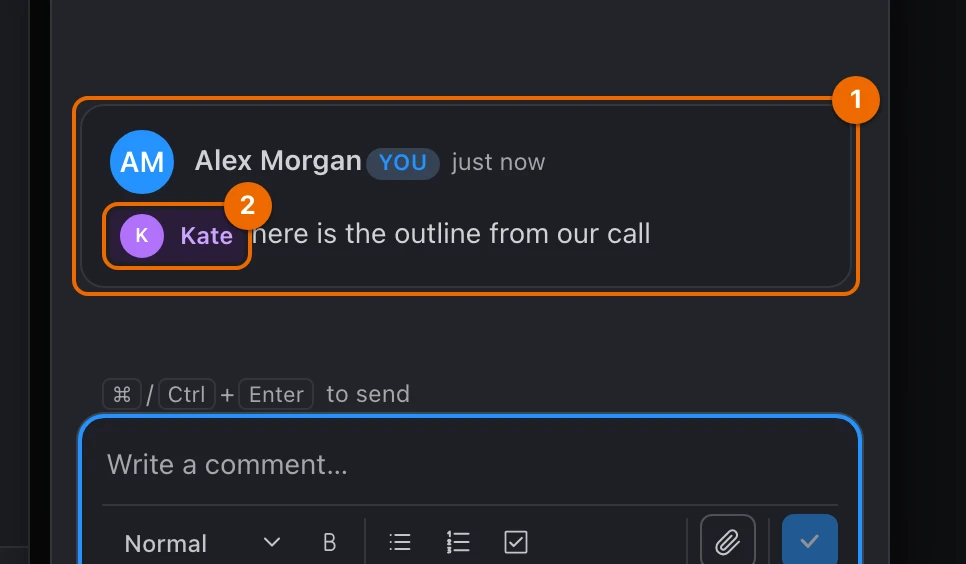
Kate gets "Assigned to you" and "You were mentioned" in her Inbox, and watches the task from now on, so she hears about its next changes. Details: Assign and watch tasks and Comment and mention people.
Live updates as Kate works
Hule shows your team's changes in real time: you don't refresh the page to see them. When Kate opens Draft the Q3 roadmap and gets to work, you see:
- her reply under Comments, briefly highlighted;
- her changes to the task, such as a new status, in the open task and in Roadmap, briefly highlighted;
- a task she adds at the top of Roadmap, under Recently updated, until you click Refresh there;
- her avatar and "Kate is editing…" next to the description while she types in it; you can type in it at the same time (Write a task description).
It works the other way too: the Product folder appeared in Kate's sidebar the moment you shared it, and a folder you stop sharing disappears from it without a reload. Your own changes reach your other tabs and devices the same way. A Scrum Poker round and a GTD session also update live for everyone who has the view open.
Back after a lost connection
If your connection drops or the computer goes to sleep, Hule reconnects on its own and reloads the open view and the sidebar, so changes made in the meantime show up.
Step problems and fixes
- There is no Share… for the folder. Check that you are in your own workspace: only the owner, or members with the right permission set, can share (Permissions and access).
- Kate is not in the Member picker. She has not accepted the invitation yet. Wait for her, or check under Invited in Workspace settings → Members (Invite members and grant permissions).
- The task has no Assignee field. The list was created with Simple list. Open the list's ⋯ → Configure → Features and turn on Assignee (Set up a list).
What you just learned
- A workspace holds folders, and folders hold lists — see Folders inside folders.
- A member sees only what you share with them, and sharing a folder covers everything inside it — see Sharing along the hierarchy.
- A list decides which fields its tasks have; a preset switches them on in one go — see The Hule model.
Where to go next
- Invite members and grant permissions — give a member more rights, such as building their own folders.
- Set up notifications — choose how your team hears about assignments and mentions.
- Create an automation — let Hule do the routine steps.