Automate the routine steps
This recipe is for a team that keeps doing the same small steps by hand. Four automations do those steps for you, each started from a preset.
You need:
- a Support list;
- a Support archive list to move finished tasks into;
- the on-call person as a workspace member.
Turn on the Assignee feature in Support so tasks show who the first automation assigned; a new list starts without it (Turn features on or off).
Automations need permissions
Creating automations needs the Automations permissions, which the Admin set gives (Permissions and access).
Four automations for Support
| Automation | When | Then |
|---|---|---|
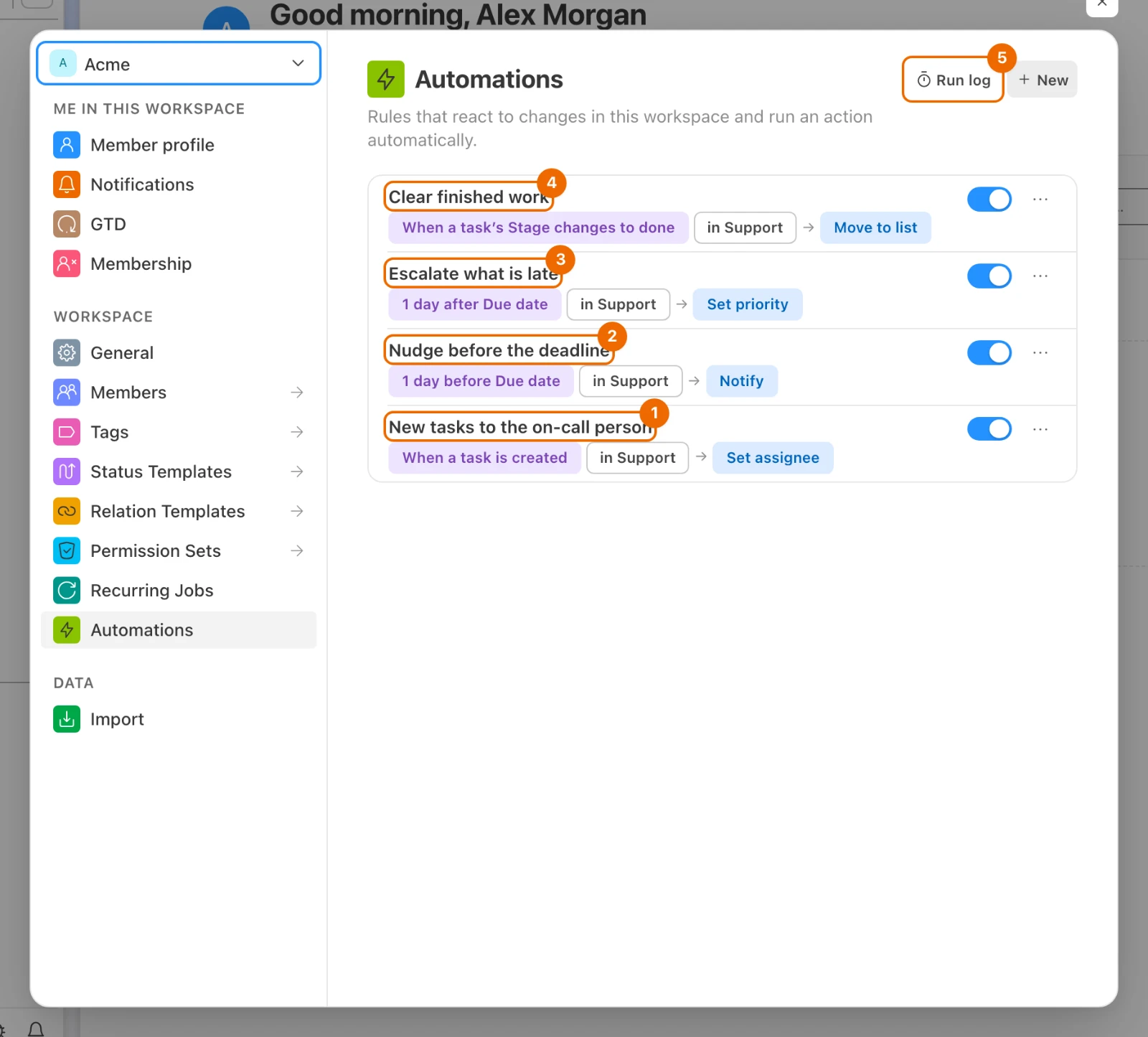
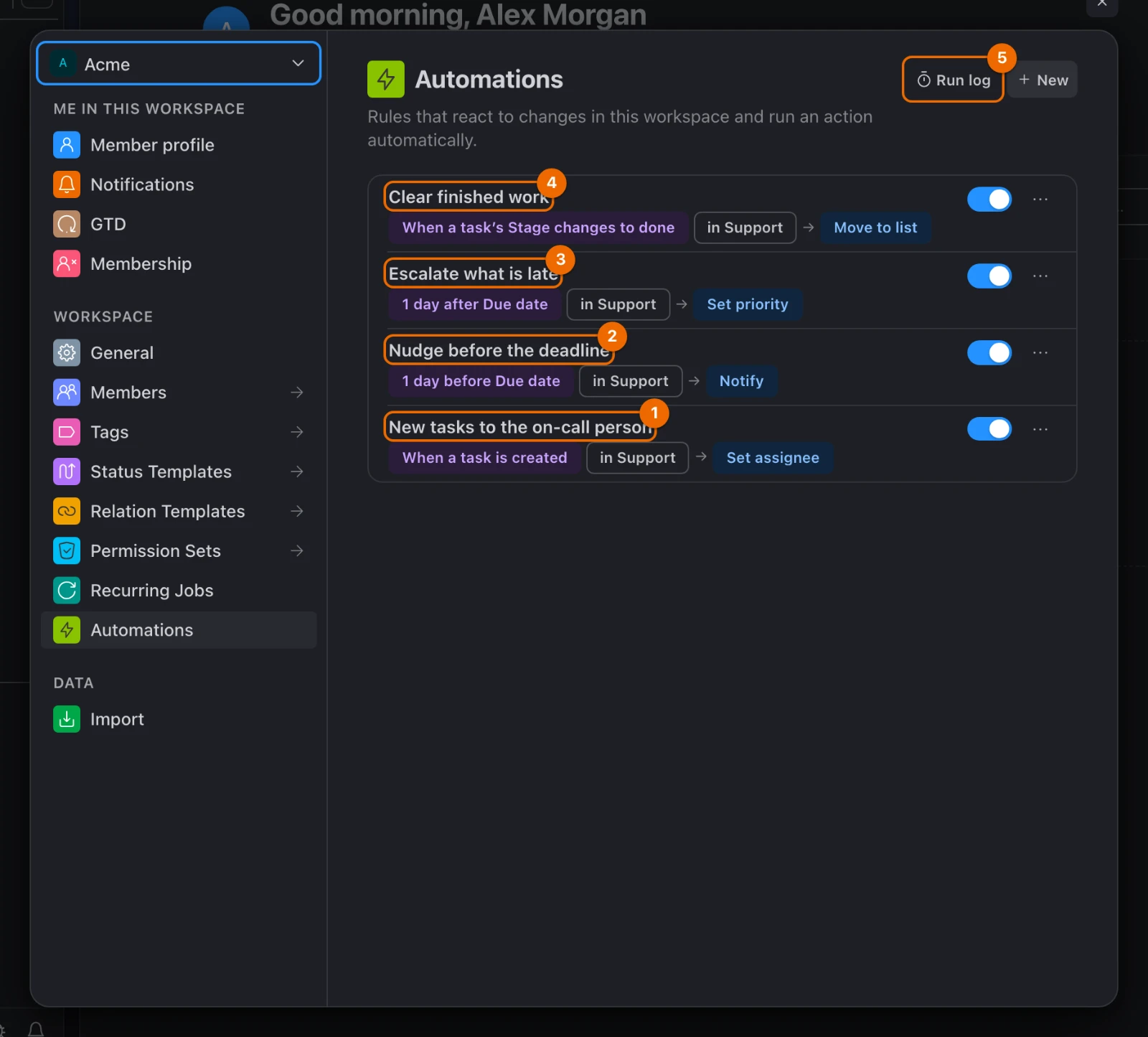
| New tasks to the on-call person | A task is created in Support | Set the assignee to the on-call person |
| Nudge before the deadline | 1 day before a task's due date, at 09:00 | Notify the assignee |
| Escalate what is late | 1 day after a task's due date, if it is still open | Set priority to Urgent |
| Clear finished work | A task in Support reaches the Done stage | Move it to Support archive |
Setup from four presets
Every automation starts the same way (Presets):
Click your name at the bottom of the sidebar and choose Workspace settings; with several workspaces, pick the one with Support in the submenu. The workspace settings open.
Click Automations. The list of automations opens.
Click New. The New automation page shows presets in groups.
Click the preset named in Preset changes per automation. The editor opens with it filled in.
Under Where, set Apply in to List and pick Support.
Make that automation's other changes from Preset changes per automation.
Replace the name in Name with the one from the table, and click Save. "Automation saved" appears, and the automation is in the list with its switch on.
Save names a missing value?
Something the preset leaves open is still empty, and the message names it. Fill it in.
Preset changes per automation
Every trigger, condition and action is in Automation triggers, conditions and actions.
| Automation | Preset | Changes |
|---|---|---|
| New tasks to the on-call person | Auto-assign | Then: turn off Assign to the creator and pick the on-call person. Turn on Only if and add Assignee is empty, so a task assigned at creation keeps its assignee |
| Nudge before the deadline | Due reminder | The trigger fires 3 days before the due date at 09:00: change it to 1 day |
| Escalate what is late | Urgent when overdue | No changes beyond Where |
| Clear finished work | Move when done | Pick Support archive as the list to move to |
Date rules: finished and late tasks
Date rules skip finished tasks: tasks in the Done stage are never reminded or escalated. Urgent when overdue raises each task once, from 09:00 on the day after its due date. Tasks whose due date was two or more days before you save the automation are never raised.
Day to day: run log and on-call changes
Once a week, click Run log on the Automations page and look for Failed runs (Run log). A failed run shows its error next to it.
When the on-call person changes, edit the first automation's Set assignee, or switch it off with Active while nobody is on call (Edit, pause, copy or delete).
Missed runs and fixes
- A run shows Skipped. The log names the reason, such as "A condition didn't hold"; see Run log statuses.
- No run at all. The rule is off: turn on Active.
- A due-date rule logged nothing. No open task in Support was due on the right day.
- Nothing happened after a bulk edit. Skip during bulk operations is on; turn it off in Options.
- The automation switched itself off. It failed 10 times in a row, or its list was deleted: fix it, press Re-enable (Limits).
- New tasks stay unassigned. The on-call person left the workspace: pick a new one in Set assignee (Edit).
Variations: nudges, subtasks, routing, comments
| Goal | Preset | What it does |
|---|---|---|
| Ask for missing details | Description nudge | Comments on new tasks that arrive without a description |
| Close subtasks with the parent | Complete subtasks on done | Completes a task's subtasks one level down when the task reaches Done; deeper subtasks keep their status |
| Route by tag | Route by tag | Moves a task to a chosen list when a chosen tag is added |
| Answer comments fast | Comment ping | Notifies a task's assignee when someone comments on it |