Keep personal and work tasks together
This recipe is for anyone whose day mixes work tasks and life tasks: a report due at 3 pm, a dentist appointment at 5. You keep them in separate workspaces, so your team never sees your errands, and plan both from one personal view that only you see.
Separate workspaces cost two things:
- a task can't move from one workspace to the other;
- tags aren't shared between them.
You need two workspaces: your team's and your own. Hule creates a workspace for you when you sign up, named after you; you get the second when a team invites you into theirs.
Only one workspace?
The app has no button to create a workspace. If the workspace you signed up with is your team's, use the last variation instead.
Day view: the finished setup
Your account
├── Work (workspace, shared with your team)
│   └── … the team's folders and lists
├── Home (workspace, only you)
│   ├── Errands
│   └── Family
└── User Views (only you)
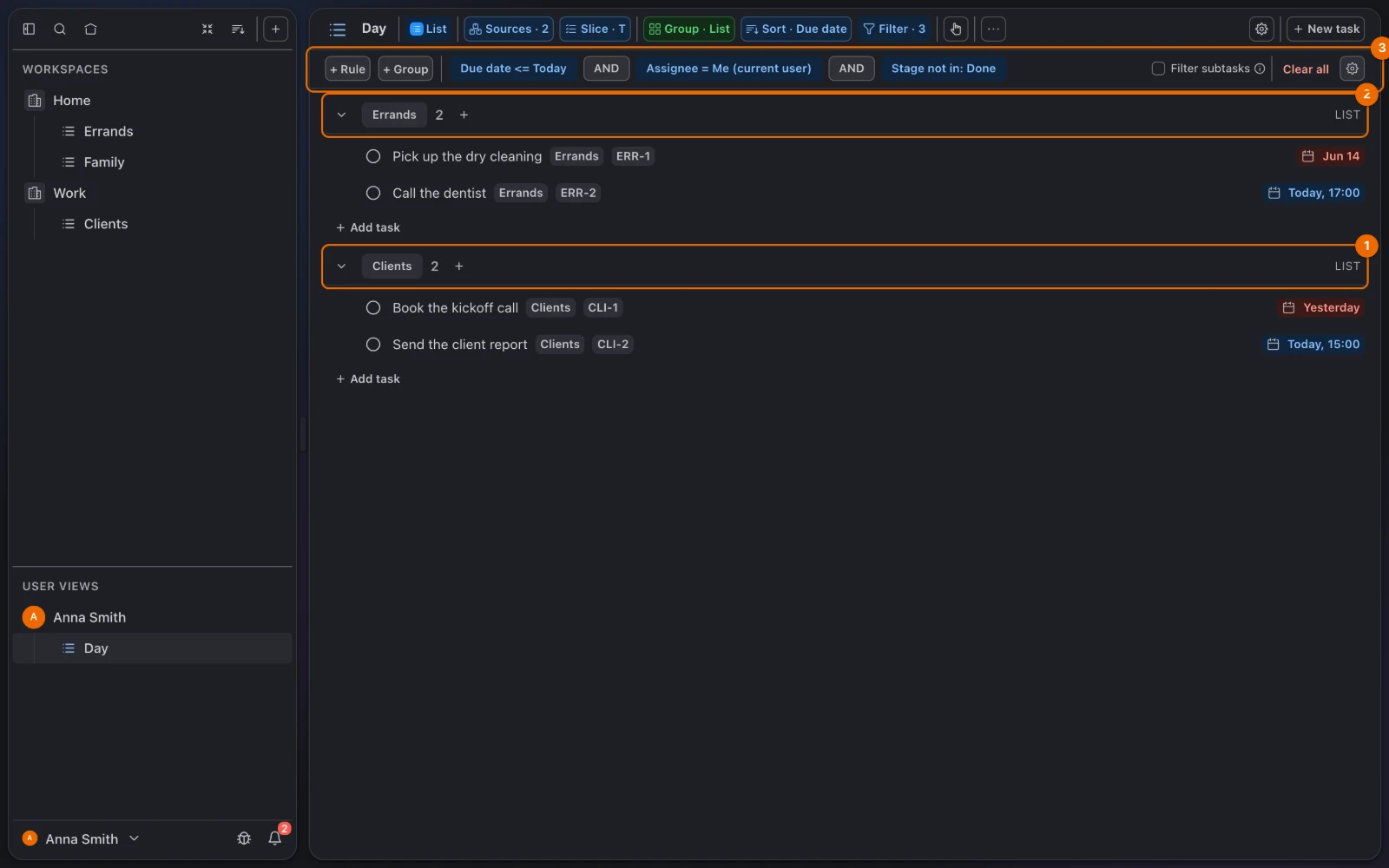
    └── Day: your open tasks due today or overdue, from Work and Home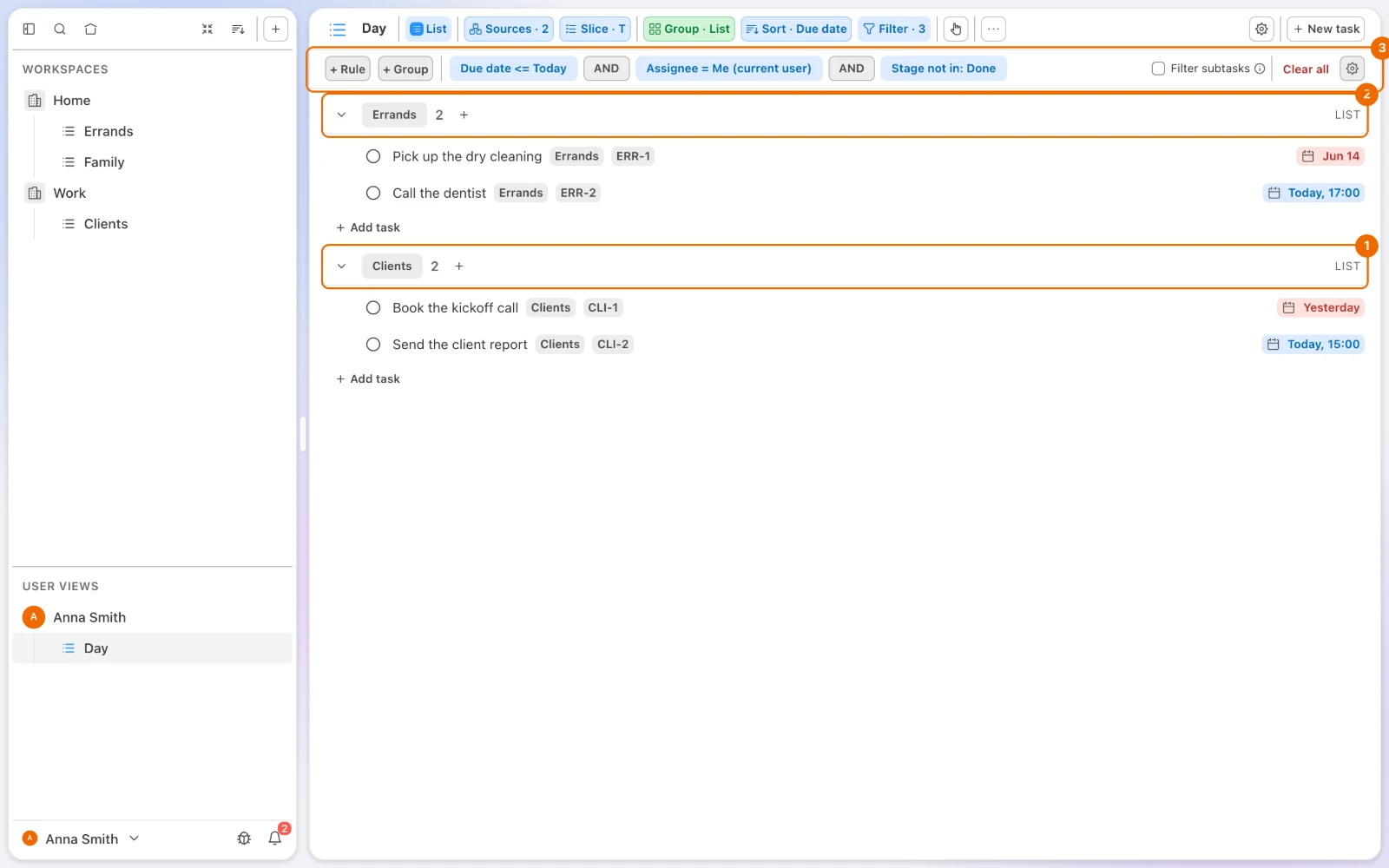
Setup: workspaces, automation, Day view
In the sidebar, under Workspaces, point at your own workspace, click ⋯ and choose Rename; type Home and press
Enter. The sidebar shows Home.In Home, create the lists Errands and Family, and in the list form pick the Teamwork feature preset (Create a list). Tasks in them get an assignee field; the default Simple list leaves it off.
In Home's Workspace settings → Automations, click New, pick Auto-assign and click Save (Presets). Every new task in Home is now assigned to whoever creates it.
In each workspace's Workspace settings, under Me in this workspace → GTD, pick an Inbox list (Inbox list setting). When you start a new task outside a list, the form opens on the Inbox list of the workspace you last worked in.
In the sidebar's User Views, point at the row with your name, click + and choose New view (Create the view). The view form opens.
Name it Day and set Display Mode to List.
Under Source, pick Work and Home, then click Create. The view opens with every task from both workspaces.
New tasks from Day
Day belongs to no workspace: check the List field before you save a task you start there.
Click Filter and add three rules with + Rule (Today's filter):
- Due date · on or before / ≤ · Today (Relative);
- Assignee · is · Me (current user);
- Stage · none of · Done.
Click Save on the strip. The list shrinks to what is due today or overdue.
Unassigned tasks drop out
The Assignee rule hides tasks with no assignee. Tasks created before step 3 have no assignee. Set Assignee on them, or make the rule "Assignee is Me (current user) or is empty": Assignee: yours or nobody's.
Open Group and pick List (Group by list). Each list gets its own group, so Errands never mixes with the team's lists.
Right-click Day in the sidebar and choose Set as home (Home page). Hule now opens on Day.
Daily use
Plan the day once. Day shows your open tasks due today or overdue from both workspaces. Set the Due date of what won't fit to tomorrow: it leaves Day until then.
Work on a task from the view. Opening a task from Day shows it on top of the view, with its own list's statuses, people and comments. You don't need to switch workspaces.
Capture on the go. Send the Telegram bot the task, for example:
text/new Call the dentist tomorrowConnect the bot first
Link your Telegram account first: Add tasks from Telegram.
It asks which list to use and offers your lists grouped by workspace, up to 24 buttons (Add tasks from Telegram).
Find anything. Press ⌘K (Mac) or Ctrl+K (Windows, Linux) to search all your workspaces (Search every workspace).
Day view troubleshooting
Day doesn't show your home tasks. Click Sources in the view's header and add Home (Sources: where a view looks). Or the tasks have no due date or aren't assigned to you. Set Assignee on tasks created before the automation, or change the rule to "Assignee is Me (current user) or is empty"; see Assignee: yours or nobody's.
A tag filter misses tasks. Tags belong to one workspace each. Two tags called urgent in Work and Home are two different tags: pick both in the filter; see Tags from several workspaces.
Your team sees a personal task. It was created in a Work list. A task can't move to another workspace: create it again in a Home list, then delete the one in Work (Task menu).
Deleting can't be undone
Deleting the Work task removes it and its subtasks for good, with its comments and history. Copy anything you need into the new task first.
Variations: more jobs, a calendar, one workspace
- Several jobs. Add every workspace you belong to as a source of Day.
- A calendar of your life. Make a second personal view over the same sources with Display Mode set to Calendar (Calendar).
- One workspace only. Keep a Home folder at the workspace's top level and don't share it (Split a team's work into folders). A top-level folder that no one is given access to stays hidden from other members. Only these people see it:
- you;
- the workspace owner;
- members whose permission set has See all or Edit all for folders.