---
url: /guides/run-a-gtd-session.md
description: >-
Go through your Inbox list one task at a time and decide what each task is and
where it goes.
---
# Run a GTD session
Run a GTD session when your [Inbox list](/guides/capture-to-inbox#inbox-list-setting) has
filled up and you want it empty: Hule shows you one task at a time and asks the questions of the
[GTD](/concepts/gtd) method, from "Is it actionable?" to "Who does it, and when?". Each decision
applies as soon as you confirm it, and it can't be undone from the session, so you finish with
[Inbox zero](/concepts/gtd).
A session runs in a [view](/concepts/views) of the **GTD** view type. It is most useful on your
Inbox list, the list where you [capture your tasks](/guides/capture-to-inbox).
On a [shared view](/concepts/sharing), everyone who can open the view takes part; the person who
starts the session is its facilitator, who ends it.
## Before you start
You need:
* a list with tasks to sort, such as your Inbox list;
* one or two other lists where the sorted tasks will live, for example **Personal** and **Work**
([Organize folders and lists](/guides/organize-folders-and-lists)).
## GTD view on your Inbox list
You do this once.
1. In the sidebar, open the **…** (**More actions**) menu of your Inbox list and choose **New
view**.
The new view form opens.
::: warning No New view in the menu?
**New view** shows in a list's menu only if you may edit the list
([permissions and access](/reference/permissions-and-access)).
:::
2. In **Name**, type **Clarify**.
**Create** becomes available.
3. In **Display Mode**, choose **GTD**.
The view's icon changes to the GTD icon.
4. Click **Create**.
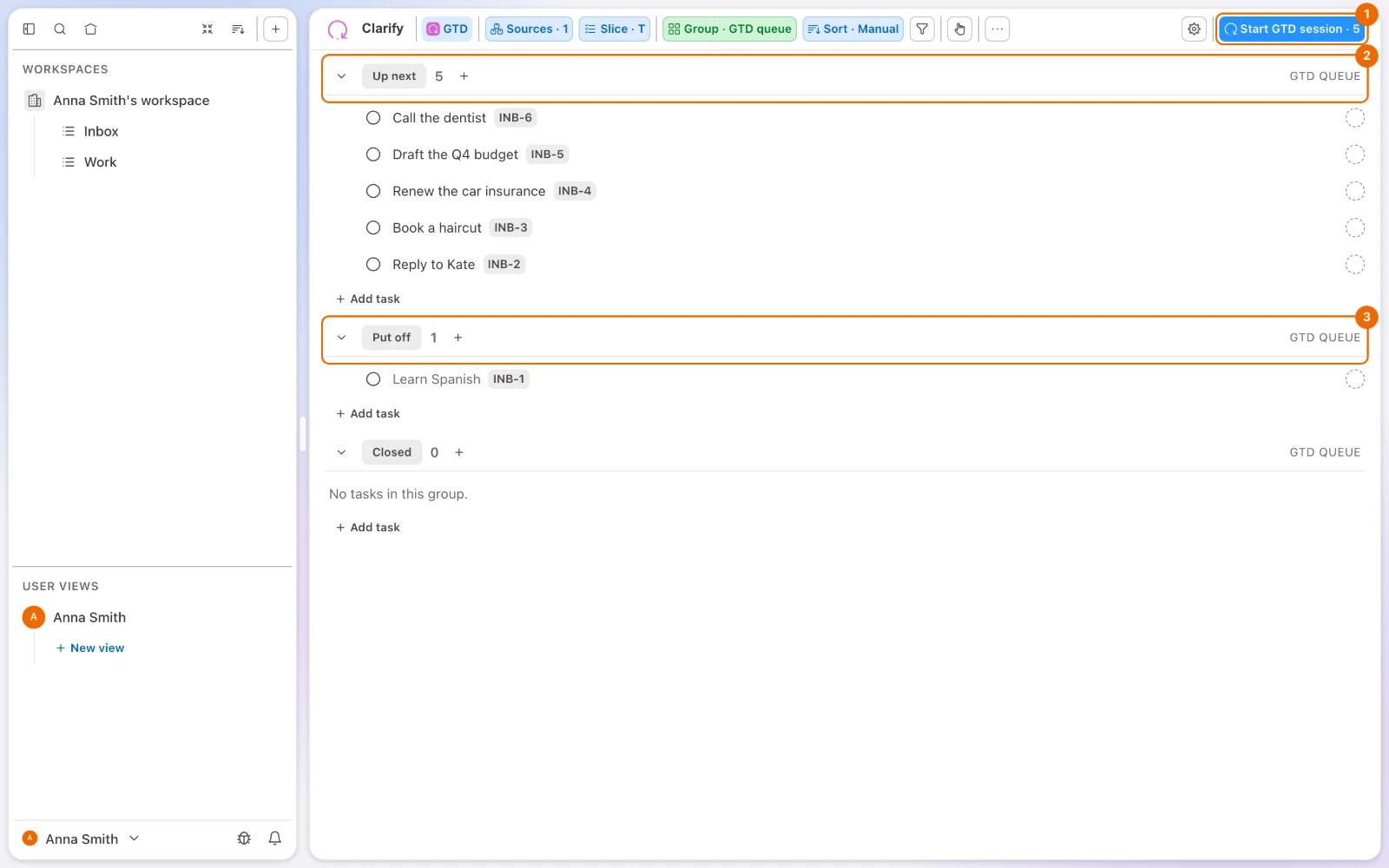
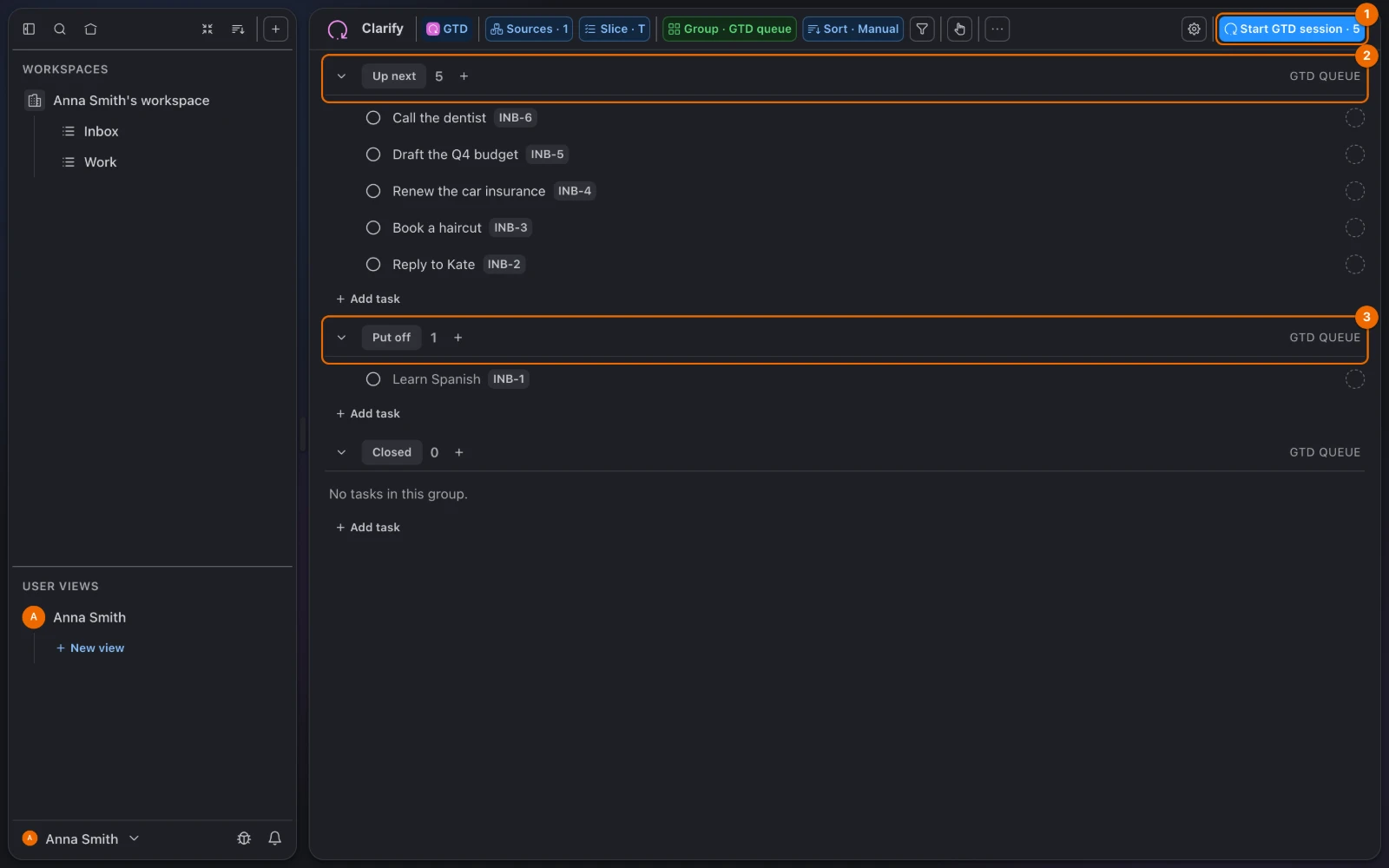
The view opens with your tasks grouped by **GTD queue**
([grouping](/reference/view-grouping#groupable-fields)); the session takes the tasks under
**Up next**, except muted ones (see [If it doesn't work](#if-it-doesn-t-work)). Start and due
dates are shown in the task rows by default. If nothing is waiting, the view shows **Inbox
zero** instead.
{.light-only}
{.dark-only}
## Decision path in a session
Every task takes one road through these questions. The labels on the arrows are the choices the
session panel offers.
```mermaid
flowchart TB
T["Task from Up next"]
A{"Is it actionable?"}
R["What is the desired outcome?
Steps are optional"]
W{"Who does it, and when?"}
NOW["Two-minute timer, then Done:
task closed"]
SCH["Moved to a list, or kept with a later start;
assigned to you, dates optional"]
DEL["Moved to another list;
assignee and follow-up date optional"]
X{"Then it is…"}
TR{"Delete it, or keep a record?"}
KEEP["Kept under a status you pick"]
GONE["Deleted with its history"]
SOME["Stays in its list;
back in Up next on the return day"]
T -- "asks" --> A
A -- "Yes, it's actionable" --> R
R -- "Continue" --> W
W -- "I'll do it now" --> NOW
NOW -- "I didn't make it" --> W
W -- "Schedule it and do it myself" --> SCH
W -- "Delegate it" --> DEL
A -- "No" --> X
X -- "Trash" --> TR
TR -- "Keep" --> KEEP
TR -- "Delete" --> GONE
X -- "Someday / maybe" --> SOME
```
After each decision, the panel opens the next task.
## Clarify each task
1. Click **Start GTD session**. The button shows how many tasks are waiting.
A panel opens beside the first task, with the counter **… of … clarified** at its bottom.
::: warning Start button greyed out?
If the view has just opened, wait for the session to load. Otherwise nothing is waiting: the
view shows **Inbox zero**, with a hint on when put-off tasks come back. The session takes only
tasks in lists you may edit ([permissions and access](/reference/permissions-and-access)).
:::
2. Answer **Is it actionable?**
* **Yes, it's actionable**: go on to step 3.
* **No**: choose what it is instead (see [Not actionable](#not-actionable-trash-or-someday)).
3. **Desired outcome** starts with the task's title. Change it to what will be true when it's
done.
It becomes the task's title.
4. If it takes several actions, add them under **Steps — optional**. Press `Enter` in a step to
add the next one.
Each step becomes a [subtask](/guides/break-down-with-subtasks), and the panel marks the task
as a **Project**: in GTD, an outcome that takes more than one action is a project.
::: warning No Steps field?
Adding steps creates subtasks, so it needs permission to create tasks in that list
([permissions and access](/reference/permissions-and-access)).
:::
5. Click **Continue**. In **Desired outcome** you can press `Enter` instead; in a step, press
`Cmd+Enter` (`Ctrl+Enter` on Windows and Linux).
The panel asks **Who does it, and when?**
## Next action: who and when
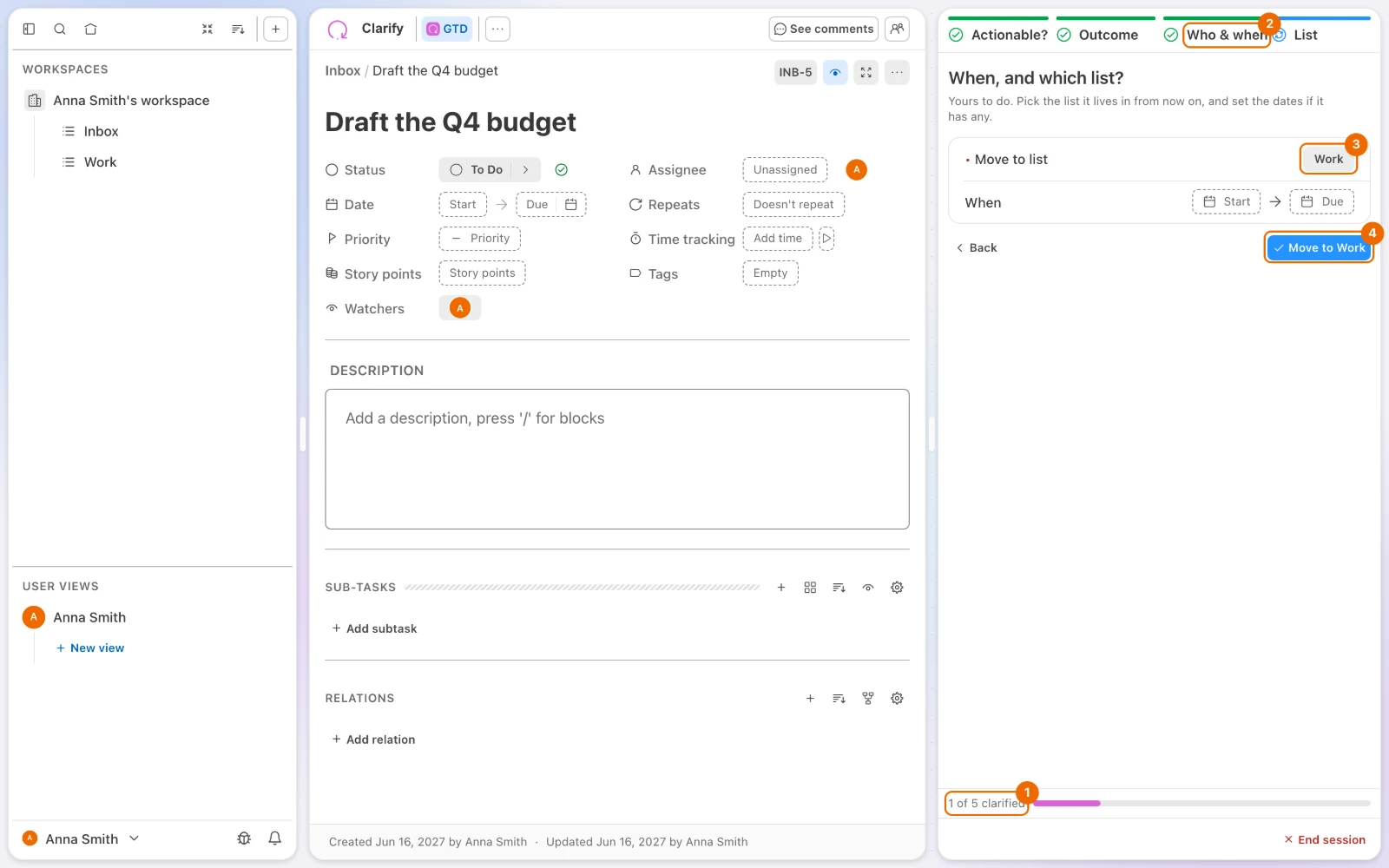
1. Choose who does it and when:
| Choice | What it does |
|---|---|
| **I'll do it now** | Starts a two-minute timer. Click **Done**, and the task closes under its list's done [status](/concepts/statuses), assigned to you. |
| **Schedule it and do it myself** | Moves the task to the list you pick in **Move to list**, with dates in **When** if it has them, and [assigns](/guides/assign-and-watch-tasks) it to you. |
| **Delegate it** | Moves the task to the list you pick in **Move to list**. **Assign to** a person and set a follow-up date as the [due date](/reference/task-fields) in **When**. Both are optional. |
The panel shows the settings for your choice.
::: info The two-minute rule
In [GTD](/concepts/gtd), anything under two minutes is done at once: that is **I'll do it
now**. If the timer runs out, click **I didn't make it** to choose again.
:::
::: warning No I'll do it now?
A task with steps is a project and can't be done in two minutes; a list without a closing
status can't close it ([Change statuses](/guides/set-up-a-list#change-statuses)). Choose
**Schedule it and do it myself**.
:::
{.light-only}
{.dark-only}
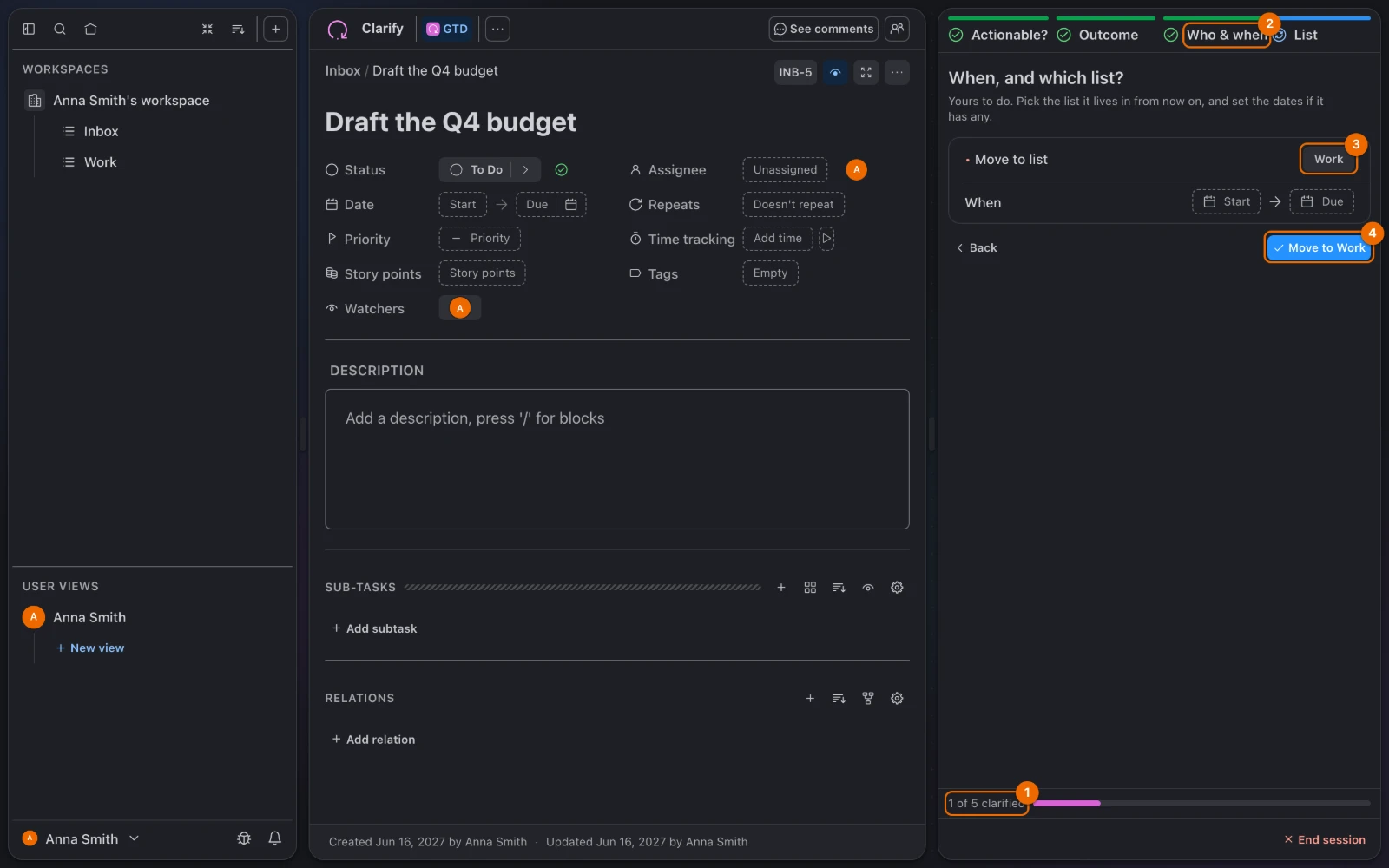
2. Click the confirm button, for example **Move to Work**.
The next task opens, and the counter goes up by one. If the button says **Pick another
list** or your list is not in **Move to list**, see [If it doesn't work](#if-it-doesn-t-work).
## Not actionable: trash or someday
After you answer **No** to **Is it actionable?**, the panel asks **Then it is…**
1. Choose **Trash** or **Someday / maybe**.
The panel asks **Delete it, or keep a record?** or **When does it come back?** If **Someday /
maybe** says "This list keeps no start date", see [If it doesn't work](#if-it-doesn-t-work).
2. For **Trash**, choose **Keep** or **Delete** in **What to do**.
**Keep** keeps the task as a record that search still finds.
::: warning Only Keep under Trash?
**Delete** shows only if you may delete tasks in that list
([Permissions and access](/reference/permissions-and-access)).
:::
3. Set where it goes:
* **Keep**: pick the list in **Where to keep it** and a status in **Under which status**.
Kept in the same list, pick a status in the **Done** [stage](/concepts/statuses), or the
task comes back next session.
* **Someday / maybe**: **Returns on** starts a month from today (or on the task's due date,
if that comes sooner). Change it if you like.
4. Click the confirm button:
* **Keep**: **Keep as …**, or **Move to …** when that list has no statuses;
* **Delete**: **Delete the task**;
* **Someday / maybe**: **Put off until …**.
The next task opens. A task put off stays in its list and returns to **Up next** on that day.
::: danger Delete can't be undone
**Delete the task** removes the task with its history. There is no undo.
:::
## Finish the session
When the last task is done, **Inbox zero** replaces the task card, and the panel lists your
decisions (**Decisions · …**).
1. To hand a shared session over, click **Choose facilitator** (the people icon) in the view
header and pick a member.
They become the facilitator.
2. The facilitator clicks **Back to the list** to end the session; others see who will end it.
To stop earlier, the facilitator clicks **End session** in the view header.
::: warning No Choose facilitator, End session or Back to the list?
Only the facilitator or a workspace admin
([Permissions and access](/reference/permissions-and-access)) hands a shared session over or
ends it. Everyone else sees who ends it.
:::
::: info Your place is kept
A session survives a page reload or a closed tab: open the view again and carry on where you
left off.
:::
## Five-task example session
A session over the Inbox list shown above takes the five tasks under **Up next**. **Learn
Spanish** waits under **Put off**, so the session skips it.
| Task in the Inbox list | Your answers | Result |
|---|---|---|
| Call the dentist | Actionable → I'll do it now → **Done** | Closed on the spot, assigned to you |
| Draft the Q4 budget | Actionable → steps "Collect invoices", "Fill in the template" → Schedule it and do it myself, list **Work**, due Friday | Project in **Work** with 2 subtasks, assigned to you |
| Renew the car insurance | Actionable → Delegate it, list **Personal**, assign to Alex, follow-up Saturday | Waits in **Personal**, due Saturday |
| Book a haircut | Not actionable → Someday / maybe, returns in a month | Back in **Up next** in a month |
| Reply to Kate | Not actionable (you already called her) → Trash → Delete | Gone with its history |
## If it doesn't work
* **Start GTD session is greyed out.** Nothing in the view is waiting, because every task left
is one of these:
* done;
* put off to a later day;
* in a list you may not edit ([permissions and access](/reference/permissions-and-access)).
If the view has just opened, wait for the session to load first. If tasks are put off, the
**Inbox zero** hint says how many and when the next one comes back.
[Capture](/guides/capture-to-inbox) something new, or wait for that day.
* **Some tasks look muted.** The session skips them. A task is muted when it is:
* put off to a later day;
* done;
* in a list you may not edit ([permissions and access](/reference/permissions-and-access));
* a subtask shown under its parent task: the session takes the parent, not its subtasks.
Clarify the parent; its subtasks come with it. For a list you may not edit, ask for **Edit**
access to it ([permissions and access](/reference/permissions-and-access)).
* **Someday / maybe says "This list keeps no start date".** Open the list's **…** menu, choose
**Configure**, then **Features**, and turn on **Start Date**
([Turn features on or off](/guides/set-up-a-list#turn-features-on-or-off)). Or move the task to
a list that has one.
* **I'll do it now is missing.** The task has steps, or its list has no status that closes a
task ([Change statuses](/guides/set-up-a-list#change-statuses)). Choose **Schedule it and do it
myself** instead.
* **The confirm button says "Pick another list".** Left in the Inbox list, the task would come
back next session. Pick another list, or, to schedule the task and keep it here, a
[start date](/reference/task-fields) still to come in **When**. The list needs the **Start
Date** feature ([Turn features on or off](/guides/set-up-a-list#turn-features-on-or-off)).
* **Your list is not in Move to list.** The picker offers only lists you may move tasks into
([permissions and access](/reference/permissions-and-access)).
* **Trash offers only Keep.** You may not delete tasks in that list
([permissions and access](/reference/permissions-and-access)). Keep it under a closing status.
* **A task you kept with Trash is back in the next session.** You kept it under an open status in
the same list. Keep it under a status in the **Done** stage
([Change statuses](/guides/set-up-a-list#change-statuses)), or in another list.
* **Trash → Keep asks you to pick another list.** The list has no statuses to keep the task
under ([Change statuses](/guides/set-up-a-list#change-statuses)). Pick another list to keep it
in.
* **A task you scheduled is back in Up next.** You kept it in the Inbox list with a start date,
and that day has come. [Move it](/guides/create-and-edit-tasks#task-menu-duplicate-move-delete)
to another list if it shouldn't come back.
## Related
* [GTD in Hule](/concepts/gtd): the five steps of the method and the feature behind each.
* [Capture tasks to your Inbox list](/guides/capture-to-inbox): fill the Inbox list you clarify
here.
* [View grouping](/reference/view-grouping): the **GTD queue** grouping and the others.
* [Run a weekly review](/recipes/weekly-review): the review that follows your sessions.